> ## Documentation Index
> Fetch the complete documentation index at: https://buttercms.com/docs/llms.txt
> Use this file to discover all available pages before exploring further.
# Team directory
> Create a complete staff directory via ButterCMS Collections, which can be referenced by Pages or queried directly.
## What you'll build
A team member directory that includes:
* Staff profiles with photos, roles, and contact info
* Department organization
* Filtering by department or role
* Individual profile pages
* Integration with other content types
## Step 1: create a departments collection
First, create a Collection to store department information:
1. Go to **Content Types** → **Collections**
2. Create a new Collection called "Departments"
3. Add fields:
* **Name** (Short Text) - Department name
* **Slug** (Short Text) - URL-friendly identifier
* **Description** (Long Text) - Department description
Example departments:
* Engineering
* Marketing
* Sales
* Customer Support
* Human Resources
## Step 2: create the team members collection
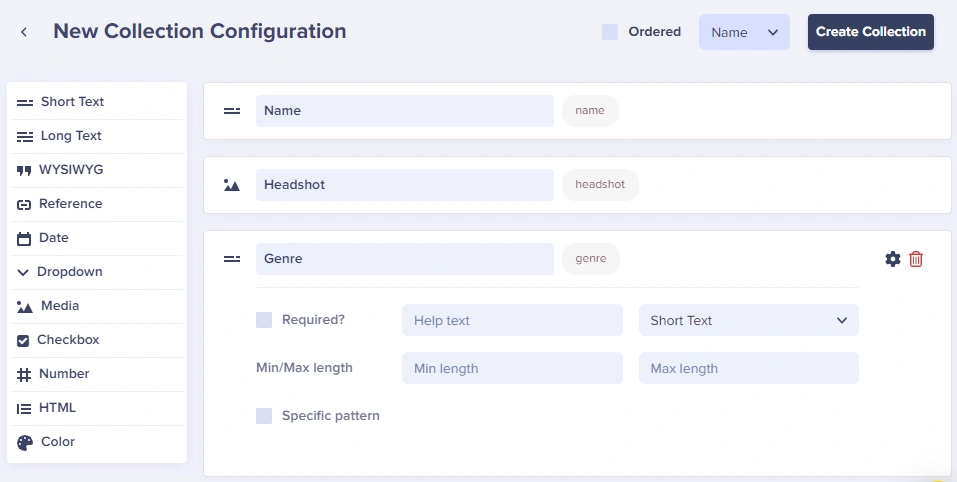
Create a Collection for team members with these fields:
* **Name** (Short Text) - Full name
* **Headshot** (Media) - Profile photo
* **Role** (Short Text) - Job title
* **Department** (Reference) - Link to Departments collection
* **Email** (Short Text) - Contact email
* **Bio** (Long Text) - Short biography
* **LinkedIn** (Short Text) - Social profile URL
When storing personal data like email addresses and social profiles, ensure compliance with privacy regulations (GDPR, CCPA, etc.). Consider making social profile fields optional and informing team members about public visibility.
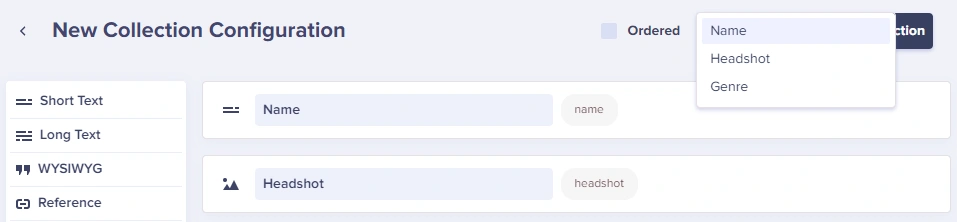
Set the Collection Label to display team member names:
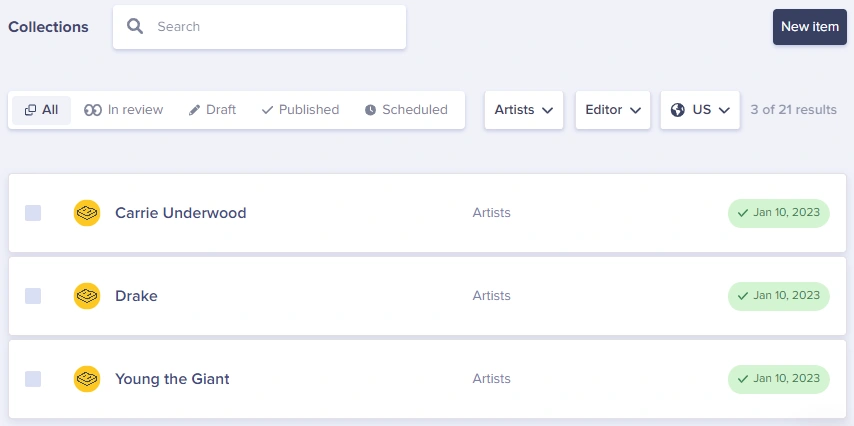
## Step 3: add team members
Add team members to your Collection:
## Step 4: fetch team members
### Write less code by leveraging API parameters
Our collections API supports **ordering** during fetch with the `order` parameter, which can be utilized with dot notation to
order by specific fields: `order=fields.department`.
You can also use the `page`, `page_size`, `limit`, and `offset` parameters
for instant **pagination**.
### Speed things up with an SDK
These code examples use native libraries like `fetch` and `requests` to pull data from the API.
For your actual implementation, we recommend using one of our many SDKs instead, which come with
prebuilt support for the various content type API endpoints, as well as features like timeout, error handling, query parameters, and more.
Query the team members Collection directly to fetch all team members:
```javascript theme={null}
// JS example
const response = await fetch(
`https://api.buttercms.com/v2/content/team_members/?auth_token=${API_TOKEN}`
);
const data = await response.json();
const teamMembers = data.data;
```
```python theme={null}
# Python example
import requests
response = requests.get(
'https://api.buttercms.com/v2/content/team_members/',
params={
'auth_token': API_TOKEN
}
)
team_members = response.json()['data']
```
### API response structure
```json theme={null}
{
"meta": {
// metadata here
},
"data": {
"team_members": [
{
"name": "Jane Smith",
"headshot": "https://cdn.buttercms.com/...",
"role": "Senior Developer",
"department": {
"name": "Engineering",
"slug": "engineering",
"description": "Building great products"
},
"email": "jane@company.com",
"bio": "Jane has 10 years of experience...",
"linkedin": "https://linkedin.com/in/janesmith"
},
{
"name": "John Doe",
"headshot": "https://cdn.buttercms.com/...",
"role": "Marketing Manager",
"department": {
"name": "Marketing",
"slug": "marketing",
"description": "Spreading the word"
},
"email": "john@company.com",
"bio": "John leads our marketing initiatives...",
"linkedin": "https://linkedin.com/in/johndoe"
}
]
}
}
```
## Step 5: display the team directory
Create a team directory component:
```jsx theme={null}
// React example
function TeamMemberCard({ member }) {
return (
);
}
function TeamDirectory({ members }) {
return (
Our Team
{members.map((member, index) => (
))}
);
}
```
### Add filtering by department
This example shows one way of adding filtering by department, but you can also filter
queries directly from the API using the `fields` parameter: `fields.department=some_string`
```jsx theme={null}
function TeamDirectoryWithFilter({ members, departments }) {
const [selectedDept, setSelectedDept] = useState('all');
const filteredMembers = selectedDept === 'all'
? members
: members.filter(m => m.department.slug === selectedDept);
return (
Our Team
{departments.map((dept) => (
))}
{filteredMembers.map((member, index) => (
))}
);
}
```
## Step 6: reference team members in pages
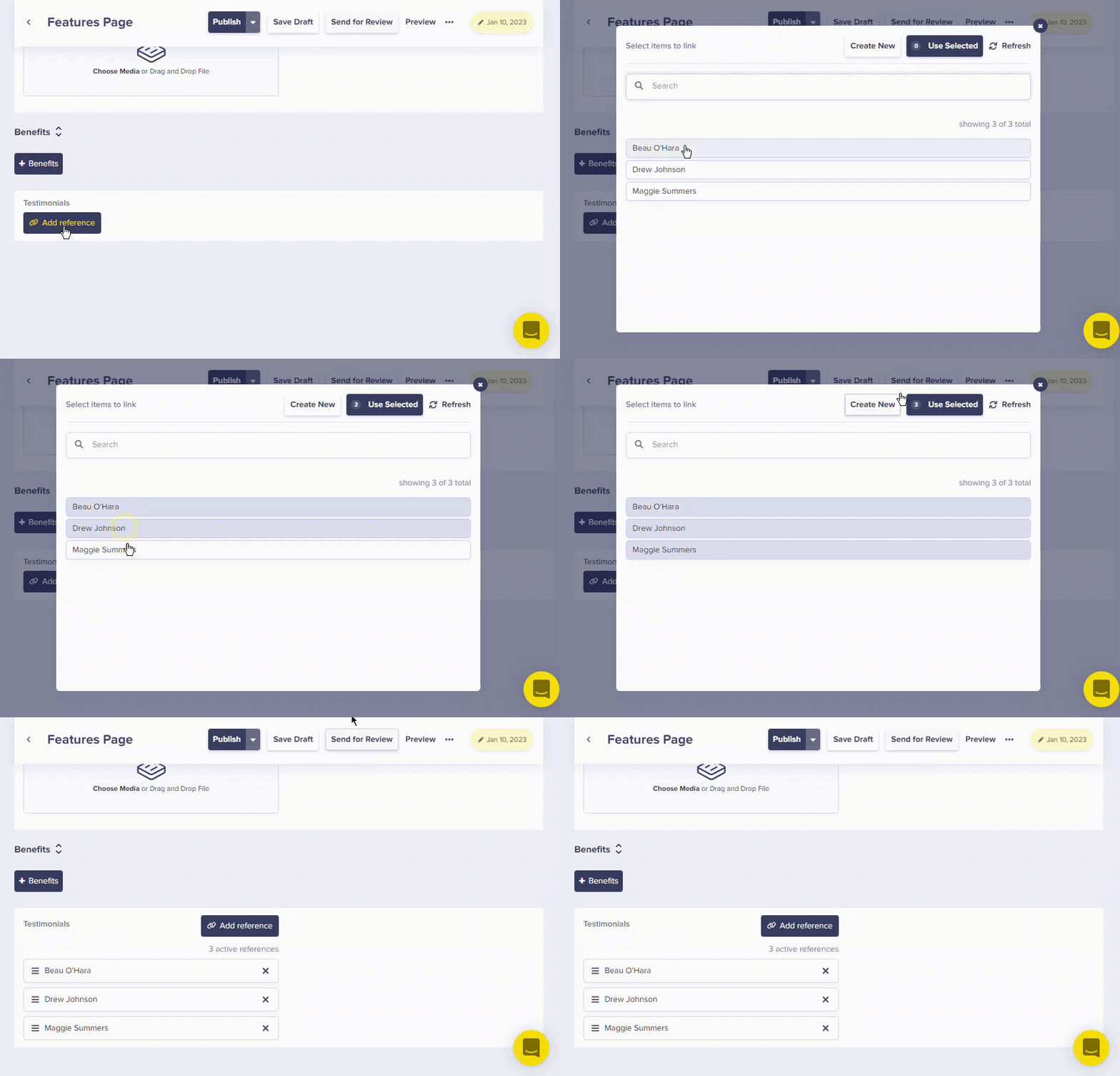
You can reference team members from other pages. For example, on a blog post, you can reference the author:
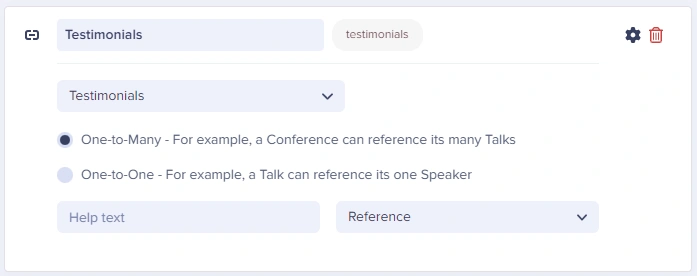
Select team members to display:
## Advanced: hierarchical organization
For organizations with more than 20-30 team members, consider adding a hierarchical structure:
### 1. Add manager Reference
Add a "Reports To" reference field in your Team Members collection that references itself:
```json theme={null}
{
"name": "Jane Smith",
"role": "Engineering Manager",
"reports_to": null,
"direct_reports": ["john-doe", "alice-johnson"]
}
```
### 2. Build org chart
```jsx theme={null}
function OrgChart({ members }) {
// Find CEO/top-level (no reports_to)
const topLevel = members.filter(m => !m.reports_to);
const getDirectReports = (manager) => {
return members.filter(m =>
m.reports_to && m.reports_to.name === manager.name
);
};
const renderMember = (member) => (
);
}
```
## Use cases
| Feature | Implementation |
| ------------------- | --------------------------------------------- |
| **Staff Directory** | Simple list of all team members |
| **About Page** | Reference key team members on marketing pages |
| **Blog Authors** | Link posts to team member profiles |
| **Support Team** | Show available support staff |
| **Org Chart** | Hierarchical team structure |