> ## Documentation Index
> Fetch the complete documentation index at: https://buttercms.com/docs/llms.txt
> Use this file to discover all available pages before exploring further.
# Translation Integrations
> Guides on how to integrate with third-party translation services including DeepL, Lokalise, and Crowdin for automated and professional translations.
# Translation Integrations
| Integration | Type | Best For | Account Required |
| ------------ | -------------- | ------------------------------ | ---------------- |
| **DeepL** | AI Translation | Quick automated translations | No (built-in) |
| **Lokalise** | TMS Platform | Professional translation teams | Yes |
| **Crowdin** | TMS Platform | Large-scale localization | Yes |
## DeepL Integration
[DeepL Translate](https://www.deepl.com/translator) is an artificial intelligence (AI) language translation tool that provides highly accurate and natural-sounding translations for text in various languages. It uses neural network technology to learn from vast amounts of language data and to analyze the context of each sentence to provide translations that are closer to human-like quality than many other translation tools.
### Supported Languages
DeepL supports translations between the following languages:
| | | | | |
| --------------------- | ------------------ | ---------- | ---------------------- | --------- |
| Arabic | Dutch | Greek | Lithuanian | Slovak |
| Bulgarian | English (American) | Hungarian | Norwegian | Slovenian |
| Chinese (simplified) | English (British) | Indonesian | Polish | Spanish |
| Chinese (traditional) | Estonian | Italian | Portuguese | Swedish |
| Czech | Finnish | Japanese | Portuguese (Brazilian) | Turkish |
| Danish | French | Korean | Romanian | Ukrainian |
| | German | Latvian | Russian | |
### Enabling DeepL
To enable the DeepL integration, go to **Settings > Integrations** and tick the **Enable** checkbox. No account with DeepL is necessary.
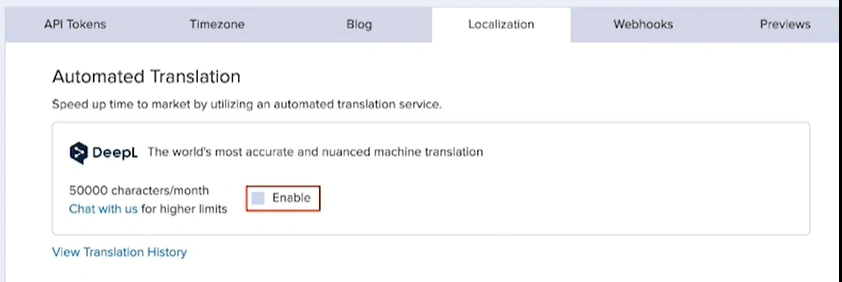
{/* SOURCE: file_path="blog-posts/gsd/streamline-content-localization-with-deepl.md" section="Enabling DeepL" */}
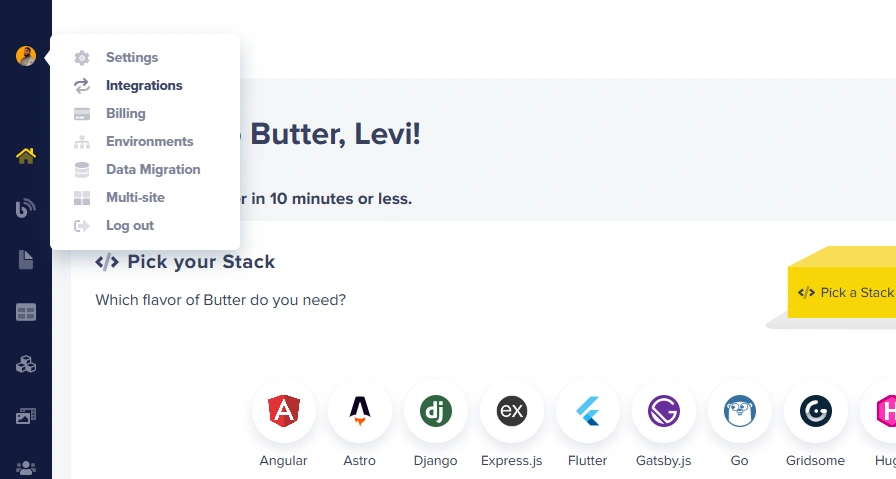
To enable your DeepL AI integration:
1. Log in to your ButterCMS dashboard
2. Hover over your profile picture icon
3. Click on **Integrations**
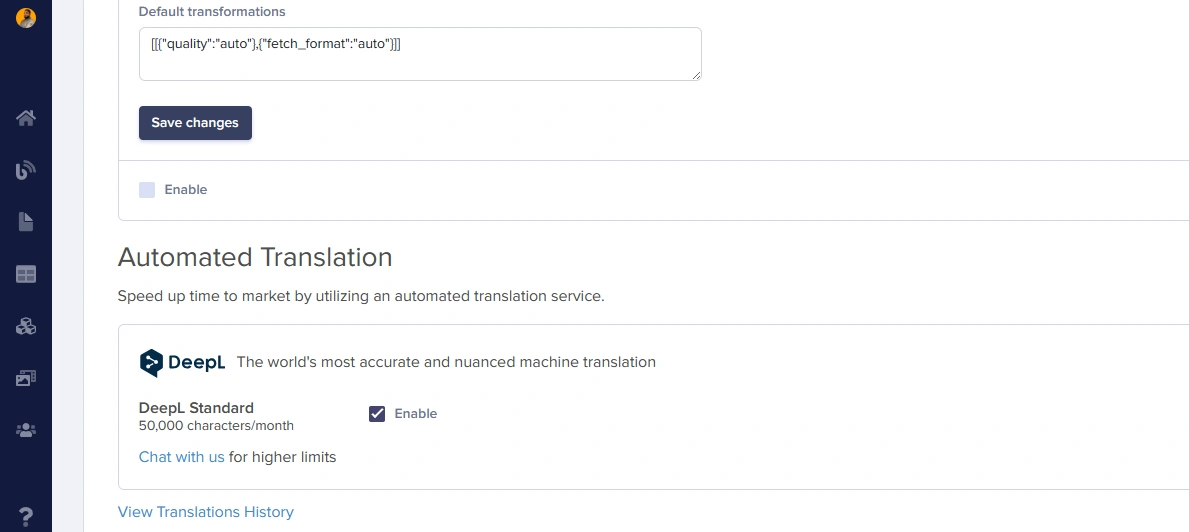
4. Scroll to find the DeepL integration section
5. Click the checkbox to enable it
### Using DeepL Translation
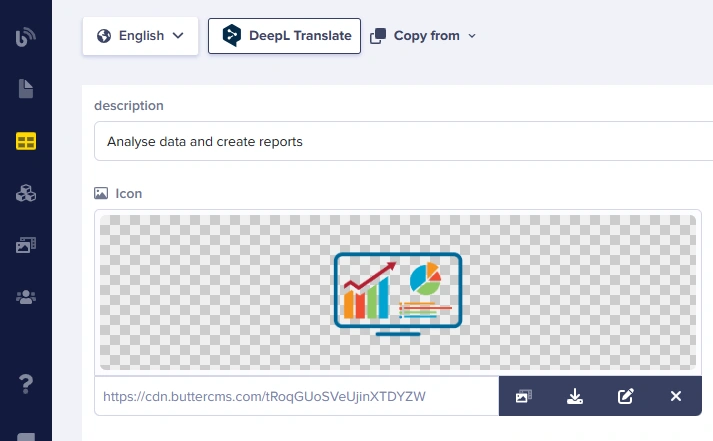
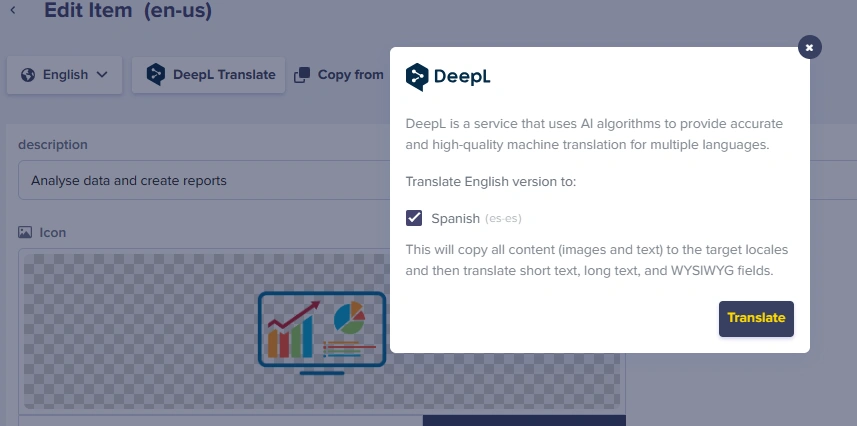
Once DeepL is enabled, you can translate pages and collections with one click:
1. Navigate to the content you want to translate
2. Click the **DeepL Translate** button
3. Select target language(s) in the popup
4. Click **Translate**
### Excluding Fields from DeepL
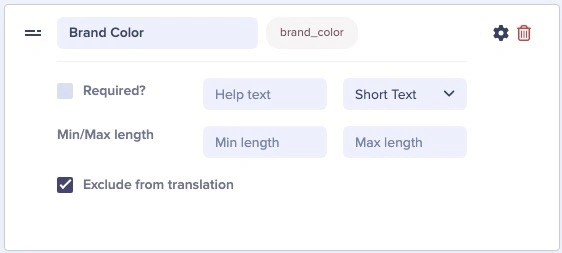
You can specify fields that should be excluded from DeepL auto-translation. This is useful for:
* **Brand names** that shouldn't be translated
* **URLs and slugs** that need to stay consistent
* **Code snippets** in documentation
* **Legal disclaimers** requiring professional translation
***
## Lokalise Integration
[Lokalise](https://lokalise.com/) is a localization and translation management platform for agile teams. They provide a better way to adapt web and mobile apps, games, IoT, software, or digital content for international markets.
They offer a translation management system (TMS) that helps teams automate, manage, and translate content (text strings, documents). Lokalise supports more than 400 languages along with their language codes and plural forms.
### Setting Up Lokalise
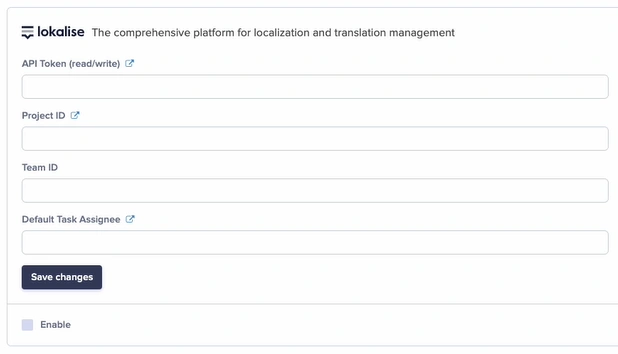
To enable the Lokalise integration, go to **Settings > Integrations** and fill out the following fields:
1. **API token (read/write)** - Create an API token in Lokalise:
* Click your avatar → **Profile settings > API tokens**
2. **Project ID** - Auto-generated identifier found in your Lokalise project settings
3. **Team ID** - Available from the Lokalise API
4. **Default Task Assignee** - Choose contributors to participate in translation tasks
Once enabled, the system will automatically configure a webhook in Lokalise to notify ButterCMS when translations are completed:
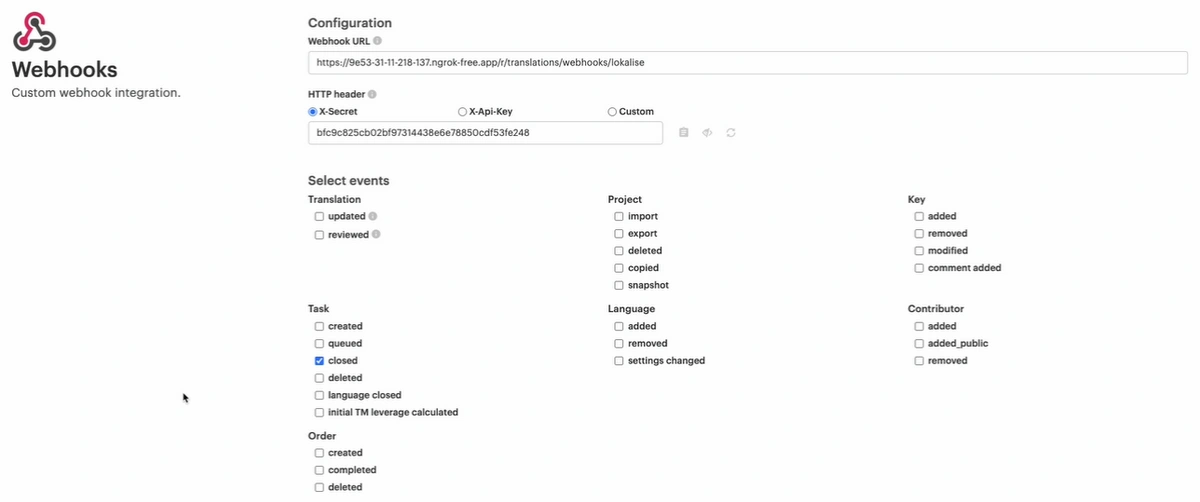
Avoid modifying the webhook implementation details created by the integration. Add a separate handler if you need additional functionality.
### Using Lokalise Translation
Once Lokalise has been enabled, you can initiate translation requests from pages or collections:
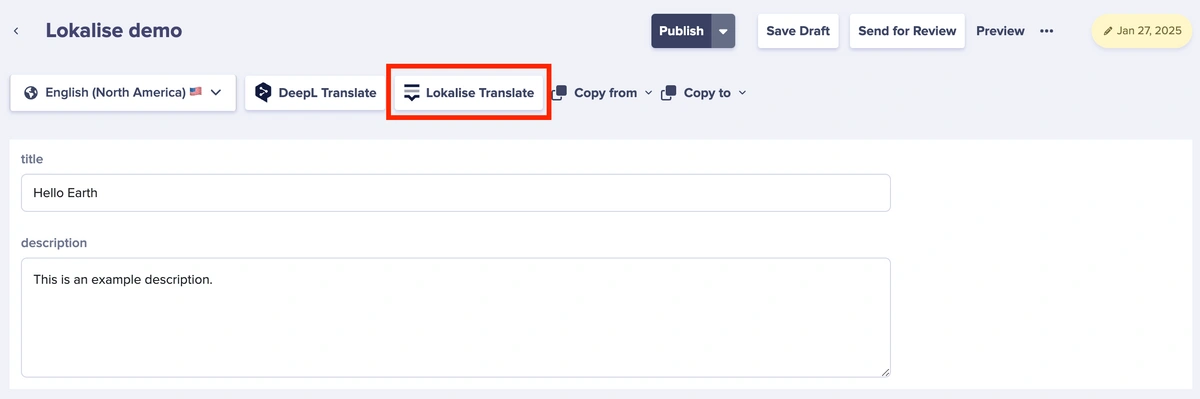
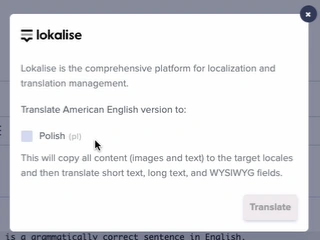
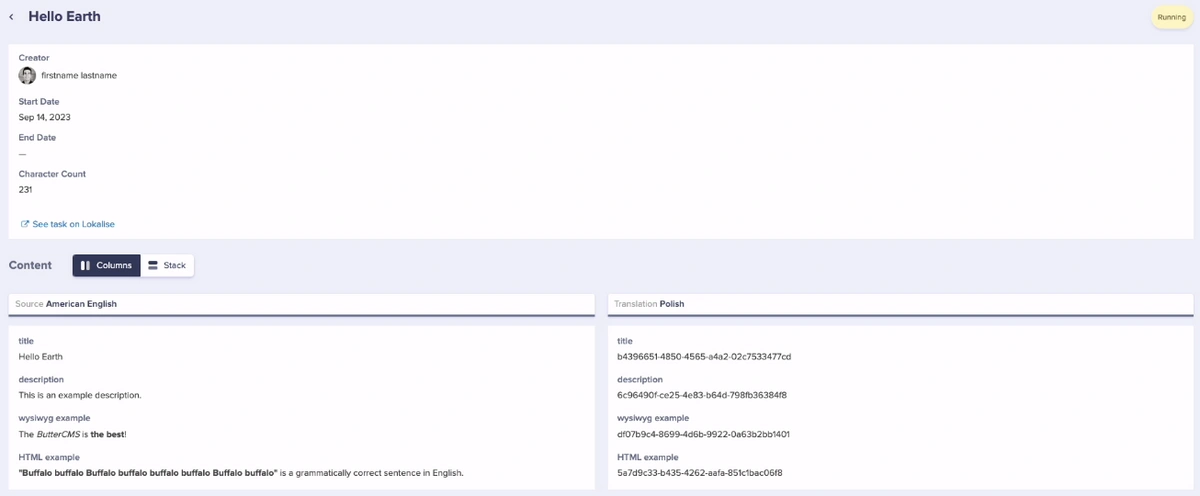
View translation history by clicking **View Translations History** in Settings > Localization:
{/* SOURCE: file_path="knowledge-base/how-to/lokalise-and-buttercms-integration.md" section="Important Notes" */}
Each site within a multi-site account must use a separate Lokalise project. ButterCMS webhooks are not designed to send organization IDs, so the same `project_id` cannot be used for multiple organizations. Lokalise provides unlimited projects in all their pricing plans.
***
## Crowdin Integration
The [ButterCMS and Crowdin integration](https://store.crowdin.com/buttercms) allows users to easily send content to Crowdin for translation, and updates made in one platform will be automatically reflected in the other.
Crowdin provides a range of features to help automate the translation process, including:
* **Translation memory** - Reuse previous translations
* **Machine translation** - AI-powered translation suggestions
* **500+ tools** for managers, developers, translators, and designers
### Setting Up Crowdin
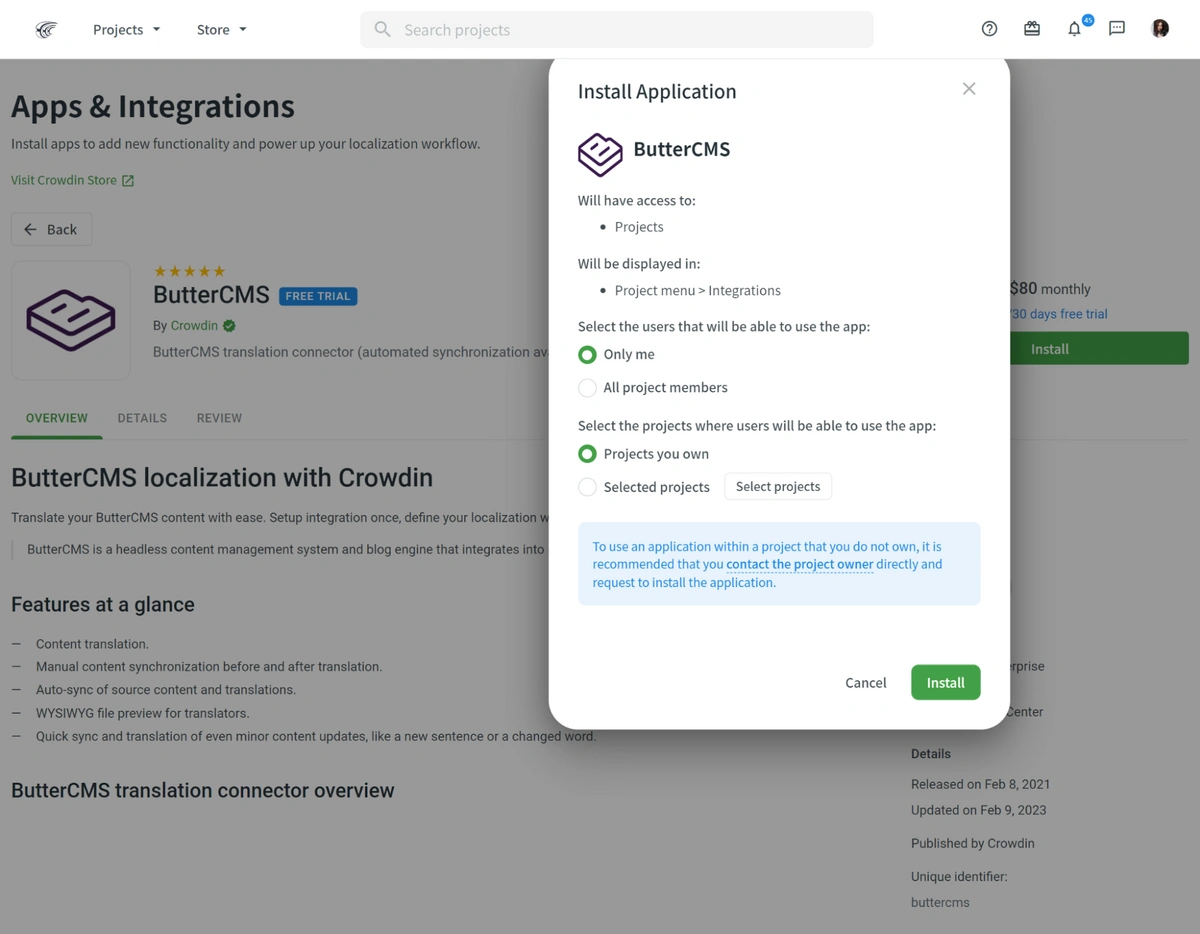
#### Step 1: Install the ButterCMS App
1. Log in to your Crowdin account (or create one)
2. Navigate to the [ButterCMS page on the Crowdin Store](https://store.crowdin.com/buttercms)
3. Click the **Install** button
4. Choose which projects and users will have access
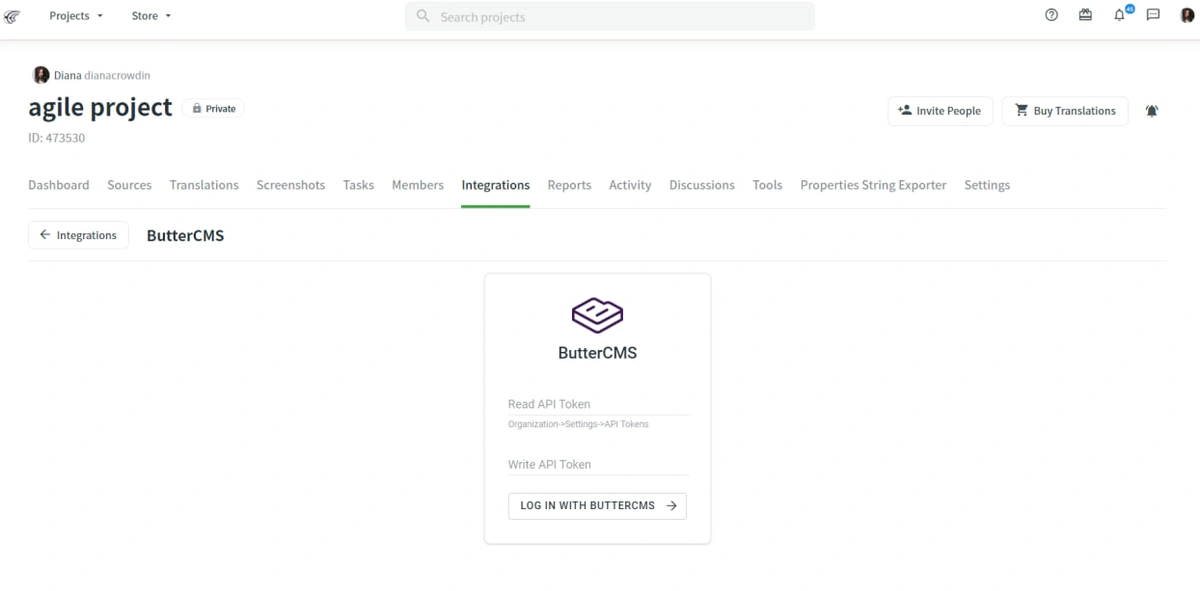
#### Step 2: Configure API Tokens
Enter your ButterCMS Read and Write API tokens (found in Settings > General):
#### Step 3: Configure Locales
1. Configure locales in ButterCMS Settings > Localization
2. Click **Log in with ButterCMS** to authorize the integration
3. Specify content types, source language, and target language codes
#### Step 4: Sync Content
Click **Sync Now** to sync your content, or enable **Automatically sync content updates** for continuous synchronization.
### Translation Workflow with Crowdin
Once content is synced, translate using:
* **Machine Translation (MT)** engines
* **Vendor translation agencies**
* **In-house translation team**
* **Community volunteers**
When translations are complete, they can be pulled back into ButterCMS automatically.
***
## Automated Translation with Write API
For larger content volumes, you can automate your translation workflow using ButterCMS's **Write API**. This allows you to:
* Integrate with translation services like Google Translate, DeepL, or professional translation APIs
* Automatically create translated versions when content is published
* Set up webhooks to trigger translation workflows
```mermaid theme={null}
graph LR
A[Create Content] --> B[Webhook Triggers]
B --> C[Translation Service]
C --> D[Write API]
D --> E[Localized Content Created]
```
The Write API requires account-level enablement. Contact ButterCMS support to check availability and enable it for your account.
***
## Choosing the Right Integration
### Use DeepL When:
* You need quick, automated translations
* Content volume is moderate
* You have internal reviewers for quality checks
* Budget is a concern (no additional cost)
### Use Lokalise When:
* You have a dedicated translation team
* You need advanced workflow management
* You want to leverage translation memory extensively
* You're working with external translators
### Use Crowdin When:
* You have large volumes of content
* You need community/crowdsourced translations
* You want extensive integration options
* You need robust version control for translations
### Hybrid Approach
Many organizations combine integrations:
1. **DeepL** for initial draft translations
2. **Lokalise/Crowdin** for professional review and refinement
3. **Manual editing** for critical marketing content
## Translation Quality Tips
Regardless of which integration you use:
1. **Always review automated translations** - AI can miss context
2. **Maintain a glossary** - Ensure consistent terminology
3. **Test in context** - Translations may work differently on your actual site
4. **Get native speaker feedback** - Regional nuances matter
5. **Consider cultural adaptation** - Sometimes content needs to be rewritten, not just translated
Start with your highest-traffic pages when implementing translation workflows. This ensures maximum impact while you refine your process.