> ## Documentation Index
> Fetch the complete documentation index at: https://buttercms.com/docs/llms.txt
> Use this file to discover all available pages before exploring further.
# AI assistant for content creation
> ButterCMS integrates TinyMCE's AI Assistant into the WYSIWYG editor — generate content, rewrite text, and transform writing using OpenAI's GPT models.
## Why use the built-in AI assistant?
There are two key reasons to enable the TinyMCE AI Assistant:
1. **Familiar UI for content creators** - The AI tools are embedded directly in the editor interface that your team already knows
2. **No context switching** - Everything happens within the editor—no need to switch tabs or copy/paste from external AI tools
## Enabling the AI Assistant
To start using the AI Assistant, navigate to **Settings > Integrations** in your ButterCMS dashboard, then configure your prompts.
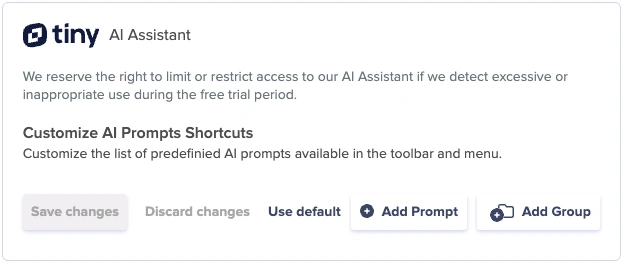
The ButterCMS AI assistant is available to all new sign-ups, but you can connect your own OpenAI API key to power the features with your own account — giving you full control over model usage and costs.
**Setting up the OpenAI integration with your own key:**
1. Go to **Settings > Integrations**
2. Enable the TinyMCE AI Plugin
3. Add your OpenAI API key
4. Configure custom prompts for your use cases
Pre-written prompts are available out of the box, but you can define your own in the TinyMCE config to match your exact use case.
## Understanding the AI toolbar buttons
The AI integration provides two main toolbar buttons:
### AI Assistant: Generate new content
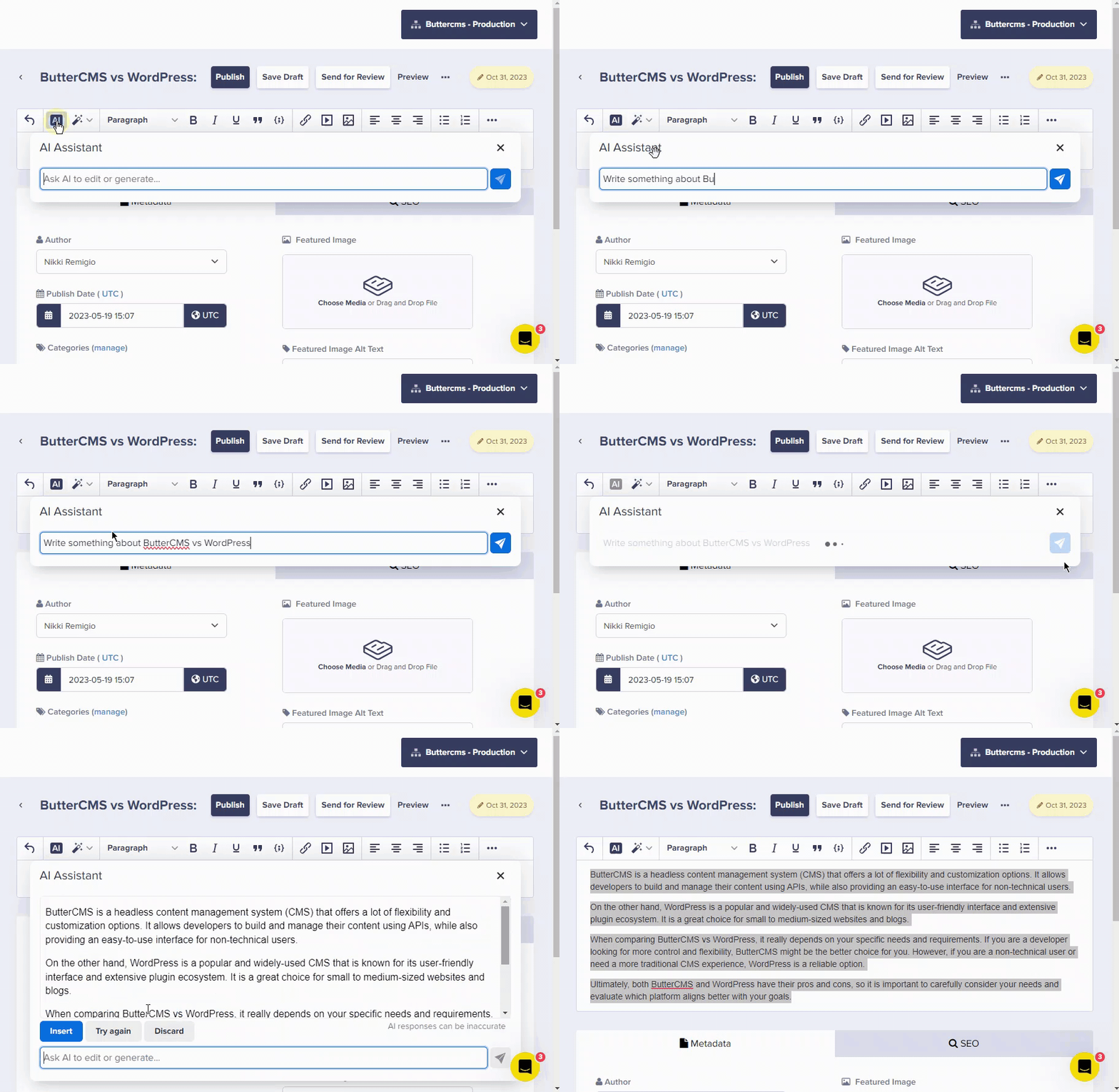
Use the **AI Assistant** button when you want to create new content from scratch. Simply describe what you need, and the AI will generate it for you.
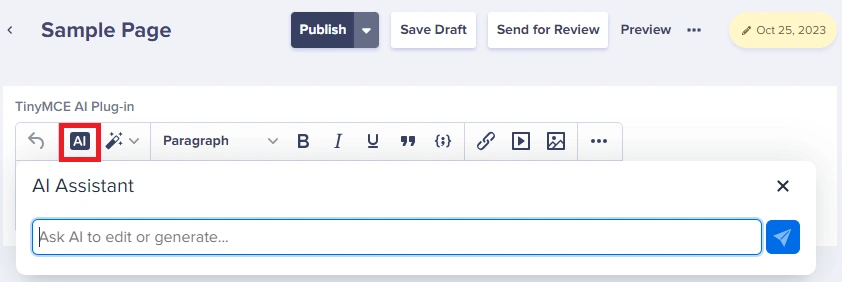
Here's an example of the AI Assistant generating content:
### AI shortcuts: Transform existing content
Use **AI Shortcuts** to analyze and refine content that's already in the editor. This is invaluable for content and marketing strategies.
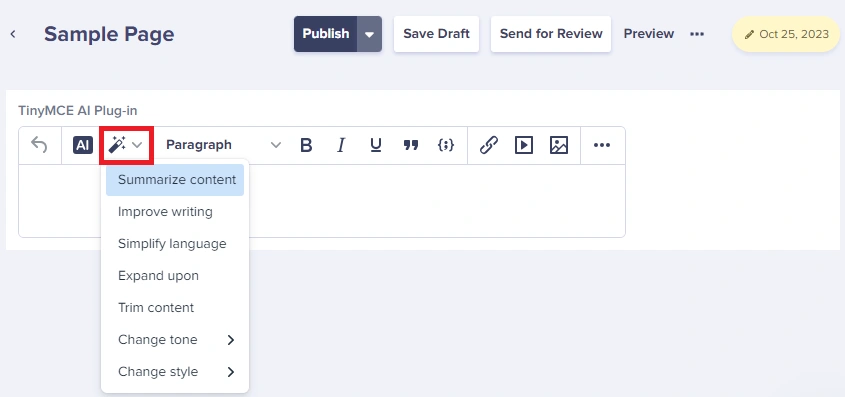
When you enable the TinyMCE AI plugin, you can:
* Use built-in default prompts provided out of the box
* Create custom prompts tailored to your specific needs
Here's an example of AI Shortcuts in action:
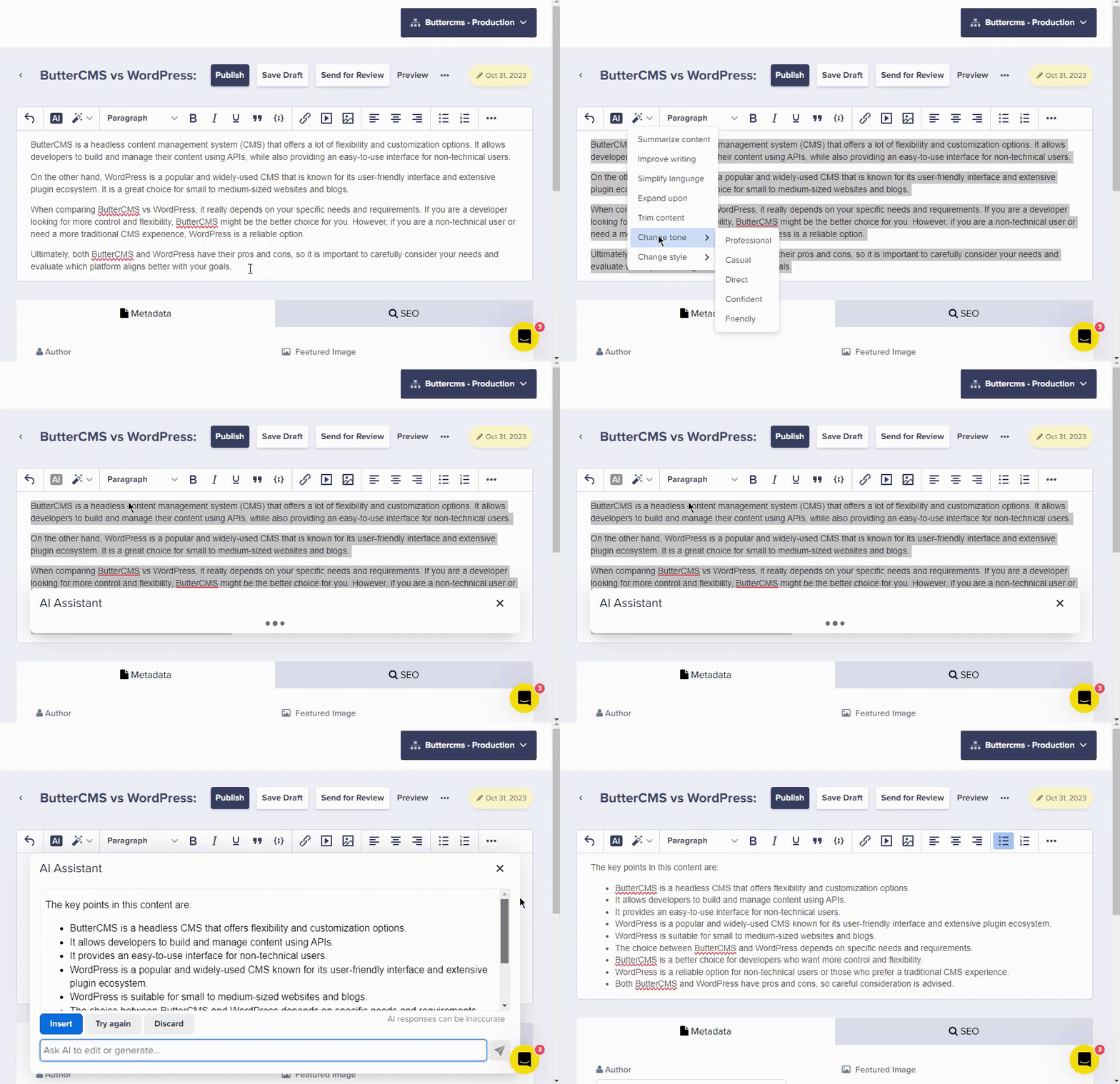
## Common use cases
### Content generation
* **Blog Post Drafts** - Generate initial drafts for blog posts based on topics and keywords
* **Product Descriptions** - Create compelling descriptions for product pages
* **Marketing Copy** - Write headlines, CTAs, and promotional content
### Content improvement
* **Rewriting** - Transform existing content to improve clarity or change tone
* **Summarization** - Create concise summaries of longer content
* **Expansion** - Elaborate on brief points with more detail
### Content optimization
* **Grammar and Style** - Fix grammatical issues and improve writing style
* **Tone Adjustment** - Shift content from formal to casual (or vice versa)
* **SEO Enhancement** - Optimize content for search engines
## Best practices
**Optimize smaller selections one at a time.** For best results, break your content into smaller chunks and send each to OpenAI individually rather than processing an entire article at once.
### Tips for effective AI content creation
1. **Be specific with prompts** - The more detail you provide, the better the output
2. **Review and edit** - Always review AI-generated content before publishing
3. **Maintain your voice** - Use AI as a starting point, then refine to match your brand voice
4. **Iterate** - Don't expect perfection on the first try; refine prompts based on results
5. **Combine with human expertise** - AI works best when paired with human creativity and judgment
## Custom prompts
### Creating custom prompts
To create custom prompts in ButterCMS:
1. Go to **Settings > Integrations** in your ButterCMS dashboard
2. Enable the TinyMCE AI Plugin if not already enabled
3. Add your OpenAI API key
4. In the custom prompts section, add your prompt configurations
You can create custom prompts tailored to your organization's specific needs. Consider creating prompts for:
| Prompt type | Example use case |
| ------------------ | ----------------------------------------------------------- |
| Brand voice | "Rewrite this in our friendly, conversational brand voice." |
| Industry-specific | "Add relevant healthcare compliance language." |
| Format conversion | "Convert this to a bulleted list." |
| Audience targeting | "Simplify this for a non-technical audience." |
| Localization prep | "Simplify this content for easier translation." |