> ## Documentation Index
> Fetch the complete documentation index at: https://buttercms.com/docs/llms.txt
> Use this file to discover all available pages before exploring further.
# Workflows
> Use ButterCMS workflows to assign content for review, leave comments, set due dates, and track progress through approval stages before publishing.
For access to the workflows feature, [contact support](../../support/contact-status/contact-support).
The ButterCMS **workflows** feature provides a structured method for reviewing and approving content across team members, allowing you to:
Flag content for review or approval
Leave comments
Assign tasks and due dates
Track progress
Workflows can be combined with roles and permissions to ensure that content has proper compliance and quality control, including meeting
regulatory or brand standards.
See [Team Presence](./team-presence) to learn how to see who else is working on content in real time.
## Setting up a workflow
### How to assign reviewers
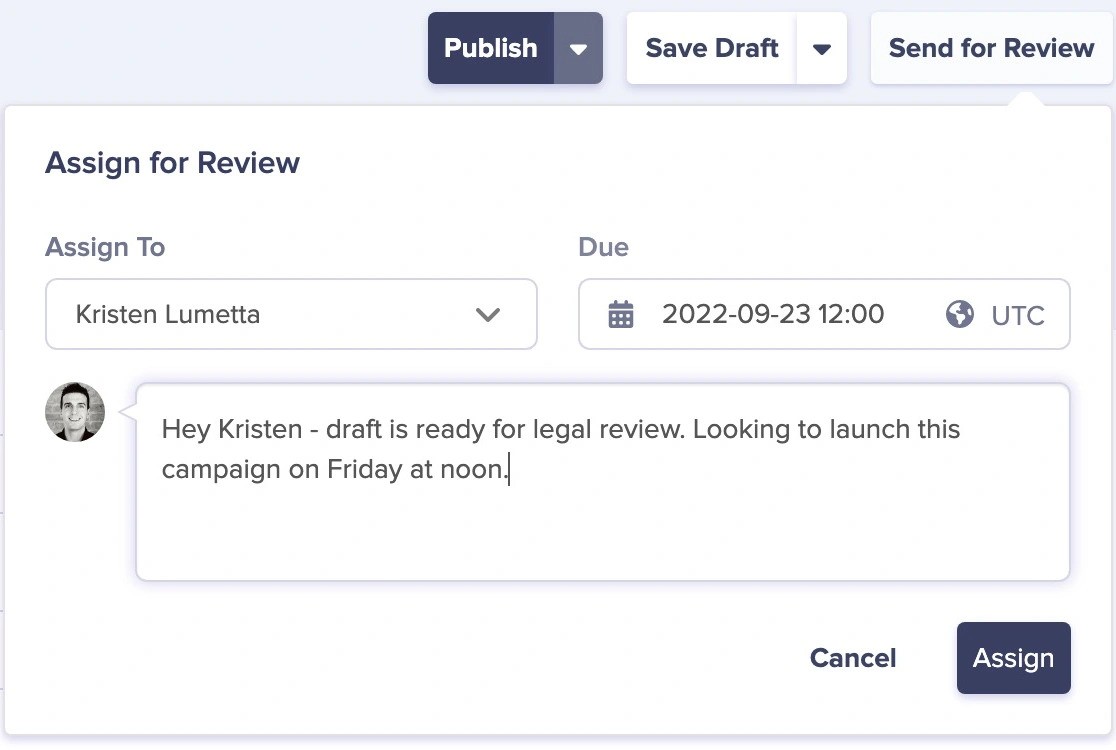
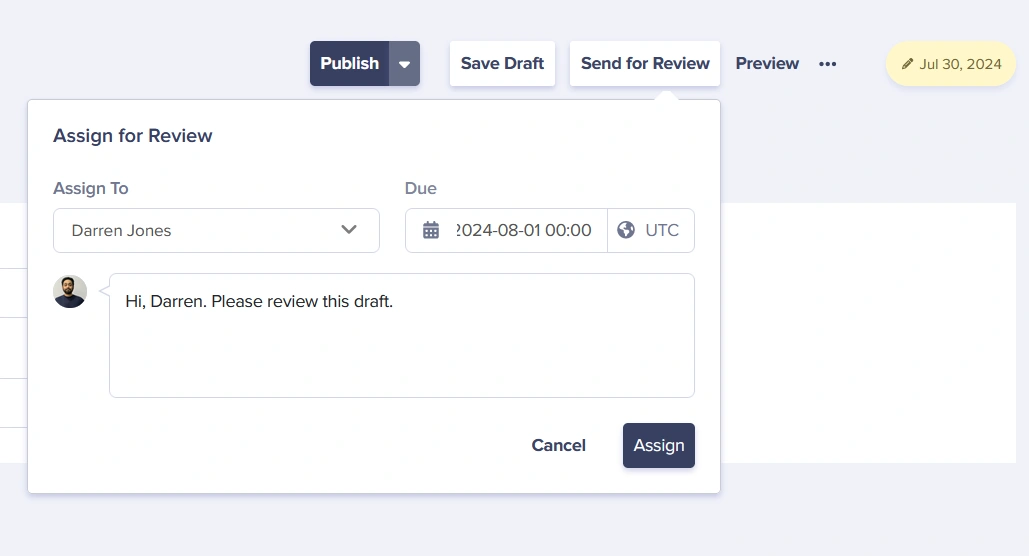
A workflow is kicked off when you assign draft content for review to someone in your organization.
1. Save your content as a draft
2. Click the **Send for Review** button
3. Select the team member who should review the content
4. Optionally set a due date for the review
5. Add any notes or instructions for the reviewer
### Viewing assigned reviews
When content has been assigned to you for review:
1. An emailed notification will be sent to you
2. The item will be marked as "Needs your review" in your dashboard
3. The item will also be shown whenever the "In review" filter is selected in the dashboard list views
### Complete your review
When you click on any item in the "Needs your review" section in your dashboard, you'll be
taken to a modified version history view, which will include:
* Who assigned you the review, the due date, and any notes
* a workflow timeline in the history sidebar showing the actions taken on this content item
You can then either complete your review and:
* update and save the content
* publish the content (requires publishing permissions)
* make revision requests and send it back to the requestor
* assign to someone else in your organization for review/approval
## The workflow timeline
The workflow timeline is visible in a sidebar in the history view and includes:
* Who reviewed it at each stage
* When it was assigned and completed
* Any notes or feedback provided