> ## Documentation Index
> Fetch the complete documentation index at: https://buttercms.com/docs/llms.txt
> Use this file to discover all available pages before exploring further.
# Custom roles and permissions
> Create custom roles with granular access controls, including the ability to view, create, clone, edit, publish, or unpublish specific content types.
Custom roles are available when enabled for your account. [Contact support](../../support/contact-status/contact-support) to enable them.
Managing localization permissions for users are detailed in the [Team management](../collaborating-with-teams/team-management) article.
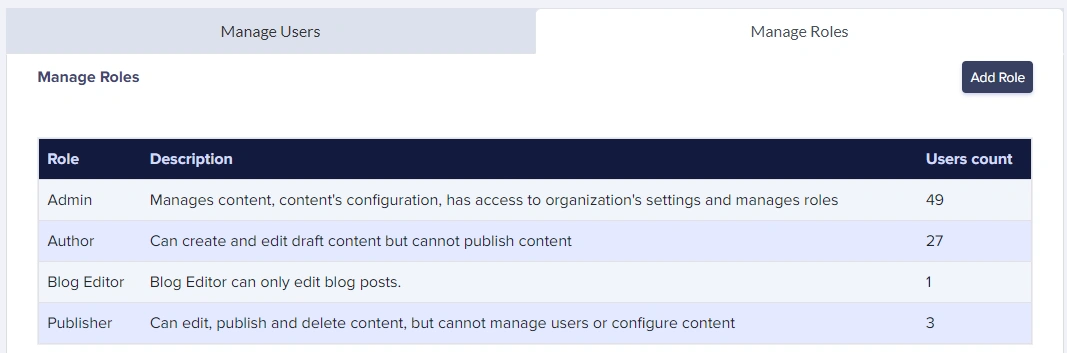
ButterCMS provides for the ability to fine-tune user roles and permissions on a granular level. With the custom roles and permissions features, you can:
* assign the ability to perform admin actions, like managing users or updating schema configuration
* restrict users to only specific CRUD operations, such as viewing, creating/cloning, publishing, etc.
* restrict users to a specific global content type (such as all Page Types or all Collections)
* restrict users to a specific Page Type or a specific Collection
* any combination of the above
## Creating a custom role
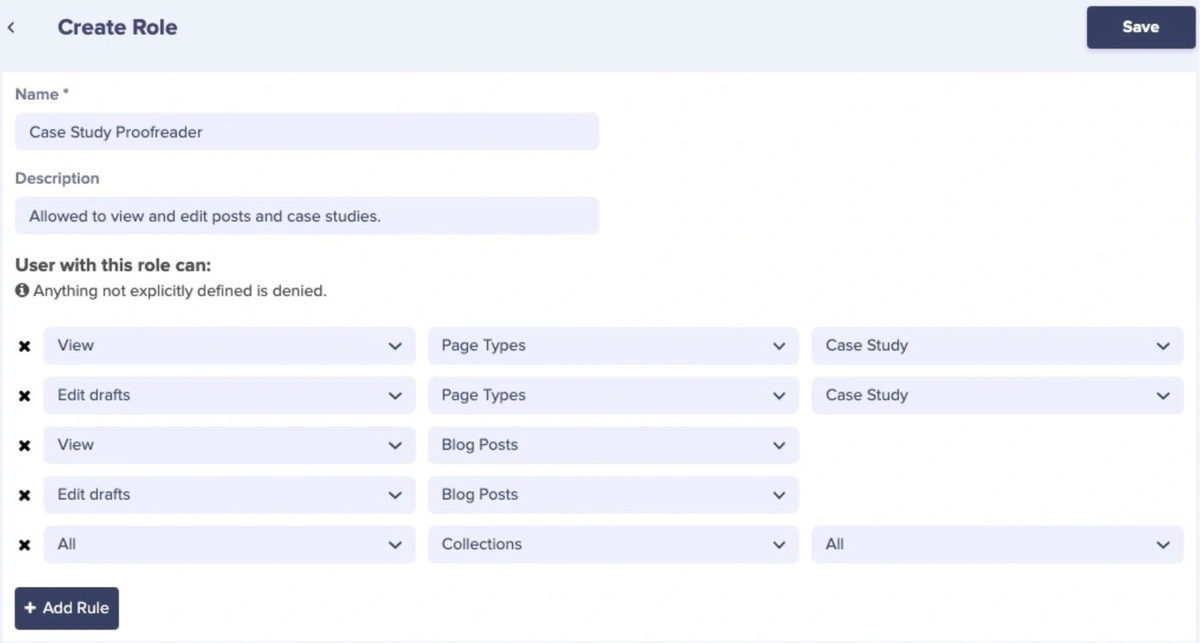
When creating a custom role, any permission not **explicitly granted** will be denied. Make sure you give the role all of the permissions necessary to perform its job functions!
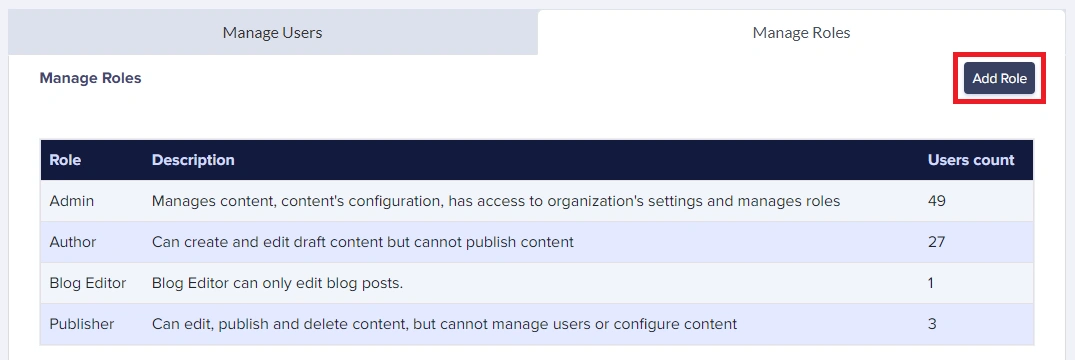
Go to **Manage Roles** and click **Add Role**.
Name the role and optionally mark it as **Admin**. Admin users will be able to manage schemas, organization settings, and users.
Click **Add permission** and choose an action, such as **View** or **Create/Clone**.
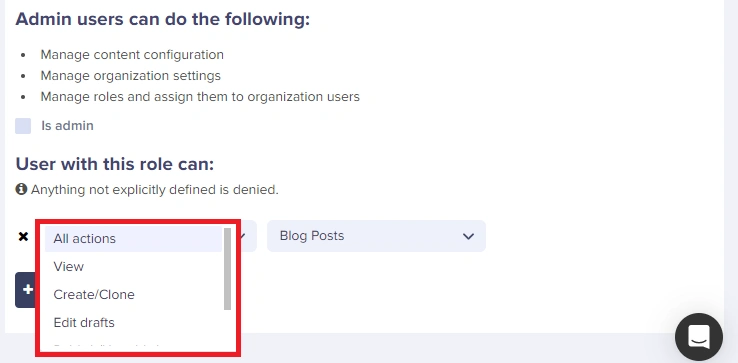
Select the overarching content type (Blog posts, Page Types, or Collections) the permission should apply to.
If you only want to restrict users to a specific Page or Collection, use the dropdown to select it.
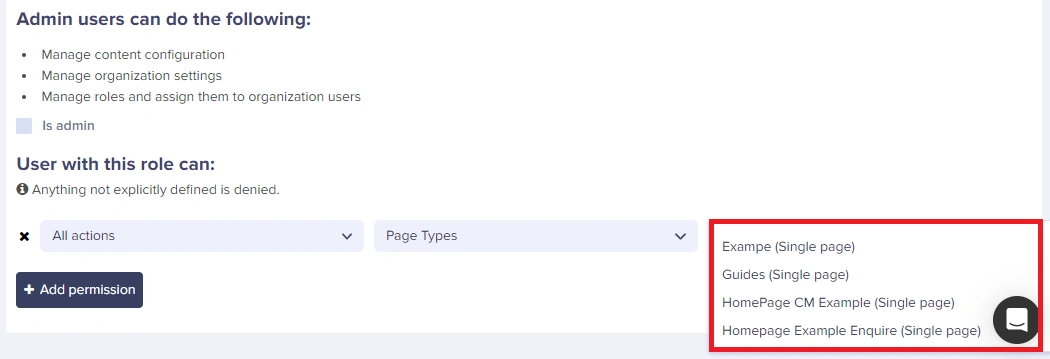
Note that if you want to add multiple Page Types or Collections, just repeat the process to add another permission.
## Permission actions
| Action | What It Allows |
| ----------------- | --------------------------------- |
| All actions | Create, edit, publish, and delete |
| View | Read‑only access |
| Create/Clone | Create or duplicate content |
| Edit drafts | Modify unpublished content |
| Publish/Unpublish | Control what goes live |
| Delete | Permanently remove content |
Admin settings (locales, users, webhooks) require the **Admin** toggle.
## Permission priority
When a user has multiple roles or complex permissions:
* More specific permissions override general ones
* Explicit "no access" takes precedence over granted access
* View permissions are cumulative (can see all granted content)
## Permission limitations
ButterCMS permissions work at the content type level, not the individual field level. This means that permissions can't control individual field visibility within a Page Type or Collection, or access to specific media library folders.
For example, if a user has access to "Product Page" type, they can see all fields in the Product pages.
## Example permission configurations
```text theme={null}
Role: Marketing Content Editor
Permission Configuration:
├── Action: All actions
├── Content Type: Page Types
└── Specific Page Type: Landing Page
Result: User can view, create, edit, publish, and delete
only "Landing Page" type pages
```
```text theme={null}
Role: Product Catalog Manager
Permissions:
├── All actions → Collections → Products
├── All actions → Collections → Product Categories
├── View → Collections → Pricing Tiers
└── No access → Collections → Internal Notes
Result: User has full control over product content
but can only view pricing (not edit)
and cannot see internal notes at all
```
```text theme={null}
Role: Blog Writer
├── Create/Clone → Blog posts
└── Edit drafts → Blog posts
Role: Blog Editor
├── View → Blog posts
├── Edit drafts → Blog posts
└── Publish/Unpublish → Blog posts
Role: Blog Manager
└── All actions → Blog posts
```
```text theme={null}
Role: Senior Content Editor
Permissions:
1. All actions → Blog posts
(Full control over blog content)
2. All actions → Page Types → Landing Page
(Full control over landing pages)
3. Edit drafts → Page Types → Product Page
(Can edit but not publish product pages)
4. View → Collections → Pricing
(Can see but not edit pricing data)
5. All actions → Collections → Testimonials
(Full control over testimonials)
```