> ## Documentation Index
> Fetch the complete documentation index at: https://buttercms.com/docs/llms.txt
> Use this file to discover all available pages before exploring further.
# Creating Blog Posts
> Create, preview, and publish posts with the Blog Engine.
## Quick references
Check out our core concepts article on Pages, Collections, and the Blog Engine to understand the differences
between these content types and when to use each one.
Take a deep dive into the Blog Engine, including features, supported fields, and more.
Use the Blog Engine to publish posts with authors, categories, tags, and featured images.
## Create a new post
1. Click **Blog posts** in the left sidebar.
2. Click **New Post**.
## Fill in post details
### Title and slug
Use a clear title. The slug auto‑generates from the title and can be edited.
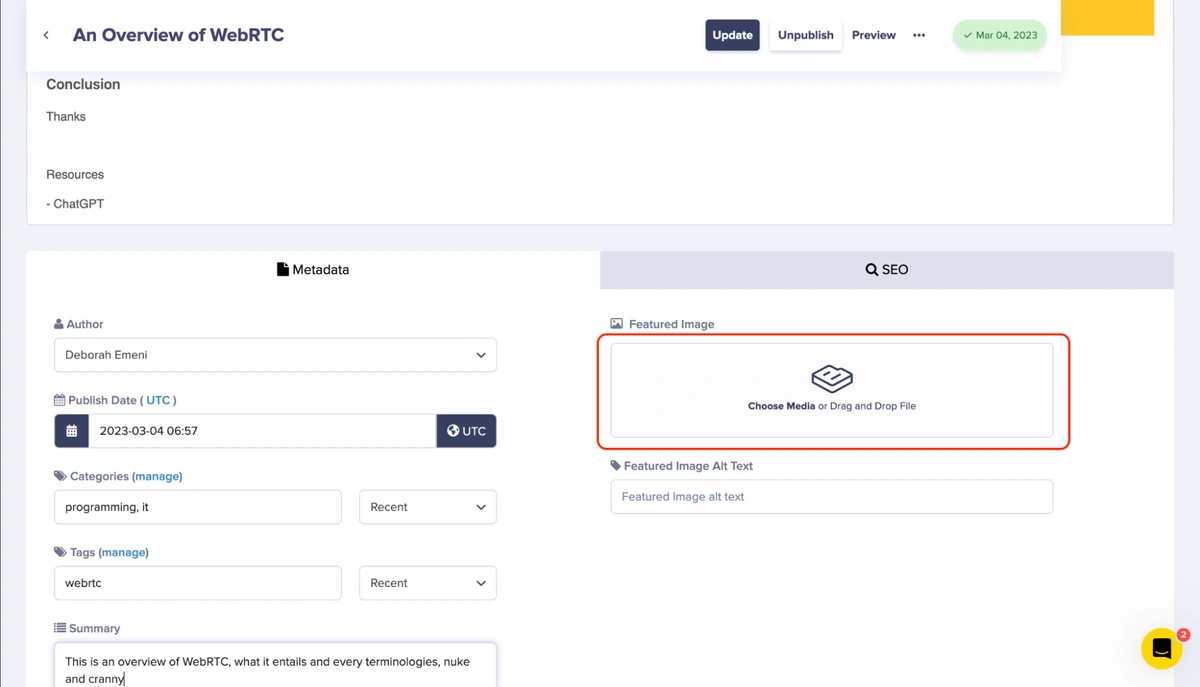
### Featured image
1. Click **Featured Image**.
2. Choose or upload an image.
3. Add alt text.
### Author
Pick an existing author.
Authors need to be added via User management.
### Categories and tags
* Categories group posts by broad topic.
* Tags add more specific labels.
## Write the content
Use the WYSIWYG editor for the post body.
* See the full editor guide: [WYSIWYG Editor](../fields-basics/wysiwyg-editor)
* Insert media from the Media Library: [Adding Media](../../media-management/adding-media)
## SEO settings
| Field | Guidance |
| ---------------- | ---------------------------------------------------------- |
| SEO Title | Keep under \~55 characters and include the primary keyword |
| Meta Description | Keep under \~140 characters and summarize the post |
If left blank, ButterCMS uses the post title and opening content as defaults.
## Manage existing posts
* Use **Search** and **Filters** in the Blog dashboard.
* Edit a post, then **Save Draft** or **Publish** updates.
* Use revision history if you need to restore prior versions.
## Next steps for managing content
Learn about content statuses, such as published and draft, how to schedule content, how to preview changes in the
dashboard, how versioning works, and more.