> ## Documentation Index
> Fetch the complete documentation index at: https://buttercms.com/docs/llms.txt
> Use this file to discover all available pages before exploring further.
# Accessing your content
> Learn how to navigate the ButterCMS dashboard to find and open your existing content, whether it's Pages, Collections, Blog Posts, or media files.
## Navigating to pages
Pages in ButterCMS are organized by **Page Type**. To access your pages:
Click on **Pages** in the left sidebar
Click on a specific Page Type (e.g., "Landing Page", "Case Study") to see all pages of that type
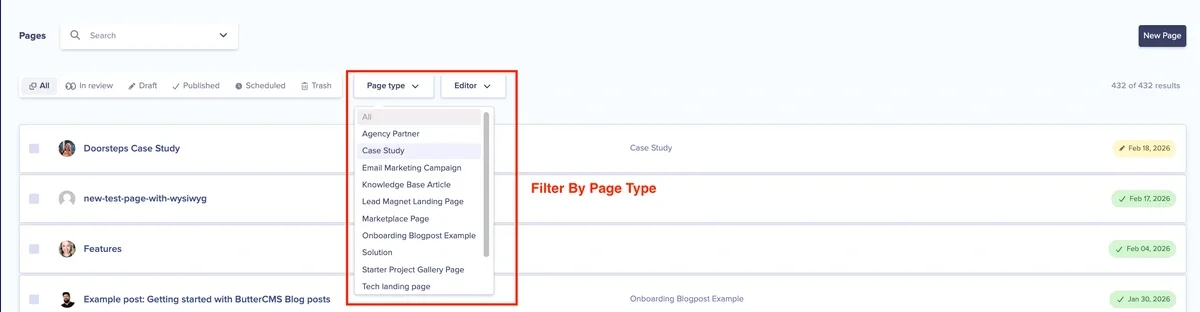
Click on any page title to open it for editing
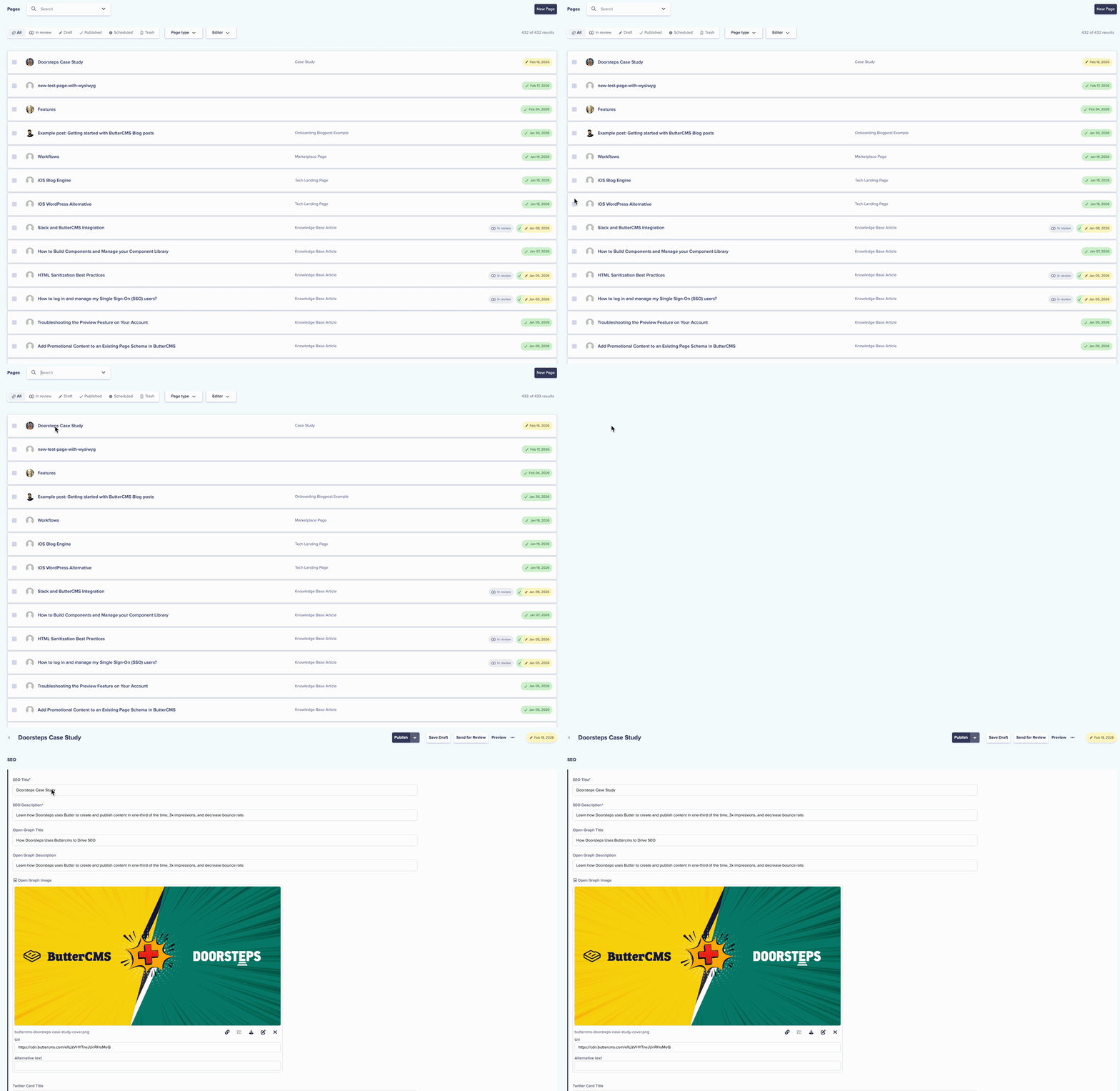
### Using advanced search for pages
The advanced search capability for pages allows you to filter through your content to quickly locate specific pages.
To begin, start by selecting the page type associated with the page(s) you are looking to find. This is done by clicking the dropdown arrow at the end of the search field.
{/* IMAGE_SOURCE: file_path="knowledge-base/faqs/advanced-search-for-pages.md" */}
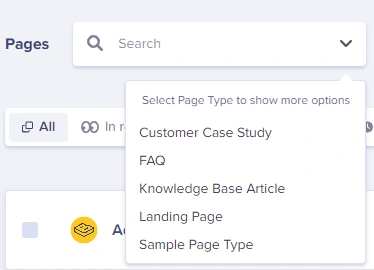
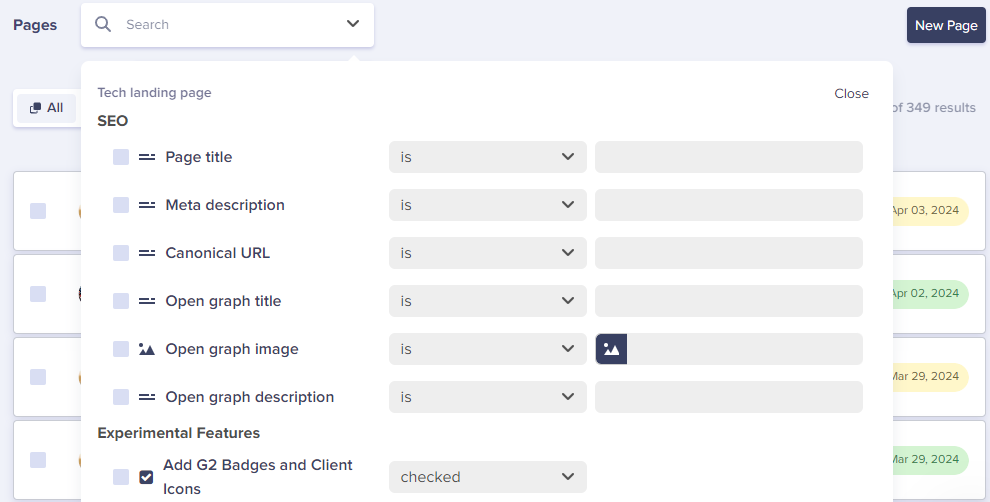
From there, you can filter the results using any of the following field types:
* Short Text Field
* Long Text Field
* Reference Field
* Date Field
* Dropdown Field
* Media Field
* Checkbox Field
* Number Field
{/* IMAGE_SOURCE: file_path="knowledge-base/faqs/advanced-search-for-pages.md" */}
**Pro tip:** You can use Collections as filterable properties for your Pages. The simplest example would be to add Categories to your Pages for easier filtering.
## Navigating to collections
Collections are tables of reusable data that can be referenced by Pages. To access your collections:
Click on **Collections** in the left sidebar
Click on a specific Collection (e.g., "Categories", "Team Members", "FAQs")
Browse the list of items or use the search bar to find specific items
Click on any item to open it for editing
## Navigating to blog posts
The built-in blog engine provides a streamlined interface for managing blog content:
Click on **Blog Posts** in the left sidebar
You'll see a list of all blog posts with their status, author, and publish date
Use the filter options to view:
* **All Posts**
* **Published** only
* **Drafts** only
* **Scheduled** posts
Click on any post title to open the editor
## Using the media library
For information on how to use the Media Library, see [Media Library overview](../../media-management/media-library-overview).