> ## Documentation Index
> Fetch the complete documentation index at: https://buttercms.com/docs/llms.txt
> Use this file to discover all available pages before exploring further.
# Dashboard overview & navigation
> Overview of the ButterCMS dashboard and sidebar. Access Pages, Collections, Media Library, user management, multi-site, and integrations.
{/* /SOURCE */}
## Sidebar navigation
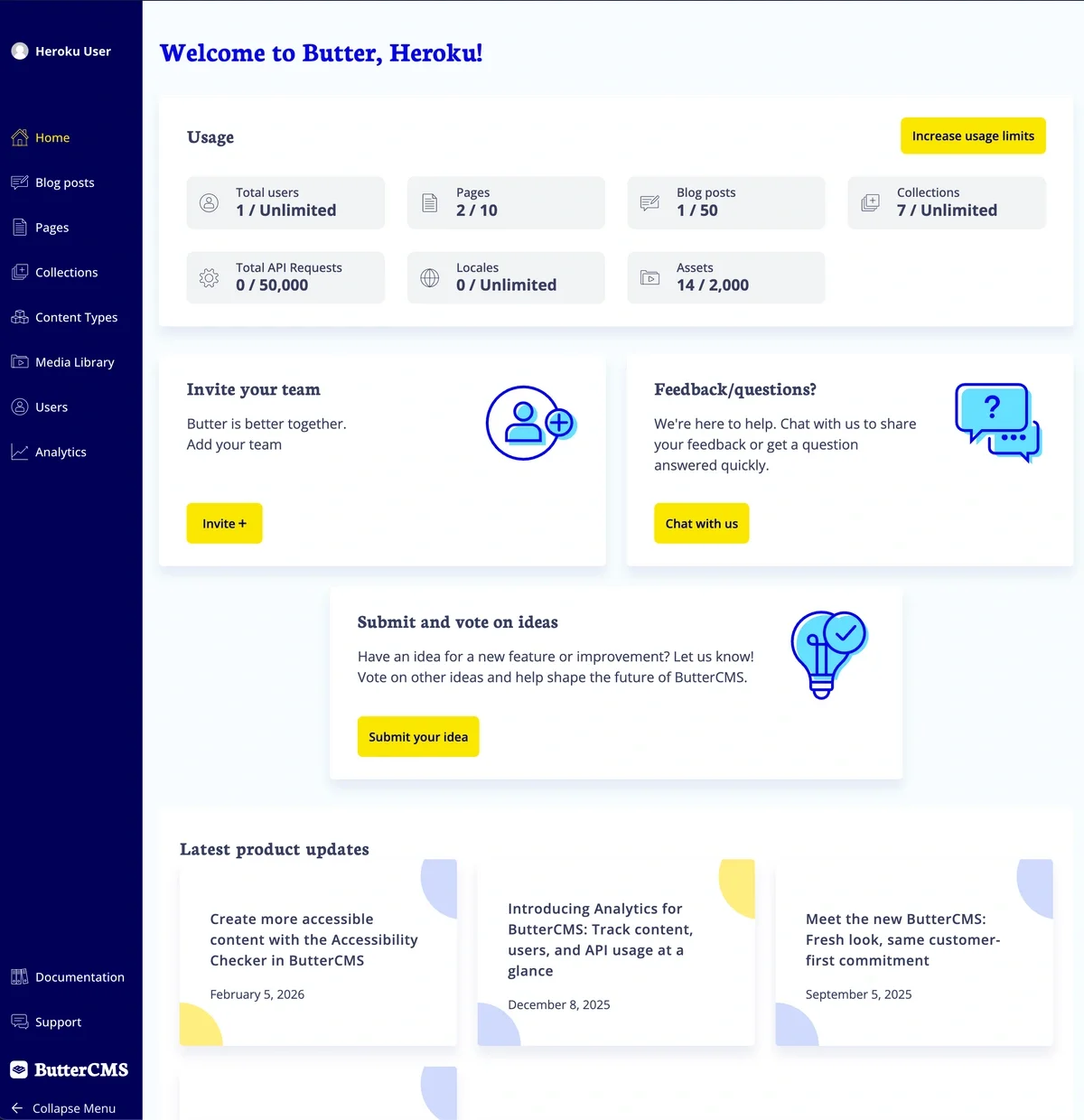
The sidebar on the left side of your dashboard is your primary navigation tool. Here's what you'll find:
### Main sidebar links
Access all your Pages, organized by Page Type, or create new Pages.
View and manage your Collections (reusable data tables).
Access the built-in blog engine to create and manage blog posts.
View and configure Page Types, Collections, and Components.
Upload, organize, and manage all your images, documents, and files.
Add, invite, remove, and edit users and their profiles. Manage user roles and permissions.
View usage metrics and request counts.
### User profile sections
Hovering over your profile icon or name in the top left corner of the sidebar launches a secondary menu, which has
access to the following account options:
Access organization-level settings, API tokens, integrations, and more.
Connect third-party services like Cloudinary, Bynder, or Typeform.
Manage plans and payments.
Configure multi-environment setups.
Configure multi-site setups.
Sign out of your ButterCMS account.
## Editing and publishing interface
ButterCMS's intuitive interface makes it easy to add content, save drafts, schedule publishing, check status, and more.
{/* IMAGE_SOURCE: file_path="blog-posts/gsd/buttercms-vs-sanity.md" */}
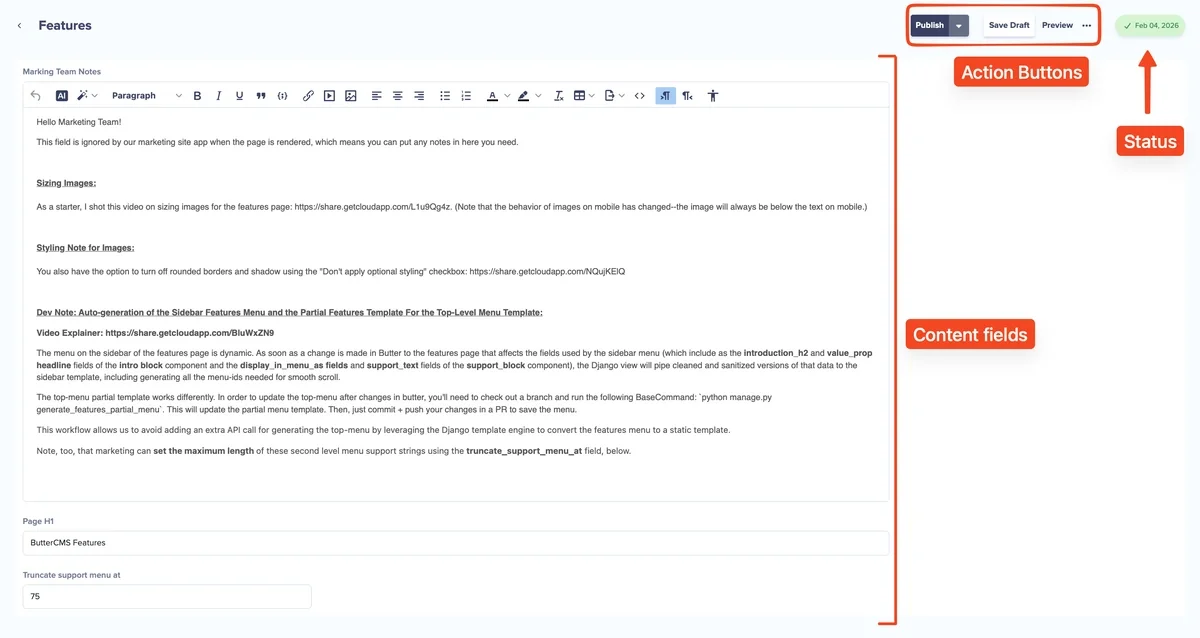
When you click on any content item, the main content area displays:
* **Content fields** - All the fields defined for that content type
* **Status indicator** - Shows whether content is Draft, Published, or Scheduled
Content in ButterCMS progresses through statuses like Draft, Scheduled, and Published. Learn more about the [content lifecycle](../../publishing-lifecycle/content-status).
* **Action buttons** - Save, Preview, Publish, and more options
## Top navigation bar
The top navigation bar provides quick access to:
| Element | Description |
| ------------------------------- | ---------------------------------------------------------------------------------------------------------- |
| **Environment & site selector** | Switch between different environments (e.g., Production, Staging) and sites if you have multi-site enabled |
| **Profile** | Access your account settings and log out |

## Quick start tips
**Use the search** - Looking for specific content? Use the search functionality within each section to quickly find what you need.