> ## Documentation Index
> Fetch the complete documentation index at: https://buttercms.com/docs/llms.txt
> Use this file to discover all available pages before exploring further.
# Configuring and validating fields
> Learn how to configure and validate fields, including adding custom validation rules to fields to ensure data integrity in ButterCMS
## Configuring fields
### Field configuration options reference
Most field types support additional configuration. The exact configuration options for each field is documented in its corresponding core concepts article, which are all linked in the cards below.
The `*` symbol next to the field type designates a field that is available on Pages, but not on Collections
Components and Component Pickers don't have any configuration options for the whole field. Instead, each field you add to them will have that field type's configuration options.
### Common configuration options
Some of the most common configuration options include:
### Required
The **Required** checkbox lets you mark a content field as required, so it cannot be left blank. This ensures content editors provide all necessary information before saving.
When a field is marked as required:
* The field displays a visual indicator (typically an asterisk \*)
* Content cannot be saved or published without filling in the field
* A validation error message appears if left empty
Only mark fields as required if they're truly essential. Too many required fields can slow down content creation.
### Help text
When your content writers/editors enter content, the **help text** will appear to guide the types of information they should enter.
**Examples of effective help text**
| Field | Help Text |
| -------------- | ------------------------------------------------------------------------------ |
| `meta_title` | "Enter an SEO title (max 60 characters). Include primary keyword." |
| `slug` | "URL-friendly identifier. Use lowercase letters, numbers, and hyphens only." |
| `price` | "Enter price in USD without currency symbol (e.g., 29.99)" |
| `publish_date` | "Select when this content should go live. Leave blank to publish immediately." |
### Min/max text length
{/* IMAGE_SOURCE: file_path="knowledge-base/content-modeling-basics/content-fields.md" */}
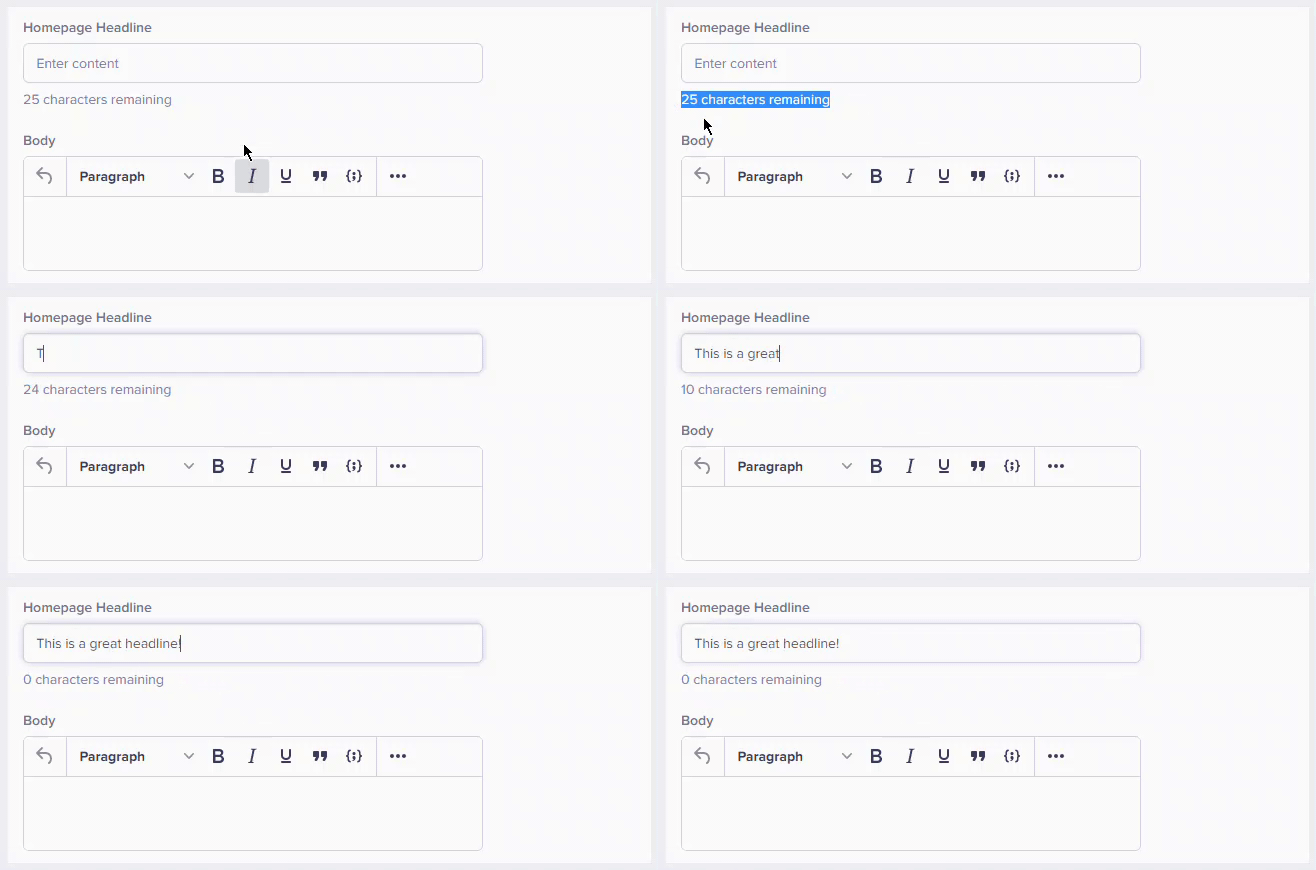
This feature lets you define minimum and maximum lengths for text fields. For example, you could use it to guide content editors to create the perfectly sized headline without worrying about making it too short or too long.
{/* /SOURCE */}
### Recommended length limits
| Field Type | Min | Max | Reason |
| ----------------- | --- | --- | ----------------------- |
| Page Title | 10 | 70 | SEO optimization |
| Meta Description | 50 | 160 | Search result display |
| Article Excerpt | 100 | 300 | Preview cards |
| Social Share Text | 0 | 280 | Twitter/X compatibility |
| Button Text | 2 | 25 | UI design constraints |
| Product Name | 3 | 100 | Catalog consistency |
Several field types allow you to specify a default value for the field. See [adding default values to fields](./default-field-values) for more information.
## Validating fields
### Pattern validation (specific pattern)
Short Text and Long Text fields have an additional configuration option: Regex pattern-based data validation.
To use, check the **Specific pattern** box, and then select the pattern of your choice from the dropdown. You can select from a number of prebuilt patterns, or choose **Custom** and specify your own Regex.
When selected, this option will ensure any data input into the field is correctly formatted before saving.
Available pre-built patterns include:
* email
* URL
* US Phone number
* US Zip code
With pre-built patterns, an example will be displayed with the help-text.
Pattern validation only validates format, not content accuracy. For example, an email pattern validates format but doesn't verify the email exists.
### Common custom validation patterns
Here are examples of the most common custom Regex patterns used by some of our customers.
**Content slugs**
```text theme={null}
Pattern: ^[a-z0-9]+(?:-[a-z0-9]+)*$
Valid: "my-article", "post-123", "hello-world"
Invalid: "My Article", "post_123", "-invalid"
```
**Social media handles**
```text theme={null}
Twitter/X: ^@?[a-zA-Z0-9_]{1,15}$
Instagram: ^@?[a-zA-Z0-9_.]{1,30}$
LinkedIn: ^[a-zA-Z0-9-]{3,100}$
```
**URLs**
```text theme={null}
Full URL: ^https?:\/\/[^\s]+$
Relative path: ^\/[a-zA-Z0-9\/_-]*$
```
**Identifiers**
```text theme={null}
UUID: ^[0-9a-f]{8}-[0-9a-f]{4}-[0-9a-f]{4}-[0-9a-f]{4}-[0-9a-f]{12}$
SKU: ^[A-Z]{2,4}-\d{4,8}$
```
### Validation limitations
ButterCMS validation is client-side and designed to guide editors. For critical data integrity, implement server-side validation in your application.
ButterCMS can't perform:
* **Cross-field validation:** Ensure field A is less than field B
* **Uniqueness checks:** Verify slugs are unique across content
* **External verification:** Check if URLs exist or emails are valid
* **Complex business logic:** Custom rules beyond basic validation
For all of the above cases, you'll want to add validation logic to your application.
## Best practices for configuring and validating fields
**Be reasonable with requirements**
1. **Don't over-require:** Only mark truly essential fields as required
2. **Consider workflow:** Allow drafts to be saved with incomplete data
3. **Balance strictness:** Too much validation slows content creation
**Write clear help text**
1. **Be specific:** "Enter price in USD (e.g., 29.99)" not "Enter price"
2. **Include examples:** Show what valid input looks like
3. **Explain the why:** "Max 60 characters for SEO optimization"
**Set appropriate limits**
1. **Research standards:** Meta descriptions: 155-160 chars, titles: 50-60 chars
2. **Consider design:** How much text fits in your UI?
3. **Allow flexibility:** Minimums shouldn't be too restrictive
**Use patterns wisely**
1. **Test patterns:** Verify regex works before deploying
2. **Keep patterns simple:** Complex regex is hard to maintain
3. **Document patterns:** Comment on what the pattern validates