> ## Documentation Index
> Fetch the complete documentation index at: https://buttercms.com/docs/llms.txt
> Use this file to discover all available pages before exploring further.
# Using the WYSIWYG editor
> Complete guide to the ButterCMS WYSIWYG editor — covers the toolbar, text formatting, links, images, video embeds, tables, and AI writing features.
Use the WYSIWYG editor for Blog Posts and any rich text field in Pages or Collections.
## Toolbar
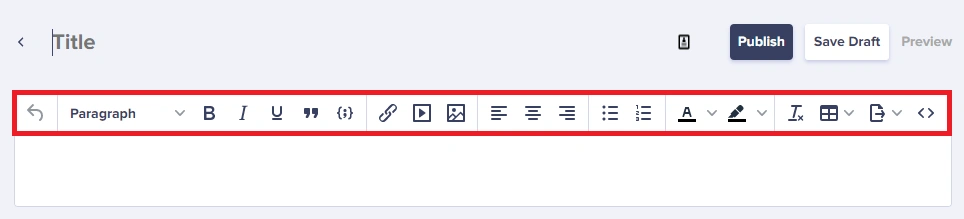
The toolbar groups tools by task:
* Formatting: headings, bold, italic, underline, lists, alignment, quote, code
* Color: text color and highlight
* Media: links, images/files, video embeds, tables
* Utilities: undo/redo, clear formatting, source code, export, accessibility, LTR/RTL
## Format text
### Headings
1. Select text.
2. Choose a heading from **Formats**.
Use H2 for major sections and H3 for subsections. Reserve H1 for the page title.
### Emphasis and lists
* Bold: `Ctrl+B` or `Cmd+B`
* Italic: `Ctrl+I` or `Cmd+I`
* Underline: `Ctrl+U` or `Cmd+U`
* Bullets: click the bullet icon or start a line with `- `
* Numbers: click the number icon or start a line with `1. `
### Block quotes
Select text and click **Quote**.
## Keyboard shortcuts
| Windows | Mac | Action |
| ---------- | ----------------- | ----------- |
| `Ctrl + C` | `Cmd + C` | Copy |
| `Ctrl + V` | `Cmd + V` | Paste |
| `Ctrl + B` | `Cmd + B` | Bold |
| `Ctrl + I` | `Cmd + I` | Italic |
| `Ctrl + U` | `Cmd + U` | Underline |
| `Ctrl + K` | `Cmd + K` | Insert link |
| `Ctrl + Z` | `Cmd + Z` | Undo |
| `Ctrl + Y` | `Cmd + Shift + Z` | Redo |
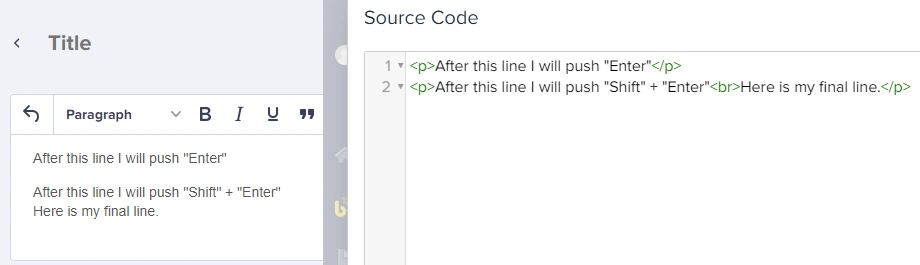
## Line breaks vs paragraphs
| Key | Result |
| --------------- | ----------------------------- |
| `Enter` | New paragraph (adds spacing) |
| `Shift + Enter` | Line break (no extra spacing) |
## Links
1. Select the text you want to link.
2. Press `Ctrl+K` or click **Link**.
3. Enter the URL and choose the target.
4. Click **OK**.
## Images
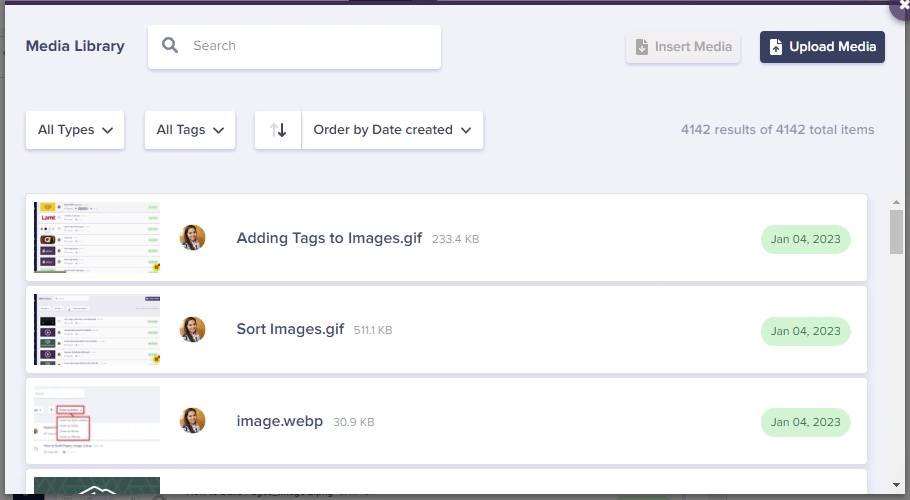
1. Click **Insert from Media Library**.
2. Choose an existing image or upload a new one.
3. Add an **Alternative Description** and optional caption.
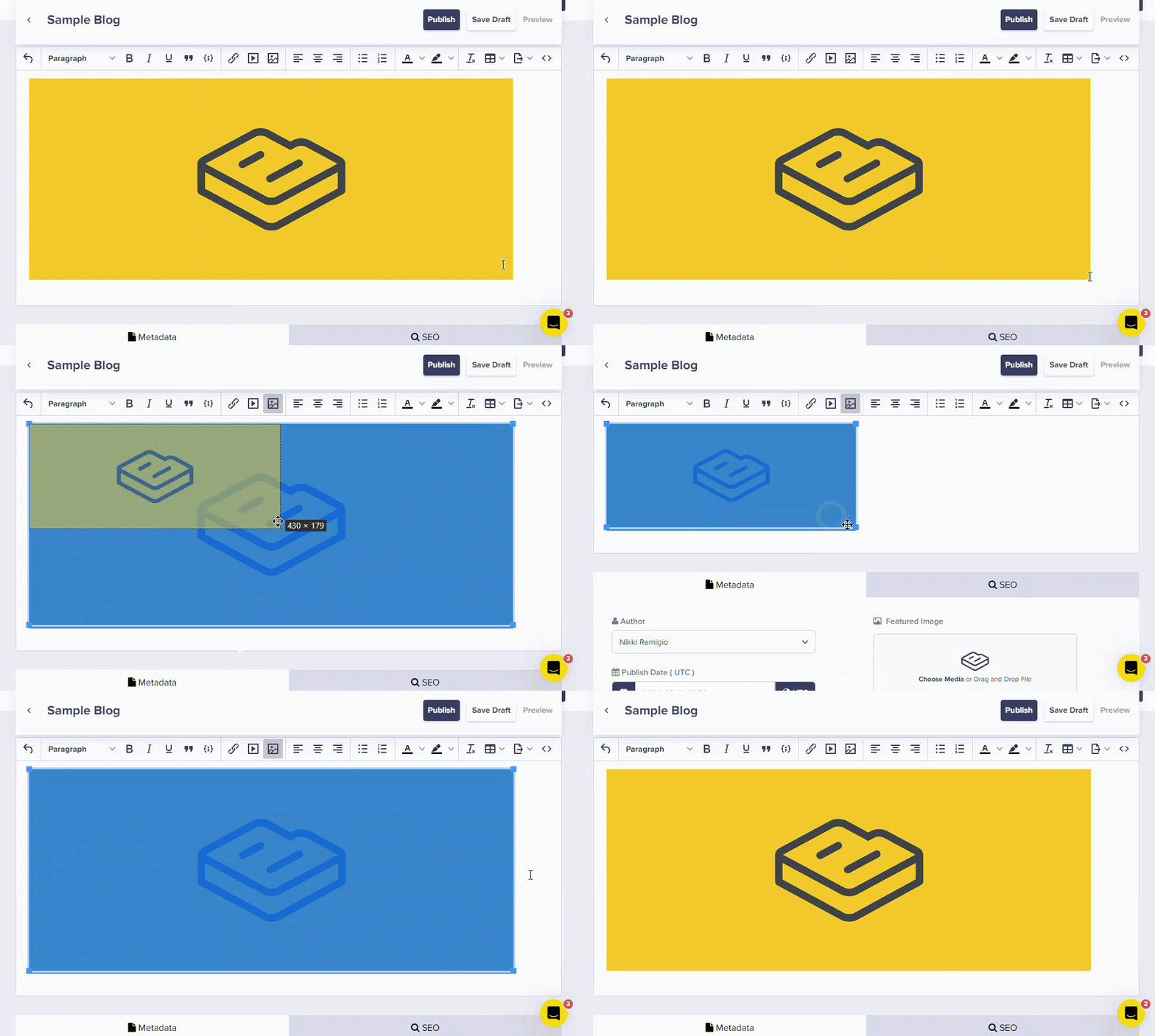
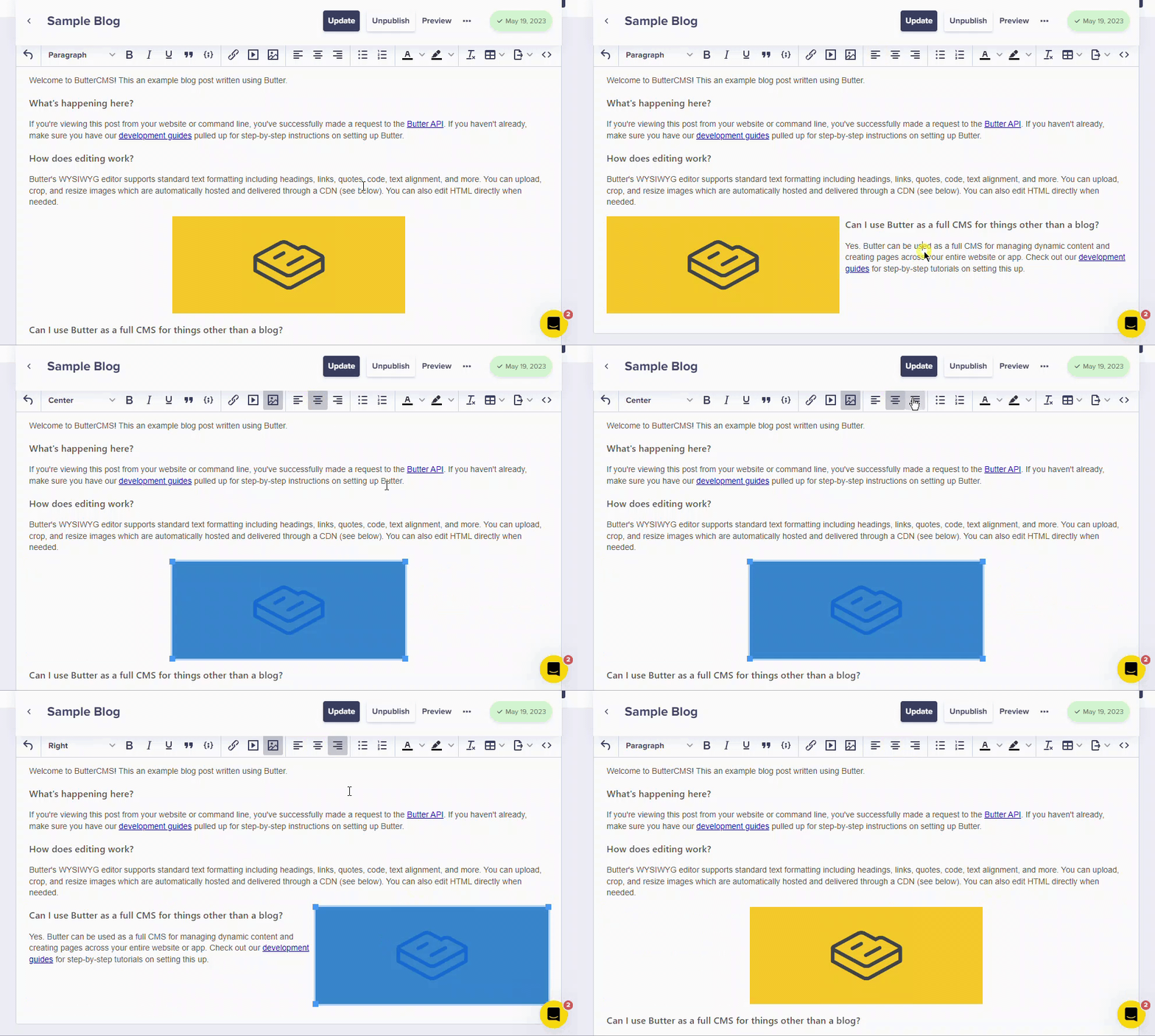
To resize or align an image, click it and use the resize handles or alignment tools.
## Embedding media
### Videos
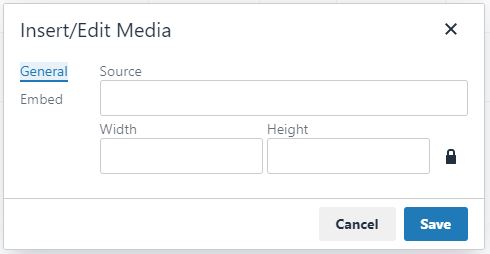
1. Click **Insert/edit media**.
2. Paste the video URL (YouTube or Vimeo).
3. Click **OK**.
### PDFs
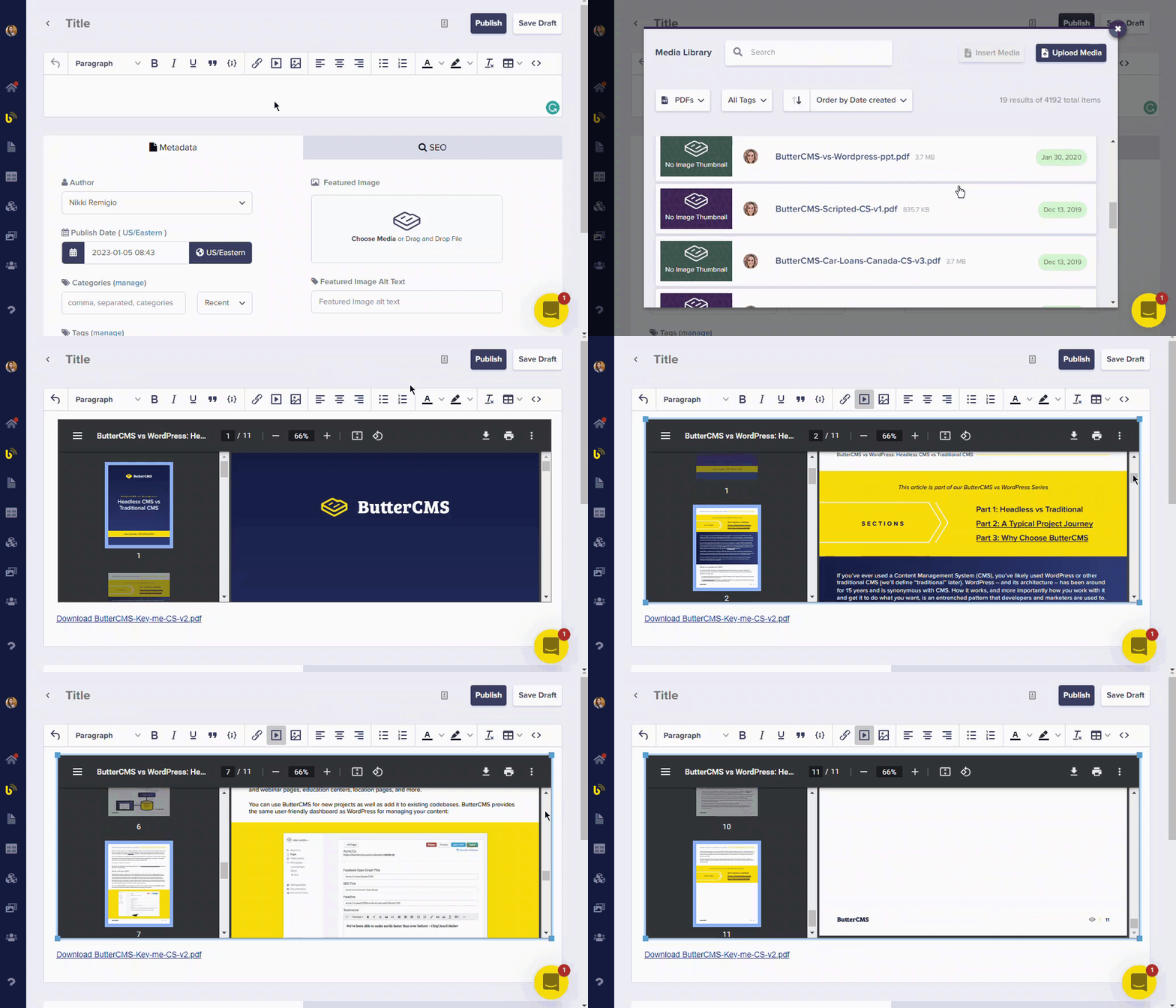
PDFs render inline after insertion.
### Tweets
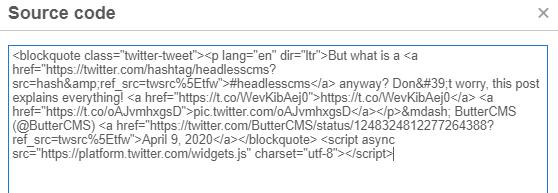
1. Copy the tweet embed code from Twitter.
2. Click **Source Code** and paste the embed HTML.
3. Click **OK** to return to visual mode.
## Tables
1. Click **Table**.
2. Choose the rows and columns.
3. Click to insert, then type in cells.
Use tables for data, not layout. Keep them small for mobile readability.
## Advanced features
* AI writing: click the AI icon to generate or rewrite text.
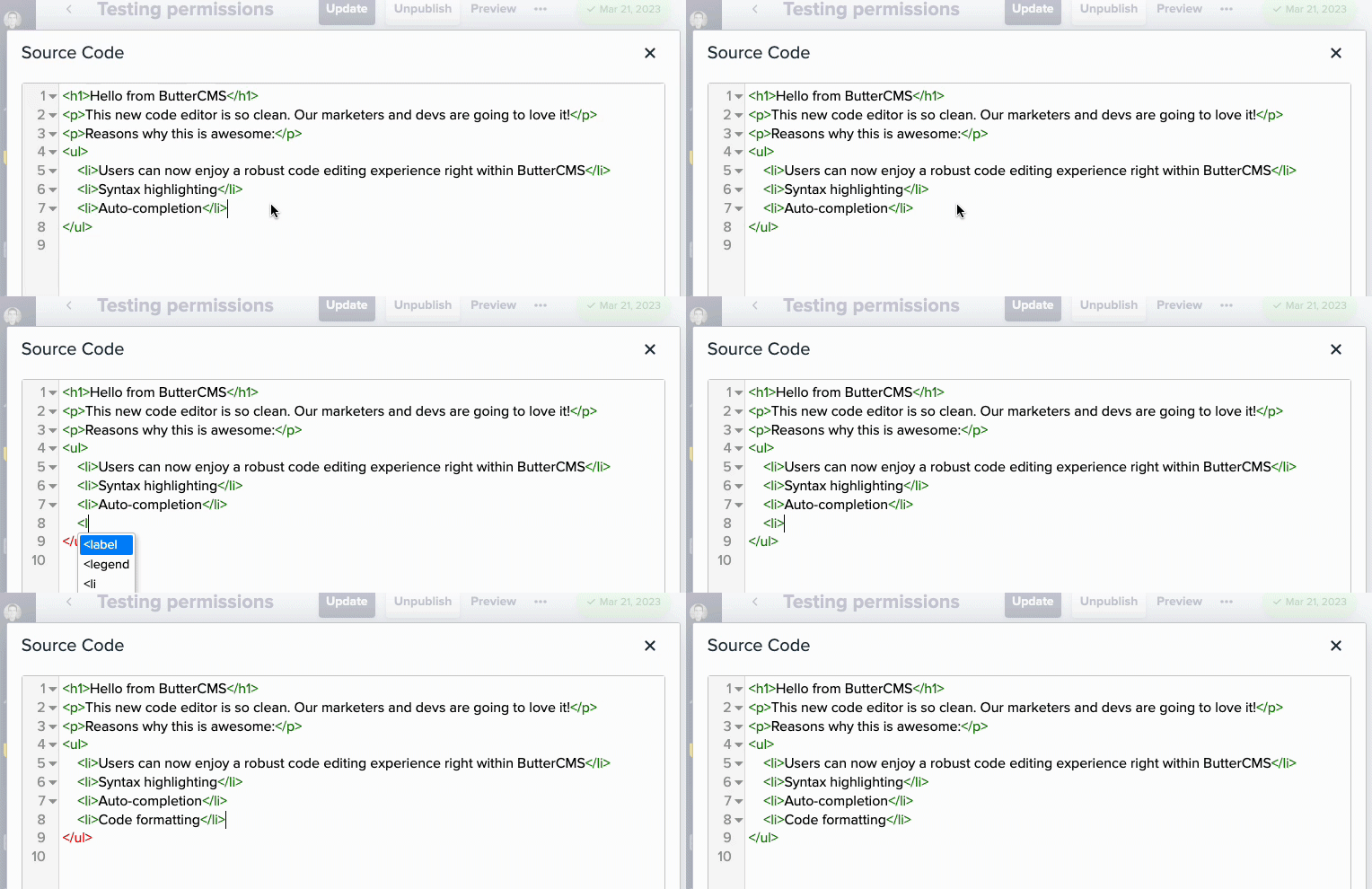
* Source code: click **Source Code** to edit HTML.
* PowerPaste: paste from Google Docs or Word with clean formatting.
* Export: click the PDF icon to export content.
AI writing features are available when enabled for your organization.
## Changing font size
Use **Source Code** to apply inline styles when needed:
```html theme={null}
Bigger text here
```
Your site CSS may override inline styles. Use a shared CSS class for consistent typography.
## Troubleshooting
Your site's CSS takes precedence over WYSIWYG formatting. Work with your developer to align styles.
Use Paste as Plain Text or Clear Formatting after pasting.
Your developer may need to add CSS for alignment.
Confirm the platform is supported and try the **Embed** tab if available.