> ## Documentation Index
> Fetch the complete documentation index at: https://buttercms.com/docs/llms.txt
> Use this file to discover all available pages before exploring further.
# Embedding forms in ButterCMS fields
> Embed third-party forms directly in any ButterCMS WYSIWYG field, or create a custom ButterCMS component to host form source code.
{/* /SOURCE */}
Need rendering guidance and security tips? See [Rendering Embedded Forms](../../../build-your-app/rendering-complex-field-types/embedding-forms).
## Embedding via WYSIWYG editor
### Step 1: Copy your form embed code
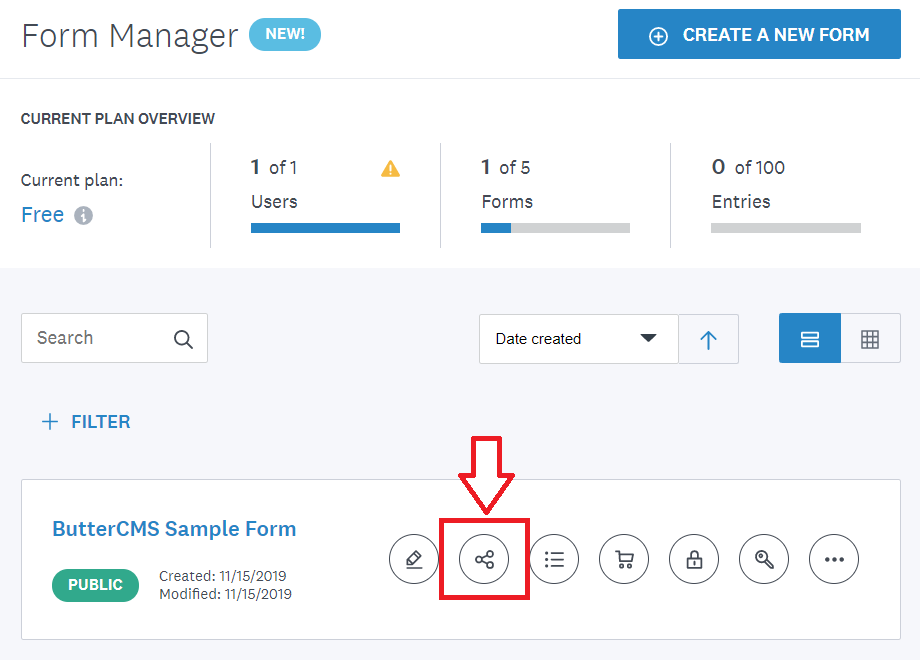
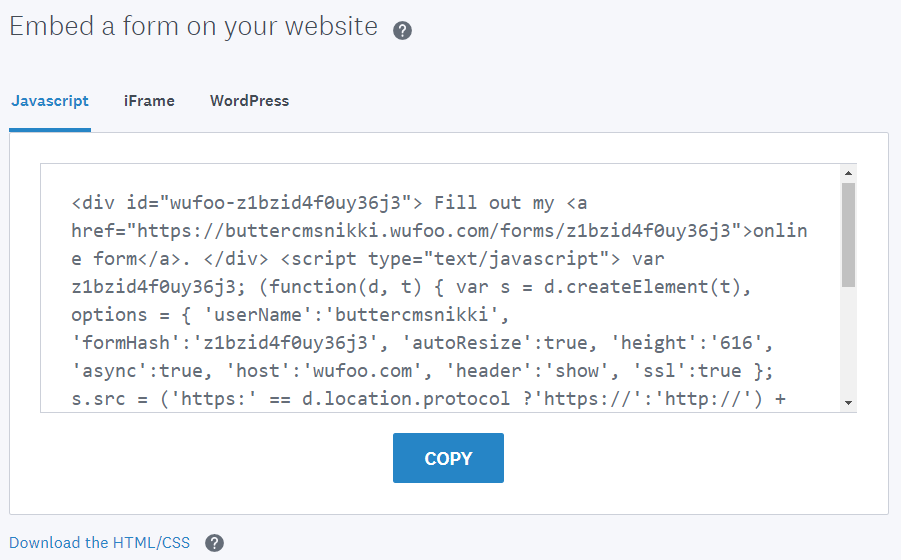
To insert a form into ButterCMS, you need to embed the code from your third-party form tool into your Blog Post or Page's WYSIWYG field. Here's an example using Wufoo:
1. Login to your form provider account.
2. Navigate to the form you want to embed.
3. Find the "Share" or "Embed" option.
4. Copy the embed code.
{/* SOURCE: file_path="knowledge-base/how-to/embedding-forms.md" section="Pasting form embed code" */}
### Step 2: Paste into WYSIWYG field
1. In ButterCMS, navigate to your page or blog post.
2. Click on the WYSIWYG field where you want to embed the form.
3. Click on the **Source code** button (`<>`) in the toolbar.

4. Paste your embed code into the source view
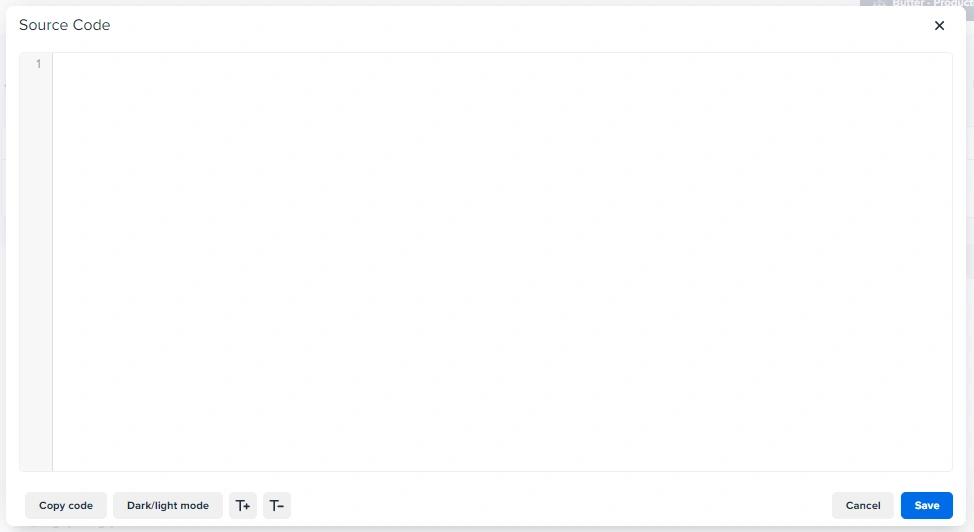
5. Click **Save** to apply the changes
### Step 3: Preview your form
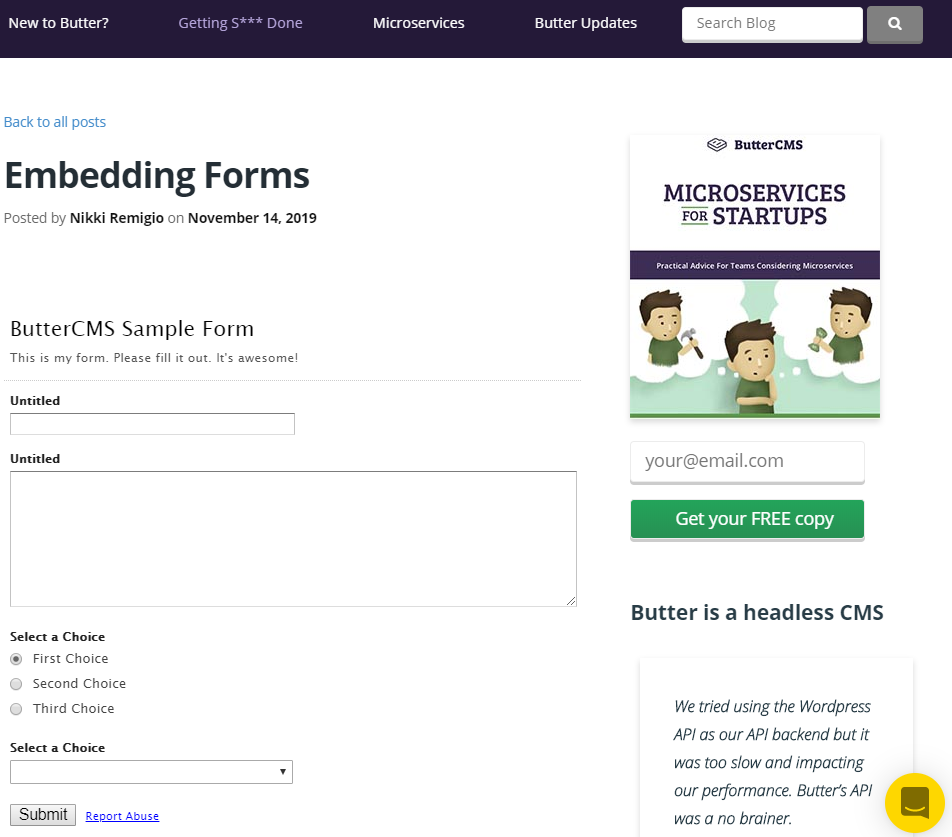
Depending on what code you embed, you will either see a link to your form or the actual form on your WYSIWYG field.
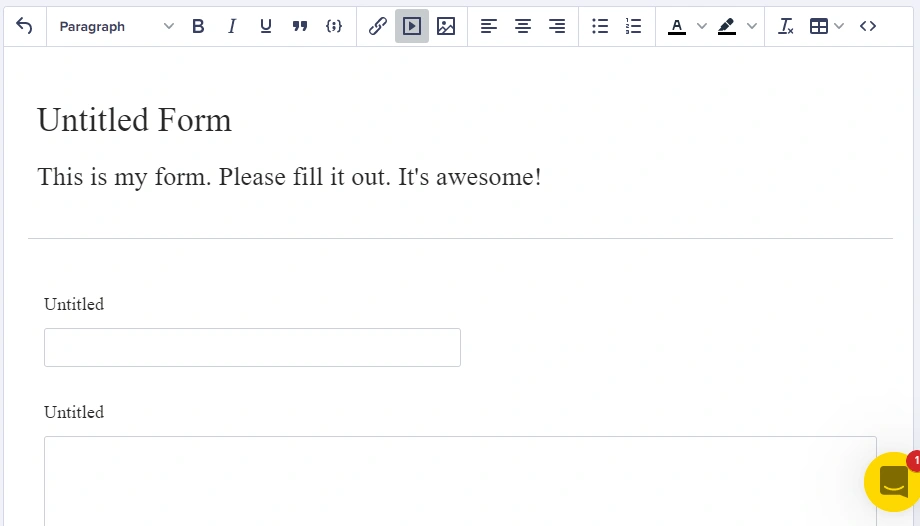
You can preview your post before publishing it to see how it will look on your live site.
***
## Creating a form embed Component
For more control and reusability, create a dedicated Component for form embeds:
### Component schema
Create a new Component called **Form Embed** with these fields:
| Field Name | Field Type | Description |
| --------------- | ---------- | ------------------------------------------------ |
| `form_title` | Short Text | Display title for the form |
| `form_provider` | Dropdown | Options: HubSpot, Mailchimp, Google Forms, Other |
| `embed_code` | Long Text | The iframe or script embed code |
| `form_height` | Number | Height in pixels (default: 500) |
| `show_title` | Checkbox | Whether to display the form title |
***
## Best practices
**Performance tip**: Forms with heavy JavaScript (100KB+) can impact page load times. Consider lazy-loading forms using the Intersection Observer API to load them only when scrolled into view.
### Accessibility
1. **Form labels** - Ensure embedded forms have proper labels
2. **Keyboard navigation** - Test that forms can be completed using keyboard only
3. **Screen readers** - Verify form fields are announced correctly
4. **Color contrast** - Check that form elements meet WCAG guidelines
***
## Troubleshooting
| Issue | Solution |
| ------------------- | ---------------------------------------------------------- |
| Form not displaying | Check that the embed code is valid HTML/JavaScript |
| Form cut off | Adjust the iframe height or use responsive embed styles |
| Submission errors | Verify the form action URL is accessible |
| Styling conflicts | Add CSS scoping or use an iframe to isolate styles |
| CORS errors | Ensure the form provider allows embedding from your domain |
## Next steps
Build custom forms using Collections
Use native Typeform, Jotform, Formstack integrations