> ## Documentation Index
> Fetch the complete documentation index at: https://buttercms.com/docs/llms.txt
> Use this file to discover all available pages before exploring further.
# Managing Repeater items
> Learn how to add, edit, reorder, and delete items within a Repeater field in ButterCMS.
## Adding items to a Repeater
Go to **Pages** and open the page containing your Repeater field.
Scroll to find the Repeater field in your content editor.
Click the **+ \[Repeater Name]** button to add a new item. After pressing the button, an item for the repeater will be created.
Enter content for each field within the new item.
Now you can add your content details into the available fields. Below you can see the information for a product item:
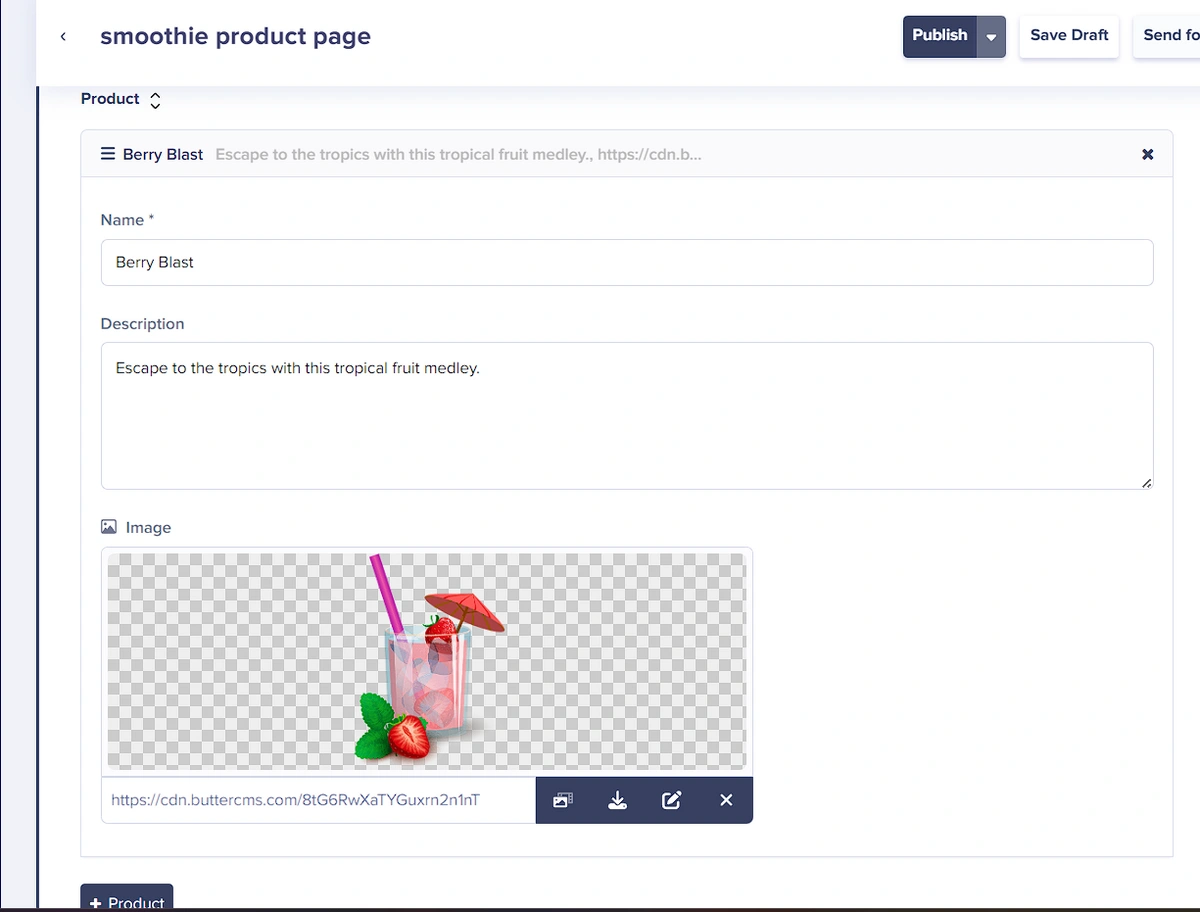
To add another item, click on the **+ \[repeater\_name]** button again.
In the below screenshot, we have three items in the Features section, meaning we clicked on the **+ Feature** button three times to create three distinct items.
{/* IMAGE_SOURCE: file_path="blog-posts/gsd/golang-app-tutorial-ecommerce-landing-pages.md" */}
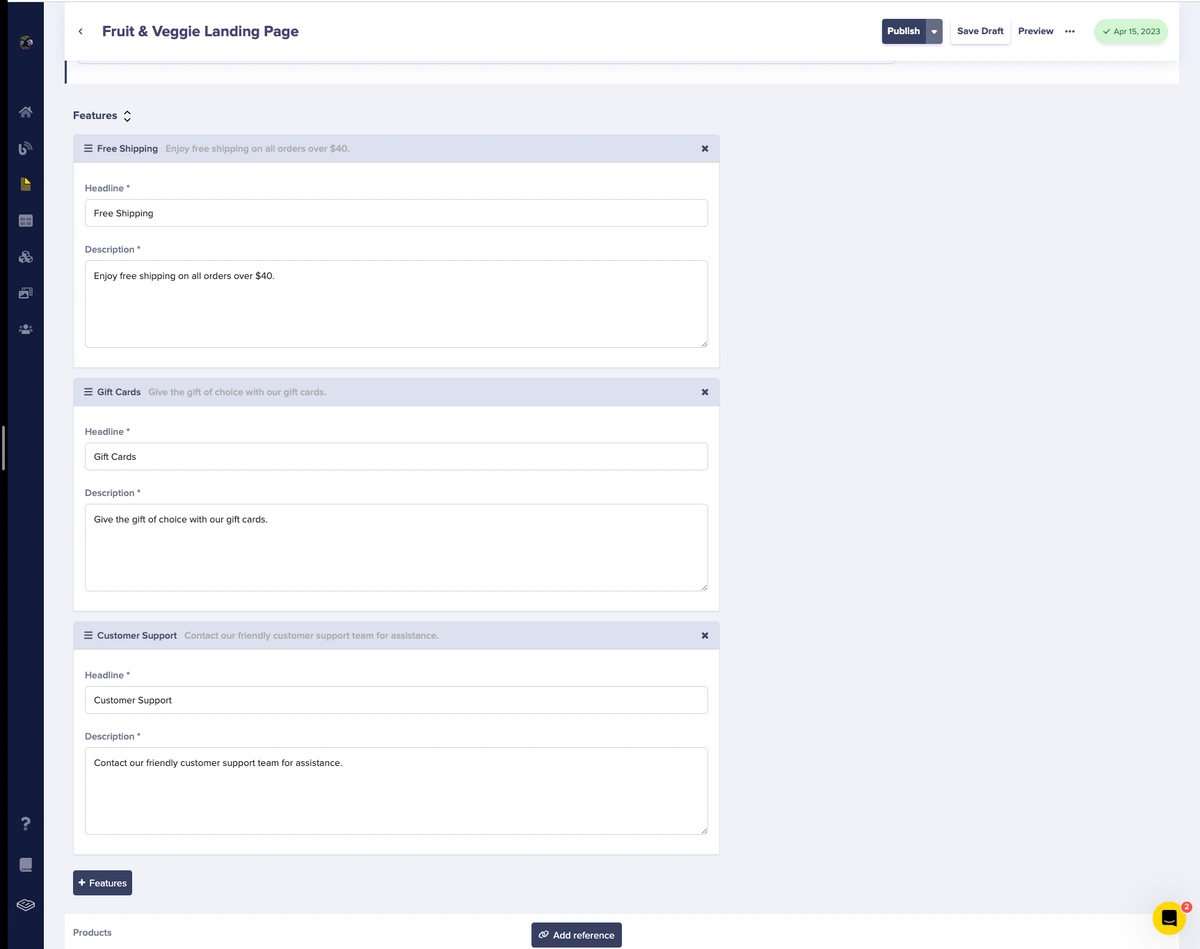
Click **Save** or **Publish** to preserve your changes.
## Editing existing items
Editing repeater items is straightforward:
1. Navigate to the page containing your Repeater.
2. Locate the item you want to edit.
3. Click on any field within the item to modify it.
4. Make your changes to text, images, or other fields.
5. Save or Publish to apply changes.
### Expanding and collapsing items
For repeaters with many items or complex field structures, you can expand or collapse individual items:
* Click the item header to collapse or expand it.
* The collapsed view shows only the item title/identifier.
* The Expanded view shows all fields for editing.
This helps manage long lists and focus on specific items.
## Reordering items
Items within a Repeater can be reordered using drag-and-drop or arrow controls:
### Drag and drop
1. Hover over the item you want to move.
2. Click and hold the drag handle (typically on the left side of the item).
3. Drag the item to its new position.
4. Release to drop it in place.
### Arrow controls
Some items display up/down arrow controls:
* **Up arrow**: Moves the item one position higher.
* **Down arrow**: Moves the item one position lower.
## Deleting items
To remove an item from a Repeater:
1. Locate the item you want to delete.
2. Click the delete button (trash icon or "×" on the item).
3. Confirm the deletion if prompted.
4. Save or Publish to apply the change.
Deleting a Repeater item removes it permanently. There is no undo button, though you can use revision history to restore previous versions of the page.
## Next steps
Step-by-step setup guide
API examples for your application
Conceptual overview