> ## Documentation Index
> Fetch the complete documentation index at: https://buttercms.com/docs/llms.txt
> Use this file to discover all available pages before exploring further.
# Automatic image compression & WebP
> ButterCMS automatically optimizes images for better performance. Learn how automatic compression and WebP conversion help deliver faster page loads.
## Automatic image compression
ButterCMS has automatic image compression enabled across all images. When you upload an image, it's automatically optimized to reduce file size while maintaining visual quality.
### Viewing compression results
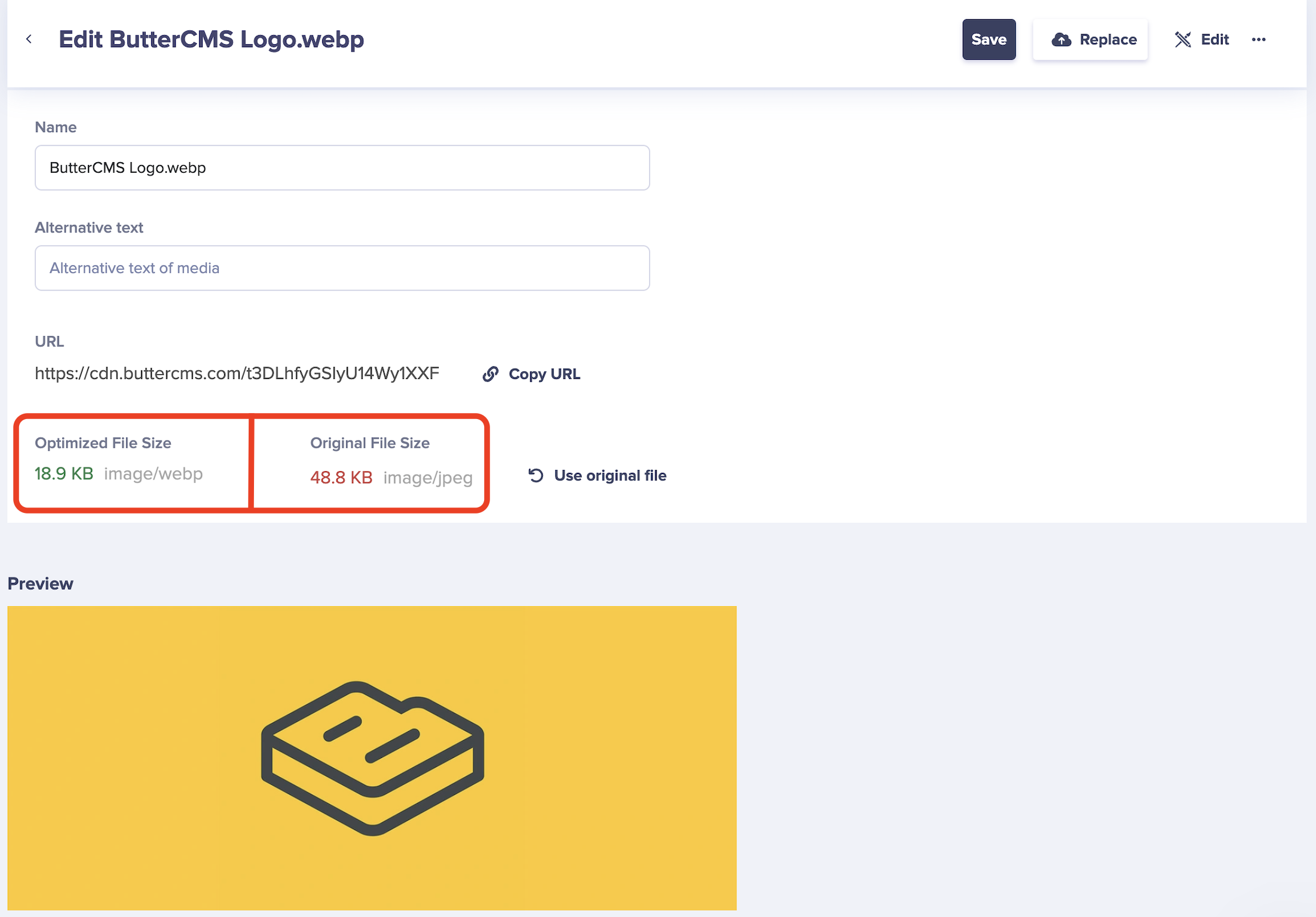
When viewing an image in your Media Library, you'll see both file sizes:
* **Optimized File Size** - The compressed version being served
* **Original File Size** - Your original upload size
### Reverting to original
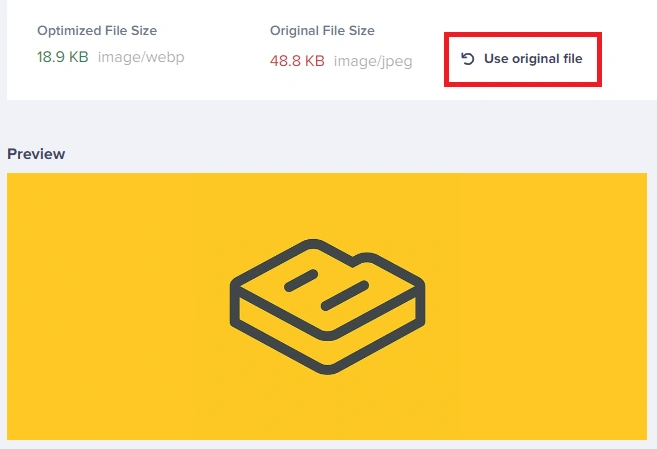
If you prefer to use the original file without compression, you can revert by clicking the **Use original file** button:
## Automatic WebP conversion
To help with the optimization of your images, ButterCMS automatically converts them to WebP format. WebP is a modern image format that provides superior compression compared to JPEG and PNG.
### Benefits of WebP
WebP images are 25-34% smaller than JPEG at equivalent quality
Smaller files mean faster page loads on all devices
Google favors fast-loading pages in search rankings
WebP supports transparency like PNG, but with better compression
## Optimal file size guidelines
For optimal page speed and appearance, follow these guidelines:
| Image Type | Recommended Max Size | Notes |
| ----------------------- | -------------------- | -------------------------- |
| Large/background images | 1 MB | Full-screen or hero images |
| Standard images | 1200px width | Resize before uploading |
| Thumbnails | 300-500px | Keep as small as practical |
| Icons | 100px or less | Use SVG when possible |
### Best practices
Resize images to 1200 pixels width or less before uploading
Use free tools like TinyPNG or TinyJPG to compress images before uploading
JPEG for photos, PNG for graphics with transparency, SVG for icons
After upload, ButterCMS automatically applies additional optimization
## How it works behind the scenes
### Automatic processing pipeline
When you upload an image to ButterCMS:
1. **Original Stored** - Your original file is safely stored as backup
2. **Analysis** - The image is analyzed for optimal compression settings
3. **Compression** - Lossless or near-lossless compression is applied
4. **WebP Conversion** - A WebP version is created for modern browsers
5. **CDN Distribution** - The optimized image is distributed globally
### Browser compatibility
ButterCMS handles browser compatibility automatically:
| Browser | Format Served |
| ---------------------------- | -------------------------- |
| Chrome, Firefox, Edge, Opera | WebP |
| Safari (modern) | WebP |
| Older browsers | Original format (JPEG/PNG) |
ButterCMS uses content negotiation to serve the best format for each visitor's browser automatically.
## Compression tips
### Before uploading
* **Remove metadata** - Strip EXIF data from photos to reduce file size
* **Choose appropriate quality** - 80% JPEG quality is usually sufficient
* **Crop unnecessary areas** - Remove parts of the image you don't need
### After uploading
* **Check the size comparison** - Review optimized vs. original sizes in Media Library
* **Monitor page speed** - Use tools like Google PageSpeed to verify improvements
* **Consider further optimization** - Use URL transformations for responsive images
### Tools for pre-upload compression
| Tool | Best For | Link |
| ---------------- | --------------------------------- | ---------------------------------------- |
| TinyPNG/TinyJPG | Quick web-based compression | [tinypng.com](https://tinypng.com) |
| Squoosh | Advanced options, comparison view | [squoosh.app](https://squoosh.app) |
| ImageOptim (Mac) | Batch processing | [imageoptim.com](https://imageoptim.com) |
## Performance impact
Large, unoptimized images are one of the most common causes of slow website performance.
### Typical improvements
| Metric | Typical Improvement |
| ------------------ | --------------------- |
| Image file size | 30-70% reduction |
| Page load time | 20-50% faster |
| Bandwidth usage | Significantly reduced |
| Mobile performance | Greatly improved |