> ## Documentation Index
> Fetch the complete documentation index at: https://buttercms.com/docs/llms.txt
> Use this file to discover all available pages before exploring further.
# Migrating content
> Use the ButterCMS Migrations tool to move environments, page types, collections, and pages across sites — with guidance on references and locales.
When managing multiple sites in ButterCMS, there are several approaches to keeping content synchronized. The two most commonly used tools are the ButterCMS migrations tool and the Write API. (See [Automating Cross-Site Sync](../../build-your-app/multi-site-environments/syncing-content-across-sites) for more info on using the Write API to keep your content in sync.)
| Strategy | Best For | Method |
| ------------------ | -------------------------- | ------------------------- |
| **Migration Tool** | One-time or periodic syncs | Dashboard-based migration |
| **Write API** | Automated syncs | Programmatic content push |
## The ButterCMS migrations tool
The ButterCMS migrations tool makes migrating data across your environments and sites dead simple. With the migrations tool, you can perform any of the following operations:
* **Entire environment** - Completely replace a target environment with the content from the source environment
* **Components** - Migrate components across sites and environments
* **Single Pages** - Great for when you want your staging and production sites to have the same structure
* **Page Types** - Migrate the schema along with associated pages
* **Collections** - Migrate collections and all their items
## Schema vs. content migrations
When creating a migration for a specific type of content, you can migrate only the schema—the content's **configuration**—or the content itself.
| Migration type | What it includes | Use Case |
| -------------------- | ------------------------------------------------------------- | ---------------------------------------------------- |
| **Schema only** | Page Type structure, Collection fields, Component definitions | Testing new content models |
| **Schema + content** | Schema plus all associated pages/items | Launching tested content to production |
| **Content only** | Page instances, Collection items | Syncing content for already defined/migrated schemas |
## Creating a migration
From the ButterCMS dashboard, navigate to **Migrations** in the main menu.
Choose the environment you want to migrate from (e.g., Development or Staging).
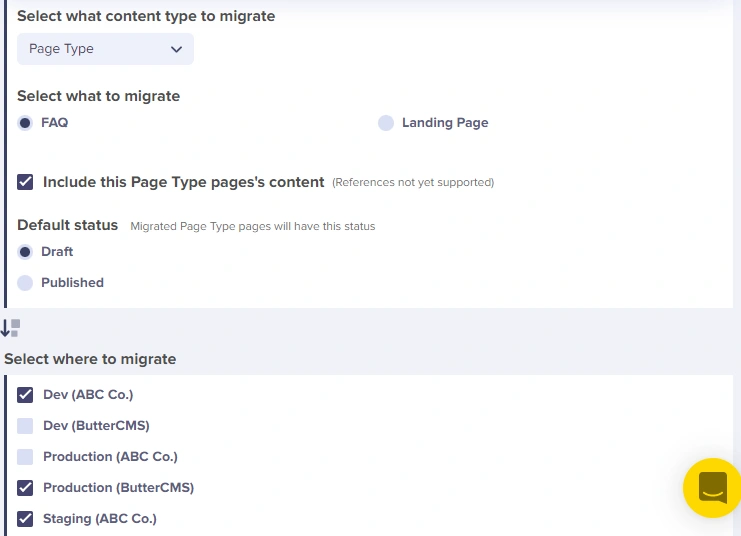
Choose **entire environment** migration, or choose the content type:
* **Page Types** - Select one or more Page Types
* **Collections** - Select one or more Collections
* **Components** - Select components to migrate
* **Single Pages** - Select individual pages
Check the box to include content, or leave unchecked to only migrate schemas.
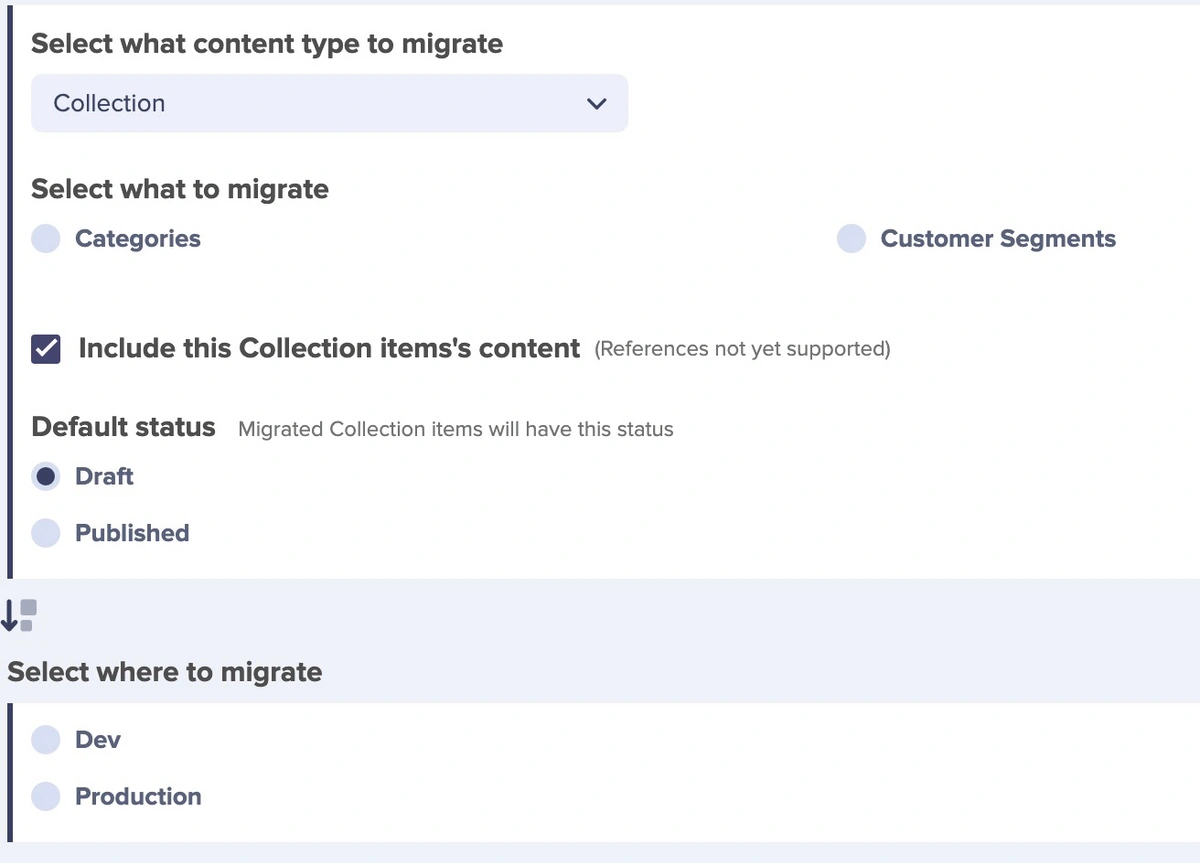
Choose one or more destination environments or sites:
* You can select multiple destinations
* Cross-site migrations are supported
Review your migration settings and click to confirm.
## Important considerations
### Handling references in migrations
Reference fields allow you to create relationships between your content types.
When migrating content types that include References to other content types, the migration order is important. Migrations will fail if the referenced content is not migrated first. In other words, you must migrate in dependency order.
* PageTypeA has a reference to PageTypeB
* **Migrate PageTypeB first**
* Then migrate PageTypeA
### Handling locales in migrations
When migrating localized content:
* The destination site must have identical locales configured. If locales don't match, content for missing locales will not be migrated.
* Migrate all locale versions together to maintain content consistency.
* Locale-specific content (like translated text) is environment-specific and should be verified after migration.
### Migration job status
Migrations of schemas or content (other than entire environment clones) are immediately queued into jobs and are completed after a short delay (3-5 minutes). You can track the job's status in the [migration history](#migration-history) view.
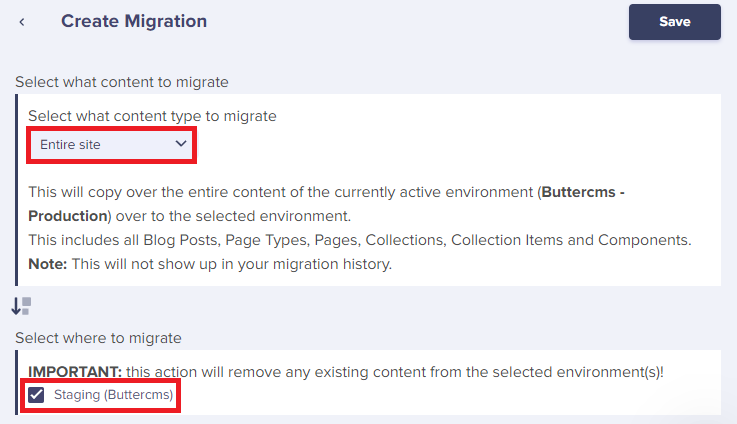
If you select to clone/migrate a source environment to a target environment, a system-generated email will be sent to our customer success team with the clone details. Your clone will be performed within 48 hours.
{/* IMAGE_SOURCE: file_path="knowledge-base/how-to/moving-content-within-buttercms.md" */}
### Incremental needs
The ButterCMS migrations tool currently does not support incremental updates. For incremental needs:
* Use the Write API for targeted updates
* Implement custom sync logic in your application
* Track migration timestamps to identify changed content
## Migration history
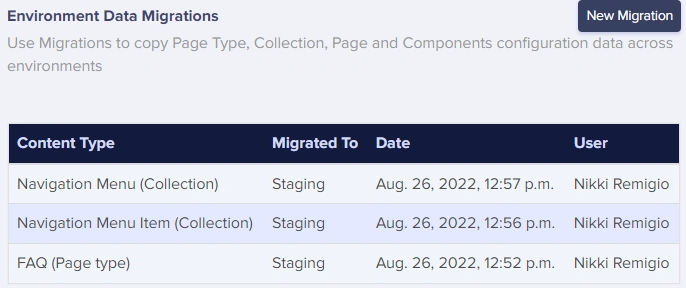
You can also view a log of all migrations that occurred in each environment, so you can keep track of everything.
{/* IMAGE_SOURCE: file_path="knowledge-base/how-to/moving-content-within-buttercms.md" */}