> ## Documentation Index
> Fetch the complete documentation index at: https://buttercms.com/docs/llms.txt
> Use this file to discover all available pages before exploring further.
# Content status: draft to published
> Overview of ButterCMS content statuses from draft to published — understanding each status helps you manage your content workflow effectively.
In order to make changes to the status of a piece of content, you have to have the correct permissions assigned to your Role. Read more about [default](../collaborating-with-teams/default-roles) and [custom](../collaborating-with-teams/custom-roles-permissions) roles and permissions.
Additionally, only users with an admin role can delete Pages and Collection items if localization is enabled.
{/* /SOURCE */}
## Content statuses
ButterCMS content can exist in four different states:
| Status | Visual Indicator | Description |
| ------------------------ | ------------------- | ----------------------------------------------------------------------------------------------------------------------------------------------------------------------------------------------------------- |
| **Draft** | 🟡 Yellow date | Content saved but not published. Visible via preview function and by passing the `preview` parameter to the API |
| **Scheduled** | 🔵 Blue date | Content set to publish automatically at a future date/time. |
| **Published** | 🟢 Green date | Content is live and accessible via the API. |
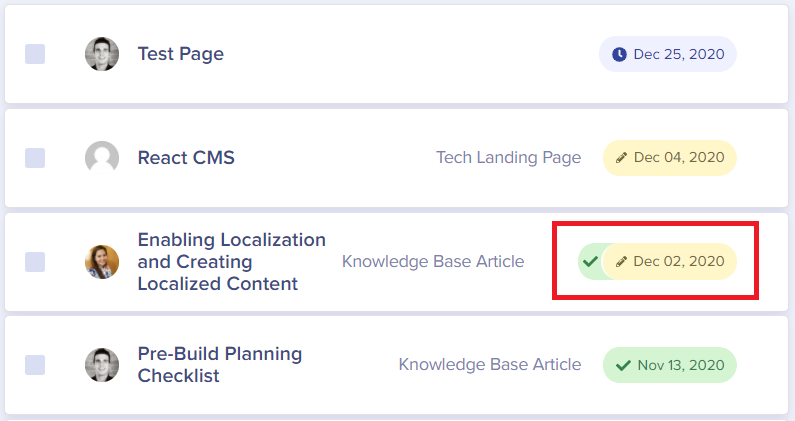
| **Published with Draft** | 🟢🟡 Green + Yellow | Two versions of this content exist; one that is published and returned by the API without the `preview` parameter, and the in-progress draft, which is available from the API with the `preview` parameter. |
{/* IMAGE_SOURCE: file_path="knowledge-base/how-to/page-status-draft-to-published.md" */}



### Understanding published with draft
You can have a page that is published with a draft version. For example, version 1 may already be published (indicated by a green checkmark), while version 2 is still being edited as a draft.
{/* IMAGE_SOURCE: file_path="blog-posts/butter-updates/november-dashboard-enhancements.md" */}
## Publication workflow
For step-by-step tutorials on saving and publishing drafts, see [managing drafts](managing-drafts).
### Step 1: Create content
An Admin configures your Page or Page Type template, setting up all content fields that editors will need access to. Then an Author (or higher authorization) creates a new Page or content item.
### Step 2: Save as draft
The content is saved as a **Draft** (indicated by a yellow date). At this stage, the content can be previewed to see how it will look on your live site.
ButterCMS does not have an auto-save feature. Remember to save your work frequently.
### Step 3: Review and publish
A Publisher or Admin reviews the content, makes any necessary updates, and can:
* **Publish immediately** - Content goes live right away
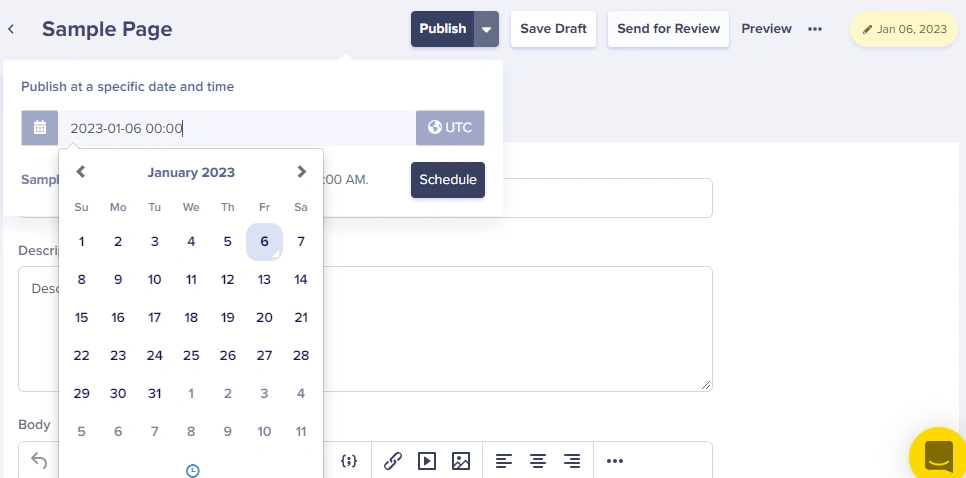
* **Schedule for later** - Set a future date/time for automatic publication
{/* IMAGE_SOURCE: file_path="knowledge-base/how-to/page-status-draft-to-published.md" */}
## Status visibility
You can always view the current status of your content:
* **In the content list** - Status is shown as a colored date indicator
* **In the editor** - Status appears in the upper-right corner of the screen
* **Via API** - Use the `preview=1` parameter to access draft content