> ## Documentation Index
> Fetch the complete documentation index at: https://buttercms.com/docs/llms.txt
> Use this file to discover all available pages before exploring further.
# Deleting content
> Learn how to delete different types of content in ButterCMS and what happens after deletion — including impacts on referenced content.
**Permanent Action:** Deleting content in ButterCMS is permanent. Once deleted, content cannot be recovered. Always double-check before confirming deletion.
## Deleting Blog Posts
To delete a Blog Post:
1. Open the blog post you want to delete
2. Click on the **red delete button** at the top right
3. Confirm the deletion
{/* IMAGE_SOURCE: file_path="knowledge-base/how-to/how-to-create-modify-and-delete-blog-posts.md" */}
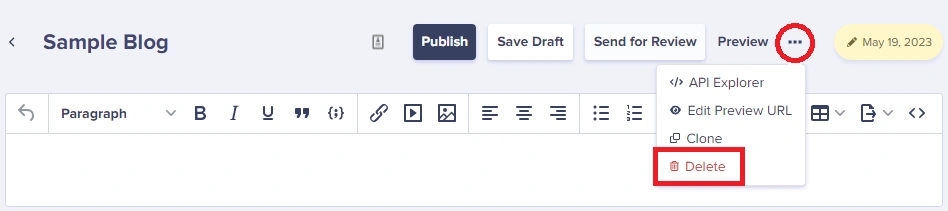
Once a Blog Post is deleted, you will **not** be able to recover it. Make sure you have any content backed up if needed before deleting.
## Deleting Pages
To delete a Page:
1. Navigate to the Page you want to delete
2. Click on the ellipsis button (three dots) in the upper-right corner
3. Select **Delete** from the dropdown menu
4. Confirm the deletion when prompted
### Single Pages vs Page Type Pages
* **Single Pages:** Can be deleted individually
* **Page Type Pages:** Can be deleted individually; deleting doesn't affect other pages of the same type
* **Page Types themselves:** Deleting a Page Type removes the template but may not delete all associated pages (check your specific workflow)
## Deleting Collection items
To delete a Collection item:
1. Navigate to your Collection
2. Find the item you want to delete
3. Click on the ellipsis button (three dots) next to the item
4. Select **Delete** from the dropdown menu
5. Confirm the deletion
### Bulk deletion
You can also delete multiple Collection items at once:
1. Select multiple items using the checkboxes
2. Use the bulk action menu to delete selected items
3. Confirm the deletion
## Permission requirements
Not everyone can delete content. Here's who has deletion permissions:
| Role | Can delete Blog Posts | Can delete Pages | Can delete Collections |
| ------------- | --------------------- | ---------------- | ---------------------- |
| **Author** | ❌ No | ❌ No | ❌ No |
| **Publisher** | ✅ Yes | ✅ Yes | ✅ Yes |
| **Admin** | ✅ Yes | ✅ Yes | ✅ Yes |
**Localization Note:** Only Admins can delete Pages and Collection items if localization is enabled on your account.
## Unpublishing vs. deleting
Consider whether you actually need to delete content, or if unpublishing would be more appropriate:
| Action | Result | Recoverable? |
| ------------- | --------------------------------------------------------------- | --------------------- |
| **Unpublish** | Content is removed from your live site but remains in ButterCMS | ✅ Yes - can republish |
| **Delete** | Content is permanently removed from ButterCMS | ❌ No - permanent |
### When to unpublish instead
* Seasonal content you'll use again
* Content that needs major revisions
* Testing content temporarily removed from production
* Content under review for compliance issues
### When to delete
* Duplicate content that shouldn't exist
* Test content that's no longer needed
* Outdated content with no archival value
* Content created in error
## SEO considerations
Deleting content from your website needs to be done with your team's SEO strategy in mind.
**Why does your SEO strategy matter when removing content?**
When you delete content that has been indexed by search engines:
* **Broken links:** External sites linking to your content will lead to 404 errors
* **Lost rankings:** Any search engine rankings for that content will be lost
* **User experience:** Visitors following old links will encounter error pages
### Best practices for SEO-safe deletion
Work with your development team to set up 301 redirects for deleted URLs to their relevant replacements. This preserves link equity and improves the user experience.
Before deleting, search your content for internal links to the page being deleted and update them to point to alternative content.
Instead of deleting underperforming content, consider consolidating it into more comprehensive pages that can rank better.
Review your analytics to determine whether the content is receiving traffic. Even old content may drive valuable visits.
After deletion, ensure your sitemap is updated to remove references to deleted pages.
## What happens when content is deleted
### Immediate effects
| Effect | Description |
| ---------------- | ------------------------------------------------------------- |
| **API Response** | Deleted content immediately stops returning from API calls |
| **Live Site** | Content disappears from your website (if using ButterCMS API) |
| **Dashboard** | Content is removed from your ButterCMS dashboard |
| **Media** | Associated media files remain in your Media Library |
### Things that are not deleted
* **Media files:** Images and files used in deleted content remain in your Media Library
* **Authors:** Deleting a blog post doesn't delete the associated author
* **Categories/Tags:** These remain even if all content using them is deleted
* **Page Types:** Deleting all pages of a type doesn't delete the Page Type itself
After deleting content, you may want to clean up unused media files in your Media Library to keep things organized.
## Alternatives to deletion
Before deleting, consider these alternatives:
| Alternative | Use case |
| ---------------------- | ------------------------------------------------------------------ |
| **Unpublish** | Remove from live site but keep in ButterCMS for future use |
| **Schedule Unpublish** | Automatically remove from site at a future date |
| **Archive Tag** | Add an "archived" tag/category and filter it out of your live site |
| **Draft Status** | Revert to draft to remove from live site while preserving content |
## Team coordination
**Team Presence Feature**
Before deleting content, check if any team members are currently editing it. ButterCMS's [team presence](../collaborating-with-teams/team-presence#what-is-team-presence) feature shows when others are viewing the same content, helping you avoid accidentally deleting something someone else is working on.
### Deletion workflow tips
1. **Communicate with your team** before deleting shared content
2. **Check for references** in other content that link to what you're deleting
3. **Document deletions** if you have a content governance process
4. **Review with stakeholders** for important or high-traffic content