> ## Documentation Index
> Fetch the complete documentation index at: https://buttercms.com/docs/llms.txt
> Use this file to discover all available pages before exploring further.
# Managing drafts
> Draft Mode enables a content workflow where new content changes can be safely previewed before being published to your production environment.
Your content editors can preview any content change including creating, deleting, editing, and reordering content.
## Understanding drafts
In ButterCMS, drafts serve multiple purposes:
| Scenario | How drafts work |
| ----------------------------- | --------------------------------------------------------------------- |
| **New content** | All new content starts as a draft until published |
| **Editing published content** | Changes are saved as a draft version without affecting live content |
| **Team review** | Authors create drafts that Publishers/Admins review before publishing |
| **Staging workflow** | Drafts can be previewed on staging sites using the draft API |
### Typical draft workflow
1. **v1 Created (Draft)** → Author creates initial content
2. **v1 Published** → Content goes live
3. **v2 Created (Draft)** → Author starts making updates
4. **v2 in Review** → Team reviews changes while v1 remains live
5. **v2 Published** → Updated content goes live, v1 becomes Locked
This workflow ensures your live content remains stable while you iterate on new versions.
## Saving content as draft
### For Pages
1. Create or edit your Page content
2. Click the **Save Draft** button (instead of Publish)
3. Your content is saved but not live on your website
4. The page status shows a **yellow date indicator** indicating draft status
### For Blog Posts
1. Create or edit your Blog Post
2. Click **Save Draft** to save without publishing
3. The post remains in draft status until you click **Publish**
### For Collections
1. Navigate to your Collection
2. Create a new item or edit an existing one
3. Click **Save Draft** to save changes without publishing
ButterCMS does not have an auto-save feature. Remember to save your work frequently by clicking "Save Draft".
## Creating drafts items for existing Collections
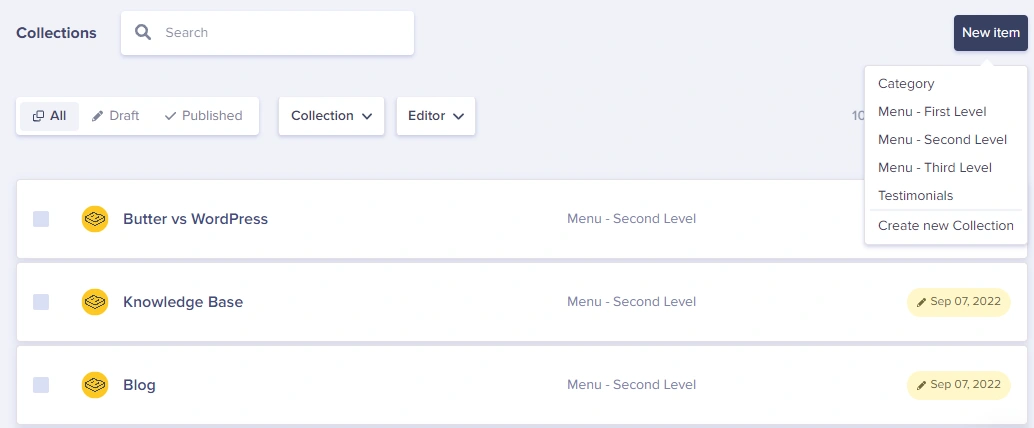
### Step 1: Create a new draft item
To create a draft for an existing Collection:
1. Go to **Collections**
2. Click the **New Item** button
3. Click on the name of the collection you want to add a new item to
{/* IMAGE_SOURCE: file_path="knowledge-base/how-to/publishing-draft-collection-content.md" */}
### Step 2: Save as draft
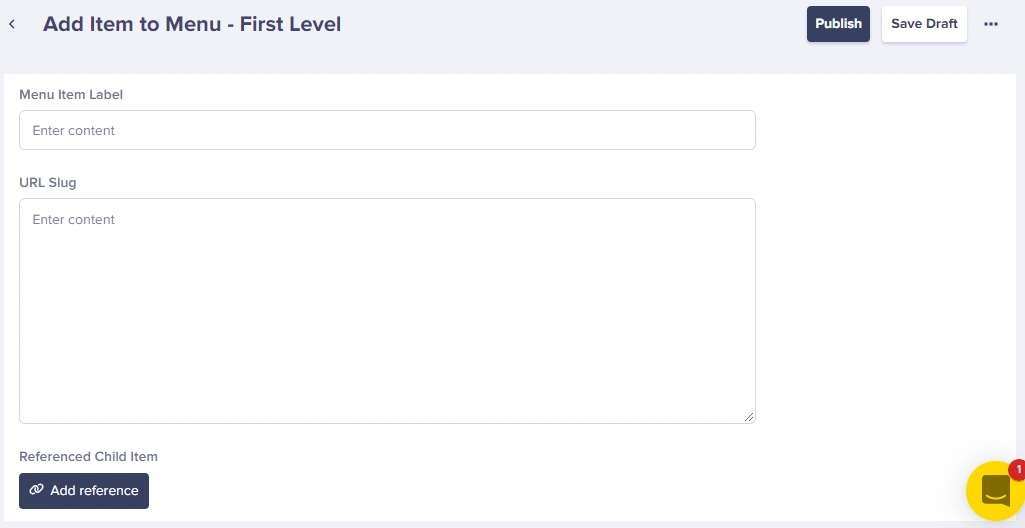
Fill in the details and click **Save Draft**:
{/* IMAGE_SOURCE: file_path="knowledge-base/how-to/publishing-draft-collection-content.md" */}
### Step 3: View draft items
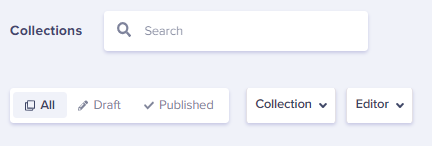
Go back to your Collection and click on **Draft** to view all items saved as drafts.
{/* IMAGE_SOURCE: file_path="knowledge-base/how-to/publishing-draft-collection-content.md" */}
## Draft versions over published content
When you edit content that's already published:
1. An Author (or higher permission) edits the Published content
2. The changes are saved as a **Draft version**
3. This puts the content into "Published with Draft" status
4. The live content remains unchanged until the draft is published
5. A Publisher or Admin can review and publish the draft changes
{/* IMAGE_SOURCE: file_path="knowledge-base/how-to/page-status-draft-to-published.md" */}

You can compare the draft version with the existing published version side by side using two browser tabs. You can also view the [revision history](../versioning-history/revision-history-overview) to see previous versions.
## Staging site integration
Draft Mode can be used to set up a staging website for previewing content before it goes live:
1. Edit items in your Collections and save changes as Draft
2. Go to your staging site (e.g., `https://staging.yoursite.com`)
3. Navigate to the specific page you're editing to see what the changes look like
4. Your team can verify the changes look good on the staging site
5. Once approved, publish the content to make it live
**Developer Note:** For staging preview to work, your developer needs to configure the staging site to use `preview=1` (or `test=1` for Collections) when calling the ButterCMS API.
## Publishing drafts
### Single item
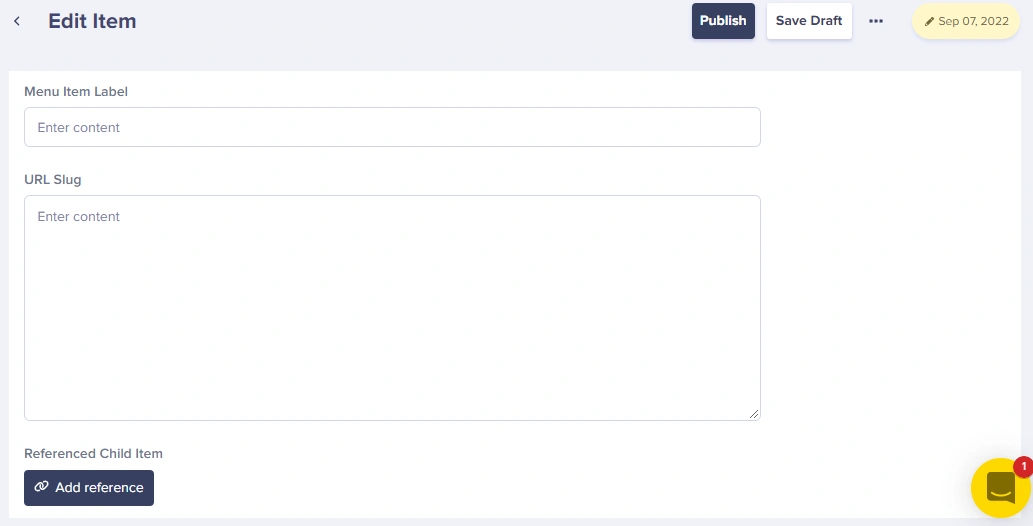
To publish a single draft item, click on the **Publish** button:
{/* IMAGE_SOURCE: file_path="knowledge-base/how-to/publishing-draft-collection-content.md" */}
### Multiple items
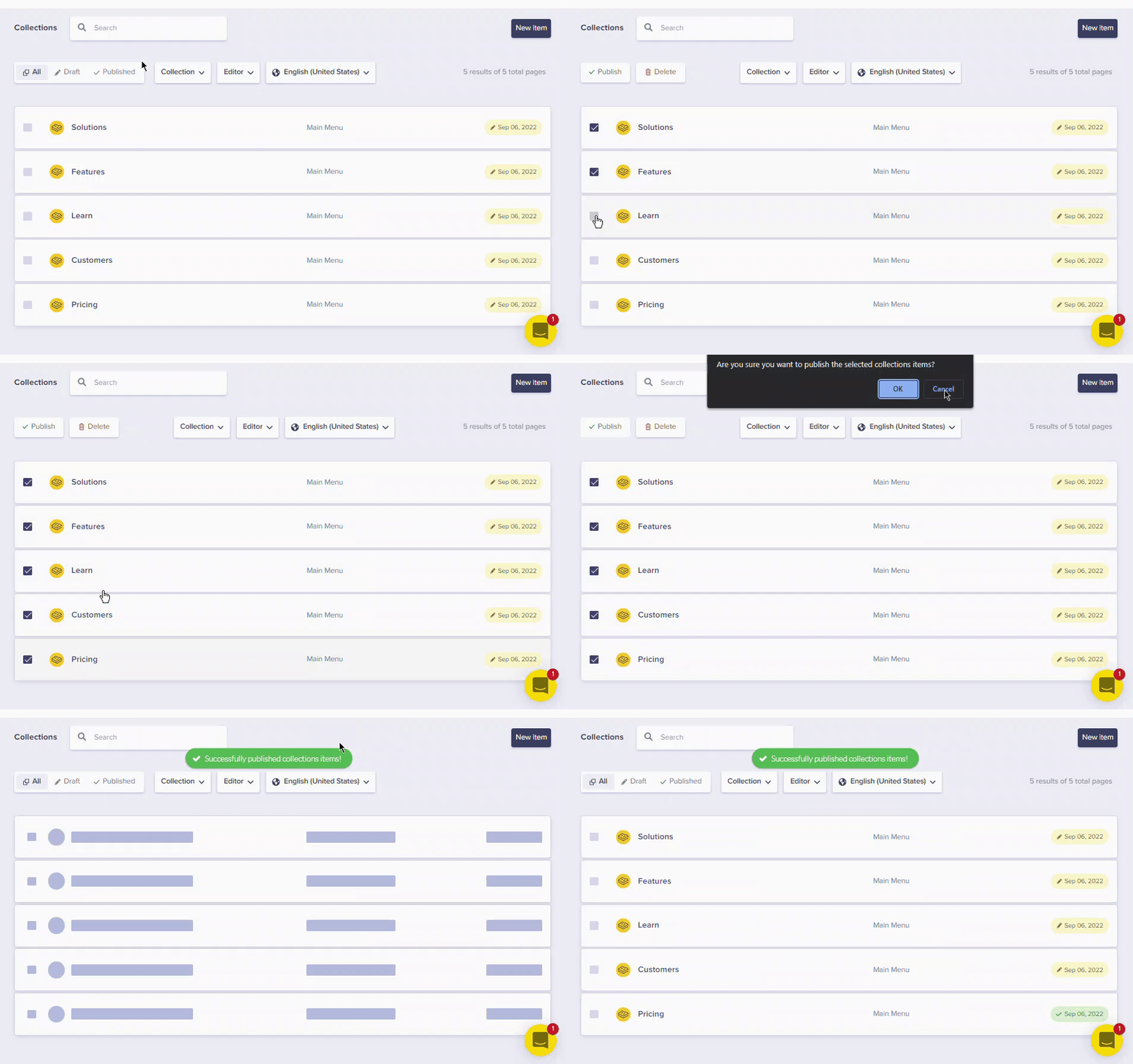
You can also publish multiple collection items at once from the Collections dashboard:
1. Select the items you want to publish using checkboxes
2. Use the bulk action to publish all selected items
{/* IMAGE_SOURCE: file_path="knowledge-base/how-to/publishing-draft-collection-content.md" */}
## Deleting drafts
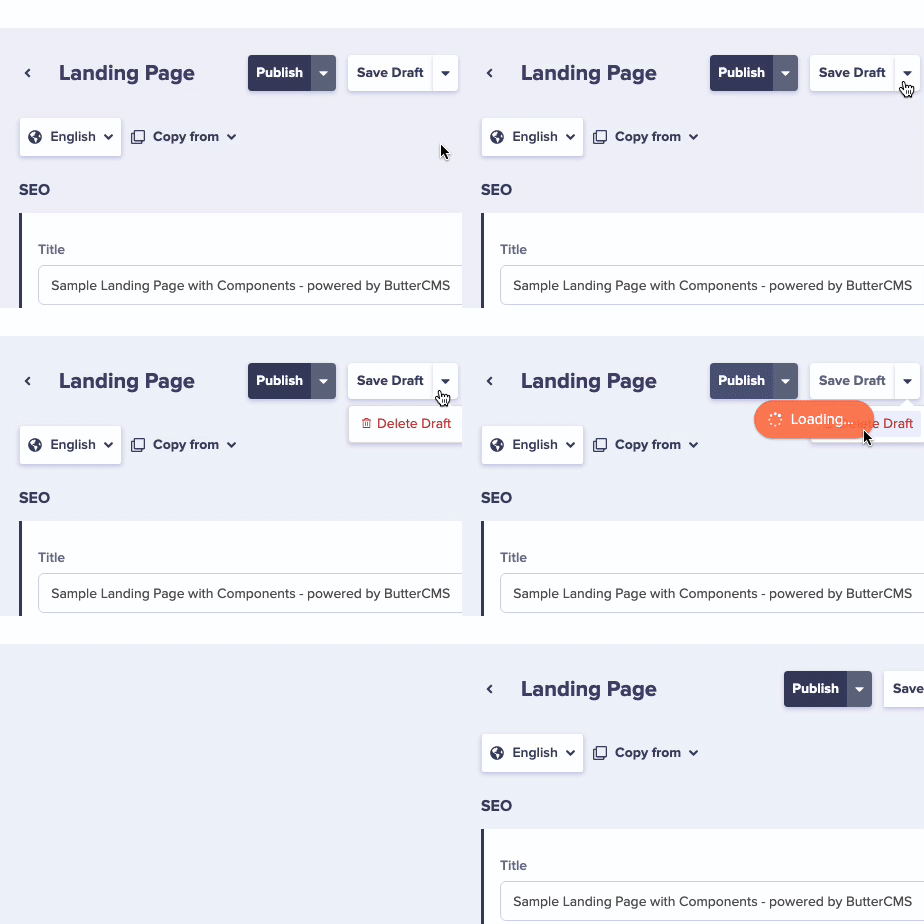
If you've created a new draft of published content, and you want to delete those changes, just click on **Delete draft**, and those changes will be discarded.
{/* IMAGE_SOURCE: file_path="blog-posts/butter-updates/delete-page-drafts-multi-site-user-mgmt-and-gridsome.md" */}
## Accessing drafts via API
For developers building preview functionality, draft content can be accessed using the `preview` parameter:
```javascript theme={null}
// Fetch draft/preview content
const butter = require('buttercms')('your-api-key');
// For Pages - use preview=1
const page = await butter.page.retrieve('*', 'my-page', {
preview: 1
});
// For Collections - use preview=1
const collection = await butter.content.retrieve(['my_collection'], {
preview: 1
});
```
| Content Type | Parameter | Description |
| ------------ | ----------- | ---------------------------------------------------- |
| Pages | `preview=1` | Returns draft version if available, published if not |
| Blog Posts | `preview=1` | Returns draft/unpublished posts |
| Collections | `preview=1` | Returns draft version if available, published if not |
## Draft workflow best practices
Even if you have publishing permissions, save major changes as drafts first. This gives you a chance to preview and verify before going live.
Set up a workflow where Authors create drafts and Publishers review before publishing. This reduces errors and maintains content quality.
Work with your development team to set up a staging site that shows draft content. This allows a full preview of changes in context.
Since there's no auto-save, make it a habit to save drafts frequently, especially when making extensive changes.