> ## Documentation Index
> Fetch the complete documentation index at: https://buttercms.com/docs/llms.txt
> Use this file to discover all available pages before exploring further.
# Scheduling content publication
> Schedule ButterCMS content to publish at a specific date and time. Publish multiple Pages or Posts simultaneously for full control over your release timeline.
{/* /SOURCE */}
## Scheduling Blog Posts
### Single Blog Post
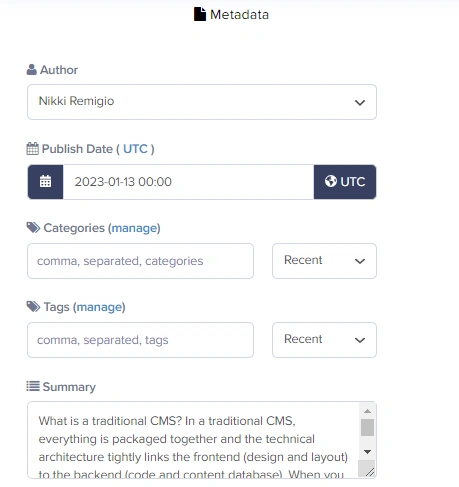
On the **Metadata** tab of your Blog engine, simply click on **Publish Date** and choose the date and time when you want your post to go live.
{/* IMAGE_SOURCE: file_path="knowledge-base/how-to/scheduling-blog-posts-and-pages.md" */}
### Multiple Blog Posts
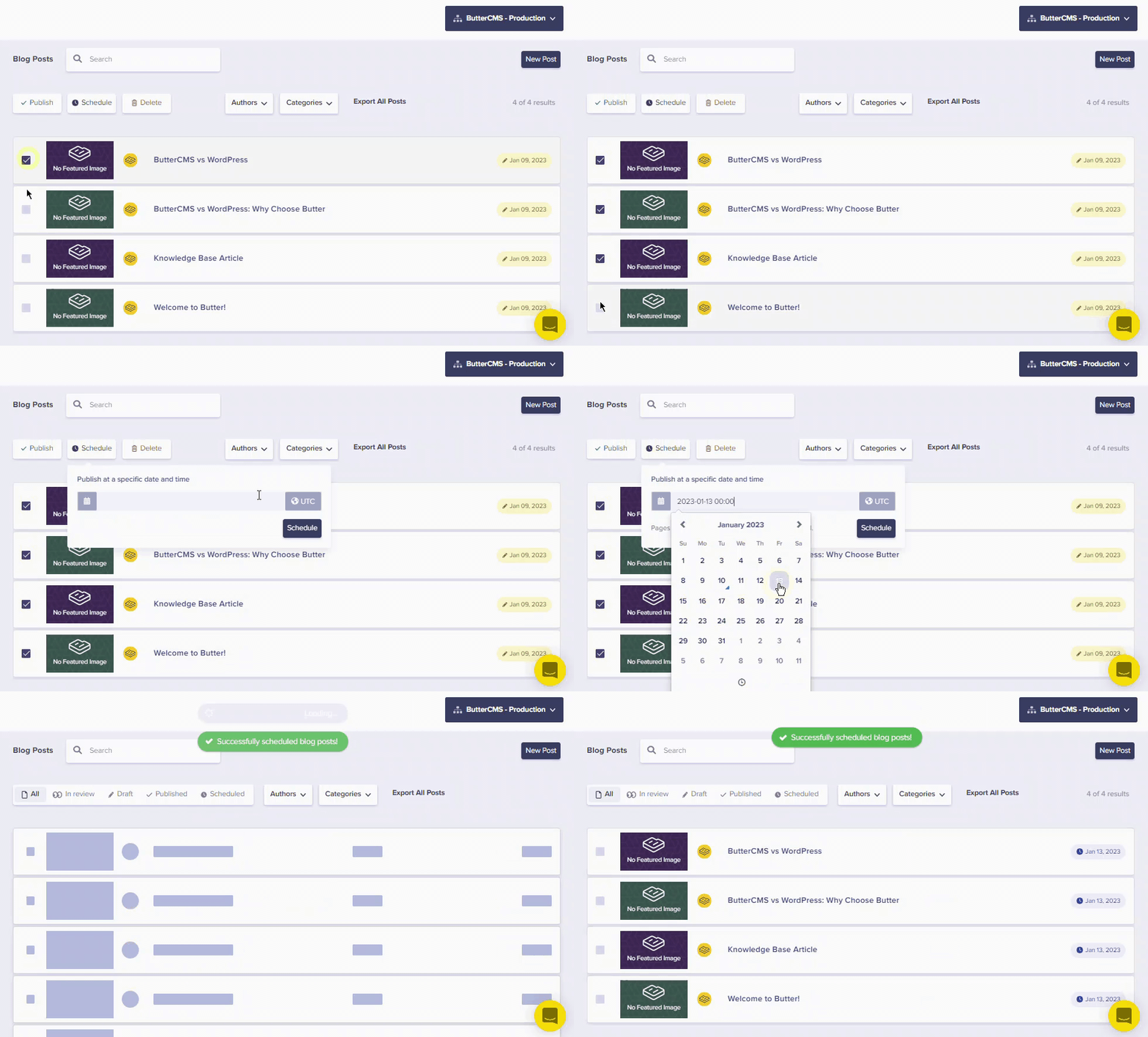
You can schedule multiple Blog Posts to go out on the same exact date and time from the Blog Post Dashboard:
1. Select the posts you want to schedule using the checkboxes
2. Choose the bulk action to schedule
3. Set your desired date and time
{/* IMAGE_SOURCE: file_path="knowledge-base/how-to/scheduling-blog-posts-and-pages.md" */}
## Scheduling Pages
### Single Page
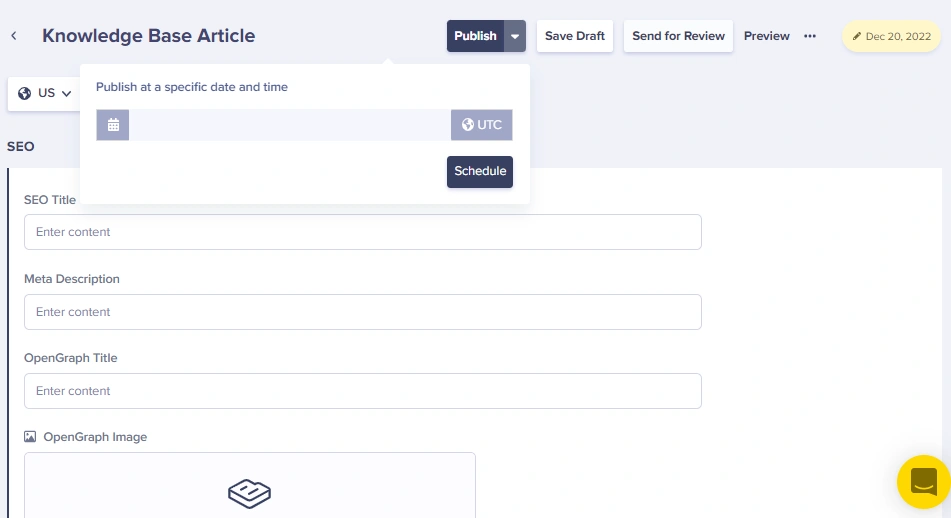
To schedule a single page:
1. Click on the **drop-down arrow** on the **Publish** button
2. Choose "Publish at a specific date and time"
3. Select your desired date and time
4. Click **Schedule**
{/* IMAGE_SOURCE: file_path="knowledge-base/how-to/scheduling-blog-posts-and-pages.md" */}
### Multiple Pages
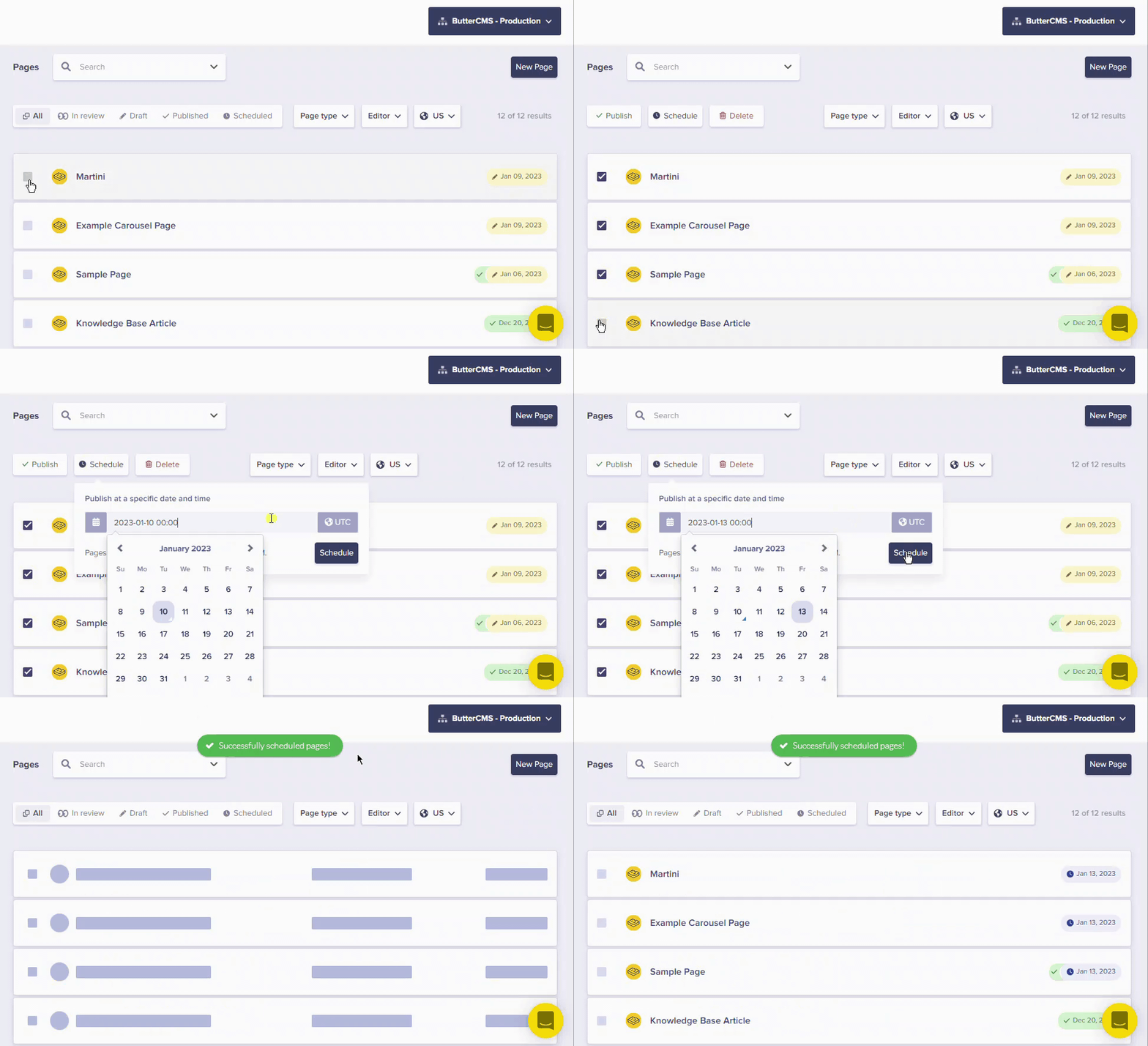
To schedule multiple Pages to Publish on the same exact date and time:
1. Go to the Pages Dashboard
2. Select each Page you want to schedule using the checkboxes
3. Set the scheduled publish date for all selected pages
{/* IMAGE_SOURCE: file_path="knowledge-base/how-to/scheduling-blog-posts-and-pages.md" */}
You can use "Publish at a specific date and time" to schedule drafts to go live even if the Page is currently Published. This is useful for scheduling updates to existing content.
## Scheduling Collections
To schedule a Collection item:
1. Open the Collection item
2. Click on the **drop-down arrow** on the **Publish** button
3. Choose a date and time for your item to go live
4. Click **Schedule**
{/* IMAGE_SOURCE: file_path="knowledge-base/how-to/scheduling-blog-posts-and-pages.md" */}
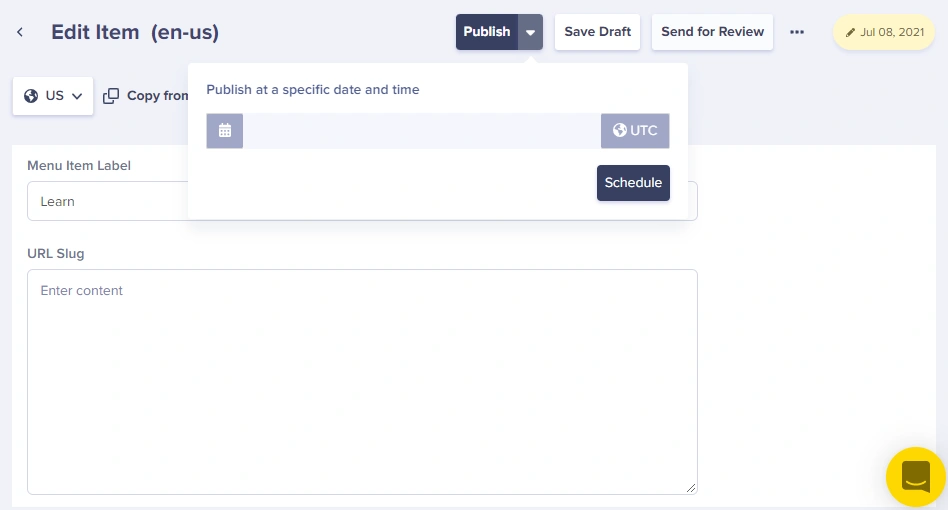
Just like Pages, you can use "Publish at a specific date and time" to schedule drafts for Collection items that are already Published.
## Updating scheduled content
Once content has been scheduled, you can still make changes to it:
**Important Notes:**
1. When a Scheduled Page is edited by an **Author** and saved as a Draft, the previously Scheduled Published Date is **removed**
2. When a Scheduled Page is reviewed by a **Publisher** or **Admin**, they can Publish it immediately (overriding the schedule)
3. When a Scheduled Page is reviewed by a **Publisher** or **Admin**, they can Schedule a new Publish Date
## Scheduled unpublishing
In addition to scheduling when content goes live, you can also schedule when content should be unpublished.
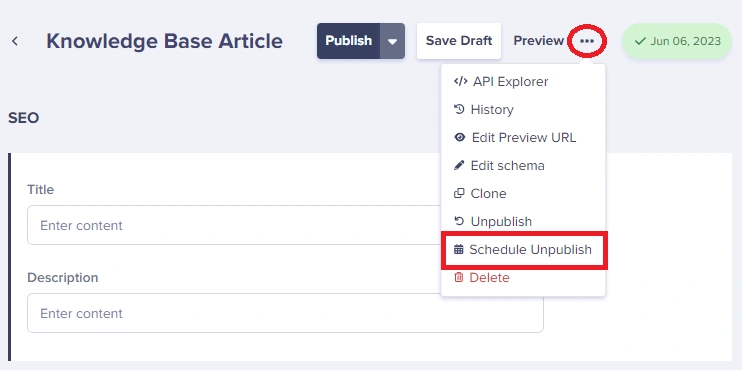
### Scheduled unpublishing of a Page
Click on the ellipsis button (three dots) > **Schedule Unpublish** to set a future date/time for the page to be automatically unpublished.
{/* IMAGE_SOURCE: file_path="knowledge-base/faqs/unpublishing-posts-pages-and-collections.md" */}
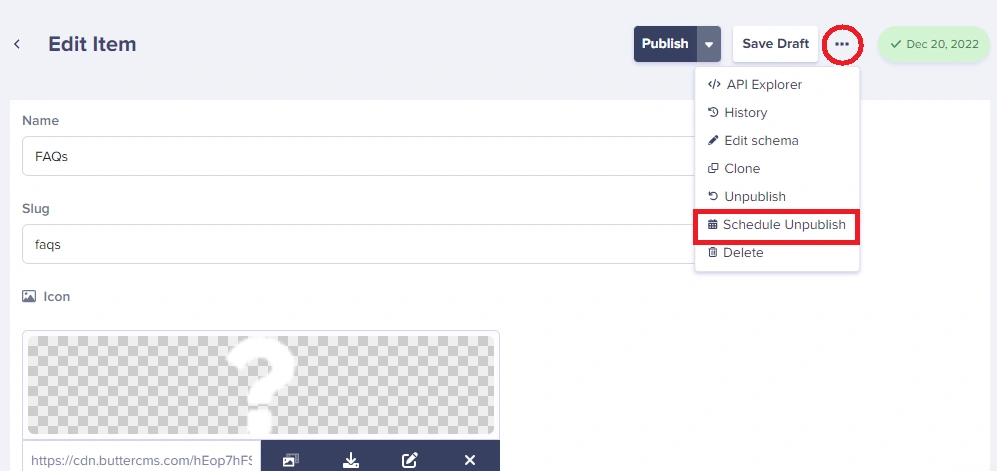
### Scheduled unpublishing of a Collection
You can schedule a Collection item to get unpublished by clicking on the ellipsis button (three dots) > **Schedule Unpublish**.
{/* IMAGE_SOURCE: file_path="knowledge-base/faqs/unpublishing-posts-pages-and-collections.md" */}
## Scheduling best practices
Use bulk scheduling to publish related content (e.g., landing pages, blog posts, and collection updates) at the same time for campaign launches.
ButterCMS schedules are based on your account's timezone settings. Make sure your timezone is configured correctly in your account settings.
Use scheduled unpublishing for time-sensitive content like holiday promotions or limited-time offers that should automatically disappear after a certain date.
Always preview your content before scheduling to ensure everything looks correct. Once scheduled, the content will go live automatically without additional review.