> ## Documentation Index
> Fetch the complete documentation index at: https://buttercms.com/docs/llms.txt
> Use this file to discover all available pages before exploring further.
# Billing history and invoices
> Learn how to view your billing history, download invoices, and add business information to your ButterCMS receipts.
## Accessing billing information
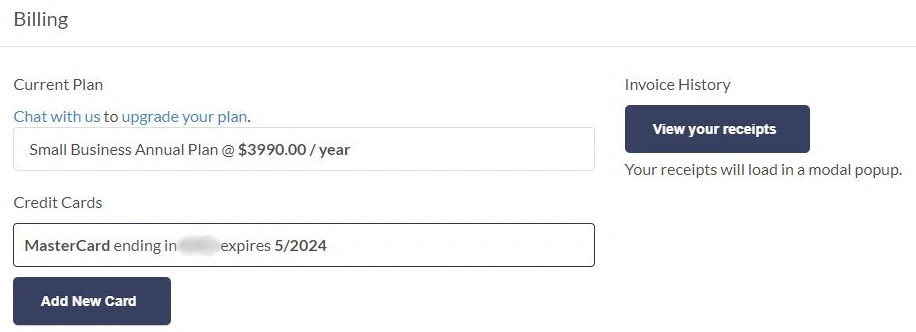
To access information about your current plan, the credit card linked to your account, and your Invoice Receipts, just click on **Billing** in your account settings.
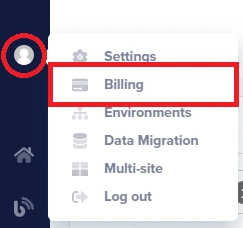
**To access your billing information:**
1. Log in to your ButterCMS dashboard
2. Click on **Settings** in the main navigation
3. Select **Billing** from the settings menu
4. Your billing overview, payment method, and invoice history will be displayed
## Viewing your invoices
To view your invoices, save an invoice as a PDF, or send a copy of an invoice via email, just click on **View your Receipts**.
### Invoice actions
From the Receipts view, you can:
| Action | Description |
| ---------------- | ---------------------------------------------- |
| **View** | See the full invoice details in your browser |
| **Download PDF** | Save a copy of the invoice to your computer |
| **Email** | Send a copy of the invoice to an email address |
| **Print** | Print the invoice directly from your browser |
### Invoice information included
Each invoice includes:
* Invoice number and date
* Billing period
* Plan name and pricing
* Any add-ons or overages
* Payment method used
* Tax information (if applicable)
* Your business details (if configured)
## Downloading invoices
### Download a single invoice
1. Navigate to **Settings > Billing**
2. Click **View your Receipts**
3. Find the invoice you want to download
4. Click the download icon or **Download PDF** button
5. The PDF will be saved to your computer
### Finding older invoices
Your complete billing history is available in the Receipts section. Scroll or paginate through the list to find older invoices. Invoices are listed in reverse chronological order (newest first).
Download invoices regularly or set up email delivery to maintain your financial records. This is especially important for tax and accounting purposes.
## Adding business information to invoices
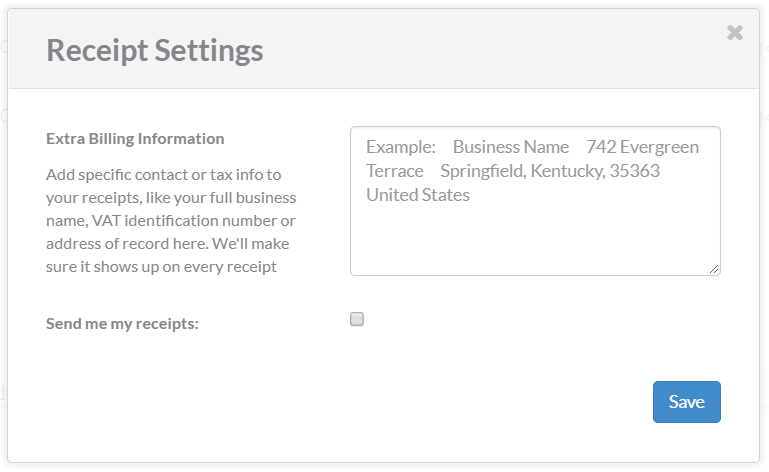
If you'd like to add specific contact or tax info to your receipts, like your full business name, VAT identification number, or address of record, simply click on **Receipt Settings**.
### Information you can add
Customize your invoices with:
* **Business/Company Name** - Your official company name
* **Address** - Your business address for tax purposes
* **VAT/Tax ID** - Your VAT identification number or tax ID
* **Contact Email** - Billing contact email address
* **Additional Notes** - Any extra information for your records
### Why add business information?
Adding your business details to invoices is important for:
* **Tax Compliance** - Many jurisdictions require proper invoicing for tax deductions
* **Expense Reports** - Makes it easier to process as a business expense
* **Accounting** - Proper records for your financial statements
* **Audits** - Complete documentation if needed for audits
Changes to Receipt Settings will apply to all future invoices. Existing invoices cannot be modified, but you can download them with your current settings.
### How to update receipt settings
1. Navigate to **Settings > Billing**
2. Click on **Receipt Settings**
3. Enter your business information:
* Company name
* Full address
* VAT/Tax ID (if applicable)
4. Click **Save** to update your settings
5. All future invoices will include this information
## Sending invoices via email
You can send copies of invoices directly to any email address:
### Send to yourself or team members
1. Navigate to **Settings > Billing > View your Receipts**
2. Find the invoice you want to send
3. Click the email icon or **Send Email** option
4. Enter the recipient's email address
5. Click **Send**
### Setting up automatic invoice emails
For paid accounts, invoices are typically emailed automatically to the account owner after each successful payment. To ensure you receive these:
1. Verify your email address is correct in your profile
2. Check that ButterCMS emails aren't going to spam
3. Add `@buttercms.com` to your email whitelist
Send invoices to your accounting team or shared finance inbox to ensure proper record-keeping.
## Understanding your invoice
### Invoice line items
Your ButterCMS invoice may include:
| Item | Description |
| -------------------- | ---------------------------------------------- |
| **Subscription** | Your plan's base monthly or annual charge |
| **Prorated Charges** | Partial charges if you upgraded mid-cycle |
| **Add-ons** | Additional features like Write API |
| **Overages** | Charges for exceeding plan limits |
| **Credits** | Any credits applied to your account |
| **Discounts** | Annual billing discount or promotional credits |
### Overage charges
If you exceed your plan's limits, overages appear as separate line items:
* **API Call Overages**: \$10 per million additional API calls
* **Bandwidth Overages**: \$0.20 per GB of additional bandwidth
To avoid unexpected overages, [monitor your usage](../../build-your-app/performance/usage-limits) regularly and consider upgrading your plan if you consistently exceed limits.
### Billing dates
* **Monthly Plans**: Billed on the same day each month (e.g., 15th of each month)
* **Annual Plans**: Billed once per year on your subscription anniversary date
* **Pro-rated Charges**: Applied when you upgrade mid-billing cycle
## Payment history
Your billing page shows your complete payment history, including:
* **Successful Payments**: Completed transactions with confirmation
* **Pending Payments**: Processing transactions
* **Failed Payments**: Declined transactions (see troubleshooting below)
### Troubleshooting failed payments
If a payment fails:
1. **Check your card details** - Ensure your card hasn't expired and the details are correct
2. **Verify available credit** - Make sure your card has sufficient funds
3. **Contact your bank** - Some banks block international or recurring charges
4. **Update payment method** - Add a new card in Billing settings
5. [**Contact support**](../contact-status/contact-support) - Reach out to [support@buttercms.com](mailto:support@buttercms.com) for help
Failed payments may result in service interruption. Update your payment method promptly to avoid disruption to your ButterCMS access.
## Frequently asked questions
Navigate to **Settings > Billing > View your Receipts**, find the payment in the list, and download or email the receipt.
Yes, click on **Receipt Settings** in the Billing section and add your VAT identification number. This will appear on all future invoices.
If you're on the Free plan, you won't have any invoices since there are no charges. Invoices only appear for paid subscriptions and add-ons.
Invoices are sent to the account owner's email. Update your email in your profile settings, or forward invoices to your accounting team from the Receipts view.
Your complete billing history from the start of your paid subscription is available. There is no limit on how far back you can view.
Contact [support@buttercms.com](mailto:support@buttercms.com) with details about the charge. The support team will review and assist with any billing discrepancies.
## Getting help with billing
For billing questions or issues:
Email [support@buttercms.com](mailto:support@buttercms.com) for billing inquiries
Use the chat widget for immediate assistance
When contacting support about billing:
* Include your account email address
* Reference specific invoice numbers if applicable
* Describe the issue or question clearly