
Why enable MFA?
- Protects your account even if your password is compromised
- Adds a second verification step that only you can complete
- Prevents unauthorized access to your content and settings
- Industry-standard security practice recommended for all accounts
Enabling MFA
To enable your MFA, go to the main settings page of your account by clicking on Settings > General or by clicking this link: https://buttercms.com/settings/Step-by-step setup
Step 1: Click on the ‘here’ link, which will take you to the Account Security page: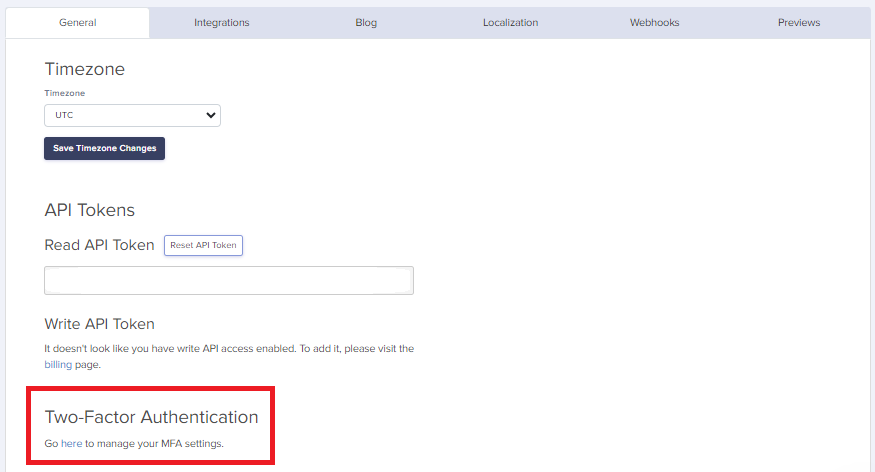 Step 2: Click on the Enable Two-Factor Authentication button:
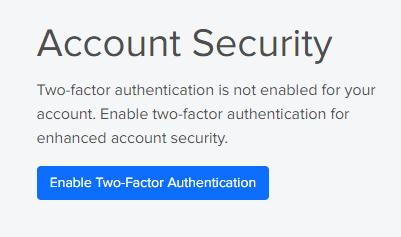 Step 3: Click Next:
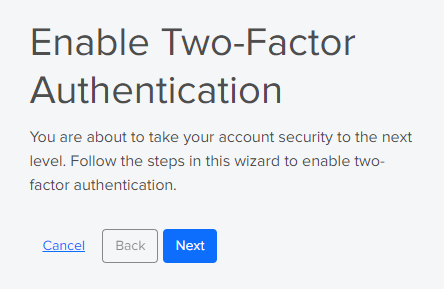 Step 4: You will now be asked to use an authenticator app (e.g., Microsoft Authenticator or Google Authenticator) to scan the QR code image:
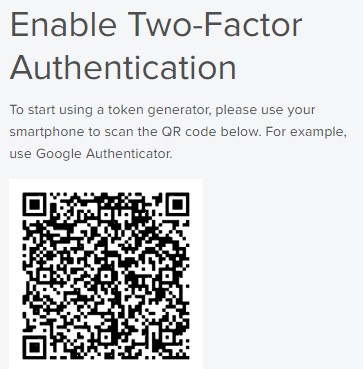 Or copy the secret code/key if you prefer manual entry:
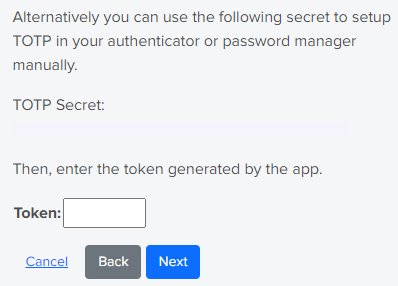
Using an authenticator app
There are two ways you can use an authenticator app:- Browser extension - Add an authenticator extension to your web browser
- Mobile app - Use an authenticator app on your smartphone
Browser extension method
- Go to your browser’s extensions store to find an authenticator app:
- Chrome: Chrome Web Store
- Firefox: Firefox Add-ons
- Safari: Open the App Store and find apps compatible with Safari browser as extensions
- Choose a highly-rated, trusted authenticator app that you like. In the example below, we have chosen Authenticator, an extension for Google Chrome.
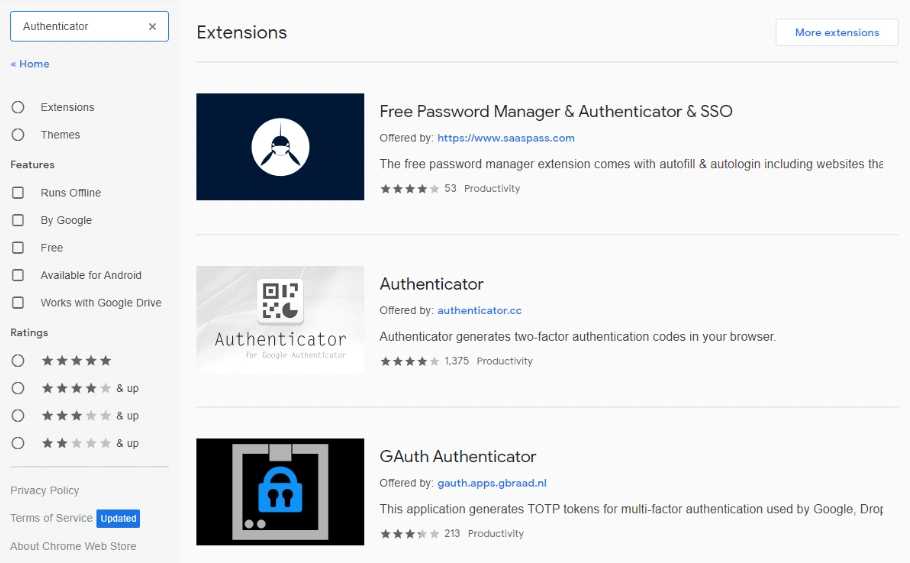
- Click “Add to Chrome” to add this extension.
- In the top-right corner of the Chrome browser, where the extensions are, click the Authenticator icon to open a pop-up panel.
- In the pop-up panel, click the icons in the top-right corner to open the screen where you can choose either “Scan QR Code” or “Manual Entry”.
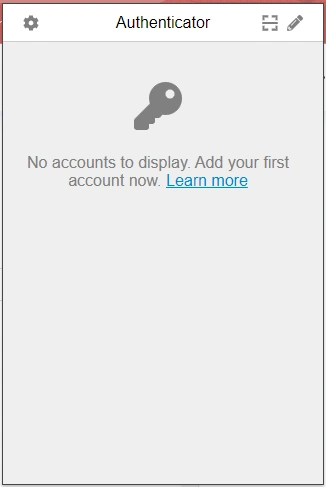
- Once the QR code has been scanned successfully, you will see a new record appear in the list of codes in the Authenticator pop-up panel.
- Copy and paste the 6-digit code from your authenticator into ButterCMS.
Mobile app method
Open the Google Play Store or the App Store and find a highly-rated, trusted authenticator app. Popular options include:- Microsoft Authenticator
- Google Authenticator
- Authy
- 1Password
Google Authenticator setup
- Once downloaded, open the app and click “Begin setup”.
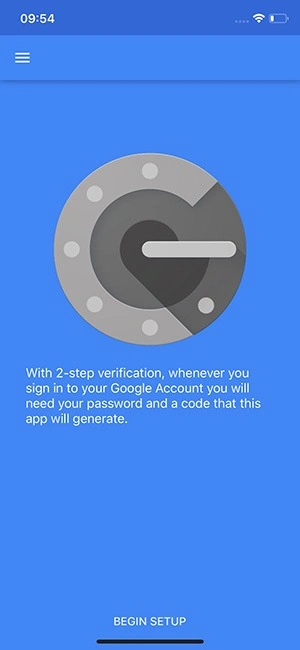
- Click “Scan barcode”.
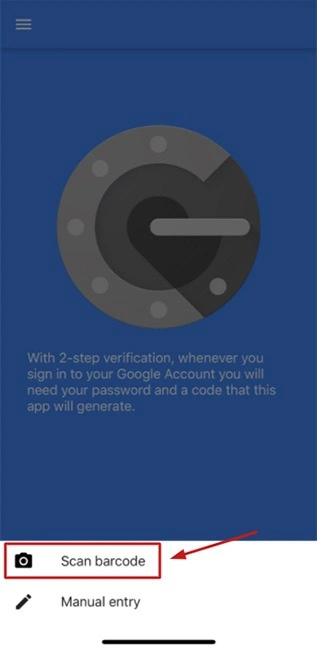
- Once the QR code has been scanned successfully, you will see a new record appear in the list of codes.
- Copy and paste the 6-digit code from your authenticator into ButterCMS.
Microsoft Authenticator setup
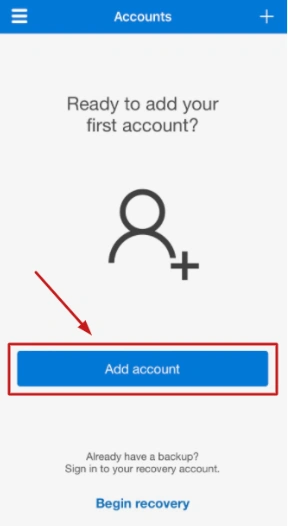
- Once downloaded, open the app and click “Add account”
- Select “Other”.
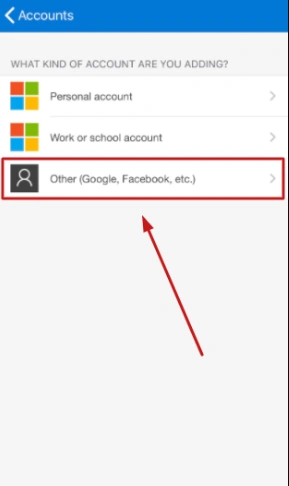
- Once the QR code has been scanned successfully, you will see a new record appear in the list of codes under Accounts.
- Copy and paste the 6-digit code from your authenticator into ButterCMS.
Logging in with MFA
Once MFA is enabled, your login process will include an additional step:- Enter your email and password as usual
- Open your authenticator app
- Find the ButterCMS entry and note the current 6-digit code
- Enter the code in ButterCMS before it expires (codes typically refresh every 30 seconds)
- Click Verify to complete your login
Disabling MFA
If you need to disable MFA:- Go to Settings > General
- Click on the security settings link
- Click Disable Two-Factor Authentication
- Enter your current MFA code to confirm
- MFA will be disabled for your account
Troubleshooting
I lost access to my authenticator app. How do I log in?
I lost access to my authenticator app. How do I log in?
Contact ButterCMS support at support@buttercms.com or use the in-app chat. Our team can help you regain access to your account after verifying your identity.
My codes aren't working. What should I do?
My codes aren't working. What should I do?
Ensure your device’s time is set correctly. Authenticator apps use time-based codes, so if your device’s clock is off, the codes won’t match. Enable automatic time synchronization on your device.
Can I use MFA with SSO?
Can I use MFA with SSO?
If your organization uses SSO, MFA is typically handled by your identity provider (e.g., Okta, Azure AD). You would configure MFA settings in your SSO provider, not in ButterCMS directly.
I'm switching phones. How do I transfer my authenticator?
I'm switching phones. How do I transfer my authenticator?
Before switching devices:
- Add your new phone as a backup authenticator while you still have access to your old phone
- Or disable MFA temporarily, switch devices, then re-enable MFA with your new phone
Security best practices
Recommended security practices:
- Enable MFA for all team members - Especially those with Admin access
- Use a reputable authenticator app - Microsoft Authenticator, Google Authenticator, or Authy are all good choices
- Keep backup codes safe - Store them in a secure location in case you lose access to your authenticator
- Don’t share codes - Your MFA codes should never be shared with anyone
- Use a password manager - Combine MFA with strong, unique passwords for maximum security