
SSO is available on ButterCMS Enterprise plans only. If your team is interested in enabling this feature for your account, please reach out via in-app chat or contact our Sales Team.
SSO benefits for enterprise
Supported identity providers
ButterCMS can integrate with almost any SSO identity provider, such as:Setting up SSO
Process for setting up single sign-on
- Share your SSO Identity provider with us - Contact our team and let us know which identity provider you use
- Provide your IdP metadata - Share your SSO URL, Entity ID, and X.509 certificate with the ButterCMS team
- We’ll handle the configuration - Our team configures SAML and shares service provider metadata back to you
- Your IT team completes configuration - Finish IdP configuration and assign users on your end
- Schedule the enablement - Set a date and time when our team can enable SSO for your organization; test before go-live
Required information
When requesting SSO setup, have the following IdP metadata ready:Important information about SSO
What changes when SSO is enabled
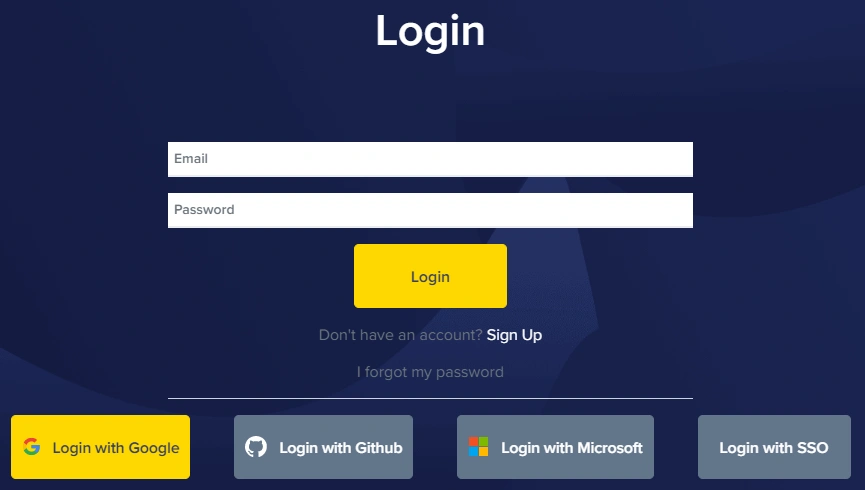
When your organization enables SSO:- No password login - Your users are no longer able to log in using their ButterCMS email and password. Instead, they must click the “Login with SSO” button.
- Password resets through SSO - Your users will now reset passwords through your SSO identity provider’s password flow, not through ButterCMS.
- Invitations still work - You can still invite users through the ButterCMS interface. When a user accepts the invite, there’s no password field for them to fill in, as their login will be routed through the SSO provider.
Security note on user provisioning
We do not support user auto-provisioning for security reasons. Any users who need access to ButterCMS will need to be added/invited explicitly through the ButterCMS dashboard.Logging in with SSO
How to log in when SSO is enabled
Step 1: Go to buttercms.com and click on the Log In button: Step 2: Click on the Login with SSO button:
 Step 3: Enter your work email address:
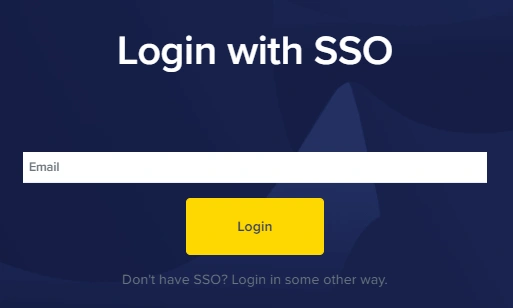 Step 4: Click on the Login button and you will be taken to the SSO provider your company is using.
Step 5: Complete the login process with your SSO provider and you will be taken to your ButterCMS dashboard.
Step 4: Click on the Login button and you will be taken to the SSO provider your company is using.
Step 5: Complete the login process with your SSO provider and you will be taken to your ButterCMS dashboard.
Managing SSO users
Inviting users when SSO is enabled
Adding users when SSO is enabled is the same as the normal process to add users, with two important caveats:- the user must be added to your SSO identity provider before adding to ButterCMS (as they will be unable to login otherwise); we do not support auto provisioning for security reasons.
- the email address for the new user must match the corporate email address tied to that person in your SSO Identity Provider
Deleting SSO users
What happens when a user is deleted from your identity provider
Deleting an employee from your SSO Identity Provider platform will not automatically delete that user from ButterCMS. However, it does prevent that user from logging in to their ButterCMS dashboard. You can still view the user’s profile and delete the user from your Butter account if desired.Best practice: When an employee leaves your organization, we recommend:
- First, remove them from your SSO identity provider (this immediately prevents login)
- Then, remove them from ButterCMS to keep your user list clean and accurate
Frequently asked questions
Can some users use SSO while others use password login?
Can some users use SSO while others use password login?
No. Once SSO is enabled for an organization, it applies to all users within that organization. All users must use the SSO login method.
What happens to existing users when SSO is enabled?
What happens to existing users when SSO is enabled?
Existing users will no longer be able to log in with their email and password. They will need to use the “Login with SSO” option and authenticate through your identity provider.
Can ButterCMS automatically create users from our identity provider?
Can ButterCMS automatically create users from our identity provider?
No. For security reasons, ButterCMS does not support user auto-provisioning. All users must be explicitly invited through the ButterCMS dashboard.
How do users reset their passwords with SSO enabled?
How do users reset their passwords with SSO enabled?
Password resets are handled through your SSO identity provider, not through ButterCMS. Contact your IT administrator or use your identity provider’s password reset process.
Is SSO available on all plans?
Is SSO available on all plans?
No. SSO is an Enterprise-level feature. Contact our sales team to learn more about Enterprise plans.