
Adding items to a Repeater
1
Navigate to your Page
Go to Pages and open the page containing your Repeater field.
2
Locate the Repeater
Scroll to find the Repeater field in your content editor.
3
Click the add button
Click the + [Repeater Name] button to add a new item. After pressing the button, an item for the repeater will be created.
4
Fill in the fields
Enter content for each field within the new item.Now you can add your content details into the available fields. Below you can see the information for a product item: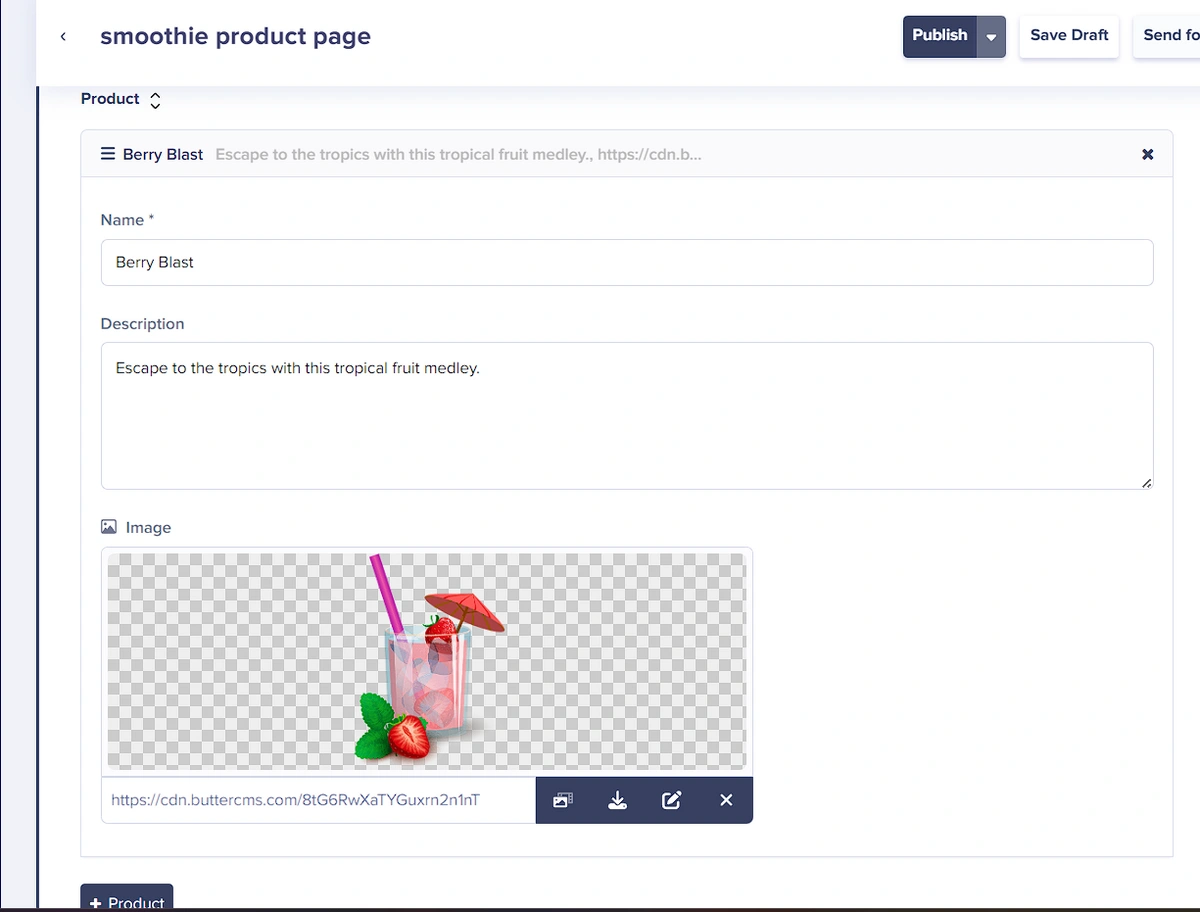
5
Repeat as needed
To add another item, click on the + [repeater_name] button again.In the below screenshot, we have three items in the Features section, meaning we clicked on the + Feature button three times to create three distinct items.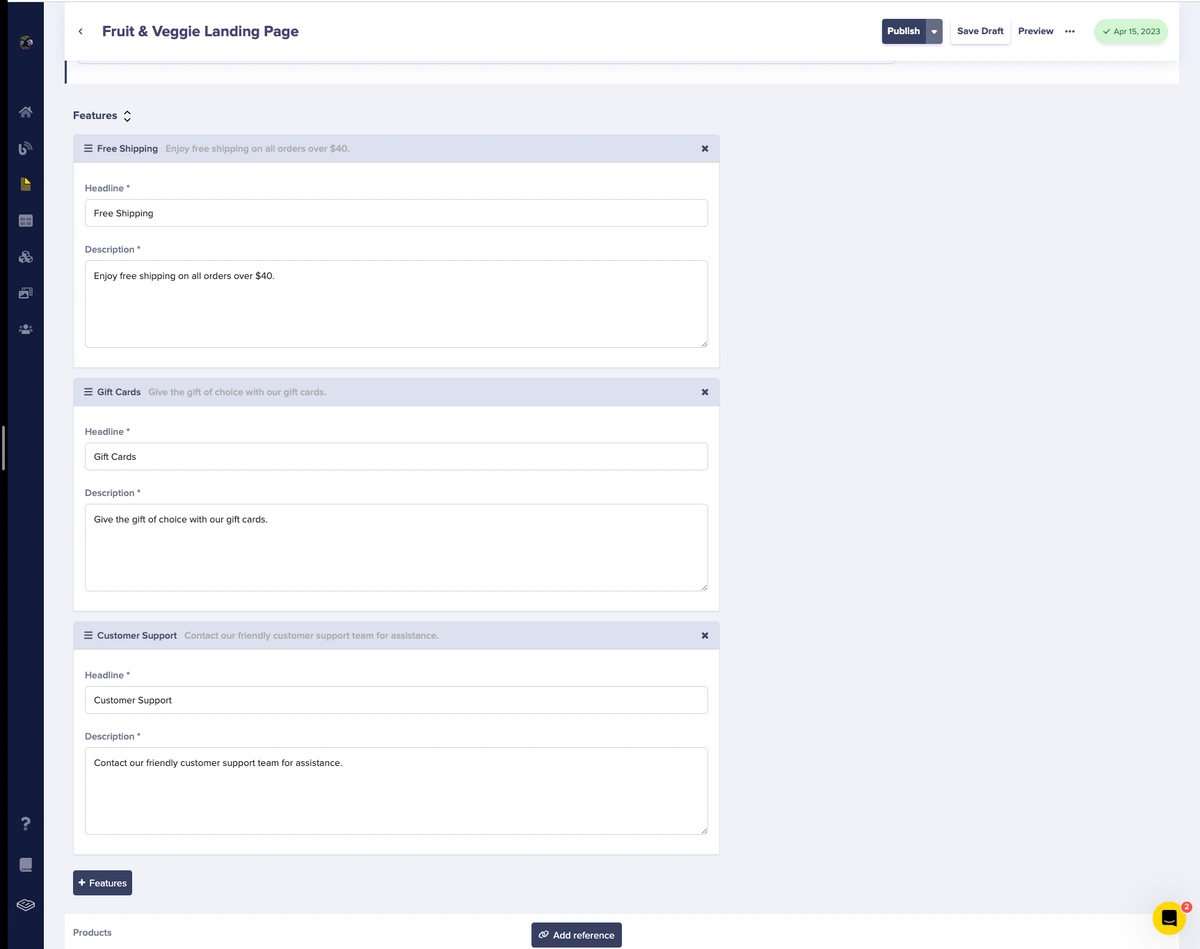
6
Save or publish
Click Save or Publish to preserve your changes.
Editing existing items
Editing repeater items is straightforward:- Navigate to the page containing your Repeater.
- Locate the item you want to edit.
- Click on any field within the item to modify it.
- Make your changes to text, images, or other fields.
- Save or Publish to apply changes.
Expanding and collapsing items
For repeaters with many items or complex field structures, you can expand or collapse individual items:- Click the item header to collapse or expand it.
- The collapsed view shows only the item title/identifier.
- The Expanded view shows all fields for editing.
Reordering items
Items within a Repeater can be reordered using drag-and-drop or arrow controls:Drag and drop
- Hover over the item you want to move.
- Click and hold the drag handle (typically on the left side of the item).
- Drag the item to its new position.
- Release to drop it in place.
Arrow controls
Some items display up/down arrow controls:- Up arrow: Moves the item one position higher.
- Down arrow: Moves the item one position lower.
Deleting items
To remove an item from a Repeater:- Locate the item you want to delete.
- Click the delete button (trash icon or ”×” on the item).
- Confirm the deletion if prompted.
- Save or Publish to apply the change.
Next steps
Creating Repeater fields
Step-by-step setup guide
Fetching Repeater data
API examples for your application
Understanding Repeaters
Conceptual overview