
Navigating to pages
Pages in ButterCMS are organized by Page Type. To access your pages:1
Open the pages section
Click on Pages in the left sidebar
2
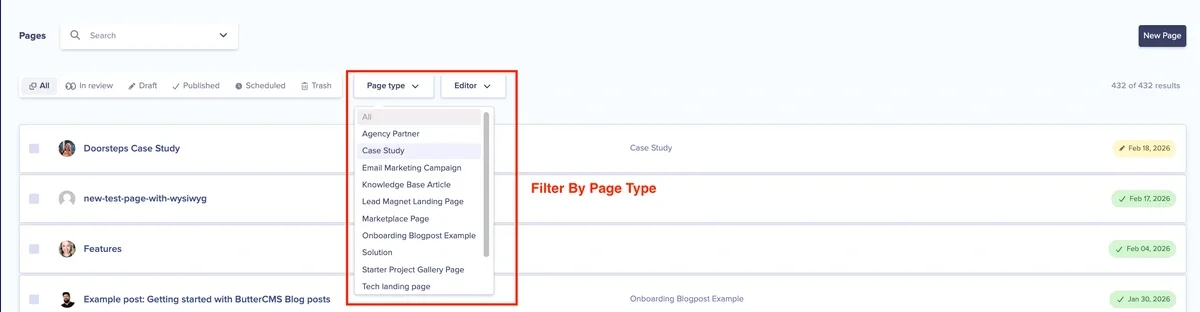
Select a page type
Click on a specific Page Type (e.g., “Landing Page”, “Case Study”) to see all pages of that type
3
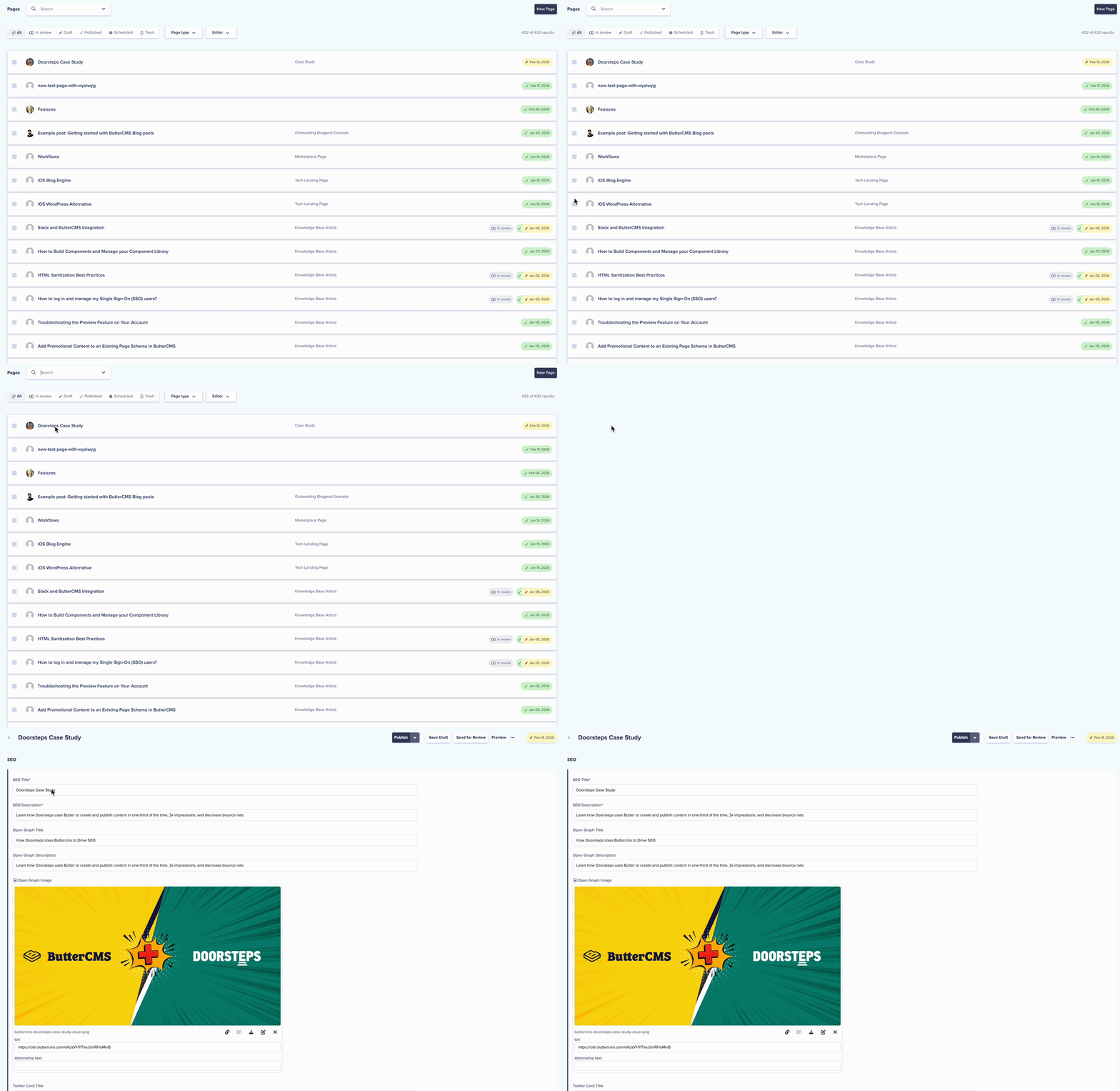
Click on a page
Click on any page title to open it for editing
Using advanced search for pages
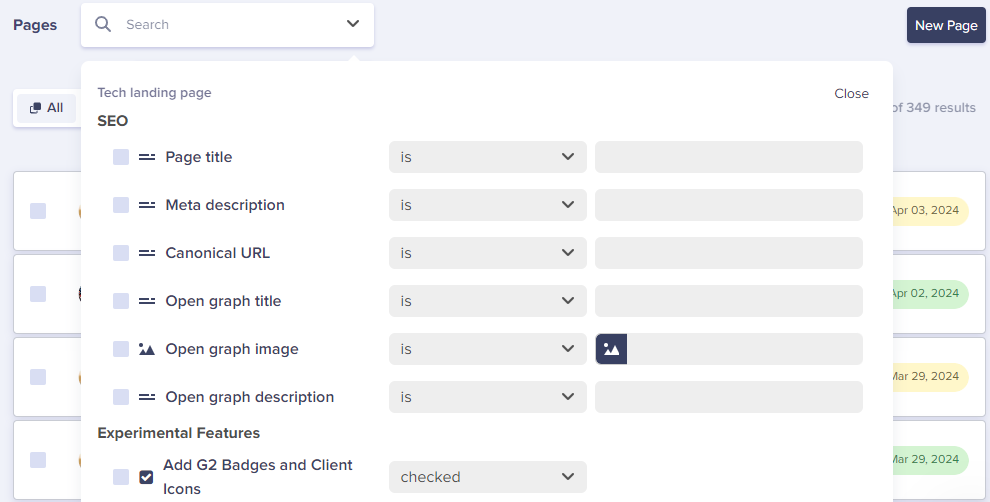
The advanced search capability for pages allows you to filter through your content to quickly locate specific pages. To begin, start by selecting the page type associated with the page(s) you are looking to find. This is done by clicking the dropdown arrow at the end of the search field.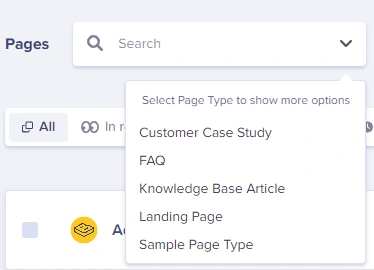 From there, you can filter the results using any of the following field types:
- Short Text Field
- Long Text Field
- Reference Field
- Date Field
- Dropdown Field
- Media Field
- Checkbox Field
- Number Field
Navigating to collections
Collections are tables of reusable data that can be referenced by Pages. To access your collections:1
Open collections
Click on Collections in the left sidebar
2
Select a collection type
Click on a specific Collection (e.g., “Categories”, “Team Members”, “FAQs”)
3
Browse or search items
Browse the list of items or use the search bar to find specific items
4
Click to edit
Click on any item to open it for editing
Navigating to blog posts
The built-in blog engine provides a streamlined interface for managing blog content:1
Open blog posts
Click on Blog Posts in the left sidebar
2
View all posts
You’ll see a list of all blog posts with their status, author, and publish date
3
Filter posts
Use the filter options to view:
- All Posts
- Published only
- Drafts only
- Scheduled posts
4
Click to edit
Click on any post title to open the editor