
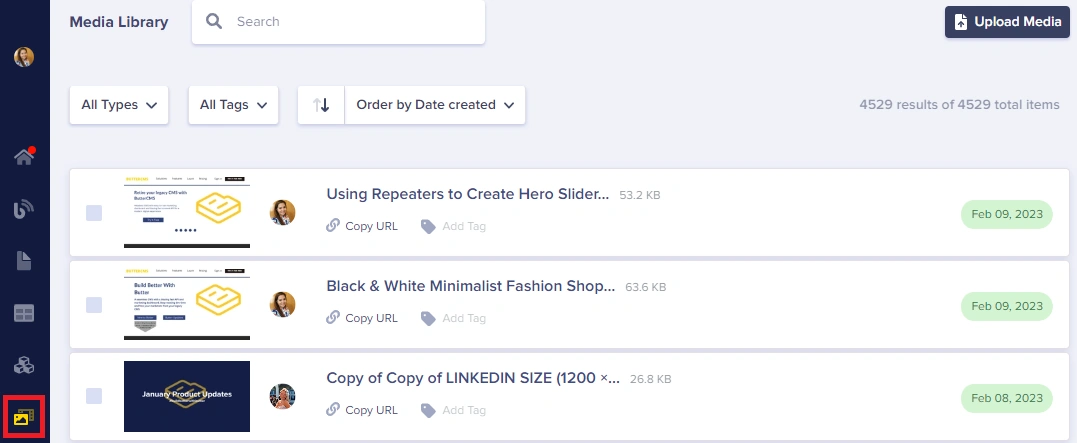
Navigating the interface
The media library allows you to store your images and files in Butter with an easy-to-use interface with several ways to help organize and manage everything.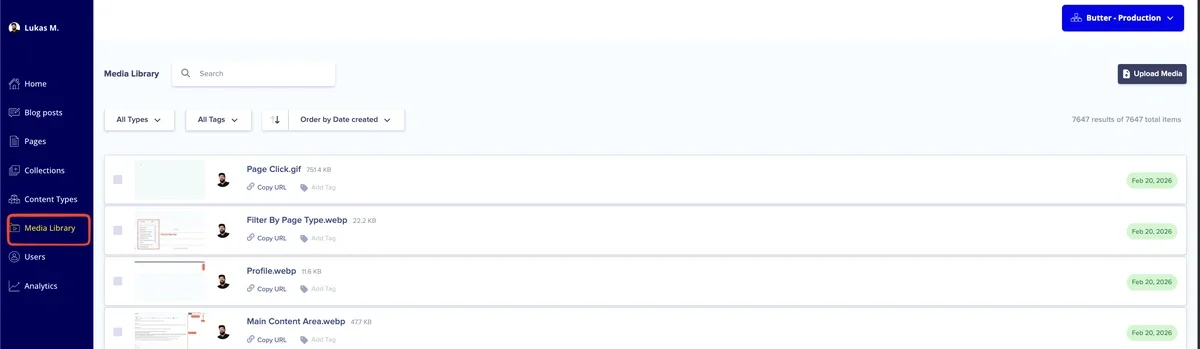 It features a clean, intuitive interface with several key areas:
Upload button
Located at the top of the interface for adding new files
Search bar
Find files by name, type, or tags
Sort options
Organize your view by date, name, editor, or file size
Bulk selection
Select multiple files for deletion
Supported file types
The ButterCMS Media Library accepts all modern file types including MS Word Docs, Excel Files, Presentations, PDFs, Audio Files, Zip Files, and Video Files (available on Enterprise and by add-on for other plans). All files are hosted on our CDN for fast delivery to your users.Video file uploads are available on Enterprise and can be enabled for other plans as an add-on. Contact ButterCMS support to check availability for your account.
In this section
Uploading assets
Upload images, videos, and documents to your Media Library
Adding media to content
Insert media into blog posts and content fields
Organizing media
Tag and organize your media files
Finding media
Search, filter, and sort your media files
Bulk delete media
Delete multiple files at once
Replacing media files
Replace a file while keeping the same URL
Image editing & transformations
Edit and transform images in the dashboard
Automatic image compression & WebP
How ButterCMS optimizes your images automatically
Adding alt text
Add alt text to images for accessibility and SEO
External integrations
Connect to external DAM systems like Cloudinary or Bynder