
Need rendering guidance and security tips? See Rendering Embedded Forms.
Embedding via WYSIWYG editor
Step 1: Copy your form embed code
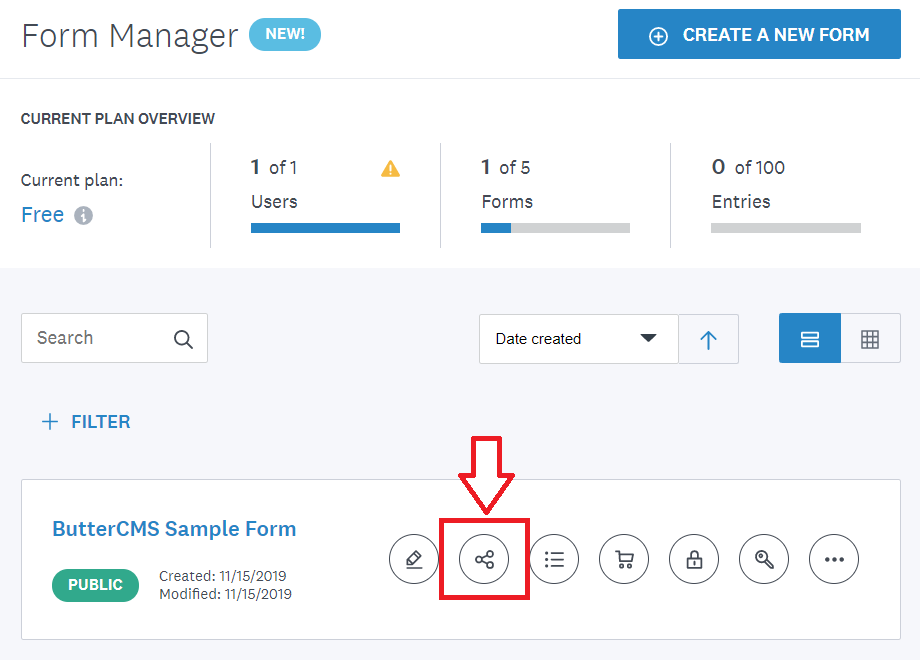
To insert a form into ButterCMS, you need to embed the code from your third-party form tool into your Blog Post or Page’s WYSIWYG field. Here’s an example using Wufoo:- Login to your form provider account.
- Navigate to the form you want to embed.
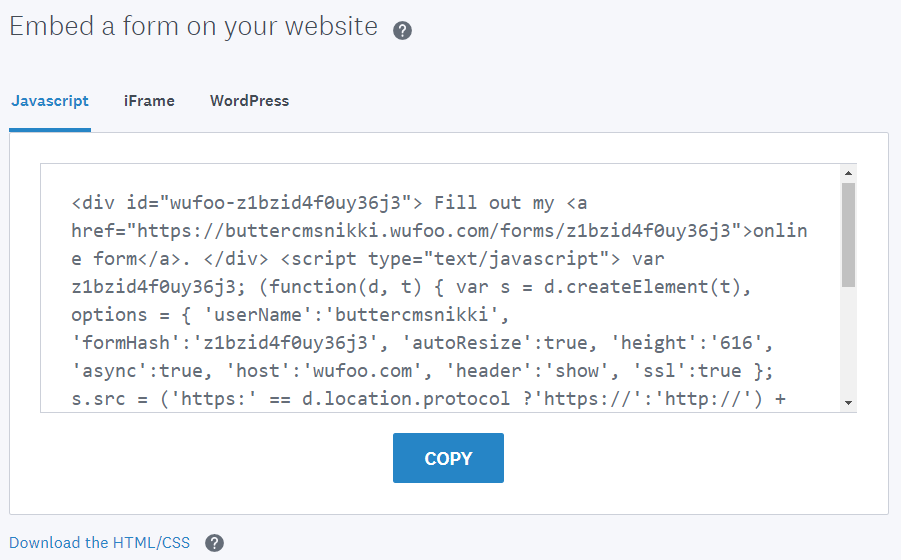
- Find the “Share” or “Embed” option.
- Copy the embed code.
Step 2: Paste into WYSIWYG field
- In ButterCMS, navigate to your page or blog post.
- Click on the WYSIWYG field where you want to embed the form.
- Click on the Source code button (
<>) in the toolbar.

- Paste your embed code into the source view
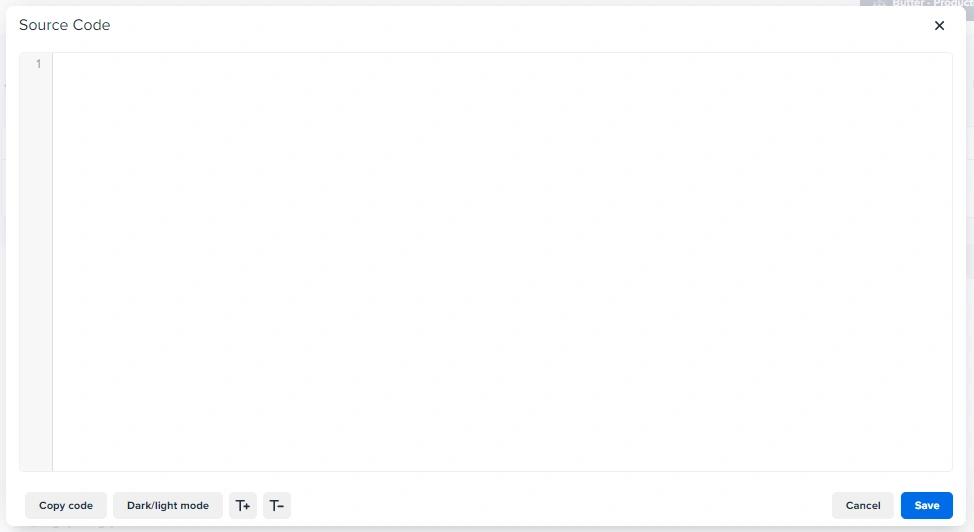
- Click Save to apply the changes
Step 3: Preview your form
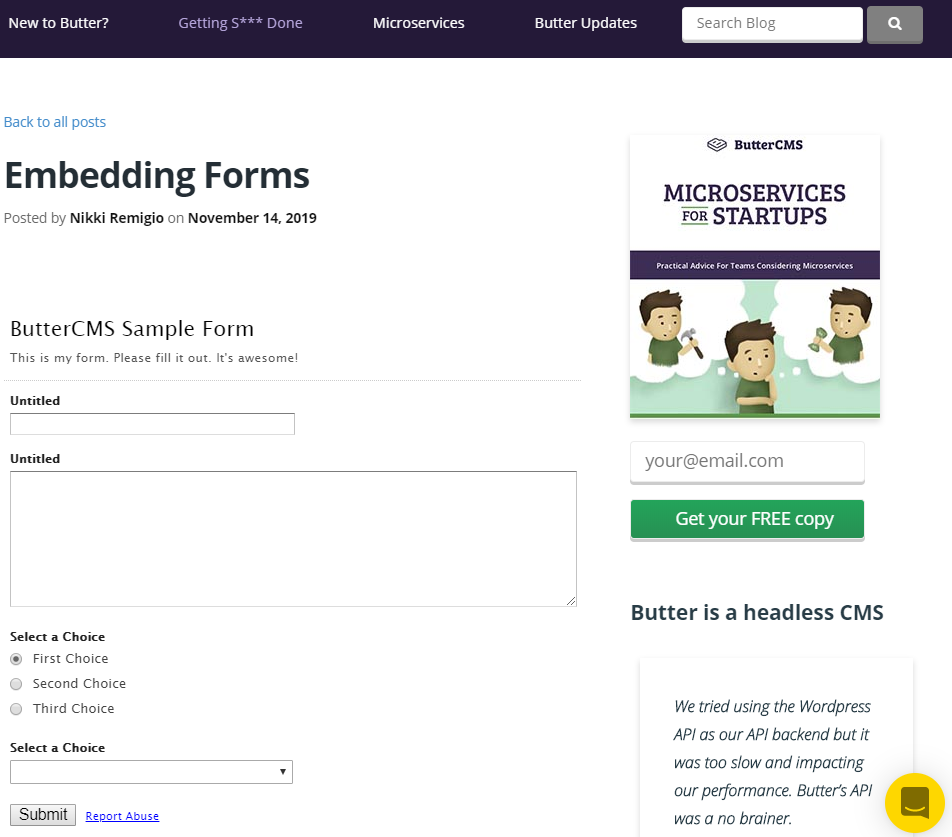
Depending on what code you embed, you will either see a link to your form or the actual form on your WYSIWYG field.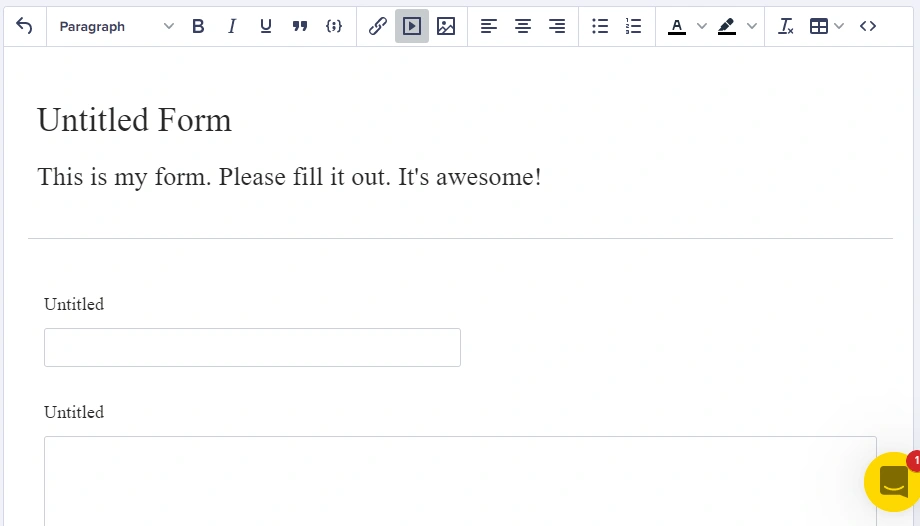 You can preview your post before publishing it to see how it will look on your live site.
Creating a form embed Component
For more control and reusability, create a dedicated Component for form embeds:Component schema
Create a new Component called Form Embed with these fields:Best practices
Performance tip: Forms with heavy JavaScript (100KB+) can impact page load times. Consider lazy-loading forms using the Intersection Observer API to load them only when scrolled into view.
Accessibility
- Form labels - Ensure embedded forms have proper labels
- Keyboard navigation - Test that forms can be completed using keyboard only
- Screen readers - Verify form fields are announced correctly
- Color contrast - Check that form elements meet WCAG guidelines
Troubleshooting
Next steps
Custom form handling
Build custom forms using Collections
Form integrations
Use native Typeform, Jotform, Formstack integrations