
Viewing versions for different content types
Pages and Collections
Pages and Collections support full version history with the ability to:- View all historical versions
- See draft-over-published versions
- Preview locked versions
- Access the complete change timeline
Blog Posts
Blog Posts have a simplified version model:- View the current published version
- See scheduled publication status
- Limited historical version access compared to Pages
Blog Posts don’t support creating draft versions over published content. When you edit a published Blog Post, changes are applied directly upon saving.
Accessing the version timeline
You must have the proper permissions to access revision history.
- Navigate to the Page, Collection Item, or Blog Post you want to review
- Open the content editor
- Locate the Revision History option in the editor interface
- The timeline displays all saved versions chronologically
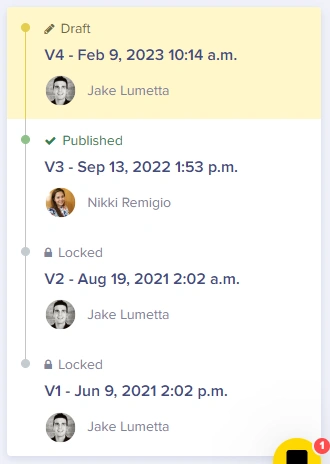
Understanding the version timeline
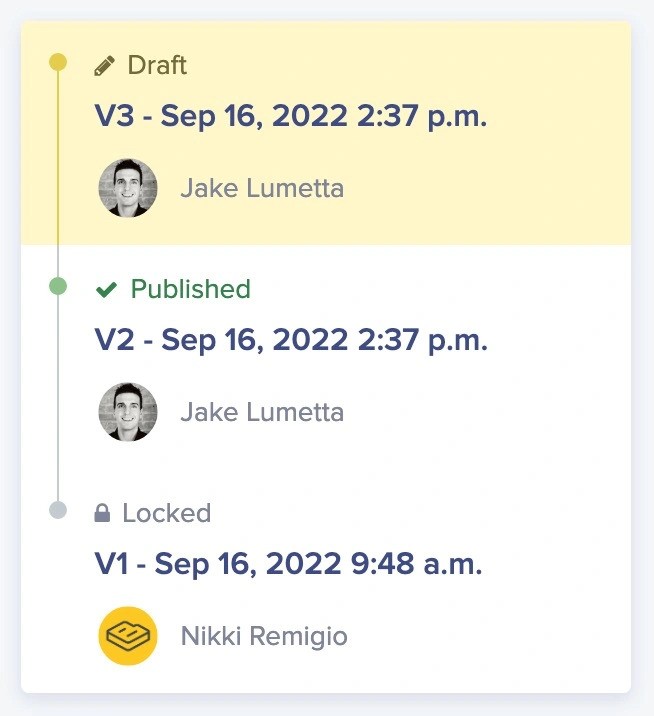
Timeline elements
The revision history timeline displays several key pieces of information for each version:Navigating the timeline
Timeline navigation
The version timeline is organized chronologically, with the most recent version at the top:v4 — Current DraftToday, 2:30 PM
👤 Jane Smith · Draft
v3 — PublishedYesterday, 4:15 PM
👤 John Doe · ✓ Currently live
v2 — LockedJan 15, 11:00 AM
👤 Jane Smith · 🔒 Previously published
v1 — LockedJan 10, 9:30 AM
👤 John Doe · 🔒 Original version
Understanding version states
Content versions in the ButterCMS version history can exist in several states, each indicated by a distinct visual symbol:Draft state
A version is in Draft state when it hasn’t been published yet. Draft versions will only appear for the current active draft and are accessible via the preview API parameter.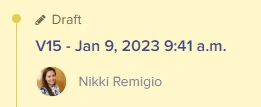
Published state
The Published indicator shows which version is currently live and accessible through the standard API endpoints.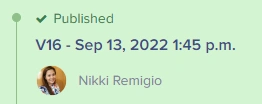
Locked state
A Locked version was a previously Published version that can no longer be modified. However, locked versions can be reverted back to, allowing you to restore previous content states.Version states quick reference
Attempting to edit a Published version generates a new draft.
Viewing versions for different content types
Pages and Collections
Pages and Collections support full version history with the ability to:- View all historical versions
- See draft-over-published versions
- Preview locked versions
- Access the complete change timeline
Blog Posts
Blog Posts have a simplified version model:- View the current published version
- See scheduled publication status
- Limited historical version access compared to Pages
Blog Posts don’t support creating draft versions over published content. When you edit a published Blog Post, changes are applied directly upon saving.
Viewing a specific version
Step-by-step guide
To view the content of a previous version:- Open revision history - Click on the revision history option in your content editor
- Locate the version - Scroll through the timeline to find the version you want to view
- Click to select - Click on the version entry to select it
- Preview the content - Use the preview option to see exactly how the content appeared
Comparing two versions
You can use the revision history to compare the data between two versions.- Click on any version in the history timeline to be your starting version. Choose the most recent of the two versions you want to compare.
- Click the Compare versions button.
- Click the older version of the content that you want to compare your starting version to.
- Content that was removed will have red strikethrough text, like this.
- Content that was added will have green text, like this.