
Content statuses
ButterCMS content can exist in four different states:


Understanding published with draft
You can have a page that is published with a draft version. For example, version 1 may already be published (indicated by a green checkmark), while version 2 is still being edited as a draft.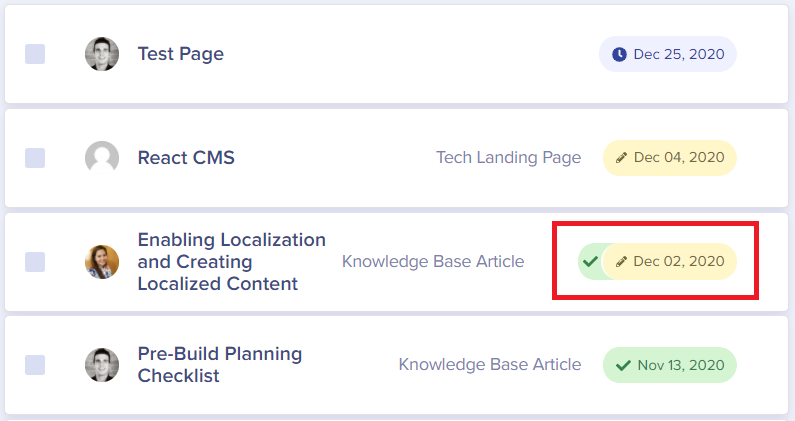
Publication workflow
Step 1: Create content
An Admin configures your Page or Page Type template, setting up all content fields that editors will need access to. Then an Author (or higher authorization) creates a new Page or content item.Step 2: Save as draft
The content is saved as a Draft (indicated by a yellow date). At this stage, the content can be previewed to see how it will look on your live site.Step 3: Review and publish
A Publisher or Admin reviews the content, makes any necessary updates, and can:- Publish immediately - Content goes live right away
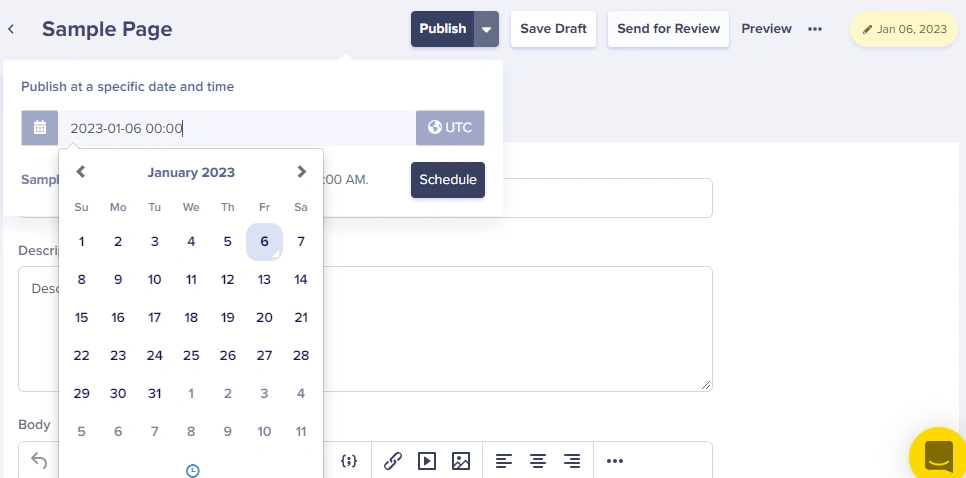
- Schedule for later - Set a future date/time for automatic publication
Status visibility
You can always view the current status of your content:- In the content list - Status is shown as a colored date indicator
- In the editor - Status appears in the upper-right corner of the screen
- Via API - Use the
preview=1parameter to access draft content