Learn how to use Blog Templates to save and reuse pieces of rich text content across your blog posts
Learn how to save and reuse pieces of rich text content across your blog posts.
Blog Templates let you save a piece of content from a rich text (WYSIWYG) field and reuse it in other posts - without copying and pasting between browser tabs or recreating the same formatting every time. This is useful for things you repeat often across posts, like a call-to-action block, an author bio, or a disclaimer.
This article walks through how templates work, how to create and insert them, and who has access to manage them.
📋 Before you start Blog Templates is available out of the box - there's nothing to enable. Look for the staple icon in the rich text editor toolbar to get started.
Templates are scoped to your organization, not to an individual post or user. Once someone creates a template, it becomes available to select from inside any post's rich text editor across your account - not just the post it was created in.
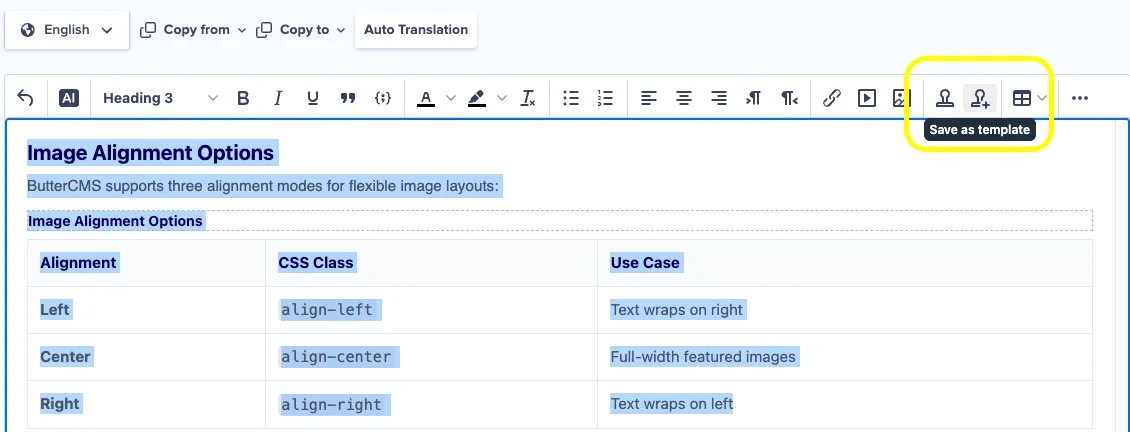
Blog Templates is ready to use out of the box - no setup required. Open any post and look in the rich text (WYSIWYG) editor toolbar for the staple icon. Clicking it opens your template library, while the staple icon with a + lets you manage and create templates.
Templates can't be edited in place. To update one, an admin needs to save a new template with the revised content, then remove the outdated version from the library via the staple+ icon.
Users with admin rights can create, update, and remove templates in the library. Users with editor access can use existing templates to insert content into their posts, but can't create or modify the library themselves.
Now that you know how to save, insert, and manage templates, try building out a small library of your most-used content blocks - CTAs, bios, and disclaimers are a great place to start.