
Creating Components
There are two primary methods for creating Components in ButterCMS:Method 1: Creating from the Content Types dashboard
Directly create new Components from your Content Type dashboard by clicking on the New Content Type button and then selecting Component:
1
Navigate to Content Types
Go to Content Types in the sidebar navigation.
2
Click New Content Type
Click the New Content Type button.
3
Select Component
Choose Component from the dropdown options.
4
Add fields
Configure the fields your Component needs.
5
Save
Name your Component and save it to the library.
Method 2: Creating from Page Type configuration
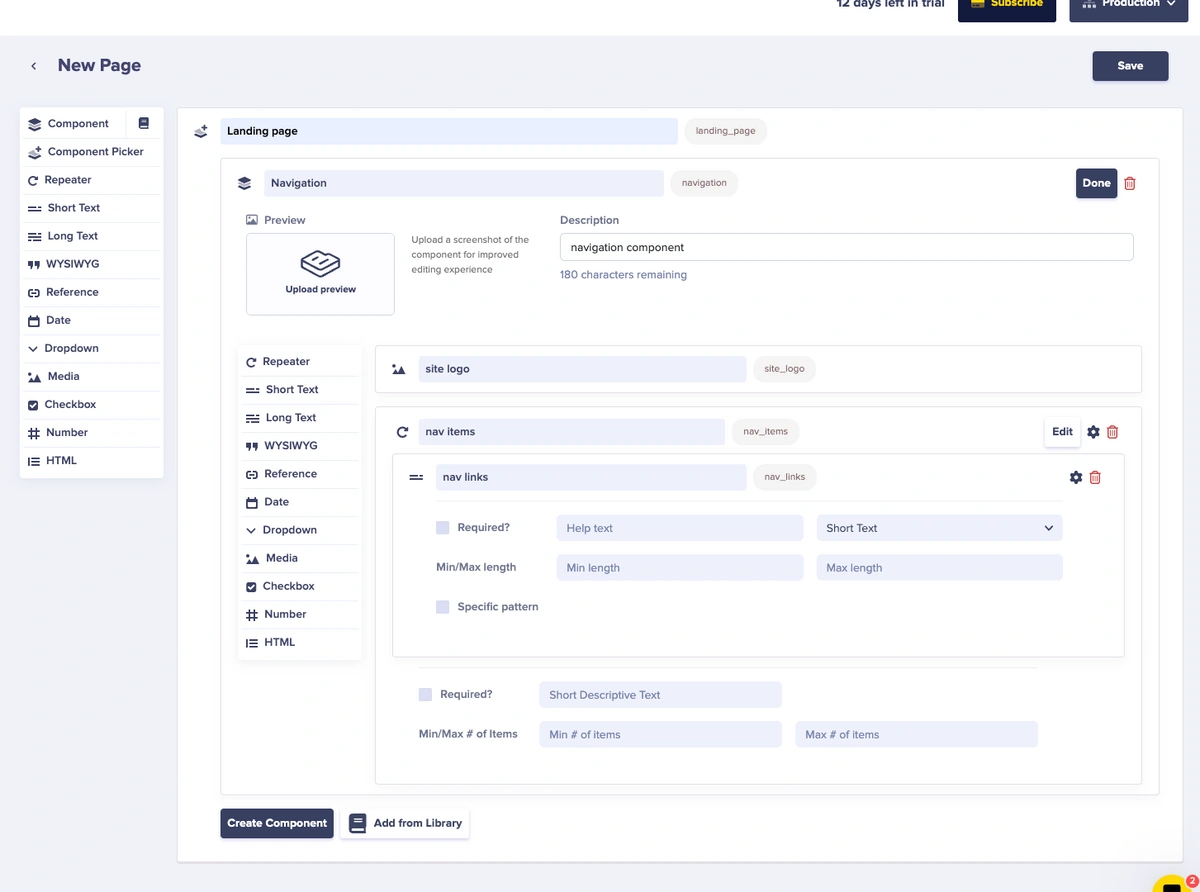
Create a local Component when configuring a Page Type by clicking on the Create Component button: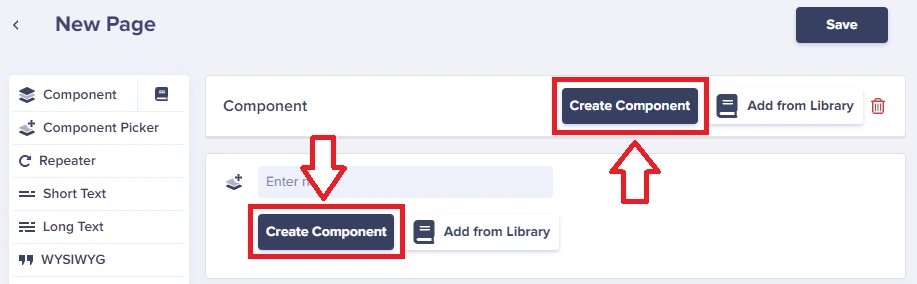 Fill in the fields as described above. Once your component is saved to the Page Type, you can then save it to the Component Library for repeated use.
Saving to the Component Library
After creating a local Component, you can save it to the Component Library for reuse across other Page Types: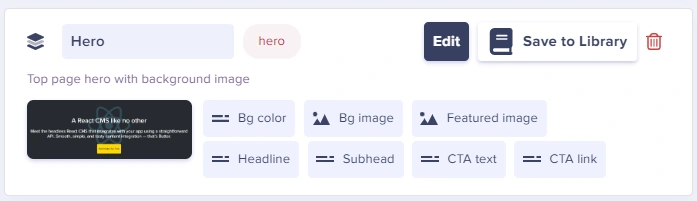 This turns it into a global Component that can be used across your entire project.
Component examples
- SEO
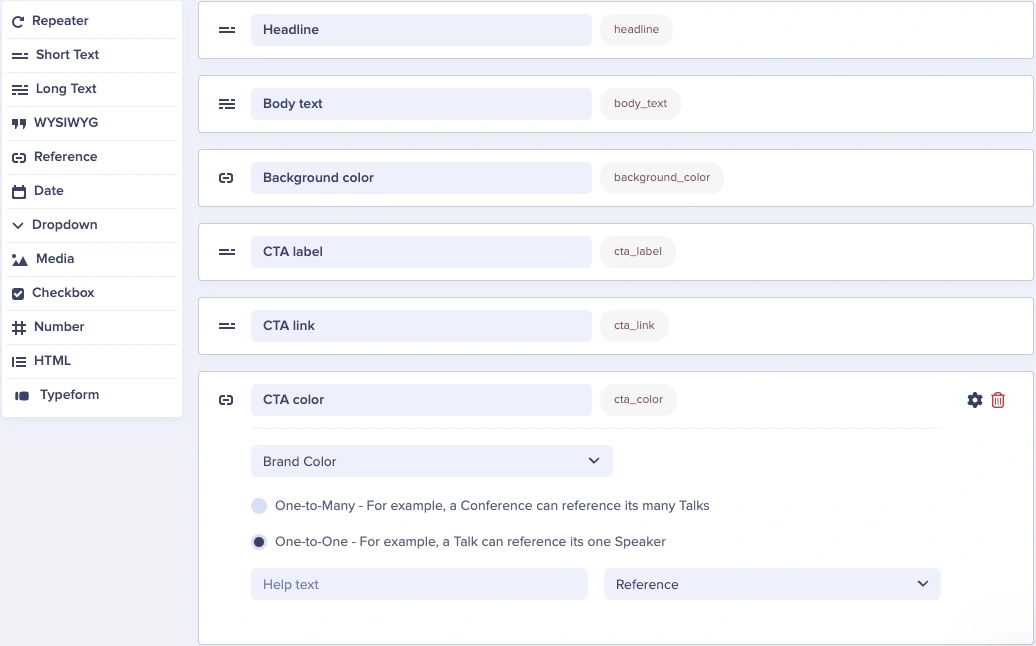
- Hero
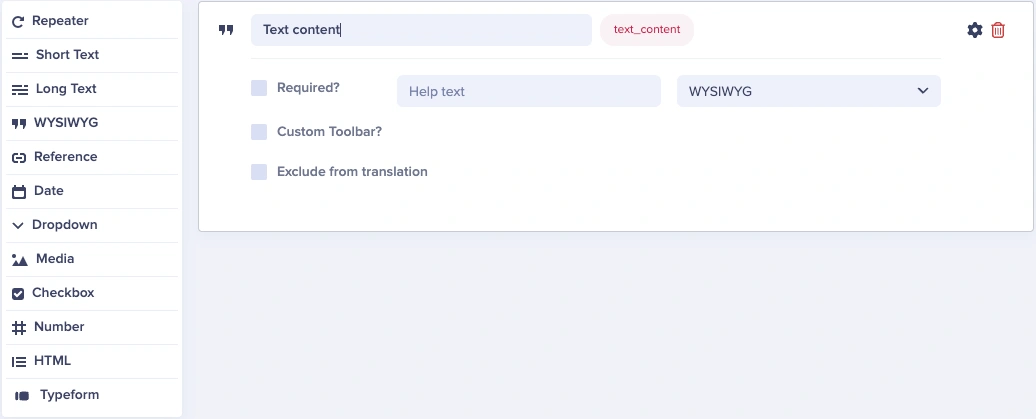
- Text
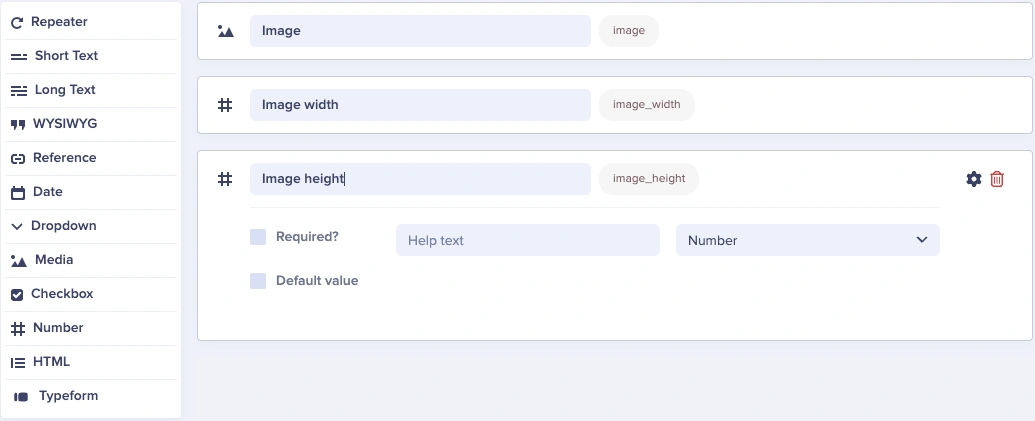
- Image
- CTA
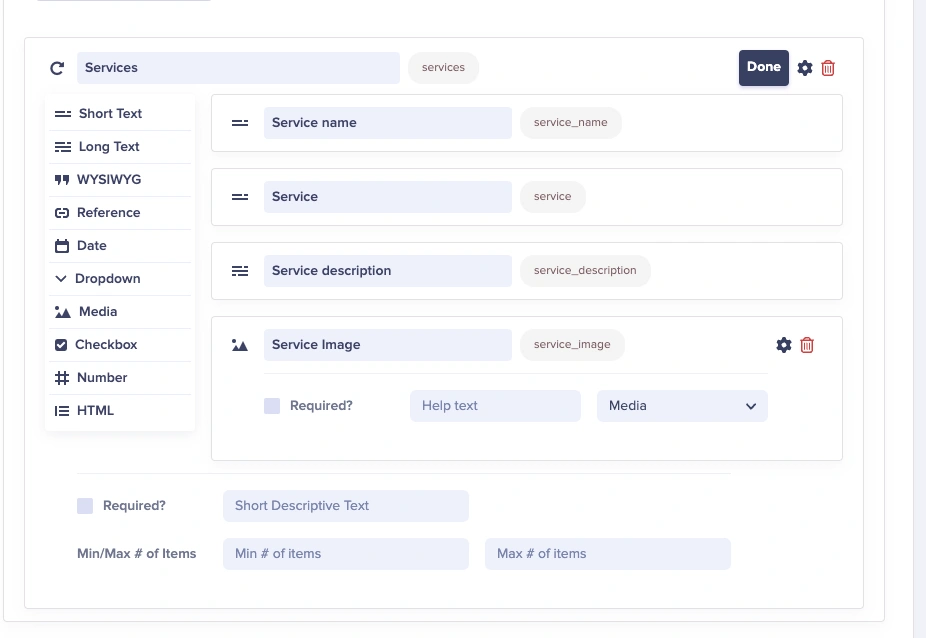
- Services
An SEO Component can be quite simple and highly reusable across all your Page Types: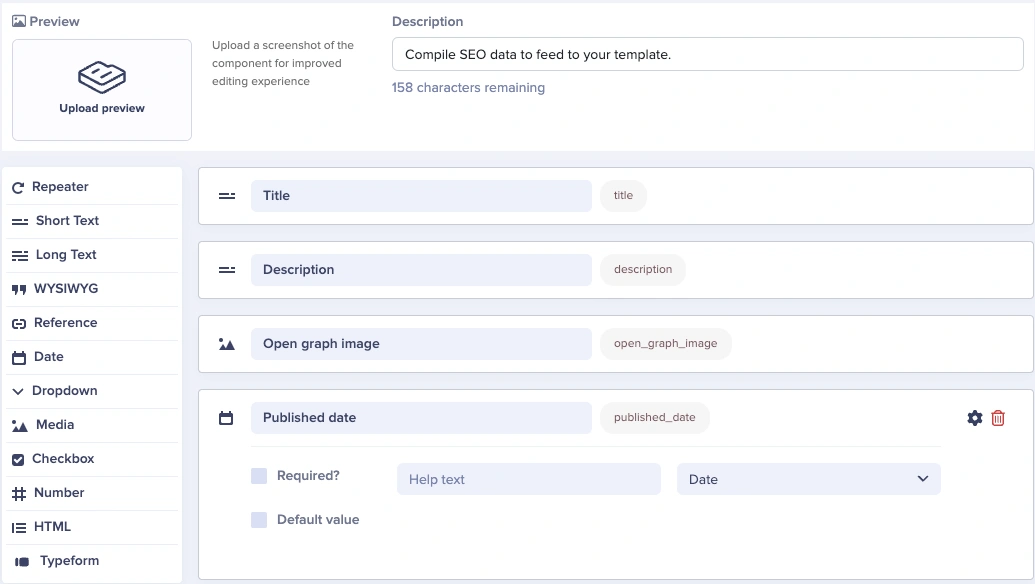 Our fields will be:
Our fields will be:- A Short Text field for our meta title
- A Short Text field for our meta description
- You can set a max of 150-160 characters for SEO best practices by clicking on the Gear (⚙️) icon
- A Media field for our open graph image when sharing the Blog Post via social media and messaging platforms
- A Date field to set our original published date for SEO and JSON-LD


Editing Components
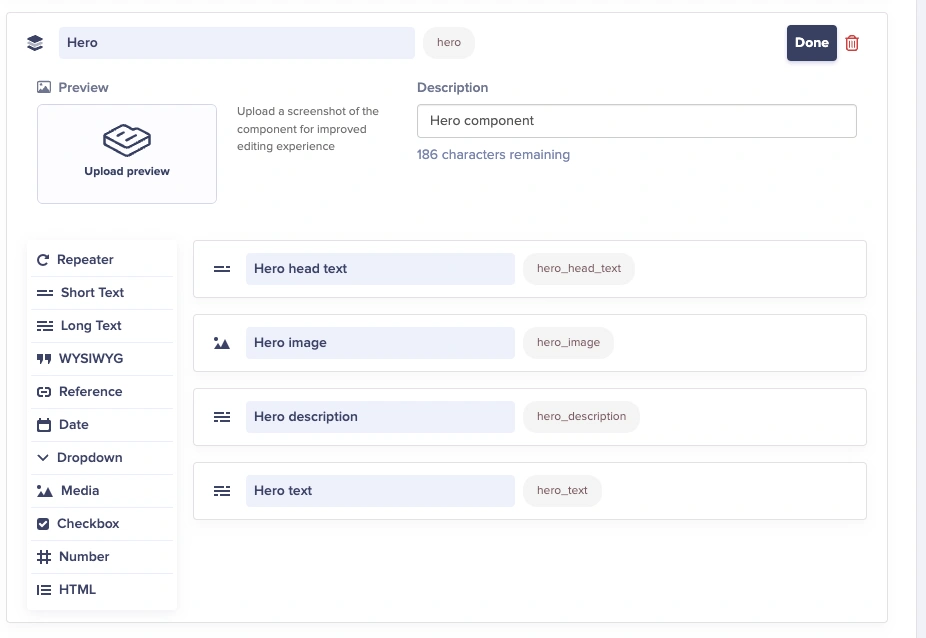
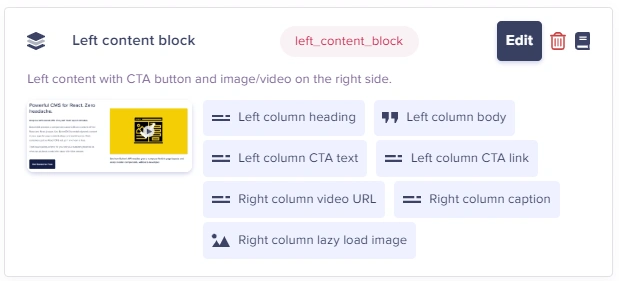
You can edit Components from a few places: 1. From the Content Type dashboard: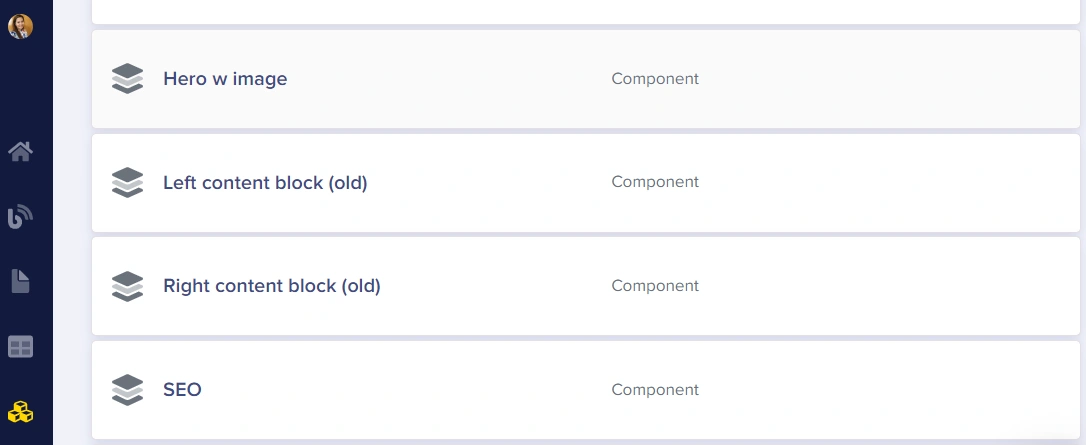 2. While editing a Page Type, click Edit:
 3. While viewing the Component Library, click the pencil icon:
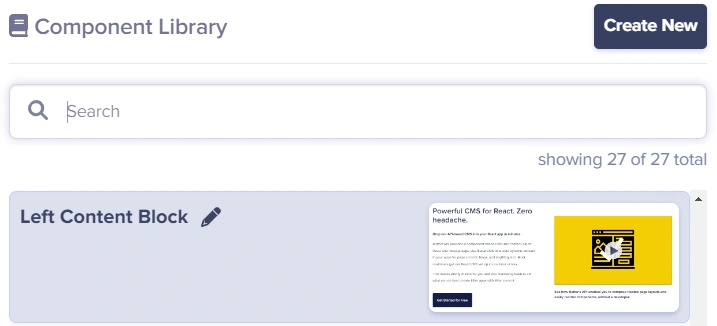 All edits to your Component will automatically propagate to all Page Types that use it.
Changes to global Components are immediately reflected across all Page Types that use them. This makes it easy to update your content structure site-wide with a single change.
Cloning Components
You can clone a Local Component by clicking on the Clone button. This creates a copy of the Component that you can modify independently.Deleting Components
Deleting Components is only possible from the Component edit UI: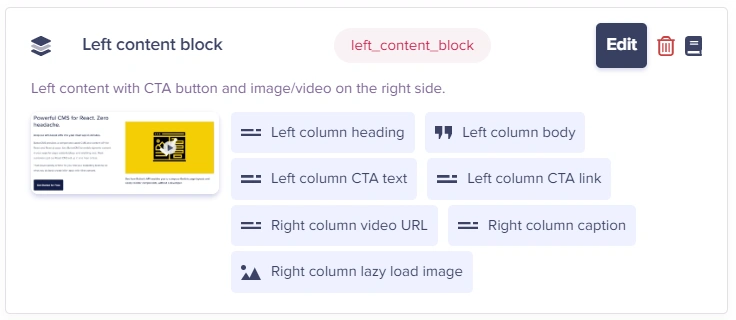 Deleting a Component from the Component Library will NOT delete the Component field from the Page Types. It will remove the Component from the Component Library and disconnect all instances of the Components that are found across your Page Types. You can then go and explicitly remove the Component from your desired Page Types.