
- Add a Component Picker field to a Page or Page Type.
- Create an allowlist of Components to be used in the field - you can choose from existing Components, or create new ones.
- When someone creates an instance of that Page or Page Type, they can select Components from that list.
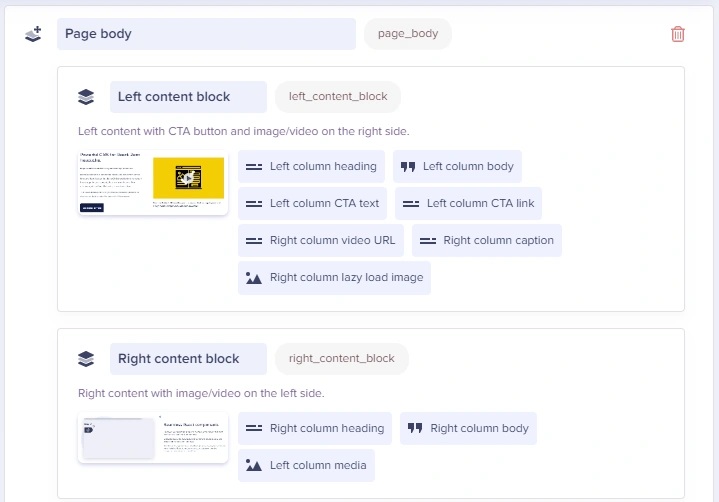
If a content creator were creating an instance of this Page Type, they might select Components to create a Page body like this:
- Right content block
- Left content block
- Left content block
- Right content block
Field at a glance
Input and output
Input type
Component Picker field defined in the Page schema with your choice of field types
API output
arrayAPI response
Fetching Components from the API
Learn more about how Components are returned by the API, and how to model Component content in your app.
Field configuration and validation options
Adding a Component Picker
1
Add the Component Picker Field
Click on the Component Picker option in the Page Type configuration sidebar: This will add the Component Picker to your page schema:
This will add the Component Picker to your page schema:2
Name the Component Picker
Give the field a descriptive name. Common names include “Body”, “Sections”, or “Content Blocks”.
3
Add Components to the Picker
Click on the Add from Library button and select the components that content editors should be able to use: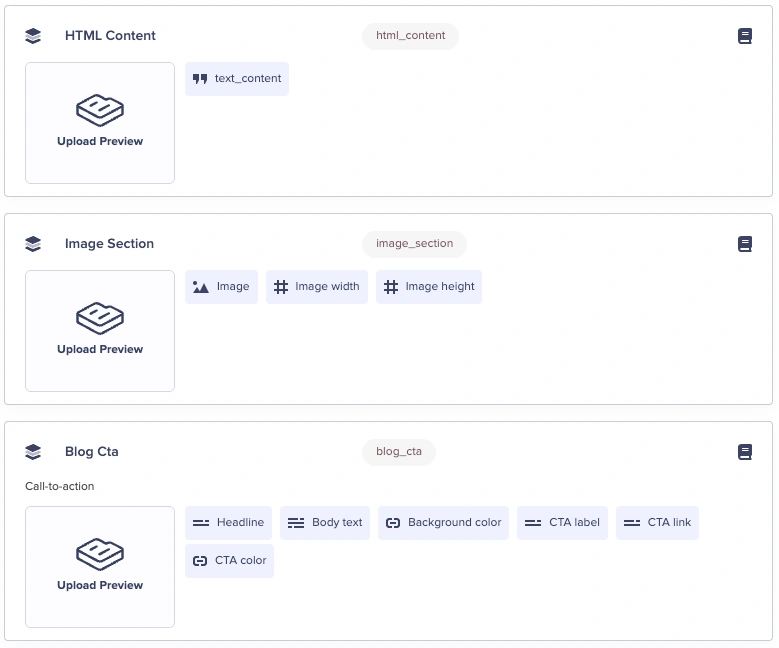 Or, you can define Components directly from inside the Component Picker.
Or, you can define Components directly from inside the Component Picker.Using the Component Picker
Adding Components
1
Open the Component Picker
In your Page, look for the Component Picker section. Pickers can be identified by the Component Picker button.Click on the button to add components: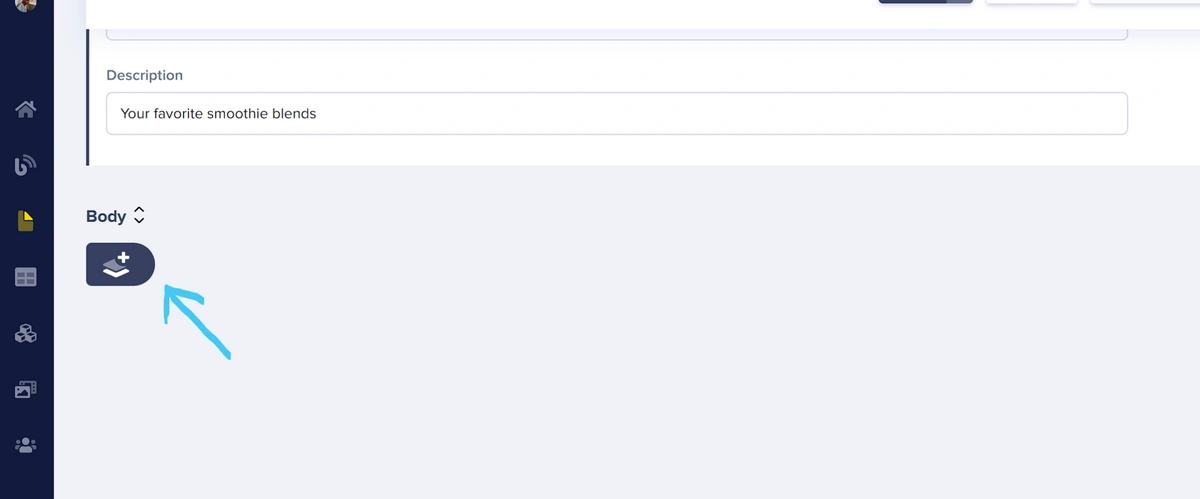 This opens a Component Library modal of Components that have been filtered to those in the Picker’s allowlist.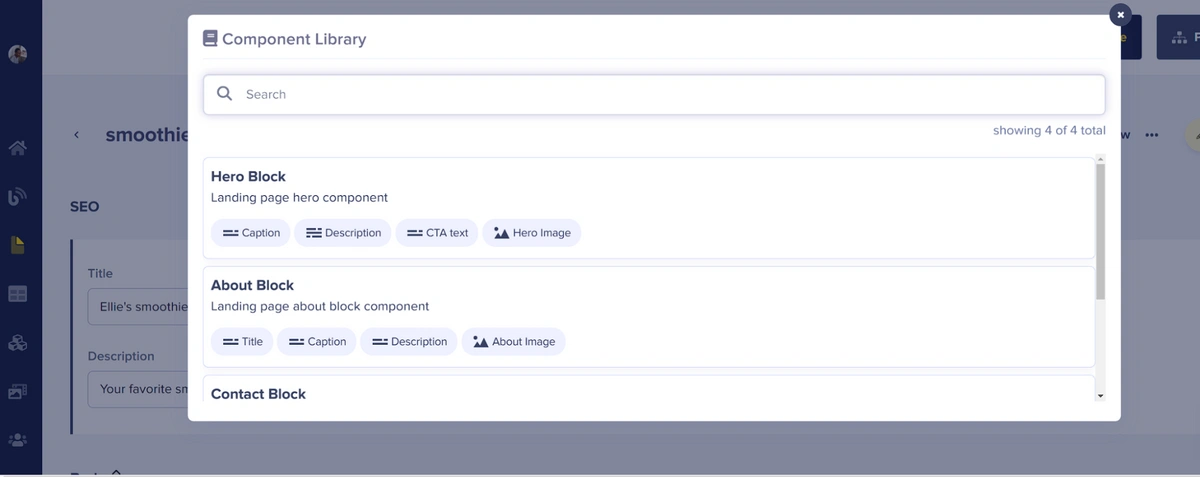
This opens a Component Library modal of Components that have been filtered to those in the Picker’s allowlist.2
Choose a Component
Select from the available components, and a new component section will appear.
3
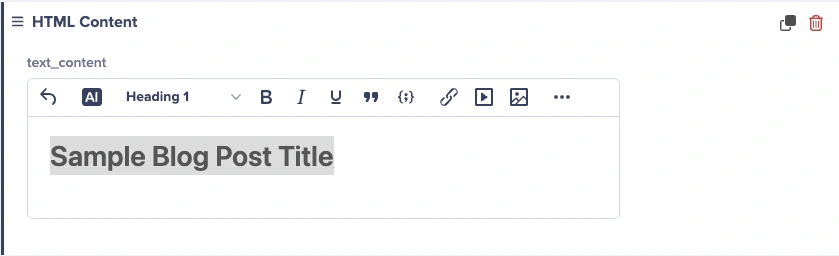
Fill in the Component Fields
Fill in the fields on the individual Components, and then Save or Publish the Page.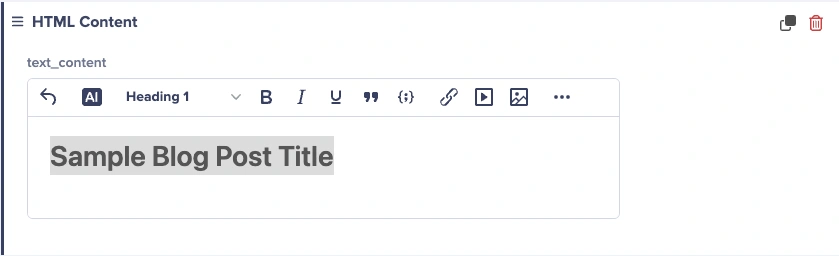
Cloning Components
You can clone Components within a picker with the clone icon.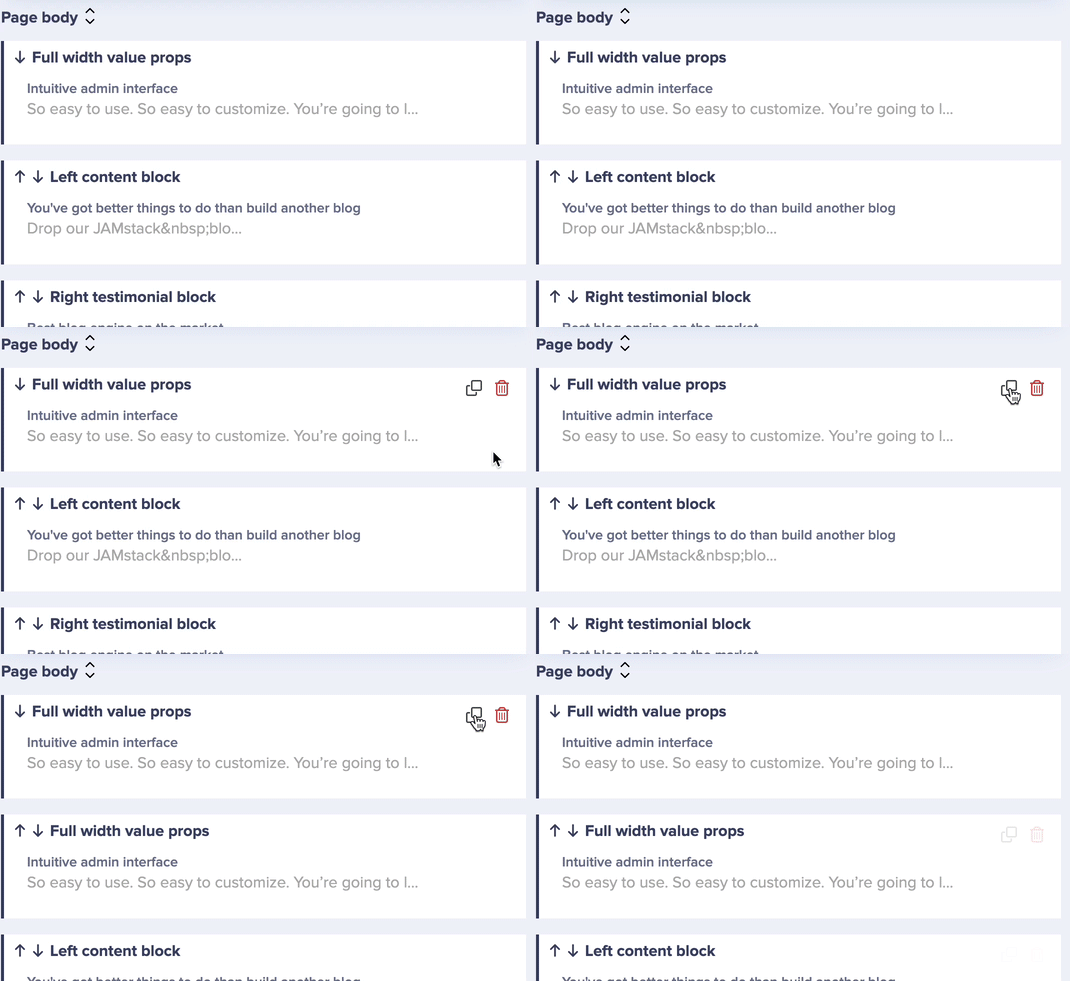
Expanding and collapsing Components
Click on the name of any Component in the Picker to expand or collapse it. You can also click on the Expand All button to expand all Components simultaneously.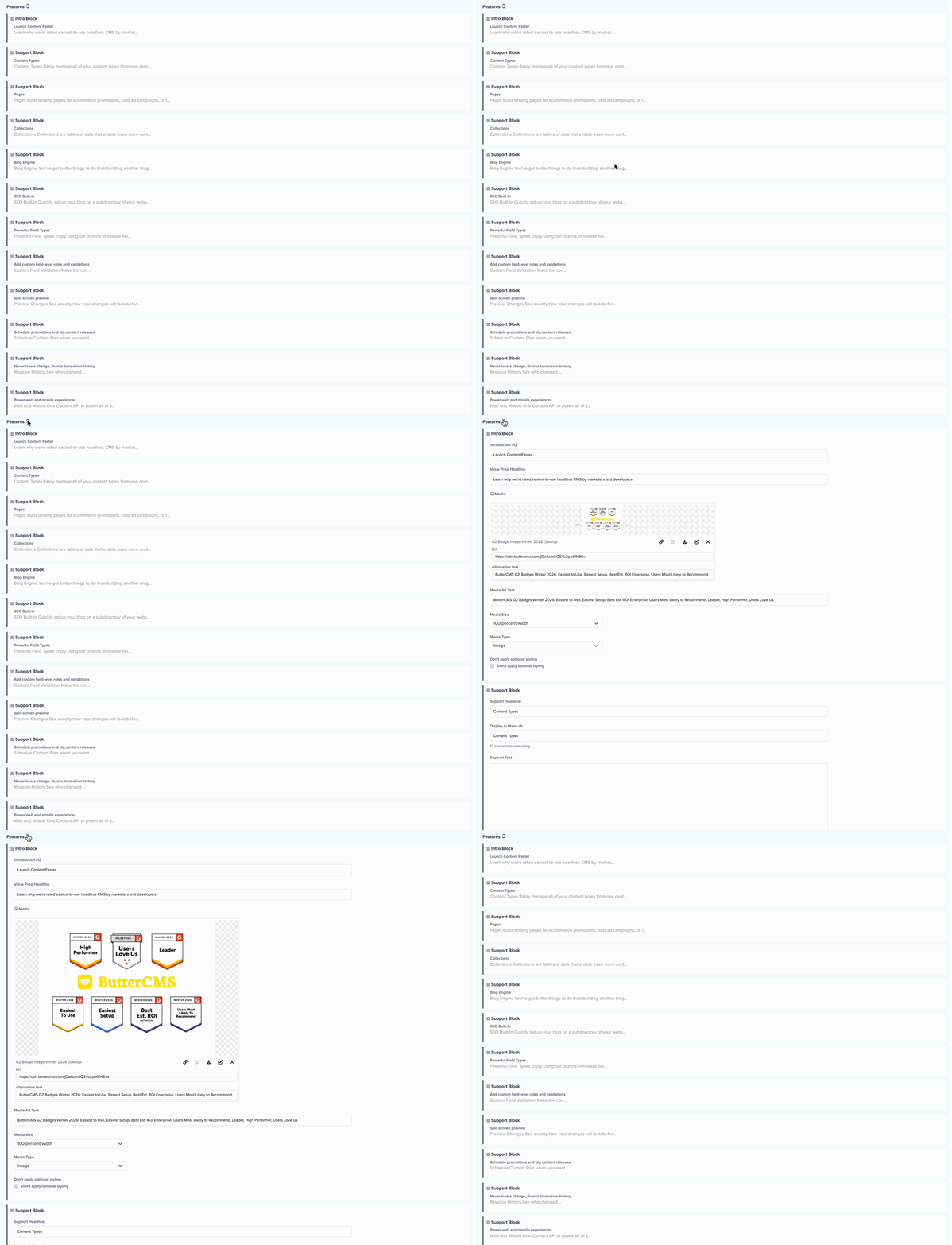
Reordering Components
To re-order Components, you simply have to drag & drop a Component up or down your content layout.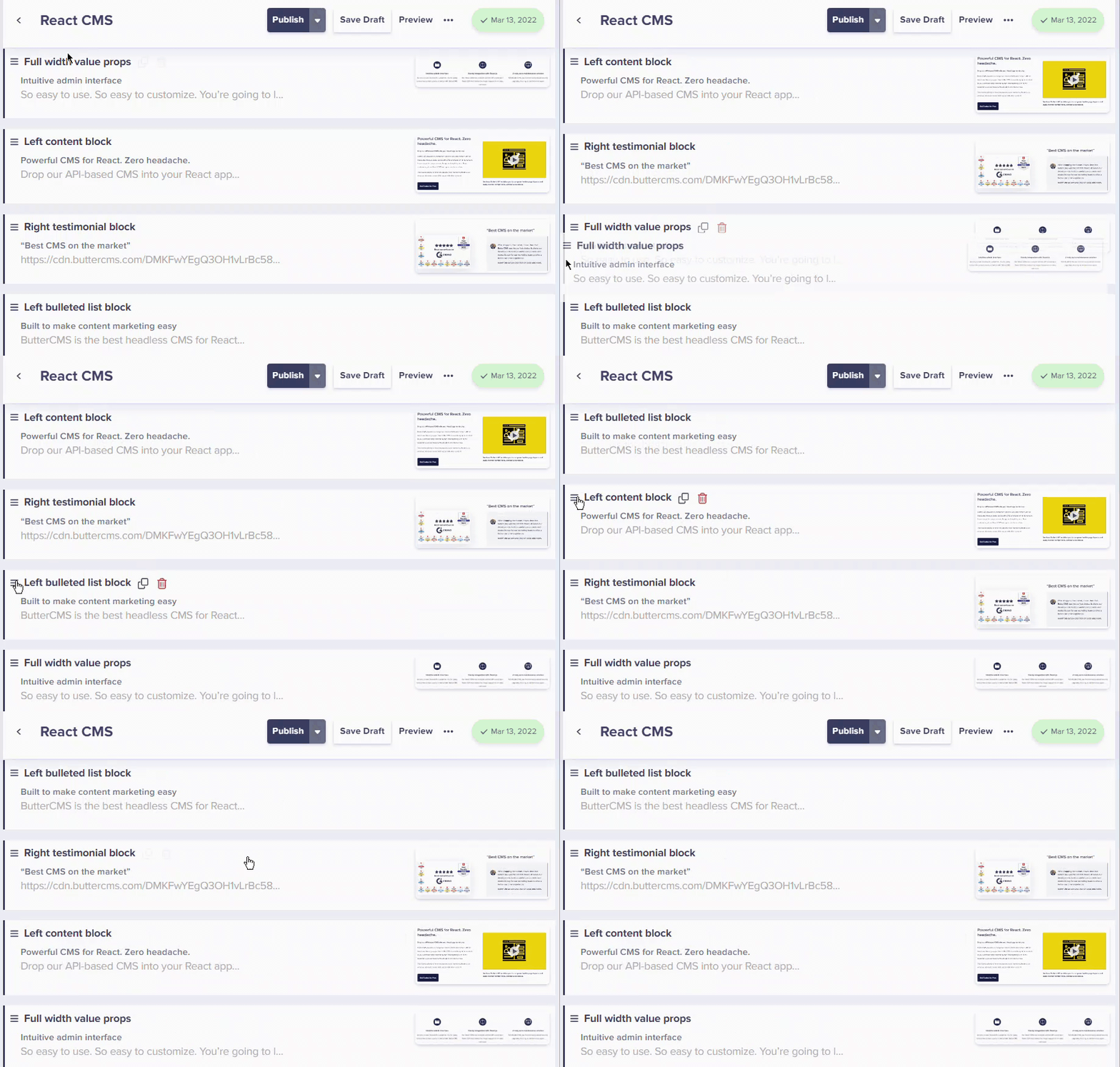
Using arrow controls
If you prefer not to drag, you can also use the arrow buttons:- Locate the up/down arrows next to the component name
- Click the up arrow to move the component higher on the page
- Click the down arrow to move the component lower
- The page preview will reflect the new order
Pro Tip: Collapse all components before reordering. This gives you a cleaner view of your page structure and makes drag-and-drop easier, especially for pages with many components.
Best practices
Limit available Components
Limit available Components
Only include components that make sense for each Page Type. A careers page doesn’t need a product pricing component.
Establish content guidelines
Establish content guidelines
Document which components to use in which situations. Create a style guide for content editors.
Plan page structure
Plan page structure
Before adding components, plan the page layout. Consider the user journey and information hierarchy.
Preview before publishing
Preview before publishing
Always preview the page to see how components render together before publishing.
Use consistent naming
Use consistent naming
Name Component Picker fields consistently across Page Types (e.g., always “Body” or always “Sections”).