
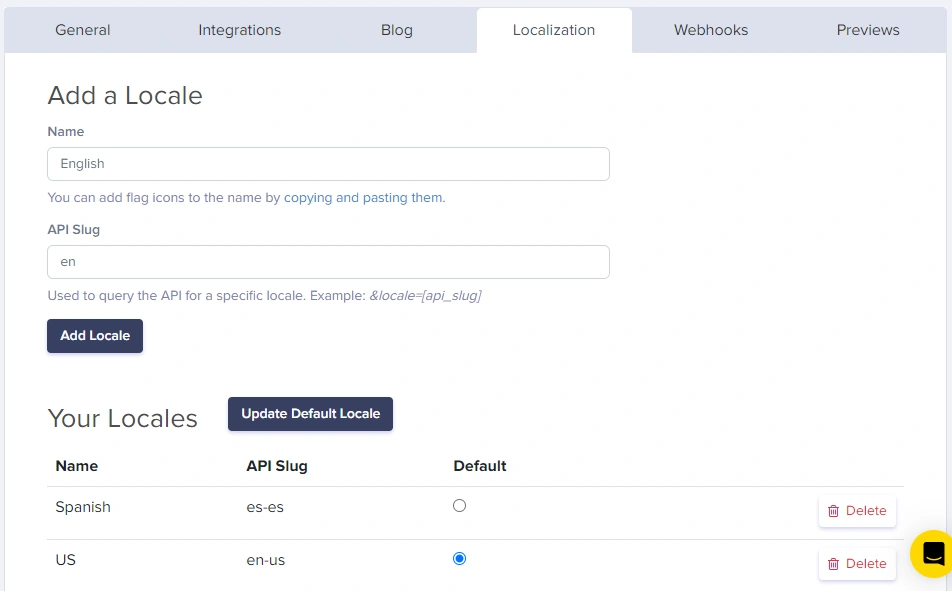
Translation methods
ButterCMS offers multiple ways to translate your content:Switching between locale versions
Once you have localization enabled with your default language set, creating localized versions is straightforward. Simply select the locale from the list of available options: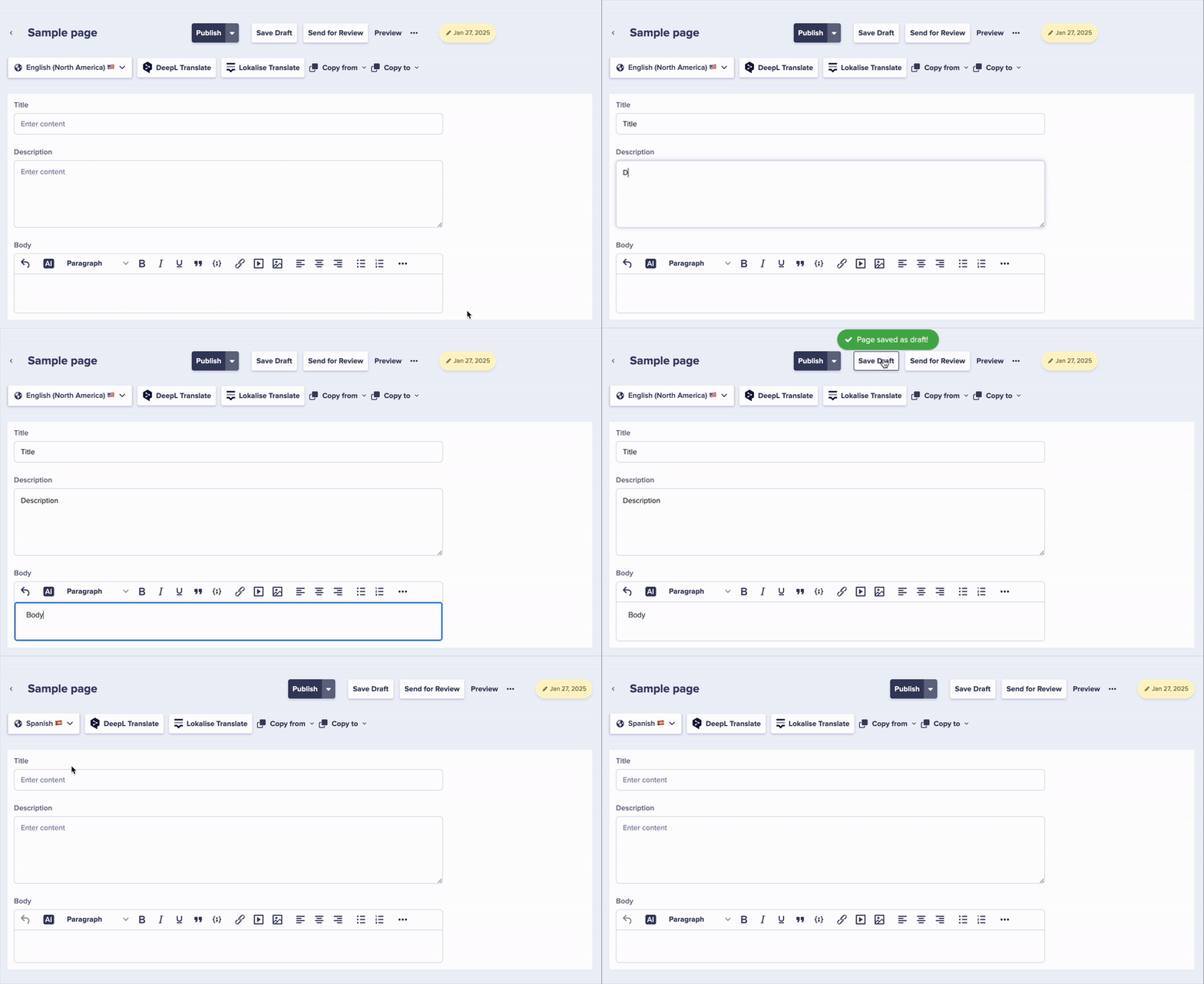
Using the “Copy from” feature
To speed up your translation workflow, you can copy content from one locale to another using the “Copy from” dropdown. This is useful when you want to start with existing content and then translate it: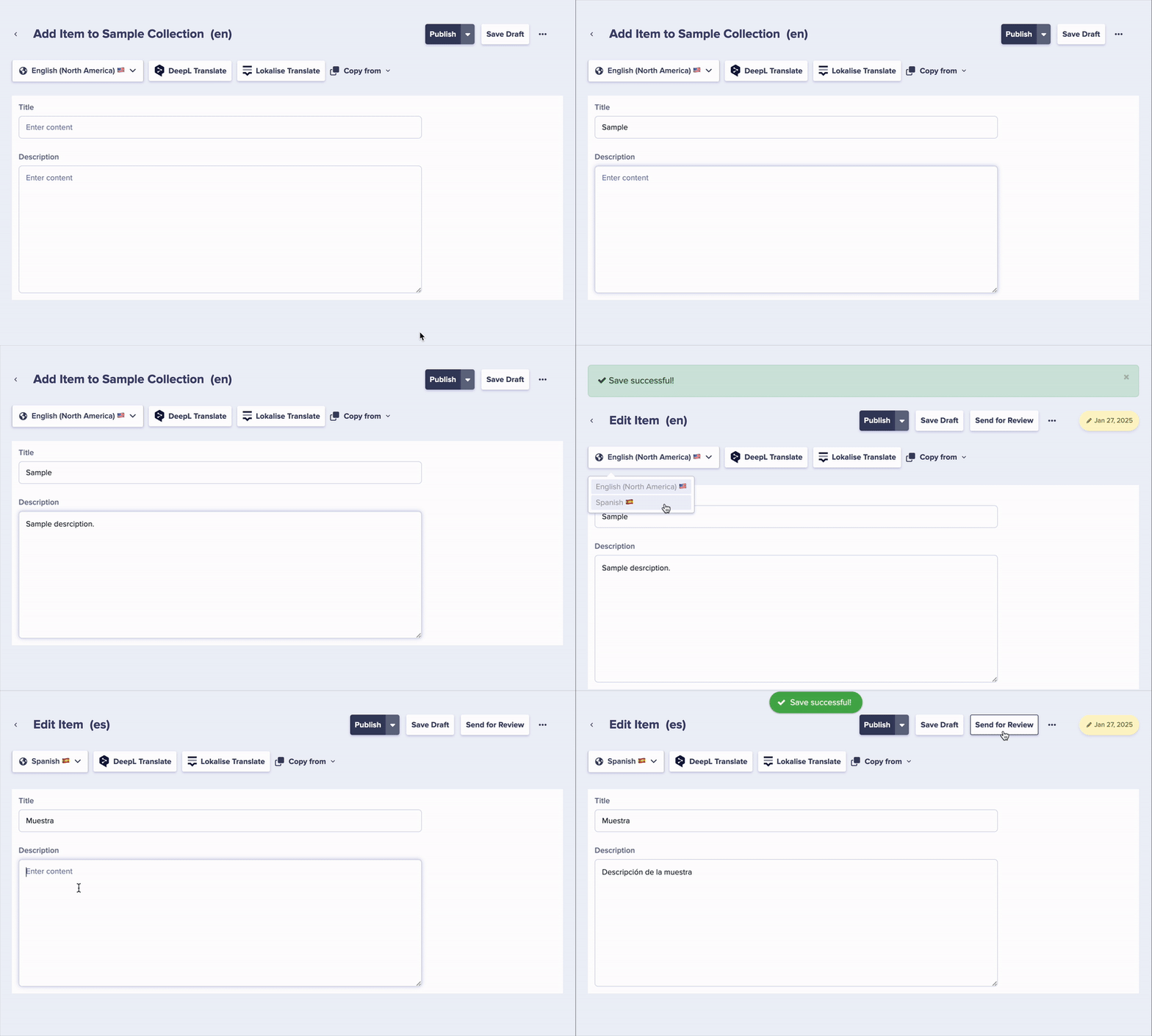
1
Open the target locale
Navigate to the page or collection item in the locale you want to translate into.
2
Click Copy From
Click on the “Copy from” dropdown at the top of the editor.
3
Select source locale
Choose the locale you want to copy content from (e.g., your default locale).
4
Translate the content
Edit the copied content and translate it to the target language.
5
Save
Save the translated content.
Using the “Copy to” feature
In addition to copying content from another locale, you can also copy content to other locales. This is useful when you’ve updated content in one locale and want to push those changes as a starting point for other translations:1
Open the source locale
Navigate to the page or collection item in the locale that has the content you want to copy.
2
Click Copy To
Click on the “Copy to” dropdown at the top of the editor.
3
Select target locales
Choose one or more locales you want to copy the content to.
4
Confirm copy
Click Copy to send the content to the selected locales.
The Copy To feature is available for Pages. For Collections, use Copy from in each target locale instead.