
Translation Integrations
DeepL Integration
DeepL Translate is an artificial intelligence (AI) language translation tool that provides highly accurate and natural-sounding translations for text in various languages. It uses neural network technology to learn from vast amounts of language data and to analyze the context of each sentence to provide translations that are closer to human-like quality than many other translation tools.Supported Languages
DeepL supports translations between the following languages:Enabling DeepL
To enable the DeepL integration, go to Settings > Integrations and tick the Enable checkbox. No account with DeepL is necessary.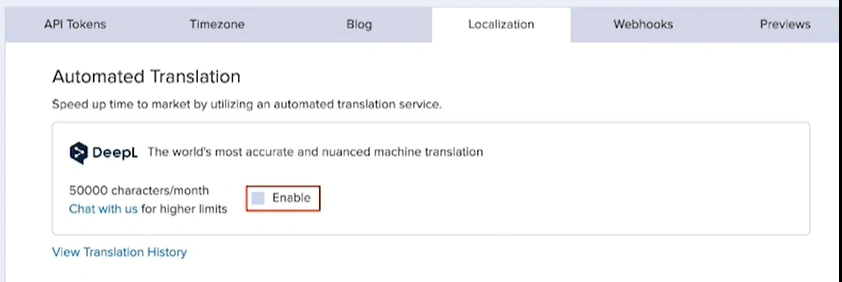 To enable your DeepL AI integration:
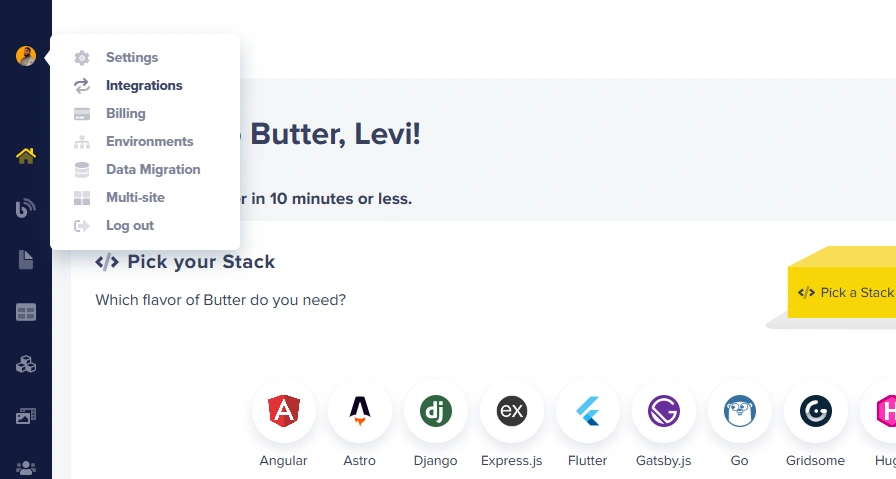
- Log in to your ButterCMS dashboard
- Hover over your profile picture icon
- Click on Integrations
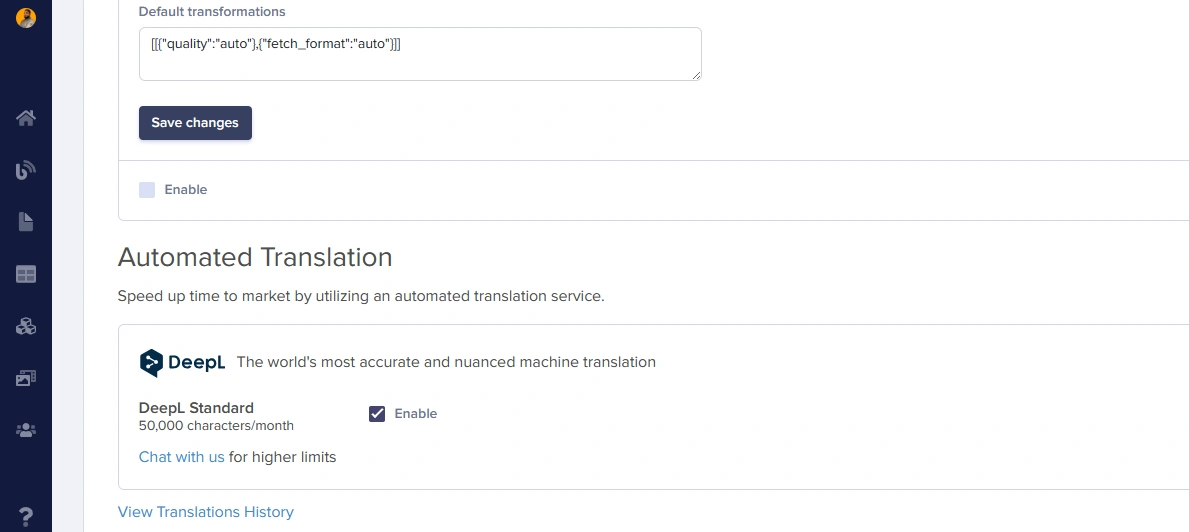
- Scroll to find the DeepL integration section
- Click the checkbox to enable it
Using DeepL Translation
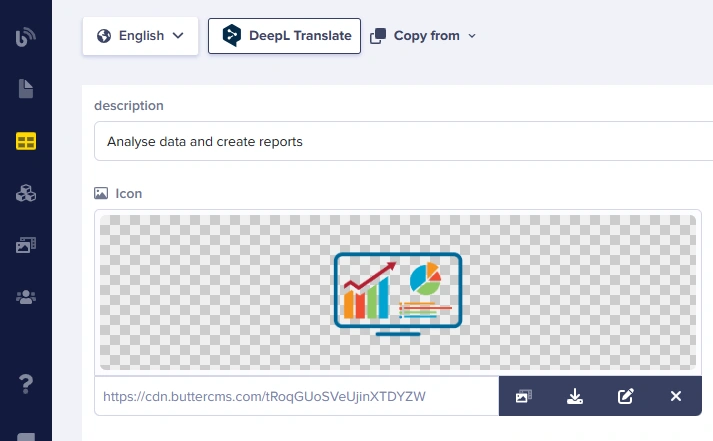
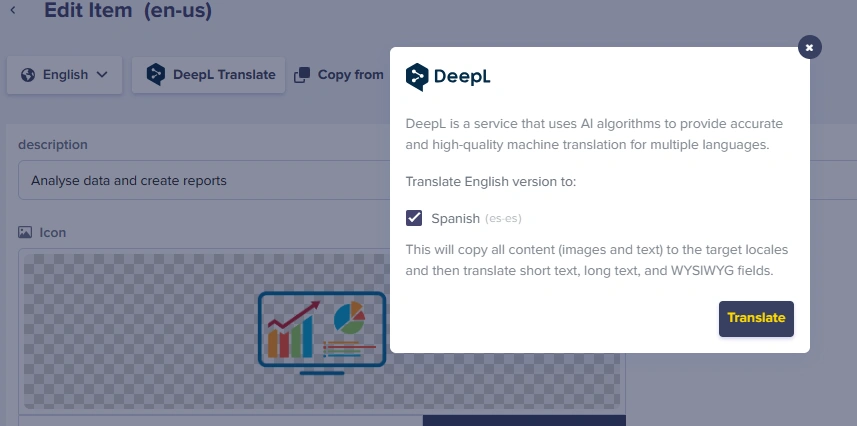
Once DeepL is enabled, you can translate pages and collections with one click:- Navigate to the content you want to translate
- Click the DeepL Translate button
- Select target language(s) in the popup
- Click Translate
Excluding Fields from DeepL
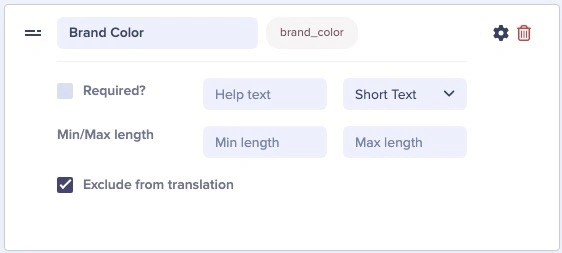
You can specify fields that should be excluded from DeepL auto-translation. This is useful for:- Brand names that shouldn’t be translated
- URLs and slugs that need to stay consistent
- Code snippets in documentation
- Legal disclaimers requiring professional translation
Lokalise Integration
Lokalise is a localization and translation management platform for agile teams. They provide a better way to adapt web and mobile apps, games, IoT, software, or digital content for international markets. They offer a translation management system (TMS) that helps teams automate, manage, and translate content (text strings, documents). Lokalise supports more than 400 languages along with their language codes and plural forms.Setting Up Lokalise
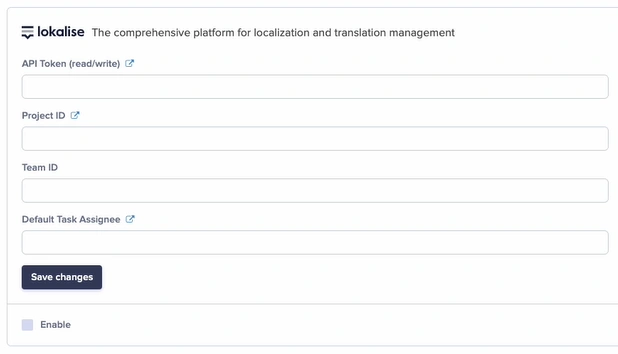
To enable the Lokalise integration, go to Settings > Integrations and fill out the following fields:-
API token (read/write) - Create an API token in Lokalise:
- Click your avatar → Profile settings > API tokens
- Project ID - Auto-generated identifier found in your Lokalise project settings
- Team ID - Available from the Lokalise API
- Default Task Assignee - Choose contributors to participate in translation tasks
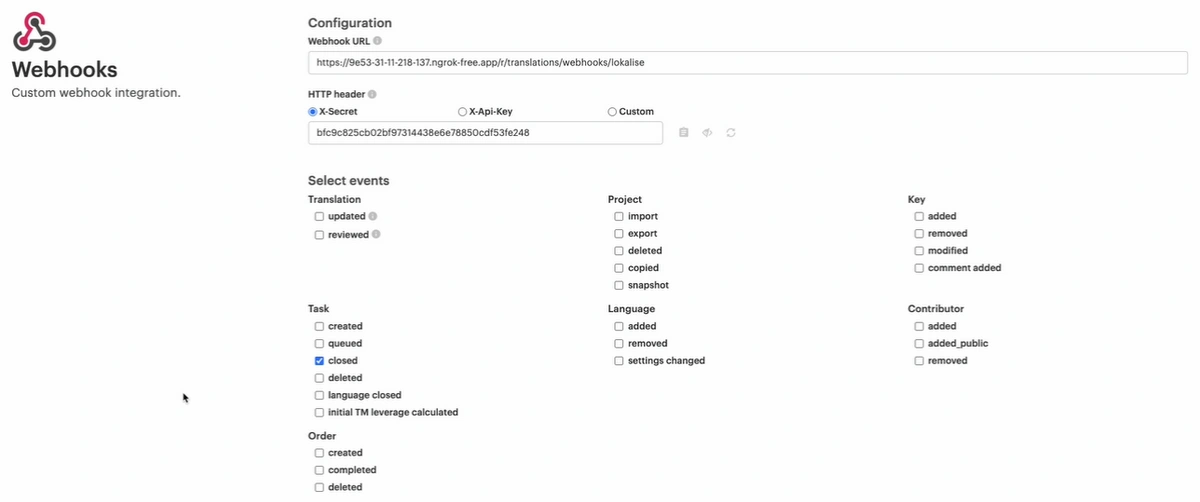
 Once enabled, the system will automatically configure a webhook in Lokalise to notify ButterCMS when translations are completed:
Using Lokalise Translation
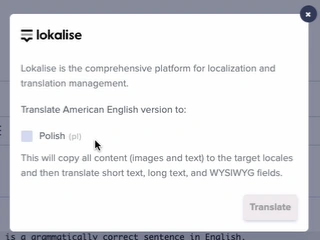
Once Lokalise has been enabled, you can initiate translation requests from pages or collections: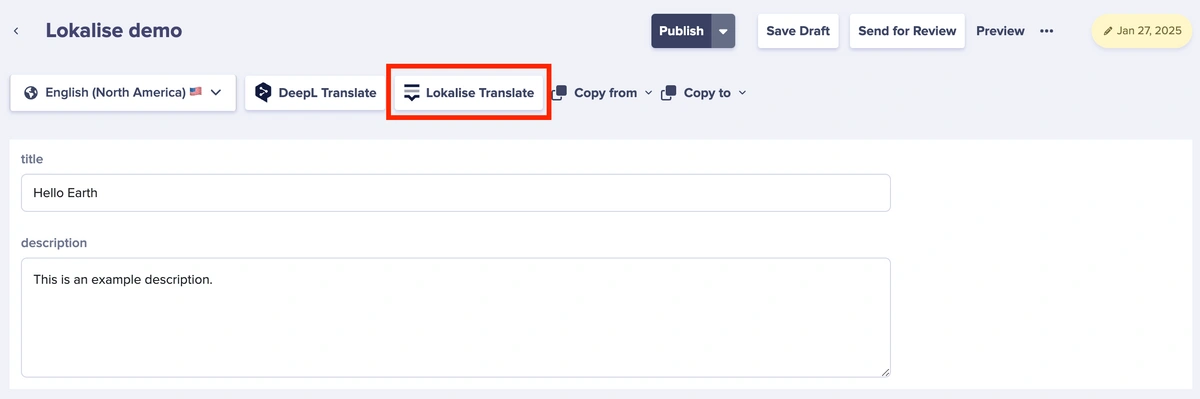
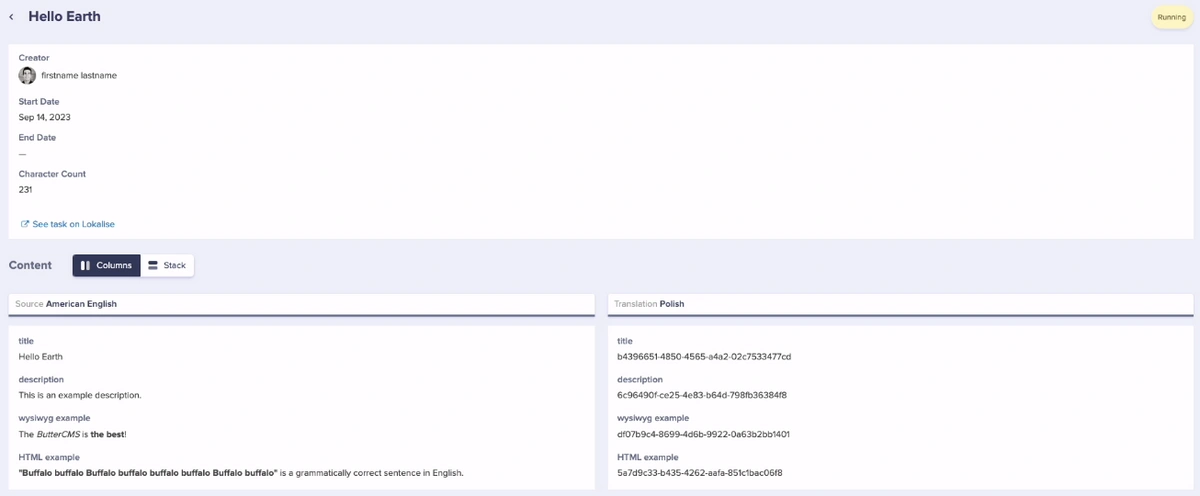
 View translation history by clicking View Translations History in Settings > Localization:
Each site within a multi-site account must use a separate Lokalise project. ButterCMS webhooks are not designed to send organization IDs, so the same
project_id cannot be used for multiple organizations. Lokalise provides unlimited projects in all their pricing plans.Crowdin Integration
The ButterCMS and Crowdin integration allows users to easily send content to Crowdin for translation, and updates made in one platform will be automatically reflected in the other. Crowdin provides a range of features to help automate the translation process, including:- Translation memory - Reuse previous translations
- Machine translation - AI-powered translation suggestions
- 500+ tools for managers, developers, translators, and designers
Setting Up Crowdin
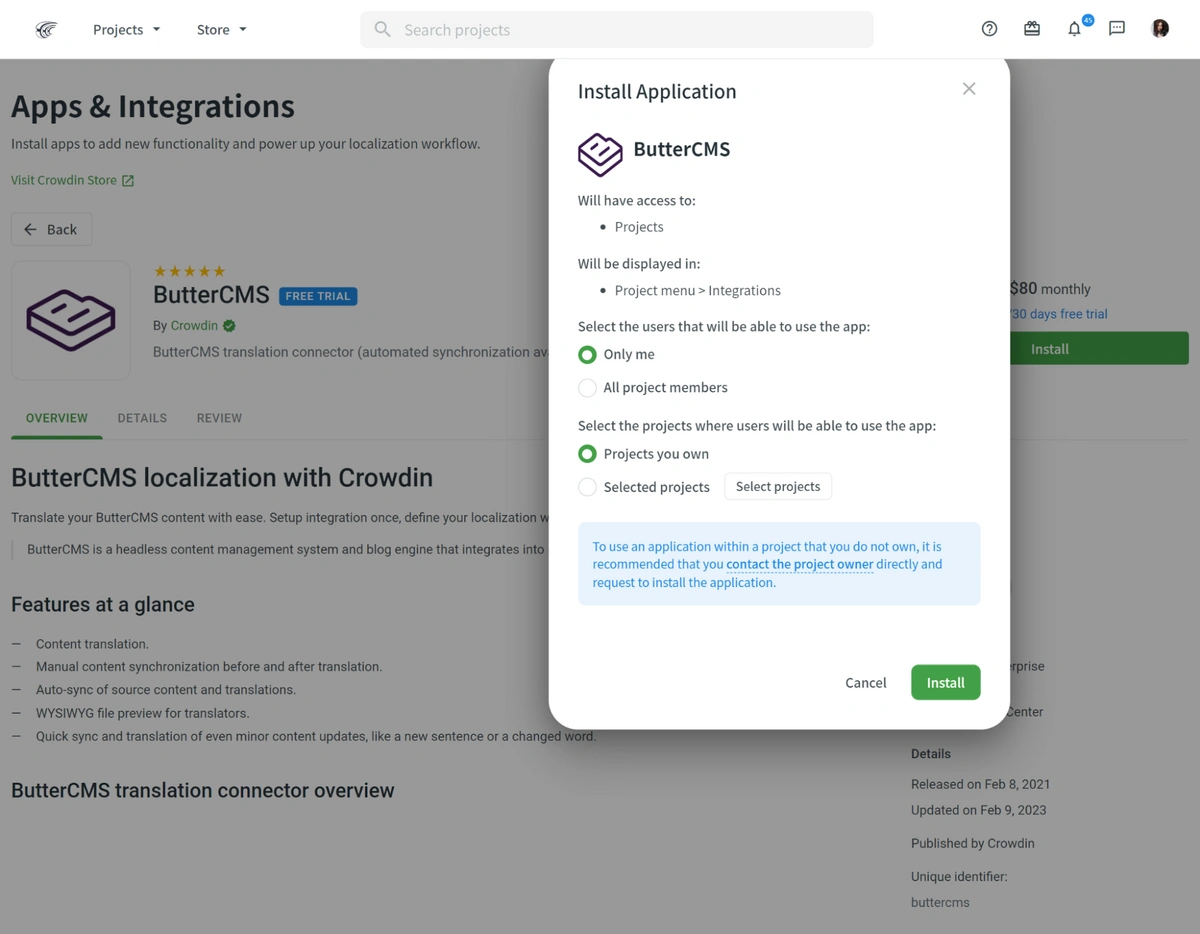
Step 1: Install the ButterCMS App
- Log in to your Crowdin account (or create one)
- Navigate to the ButterCMS page on the Crowdin Store
- Click the Install button
- Choose which projects and users will have access
Step 2: Configure API Tokens
Enter your ButterCMS Read and Write API tokens (found in Settings > General):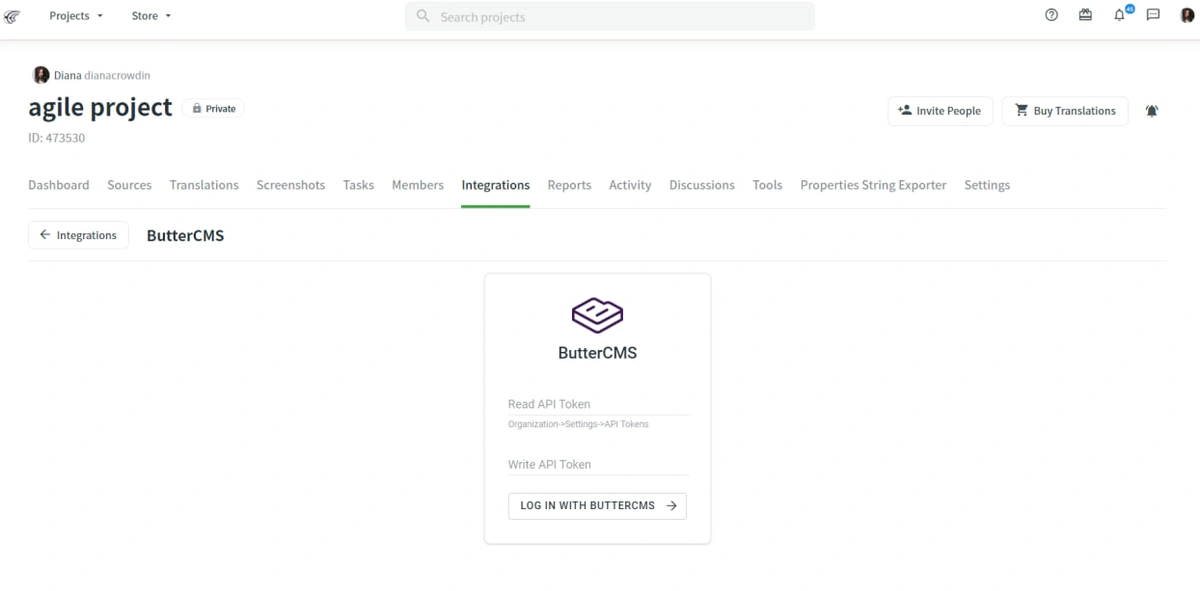
Step 3: Configure Locales
- Configure locales in ButterCMS Settings > Localization
- Click Log in with ButterCMS to authorize the integration
- Specify content types, source language, and target language codes
Step 4: Sync Content
Click Sync Now to sync your content, or enable Automatically sync content updates for continuous synchronization.Translation Workflow with Crowdin
Once content is synced, translate using:- Machine Translation (MT) engines
- Vendor translation agencies
- In-house translation team
- Community volunteers
Automated Translation with Write API
For larger content volumes, you can automate your translation workflow using ButterCMS’s Write API. This allows you to:- Integrate with translation services like Google Translate, DeepL, or professional translation APIs
- Automatically create translated versions when content is published
- Set up webhooks to trigger translation workflows
The Write API requires account-level enablement. Contact ButterCMS support to check availability and enable it for your account.
Choosing the Right Integration
Use DeepL When:
- You need quick, automated translations
- Content volume is moderate
- You have internal reviewers for quality checks
- Budget is a concern (no additional cost)
Use Lokalise When:
- You have a dedicated translation team
- You need advanced workflow management
- You want to leverage translation memory extensively
- You’re working with external translators
Use Crowdin When:
- You have large volumes of content
- You need community/crowdsourced translations
- You want extensive integration options
- You need robust version control for translations
Hybrid Approach
Many organizations combine integrations:- DeepL for initial draft translations
- Lokalise/Crowdin for professional review and refinement
- Manual editing for critical marketing content
Translation Quality Tips
Regardless of which integration you use:- Always review automated translations - AI can miss context
- Maintain a glossary - Ensure consistent terminology
- Test in context - Translations may work differently on your actual site
- Get native speaker feedback - Regional nuances matter
- Consider cultural adaptation - Sometimes content needs to be rewritten, not just translated