
What are locale permissions?
Locale permissions allow you to control which locales each user can access and edit. This is essential for organizations with:- Global content teams spread across different regions
- Translation workflows where translators work on specific languages
- Regional marketing teams managing localized campaigns
- Compliance requirements for data residency or content governance
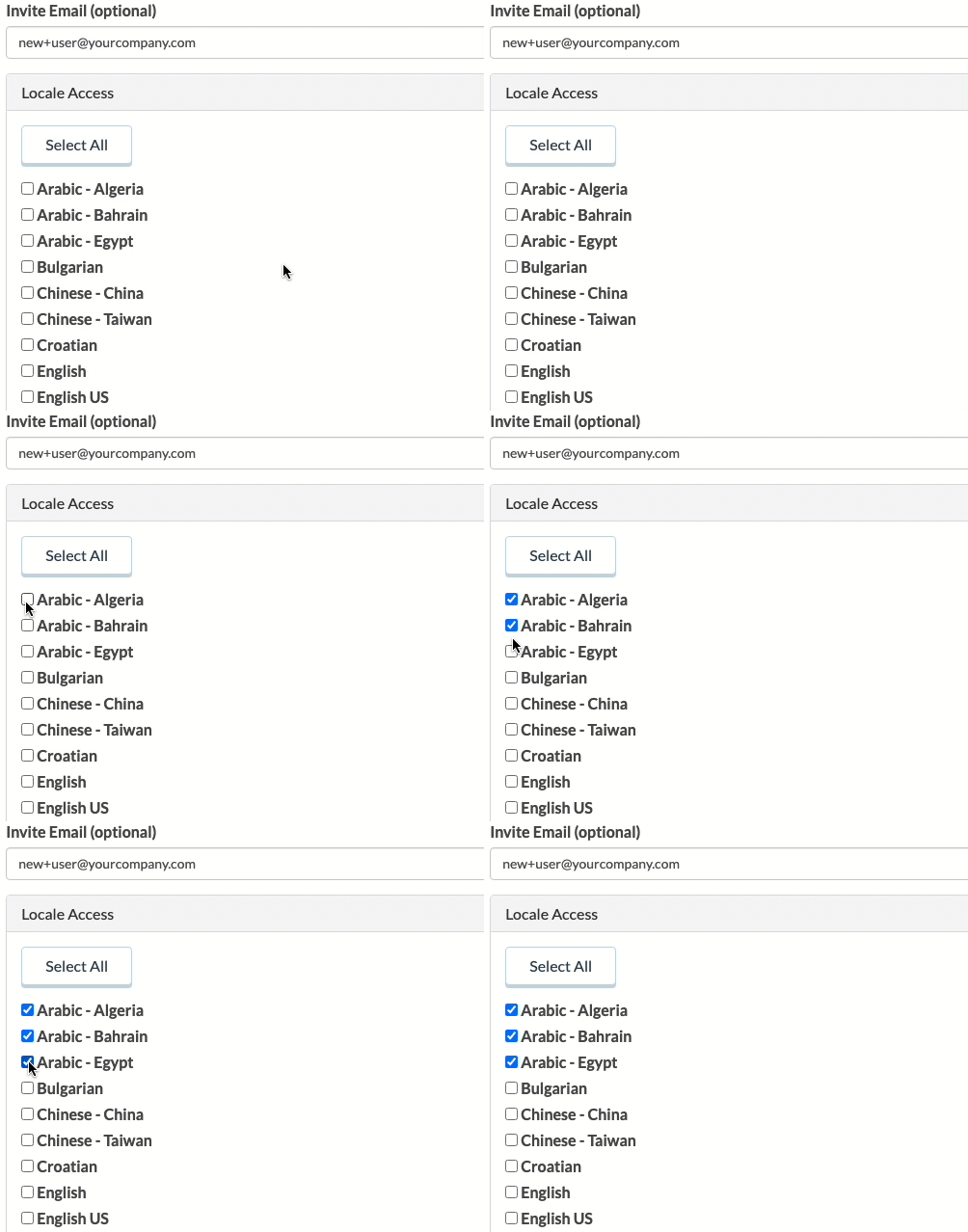
Permission scope
When locale permissions are applied to a user:- Dashboard View - User only sees content in their permitted locales
- Content Editing - User can only edit/create content in permitted locales
- Locale Dropdown - Only permitted locales appear in the locale selector
- API Behavior - API access is not affected (controlled separately via tokens)
Setting up locale permissions
Combining with custom roles
Locale permissions can be combined with custom roles and permissions for maximum control:Example: regional marketing editor
Troubleshooting
User can't see the expected content
User can't see the expected content
Cause: User doesn’t have the right locale permissionsSolution:
- Go to Users → Select the user
- Check their Locale Permissions section
- Add the missing locale(s)
- Click Update User
User sees 'No Content' after locale setup
User sees 'No Content' after locale setup
Cause: Content may not exist in the user’s permitted localesSolution:
- Verify content exists in the user’s locales
- Check if the content needs to be translated first
- Ensure the default locale is set correctly
Can't add locale permissions
Can't add locale permissions
Cause: Feature may not be enabled or the plan doesn’t include itSolution:
- Verify locale permissions are enabled for your account
- Contact ButterCMS support to enable the feature
- Ensure localization is set up on your account