To add a site or environment to your account, you’ll need to contact the ButterCMS support team
for provisioning.Depending on the request, you’ll want to include:
site name (e.g., “Marketing Site”, “Blog”, “Product Documentation”)
Once a site or environment has been added to your account, you’ll see it in your dashboard (as described below).
If you have multiple environments, each environment will get its own unique API token. If you have multiple sites,
but each site only has one environment, there will be a single unique API token per site.From here, you’ll want to:
use your API credentials to configure your frontend and update your application
configure domain names and site-specific settings, such as preview URLs
create any desired locales (if you have access to the locales feature)
assign site-specific permissions to non multi-site admin users
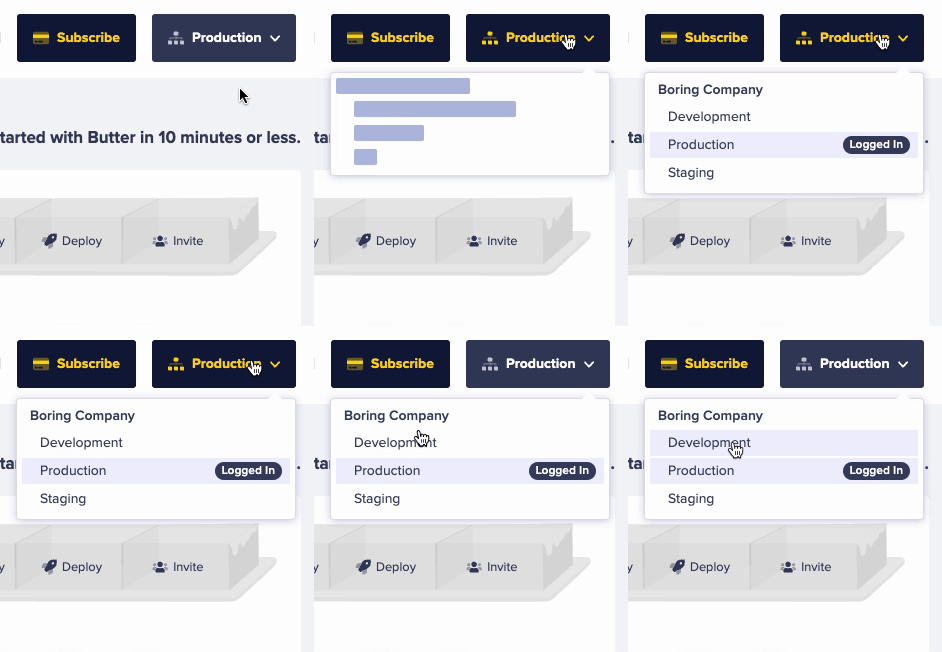
Click on the name of the site or environment you are currently logged into in the upper right corner of your screen.
A dropdown menu will appear with the sites and environments you have access to. Click on one, and you’ll be logged
into that site or environment.
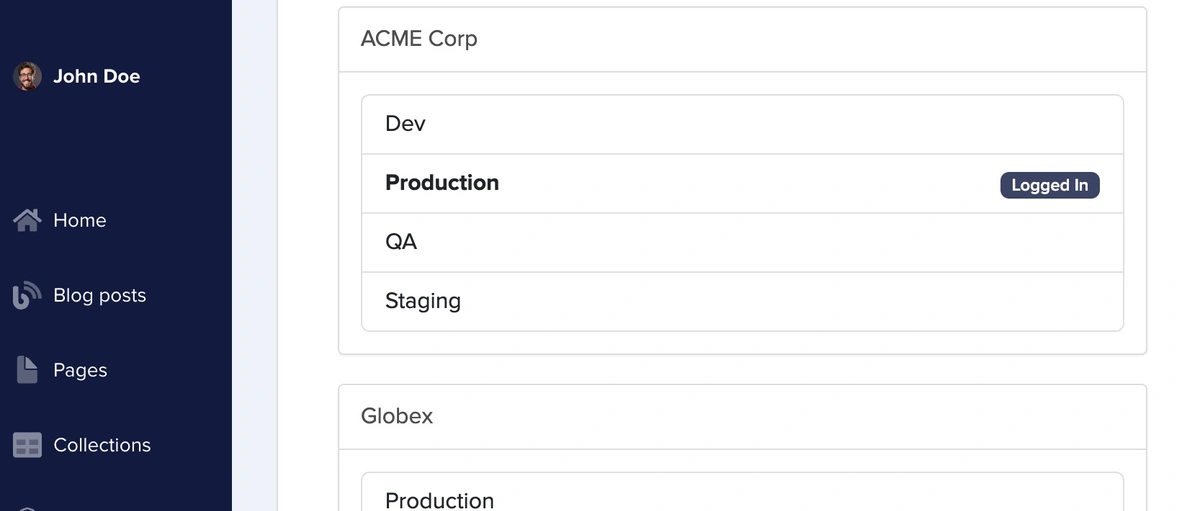
Hover over your profile icon and name at the very top of the left sidebar menu to activate the settings
pop-out menu. Click on “environments” or “multi-site”.You’ll see a dashboard showing your current multi-site account structure, including all sites and environments
you have access to. Click on any environment or site in this dashboard, and you’ll be logged into that site.
A deep dive and step by step of how to add and manage users is in team management.
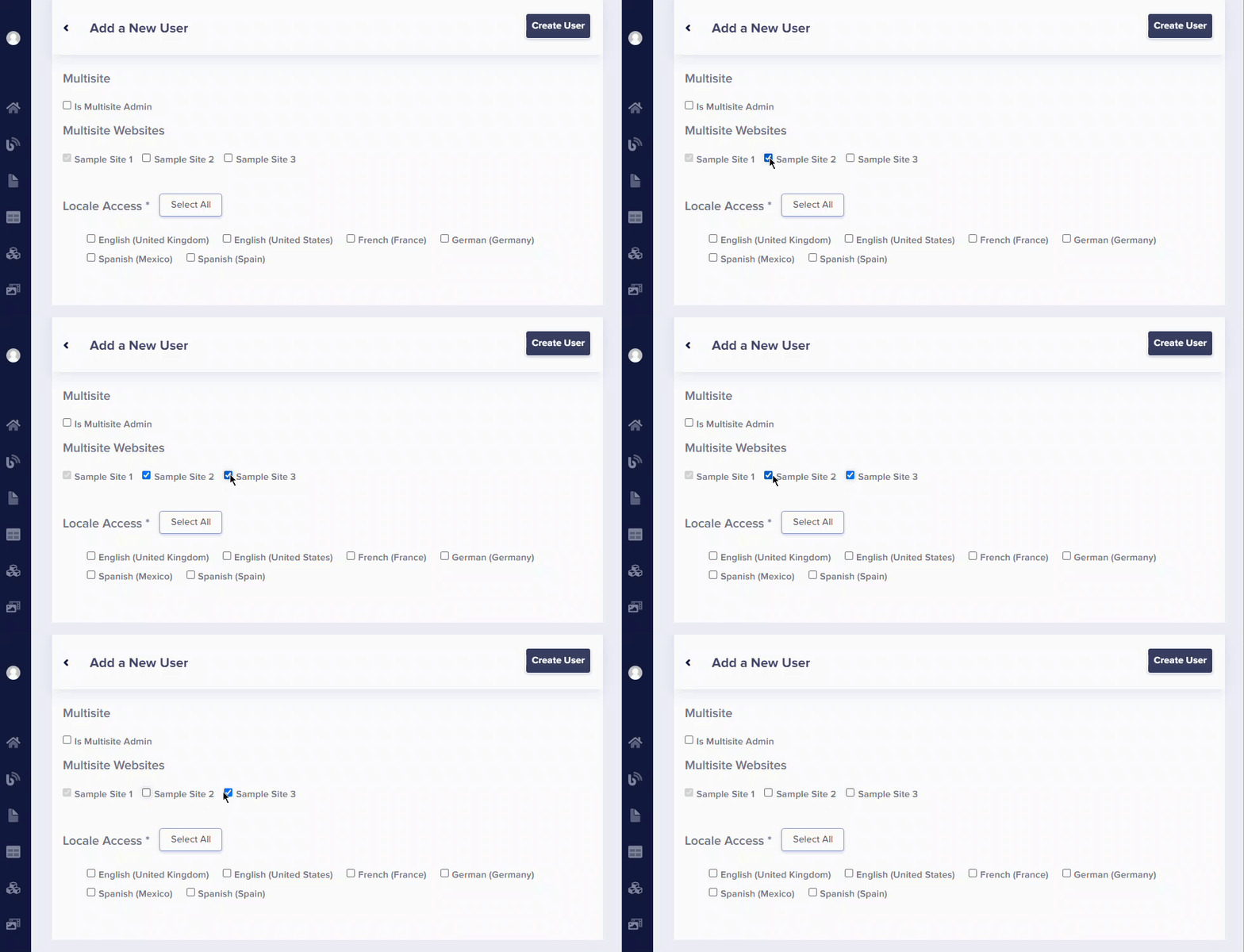
When adding or editing a user, you can configure:
Multisite Admin - Grant ability to manage users across all sites
Site Access - Select specific sites the user can access. This grants access to all environments in the site; if you
need to grant the user access to only specific environments, you can create a custom role with no permissions and assign it to the user
in the restricted environment.
Role - Set Admin, Publisher, or Author role (default roles) or assign a custom role in the logged-in environment.
Locales - Set content locales available to this user in the logged-in environment.