
Custom roles are available when enabled for your account. Contact support to enable them.
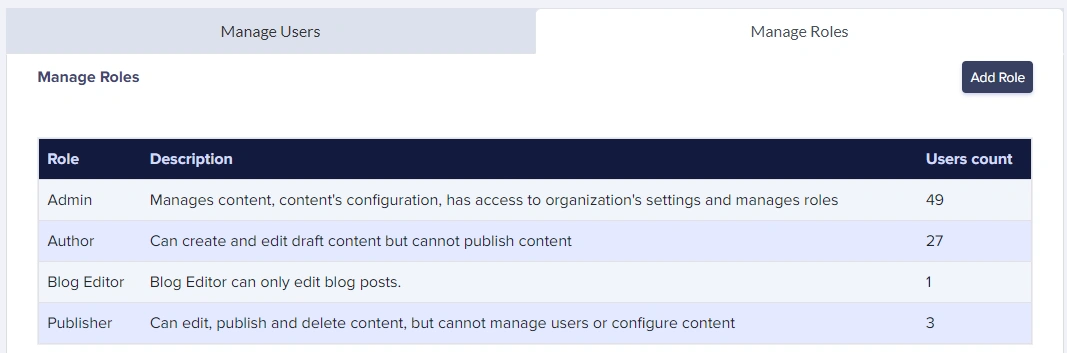 ButterCMS provides for the ability to fine-tune user roles and permissions on a granular level. With the custom roles and permissions features, you can:
- assign the ability to perform admin actions, like managing users or updating schema configuration
- restrict users to only specific CRUD operations, such as viewing, creating/cloning, publishing, etc.
- restrict users to a specific global content type (such as all Page Types or all Collections)
- restrict users to a specific Page Type or a specific Collection
- any combination of the above
Creating a custom role
1
Open Manage Roles
Go to Manage Roles and click Add Role.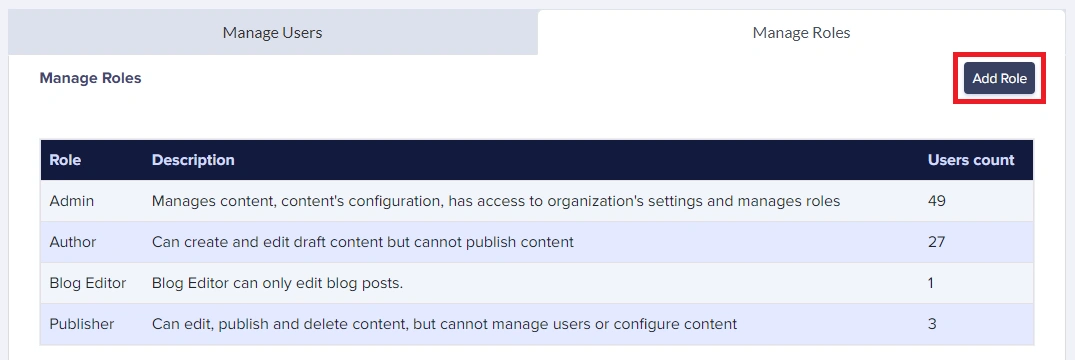
2
Name the role
Name the role and optionally mark it as Admin. Admin users will be able to manage schemas, organization settings, and users.
3
Add a permission
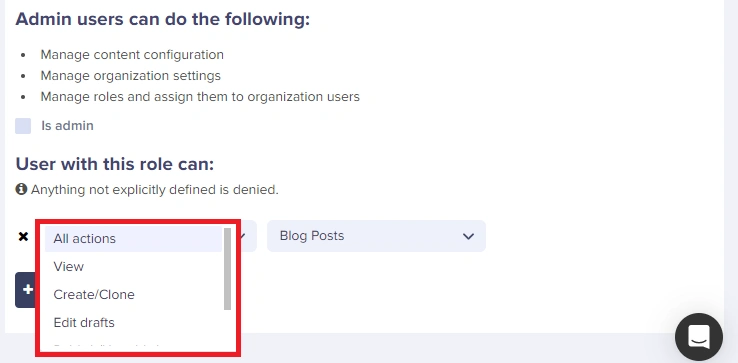
Click Add permission and choose an action, such as View or Create/Clone.
4
Select the content type
Select the overarching content type (Blog posts, Page Types, or Collections) the permission should apply to.
If you only want to restrict users to a specific Page or Collection, use the dropdown to select it.
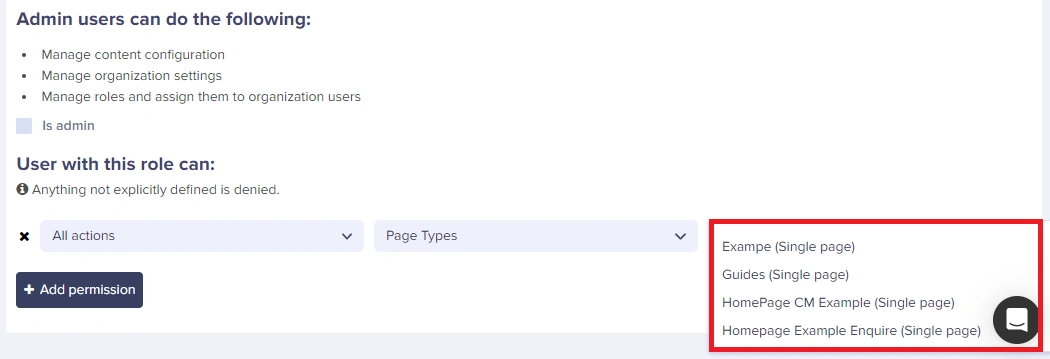 Note that if you want to add multiple Page Types or Collections, just repeat the process to add another permission.
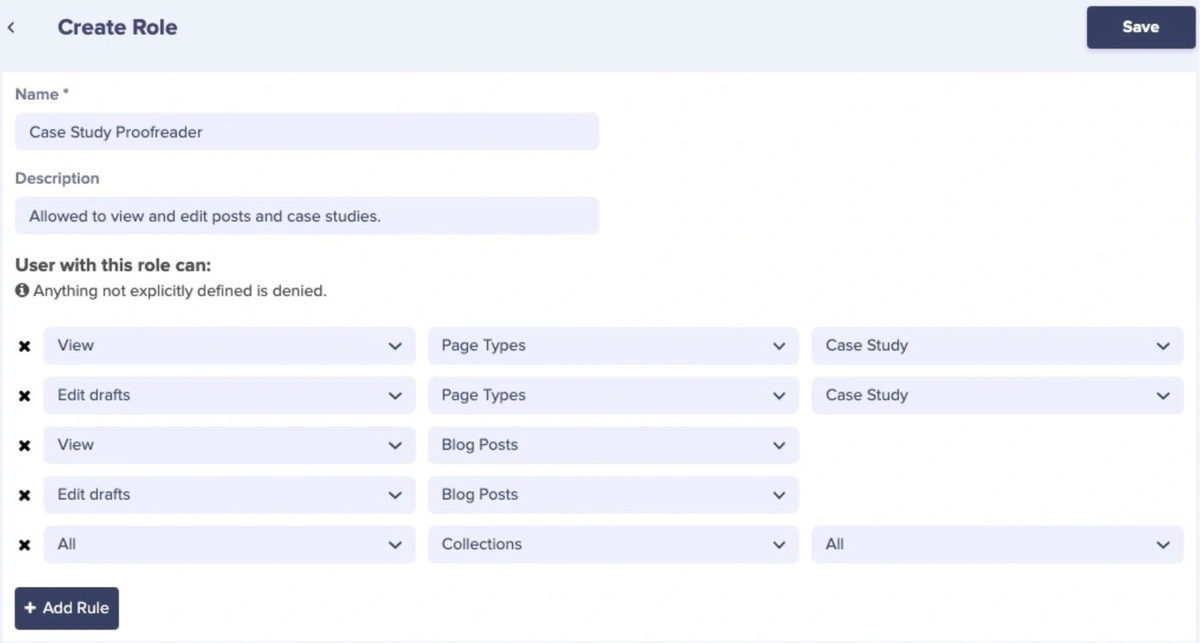
Note that if you want to add multiple Page Types or Collections, just repeat the process to add another permission.
Permission actions
Permission priority
When a user has multiple roles or complex permissions:- More specific permissions override general ones
- Explicit “no access” takes precedence over granted access
- View permissions are cumulative (can see all granted content)
Permission limitations
ButterCMS permissions work at the content type level, not the individual field level. This means that permissions can’t control individual field visibility within a Page Type or Collection, or access to specific media library folders. For example, if a user has access to “Product Page” type, they can see all fields in the Product pages.Example permission configurations
Example: Marketing Landing Page Access
Example: Marketing Landing Page Access
Example: Product Catalog Management
Example: Product Catalog Management
Example: Blog Team Structure
Example: Blog Team Structure
Multi-Permission Role Example
Multi-Permission Role Example