
Need to wire preview mode into your app? See Implementing Preview Mode.
How preview works
By default, when you preview a Blog Post or Page, ButterCMS shows an iFrame preview page with a ButterCMS banner at the top and your actual page content below. For users who prefer to preview directly on their site URL (without the iFrame), go to Settings > Previews to disable the iFrame preview.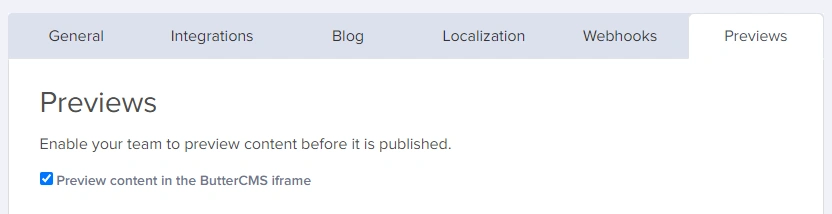
Setting up preview URLs
Blog Post preview URLs
There are two ways to configure your Blog Post preview URL: Option 1: Global settings Go to Settings > Previews and enter the URL inside the Blog Posts box. This becomes the default preview URL for all new posts. Option 2: From the Blog Post
Click on the gear icon > Configure Preview URL and enter your preview URL.
Option 2: From the Blog Post
Click on the gear icon > Configure Preview URL and enter your preview URL.
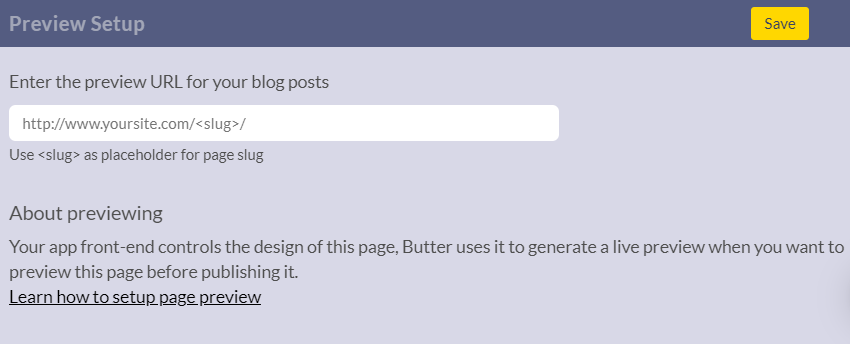
Preview URL placeholders for Blog Posts
You can use these placeholders in your Blog Post preview URLs:When a post has multiple categories or tags, only the first one (alphabetically by slug) is used for each placeholder.
Page preview URLs
Single Pages (without Page Type)
Global setting: Go to Settings > Previews and enter the URL inside the Single Pages box. Individual override: Click on the ellipsis button (three dots) > Edit Preview URL to set a custom preview URL for a specific page. This overrides the global setting for that page only.
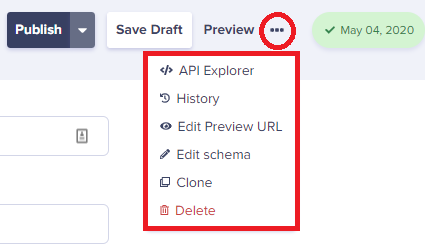
Page Types
Global setting: Go to Settings > Previews and enter the URL for each Page Type. This becomes the default for all pages of that type.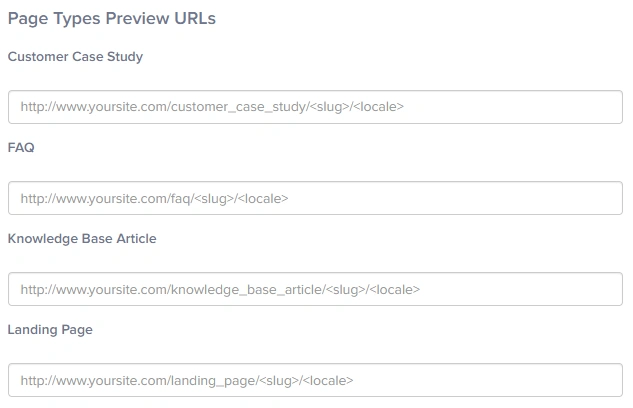
Preview URL placeholders for Pages
If
<slug> is not included in your preview URL, ButterCMS automatically appends the slug to the end of the URL.Using the preview button
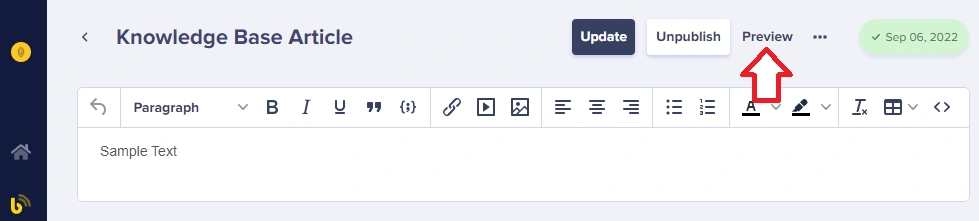
To preview a Page, click on the Preview button at the top of the Page editor:
Preview in draft vs published mode
Draft mode
When content is in draft mode:- You can “Save Draft” and then “Preview” the content
- The preview URL shows what the content will look like when published
- The content will not appear on your live site until it is Published
- Preview depends on your site handling the
preview=1parameter. See Implementing Preview Mode.
Published mode
When content is already published:- Blog Posts: Changes saved will immediately become effective on your live site
- Pages: You can save changes as a new Draft. The new Draft will not go live until you “Publish” the new edits. You can Preview the draft before publishing.
Mobile preview
How to preview on mobile devices
To see a preview from a mobile perspective:- On the page you want to preview, press F12 on your keyboard to open Developer Tools
- Click the Device Toggle Toolbar icon (or press Ctrl+Shift+M)
- Select the device you want to simulate from the dropdown