
Deleting Blog Posts
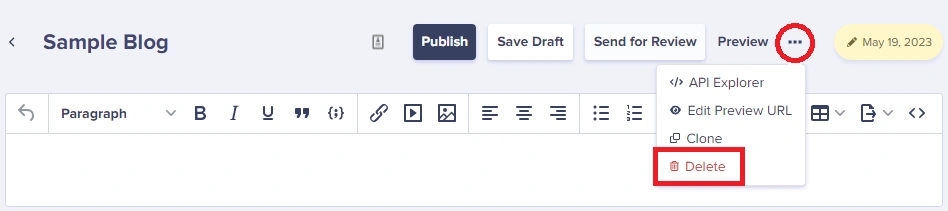
To delete a Blog Post:- Open the blog post you want to delete
- Click on the red delete button at the top right
- Confirm the deletion
Deleting Pages
To delete a Page:- Navigate to the Page you want to delete
- Click on the ellipsis button (three dots) in the upper-right corner
- Select Delete from the dropdown menu
- Confirm the deletion when prompted
Single Pages vs Page Type Pages
- Single Pages: Can be deleted individually
- Page Type Pages: Can be deleted individually; deleting doesn’t affect other pages of the same type
- Page Types themselves: Deleting a Page Type removes the template but may not delete all associated pages (check your specific workflow)
Deleting Collection items
To delete a Collection item:- Navigate to your Collection
- Find the item you want to delete
- Click on the ellipsis button (three dots) next to the item
- Select Delete from the dropdown menu
- Confirm the deletion
Bulk deletion
You can also delete multiple Collection items at once:- Select multiple items using the checkboxes
- Use the bulk action menu to delete selected items
- Confirm the deletion
Permission requirements
Not everyone can delete content. Here’s who has deletion permissions:Localization Note: Only Admins can delete Pages and Collection items if localization is enabled on your account.
Unpublishing vs. deleting
Consider whether you actually need to delete content, or if unpublishing would be more appropriate:When to unpublish instead
- Seasonal content you’ll use again
- Content that needs major revisions
- Testing content temporarily removed from production
- Content under review for compliance issues
When to delete
- Duplicate content that shouldn’t exist
- Test content that’s no longer needed
- Outdated content with no archival value
- Content created in error
SEO considerations
Deleting content from your website needs to be done with your team’s SEO strategy in mind. Why does your SEO strategy matter when removing content? When you delete content that has been indexed by search engines:- Broken links: External sites linking to your content will lead to 404 errors
- Lost rankings: Any search engine rankings for that content will be lost
- User experience: Visitors following old links will encounter error pages
Best practices for SEO-safe deletion
Set up redirects
Set up redirects
Work with your development team to set up 301 redirects for deleted URLs to their relevant replacements. This preserves link equity and improves the user experience.
Update internal links
Update internal links
Before deleting, search your content for internal links to the page being deleted and update them to point to alternative content.
Consider consolidation
Consider consolidation
Instead of deleting underperforming content, consider consolidating it into more comprehensive pages that can rank better.
Check analytics first
Check analytics first
Review your analytics to determine whether the content is receiving traffic. Even old content may drive valuable visits.
Update your sitemap
Update your sitemap
After deletion, ensure your sitemap is updated to remove references to deleted pages.
What happens when content is deleted
Immediate effects
Things that are not deleted
- Media files: Images and files used in deleted content remain in your Media Library
- Authors: Deleting a blog post doesn’t delete the associated author
- Categories/Tags: These remain even if all content using them is deleted
- Page Types: Deleting all pages of a type doesn’t delete the Page Type itself
Alternatives to deletion
Before deleting, consider these alternatives:Team coordination
Team Presence FeatureBefore deleting content, check if any team members are currently editing it. ButterCMS’s team presence feature shows when others are viewing the same content, helping you avoid accidentally deleting something someone else is working on.
Deletion workflow tips
- Communicate with your team before deleting shared content
- Check for references in other content that link to what you’re deleting
- Document deletions if you have a content governance process
- Review with stakeholders for important or high-traffic content