
Understanding drafts
In ButterCMS, drafts serve multiple purposes:Typical draft workflow
- v1 Created (Draft) → Author creates initial content
- v1 Published → Content goes live
- v2 Created (Draft) → Author starts making updates
- v2 in Review → Team reviews changes while v1 remains live
- v2 Published → Updated content goes live, v1 becomes Locked
Saving content as draft
For Pages
- Create or edit your Page content
- Click the Save Draft button (instead of Publish)
- Your content is saved but not live on your website
- The page status shows a yellow date indicator indicating draft status
For Blog Posts
- Create or edit your Blog Post
- Click Save Draft to save without publishing
- The post remains in draft status until you click Publish
For Collections
- Navigate to your Collection
- Create a new item or edit an existing one
- Click Save Draft to save changes without publishing
Creating drafts items for existing Collections
Step 1: Create a new draft item
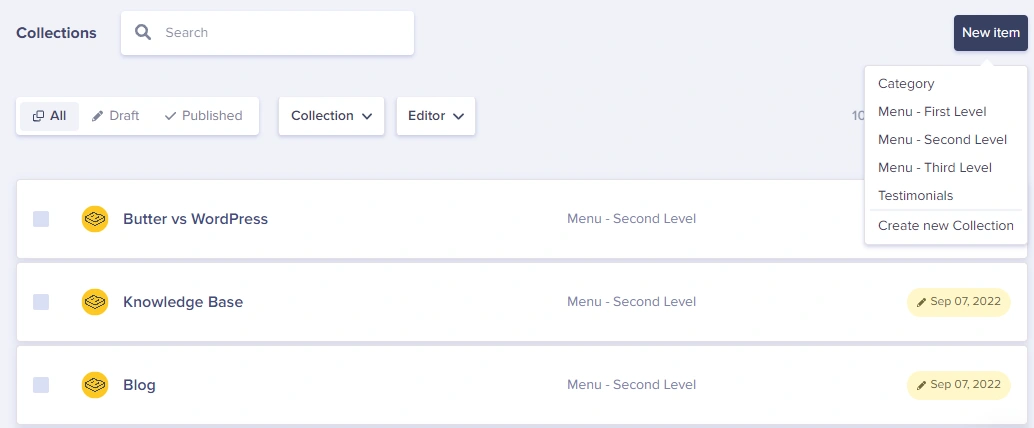
To create a draft for an existing Collection:- Go to Collections
- Click the New Item button
- Click on the name of the collection you want to add a new item to
Step 2: Save as draft
Fill in the details and click Save Draft: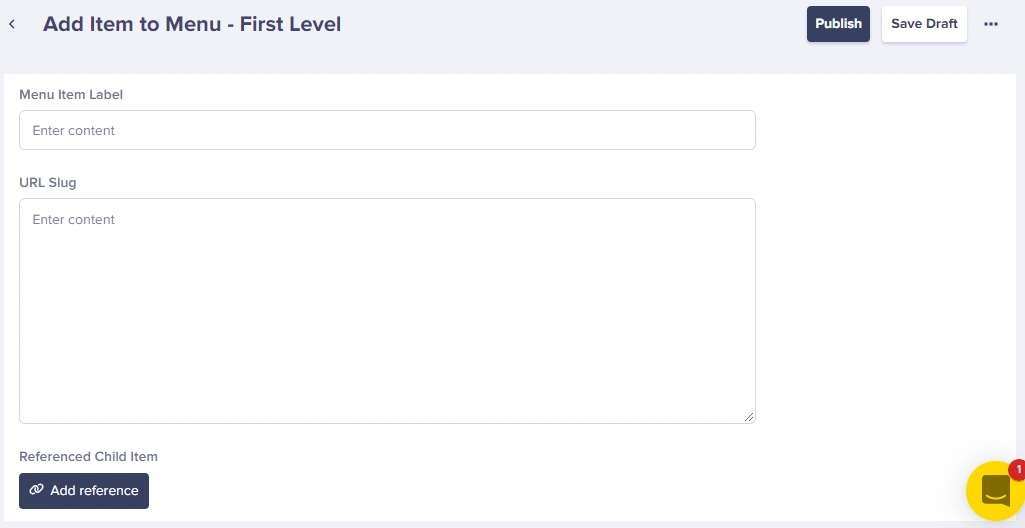
Step 3: View draft items
Go back to your Collection and click on Draft to view all items saved as drafts.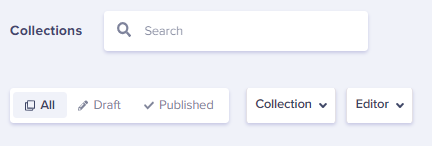
Draft versions over published content
When you edit content that’s already published:- An Author (or higher permission) edits the Published content
- The changes are saved as a Draft version
- This puts the content into “Published with Draft” status
- The live content remains unchanged until the draft is published
- A Publisher or Admin can review and publish the draft changes

Staging site integration
Draft Mode can be used to set up a staging website for previewing content before it goes live:- Edit items in your Collections and save changes as Draft
- Go to your staging site (e.g.,
https://staging.yoursite.com) - Navigate to the specific page you’re editing to see what the changes look like
- Your team can verify the changes look good on the staging site
- Once approved, publish the content to make it live
Developer Note: For staging preview to work, your developer needs to configure the staging site to use
preview=1 (or test=1 for Collections) when calling the ButterCMS API.Publishing drafts
Single item
To publish a single draft item, click on the Publish button: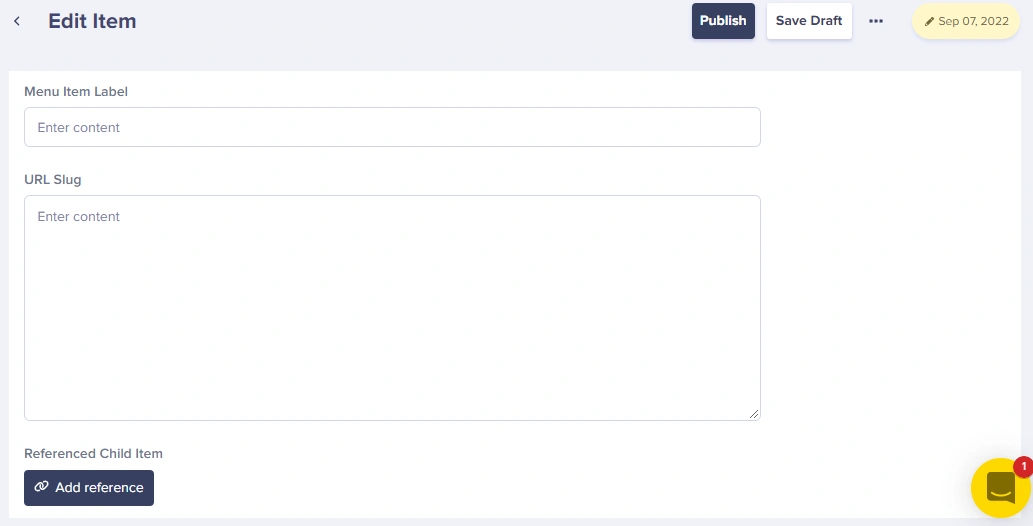
Multiple items
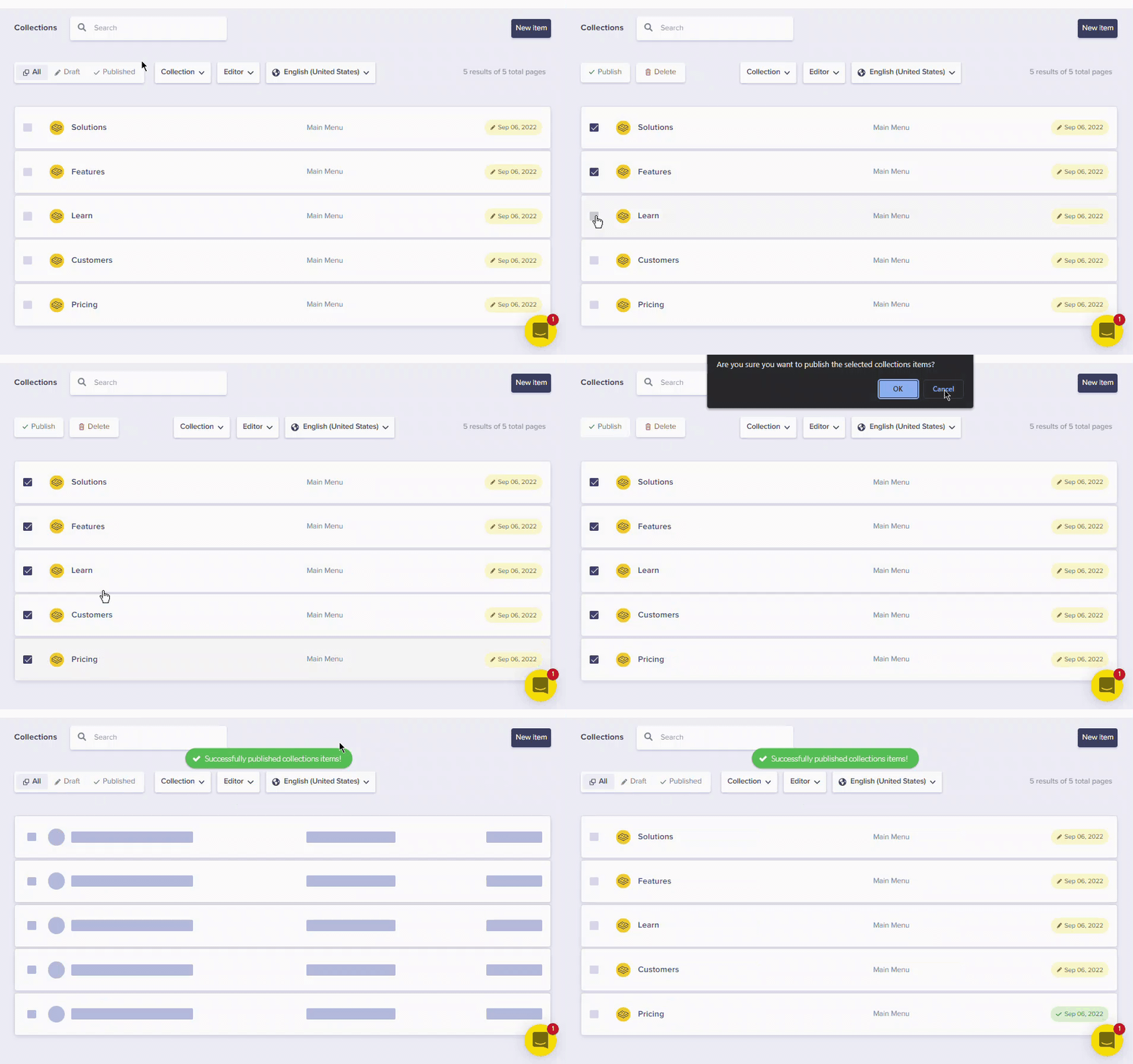
You can also publish multiple collection items at once from the Collections dashboard:- Select the items you want to publish using checkboxes
- Use the bulk action to publish all selected items
Deleting drafts
If you’ve created a new draft of published content, and you want to delete those changes, just click on Delete draft, and those changes will be discarded.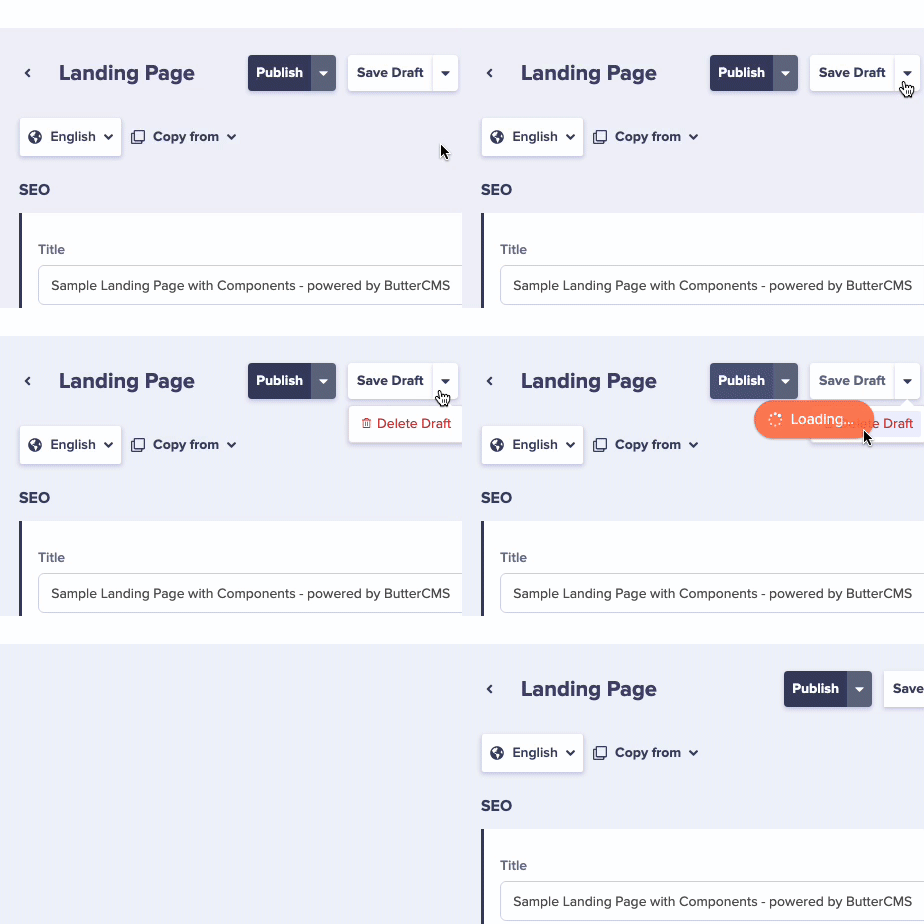
Accessing drafts via API
For developers building preview functionality, draft content can be accessed using thepreview parameter:
Draft workflow best practices
Use drafts for all major changes
Use drafts for all major changes
Even if you have publishing permissions, save major changes as drafts first. This gives you a chance to preview and verify before going live.
Establish a review process
Establish a review process
Set up a workflow where Authors create drafts and Publishers review before publishing. This reduces errors and maintains content quality.
Leverage staging environments
Leverage staging environments
Work with your development team to set up a staging site that shows draft content. This allows a full preview of changes in context.
Save frequently
Save frequently
Since there’s no auto-save, make it a habit to save drafts frequently, especially when making extensive changes.