
Accessing billing information
To access information about your current plan, the credit card linked to your account, and your Invoice Receipts, just click on Billing in your account settings.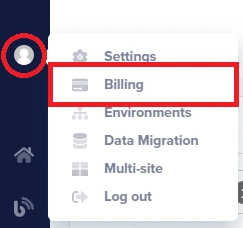 To access your billing information:
- Log in to your ButterCMS dashboard
- Click on Settings in the main navigation
- Select Billing from the settings menu
- Your billing overview, payment method, and invoice history will be displayed
Viewing your invoices
To view your invoices, save an invoice as a PDF, or send a copy of an invoice via email, just click on View your Receipts.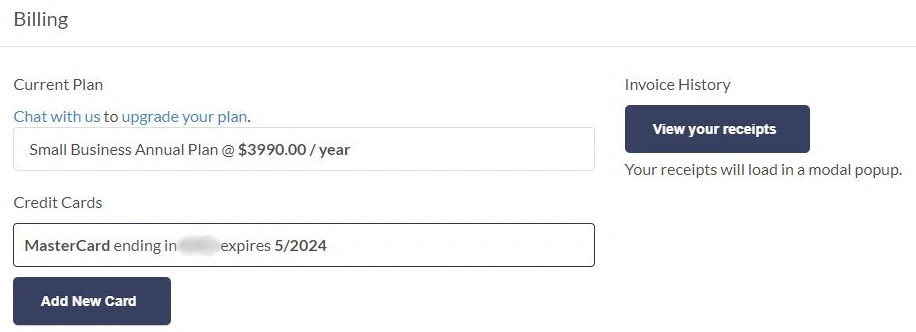
Invoice actions
From the Receipts view, you can:Invoice information included
Each invoice includes:- Invoice number and date
- Billing period
- Plan name and pricing
- Any add-ons or overages
- Payment method used
- Tax information (if applicable)
- Your business details (if configured)
Downloading invoices
Download a single invoice
- Navigate to Settings > Billing
- Click View your Receipts
- Find the invoice you want to download
- Click the download icon or Download PDF button
- The PDF will be saved to your computer
Finding older invoices
Your complete billing history is available in the Receipts section. Scroll or paginate through the list to find older invoices. Invoices are listed in reverse chronological order (newest first).Adding business information to invoices
If you’d like to add specific contact or tax info to your receipts, like your full business name, VAT identification number, or address of record, simply click on Receipt Settings.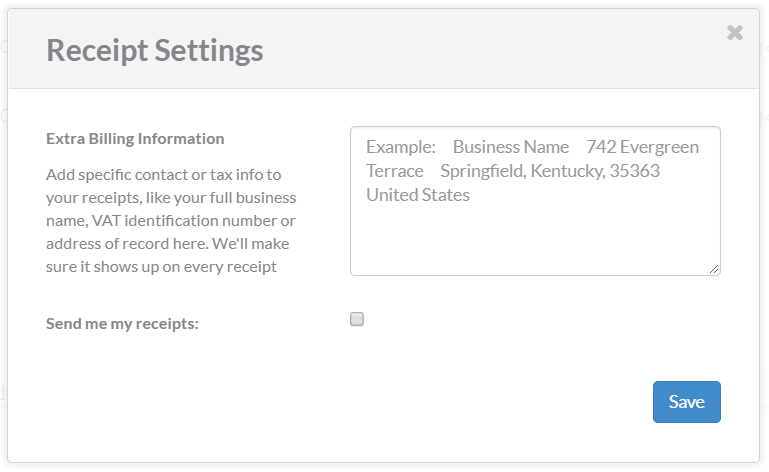
Information you can add
Customize your invoices with:- Business/Company Name - Your official company name
- Address - Your business address for tax purposes
- VAT/Tax ID - Your VAT identification number or tax ID
- Contact Email - Billing contact email address
- Additional Notes - Any extra information for your records
Why add business information?
Adding your business details to invoices is important for:- Tax Compliance - Many jurisdictions require proper invoicing for tax deductions
- Expense Reports - Makes it easier to process as a business expense
- Accounting - Proper records for your financial statements
- Audits - Complete documentation if needed for audits
Changes to Receipt Settings will apply to all future invoices. Existing invoices cannot be modified, but you can download them with your current settings.
How to update receipt settings
- Navigate to Settings > Billing
- Click on Receipt Settings
- Enter your business information:
- Company name
- Full address
- VAT/Tax ID (if applicable)
- Click Save to update your settings
- All future invoices will include this information
Sending invoices via email
You can send copies of invoices directly to any email address:Send to yourself or team members
- Navigate to Settings > Billing > View your Receipts
- Find the invoice you want to send
- Click the email icon or Send Email option
- Enter the recipient’s email address
- Click Send
Setting up automatic invoice emails
For paid accounts, invoices are typically emailed automatically to the account owner after each successful payment. To ensure you receive these:- Verify your email address is correct in your profile
- Check that ButterCMS emails aren’t going to spam
- Add
@buttercms.comto your email whitelist
Understanding your invoice
Invoice line items
Your ButterCMS invoice may include:Overage charges
If you exceed your plan’s limits, overages appear as separate line items:- API Call Overages: $10 per million additional API calls
- Bandwidth Overages: $0.20 per GB of additional bandwidth
To avoid unexpected overages, monitor your usage regularly and consider upgrading your plan if you consistently exceed limits.
Billing dates
- Monthly Plans: Billed on the same day each month (e.g., 15th of each month)
- Annual Plans: Billed once per year on your subscription anniversary date
- Pro-rated Charges: Applied when you upgrade mid-billing cycle
Payment history
Your billing page shows your complete payment history, including:- Successful Payments: Completed transactions with confirmation
- Pending Payments: Processing transactions
- Failed Payments: Declined transactions (see troubleshooting below)
Troubleshooting failed payments
If a payment fails:- Check your card details - Ensure your card hasn’t expired and the details are correct
- Verify available credit - Make sure your card has sufficient funds
- Contact your bank - Some banks block international or recurring charges
- Update payment method - Add a new card in Billing settings
- Contact support - Reach out to support@buttercms.com for help
Frequently asked questions
How do I get a receipt for a specific payment?
How do I get a receipt for a specific payment?
Navigate to Settings > Billing > View your Receipts, find the payment in the list, and download or email the receipt.
Can I add a VAT number to my invoices?
Can I add a VAT number to my invoices?
Yes, click on Receipt Settings in the Billing section and add your VAT identification number. This will appear on all future invoices.
Why don't I see any invoices?
Why don't I see any invoices?
If you’re on the Free plan, you won’t have any invoices since there are no charges. Invoices only appear for paid subscriptions and add-ons.
Can I change the email address that receives invoices?
Can I change the email address that receives invoices?
Invoices are sent to the account owner’s email. Update your email in your profile settings, or forward invoices to your accounting team from the Receipts view.
How far back does billing history go?
How far back does billing history go?
Your complete billing history from the start of your paid subscription is available. There is no limit on how far back you can view.
Can I get a refund for an incorrect charge?
Can I get a refund for an incorrect charge?
Contact support@buttercms.com with details about the charge. The support team will review and assist with any billing discrepancies.
Getting help with billing
For billing questions or issues:Email Support
Email support@buttercms.com for billing inquiries
Live Chat
Use the chat widget for immediate assistance
- Include your account email address
- Reference specific invoice numbers if applicable
- Describe the issue or question clearly