
Authentication & API issues
Missing or invalid API token
Symptom: API requests return401 Unauthorized with the message “Authentication credentials were not provided” or “Invalid token.”
Common Causes:
- The API token is not included in the request
- Using an incorrect API token (Read vs Write)
- Typo in the API token value
- Verify your token is included correctly:
- Check you’re using the right token:
- Read API Token - For fetching content (pages, posts, collections)
- Write API Token - For creating/updating content (requires request to support)
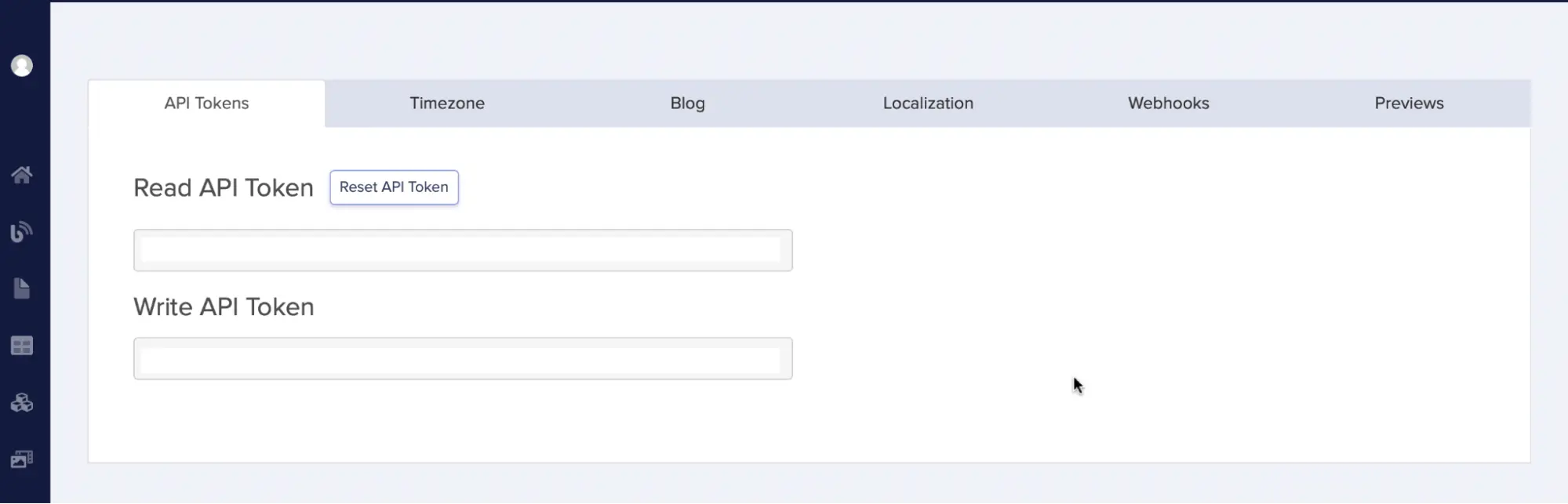
- Find your API tokens:
- Navigate to your ButterCMS dashboard
- Click your profile avatar in the sidebar
- Select Settings
- Copy the Read API Token from the API Tokens section
Write API token not working
Symptom: You’re trying to create or update content but receive401 Unauthorized.
Solution: The Read API token cannot be used for write operations. You need a separate Write API Token. Contact support@buttercms.com to request write access for your account.
Content display issues
WYSIWYG formatting problems
When content is copied from another document and pasted into ButterCMS, formatting conflicts may arise due to:- Formatting from the original document transfers differently than intended
- Your site’s CSS overrides WYSIWYG editor formatting (most common)
Issue: formatting changes affect text before or after highlighted section
Cause: Missing proper line breaks in your content. Solution: Ensure you have proper line breaks between paragraphs. Use Shift+Enter for soft breaks if needed.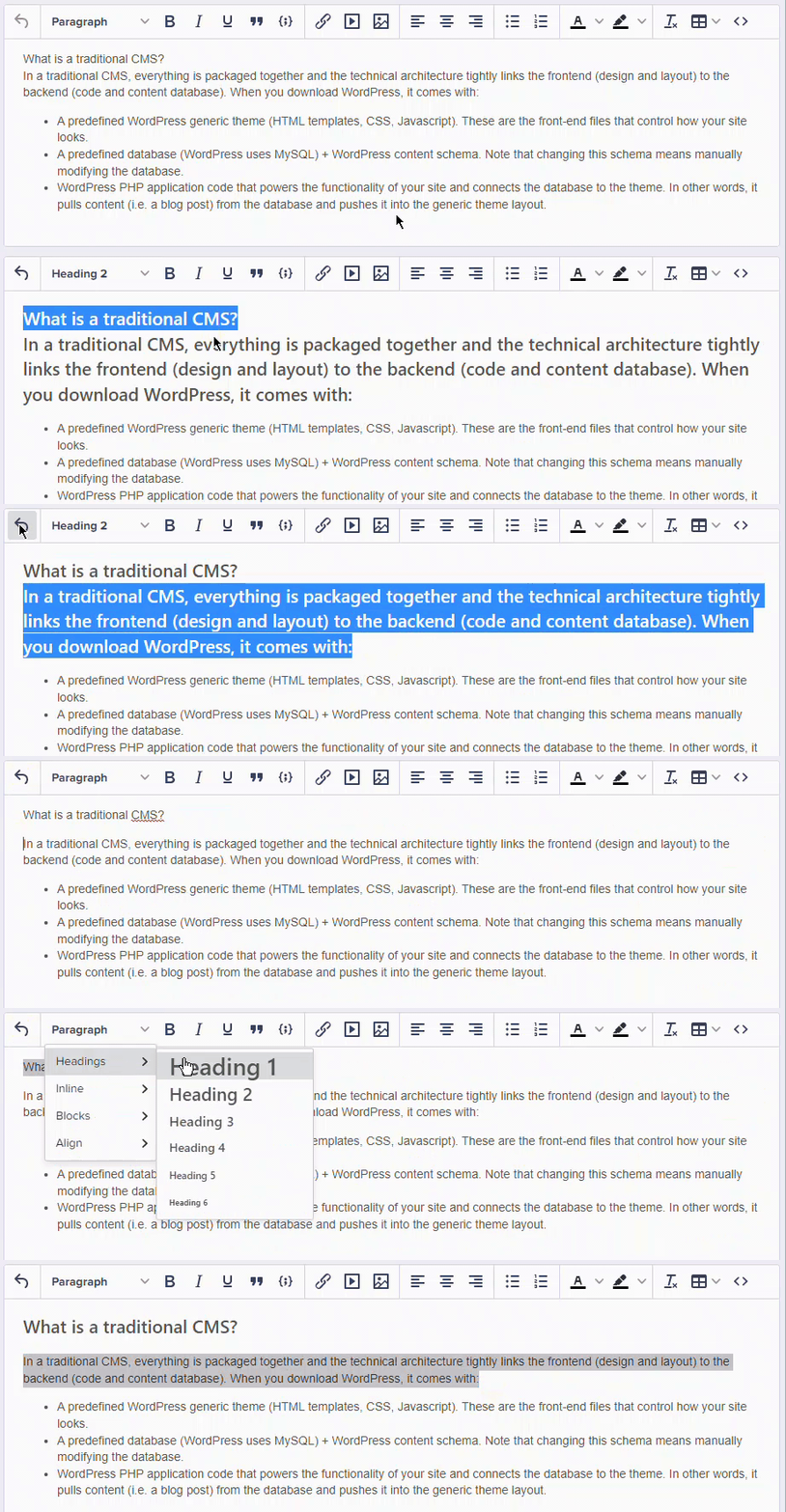
Issue: line-height of bullet points looks different on site
Cause: Your website’s CSS controls the final appearance. Solution: Configure the line-height in your website’s CSS. The WYSIWYG editor preview may differ slightly from your final rendered content.Issue: can’t add spacing between paragraphs
Cause: Your application’s CSS may override<p> tags to have zero margin.
Solutions:
- Use
<br>tags for line breaks - Press Shift+Enter instead of Enter for soft breaks
- Adjust your CSS to allow paragraph margins
API response issues
Content not appearing
Symptom: API call succeeds but content doesn’t show or returns empty. Common Causes & Solutions:Wrong locale content returned
Symptom: API returns content in the wrong language or “Invalid locale parameter” error. Solutions:- Verify locale exists: Go to Settings > Localization and confirm the locale is configured
- Use correct locale slug: The API uses the locale slug (e.g.,
en,es,fr), not the display name - Check content exists in that locale: Not all content may be translated
Image & media issues
Images not loading
Symptom: CDN images return 404 or don’t display. Solutions:- Check the URL format: Ensure the URL is complete and starts with
https://cdn.buttercms.com/ - Verify the file exists: Go to Media Library and confirm the file is uploaded
- Check file permissions: Some files may have been deleted or replaced
Slow image loading
Solutions:- Optimize file sizes: Keep images under 500KB for web use
- Use appropriate dimensions: Don’t upload 4000px images for thumbnails
- Enable automatic compression: ButterCMS automatically compresses and converts images to WebP
- Use Image API transformations: Add parameters to resize on-the-fly
Preview issues
Preview not showing latest changes
Symptom: Preview shows old content despite making changes. Solutions:- Save your changes: Click “Save Draft” before previewing
- Hard refresh the preview: Use Ctrl+Shift+R (Windows) or Cmd+Shift+R (Mac)
- Check preview URL configuration: Verify your preview URL is correctly set in Settings
Preview URL not working
Symptom: Clicking preview opens a broken page or wrong URL. Solutions:- Verify preview URL format: Go to Content Types > [Your Page Type] > Settings
- Include required parameters: Your preview URL should include
{slug}placeholder - Check your frontend handles previews: Your app needs to support draft content fetching
Webhook issues
Webhooks not triggering
Symptom: Content changes don’t trigger webhook calls. Solutions:- Verify webhook URL is accessible: Test with a service like webhook.site
- Check webhook is enabled: Go to Settings > Webhooks and confirm status
- Verify event types: Ensure the correct events are selected (publish, update, delete)
- Check for HTTPS: Webhook URLs must use HTTPS
Webhook receiving old data
Symptom: Webhook payload contains stale content. Solution: Webhooks are triggered asynchronously. If you need the latest content, make an API call to fetch fresh data rather than relying solely on the webhook payload.Still Need Help?
If you can’t find a solution to your issue:Contact Support
Reach out to our support team via chat or email
API Error Codes
Full reference of all API error codes