
Accessing subscription settings
To access information about your current plan, the credit card linked to your account, and your Invoice Receipts, click on Billing in your account settings.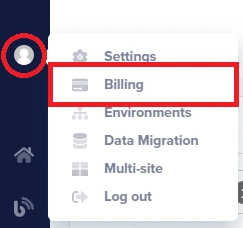 To access your subscription settings:
- Log in to your ButterCMS dashboard
- Click on Settings in the main navigation
- Select Billing from the settings menu
- You’ll see your current plan, usage, and subscription options
Upgrading your plan
You can upgrade your subscription anytime by clicking on the Get Details and Upgrade button for the plan you wish to switch to.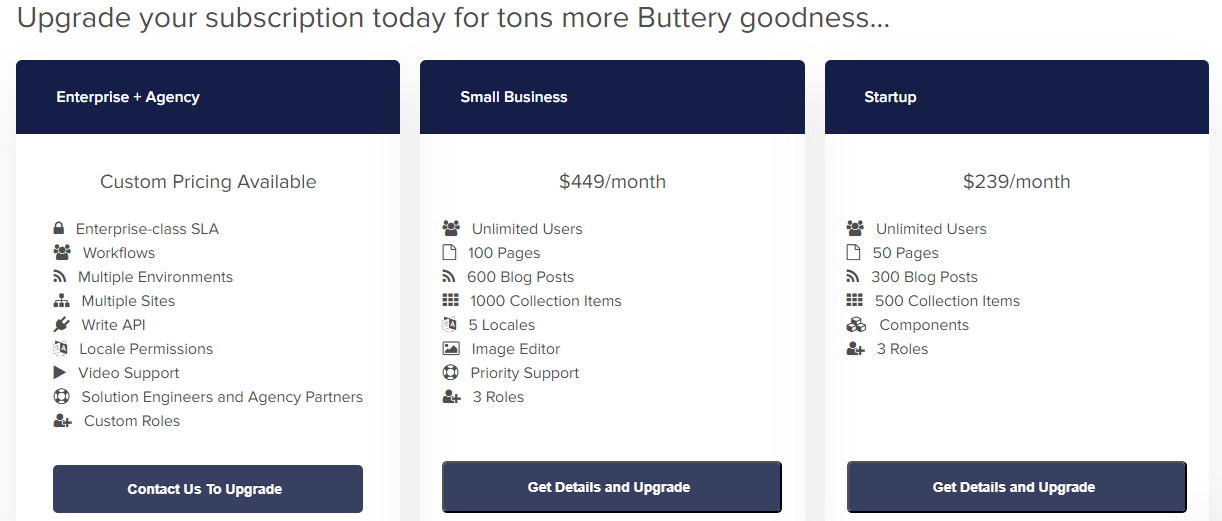 ButterCMS has a unique pricing feature that allows you to instantly upgrade or downgrade your subscription at any time. There are no contracts, no minimums, and no hidden fees. You can also change your account type from monthly to annual or vice versa without penalty.
How to upgrade
- Navigate to Settings > Billing
- Review your current plan and usage
- Click Get Details and Upgrade on the plan you want
- Review the new plan features and pricing
- Confirm your upgrade
Upgrade takes effect immediately. Your new features and limits are available right away. You’ll be charged the prorated difference for the remainder of your billing cycle.
When to upgrade
Consider upgrading when you:- Are approaching your plan’s content limits (pages, blog posts, collection items)
- Need additional features like Workflows or Write API (available by request)
- Require more locales for international expansion
- Need priority support for your growing team
- Are experiencing API call or bandwidth overages regularly
Downgrading your plan
To downgrade your plan or switch between monthly and annual billing, contact support.Adding the Write API add-on
You can also enable the Write API feature on your account by clicking on the Get Details and Upgrade button under the add-ons section.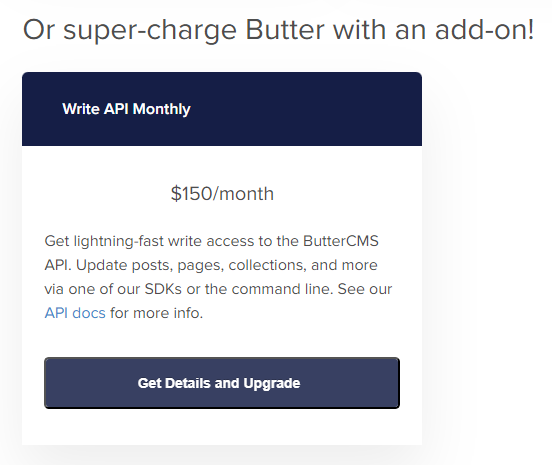
What is the Write API?
The Write API allows you to programmatically create and update content in ButterCMS. It’s useful for:- Automated content imports and migrations
- Integration with external systems (e-commerce, CRM)
- Building custom admin interfaces
- Content synchronization workflows
Canceling your subscription
If you need to cancel your paid subscription, contact support, and we can downgrade you to the free developer plan.Updating payment methods
Changing your credit card
- Navigate to Settings > Billing
- Find the payment method section
- Click to update your card details
- Enter your new card information
- Save changes
For Enterprise plans, additional payment options including invoicing may be available. Contact sales for details.
Frequently asked questions
Will I lose my content if I downgrade?
Will I lose my content if I downgrade?
No, your content is preserved when you downgrade. However, if your content exceeds the new plan’s limits, you won’t be able to add new content until you reduce it or upgrade again.
Can I upgrade in the middle of a billing cycle?
Can I upgrade in the middle of a billing cycle?
Yes, you can upgrade at any time. You’ll be charged the prorated difference for the remainder of your current billing cycle, and your new features are available immediately.
What happens to my content if I cancel?
What happens to my content if I cancel?
Your content remains in ButterCMS and your account reverts to the Free plan. You can still access and view your content, though some features may be limited.
Can I get a refund if I cancel?
Can I get a refund if I cancel?
ButterCMS generally does not offer prorated refunds for unused time. Contact support@buttercms.com if you have specific circumstances to discuss.
How do I transfer my account to someone else?
How do I transfer my account to someone else?
Please email support@buttercms.com or use live chat to process account ownership transfers. This requires verification and is handled by the ButterCMS support team.
Getting Help
ButterCMS extends technical support to all customers through live chat and email channels. Enterprise and agency clients can receive additional support via user training and a dedicated success manager.Contact Support
Email support@buttercms.com for billing questions
Live Chat
Use the chat widget on buttercms.com for immediate help