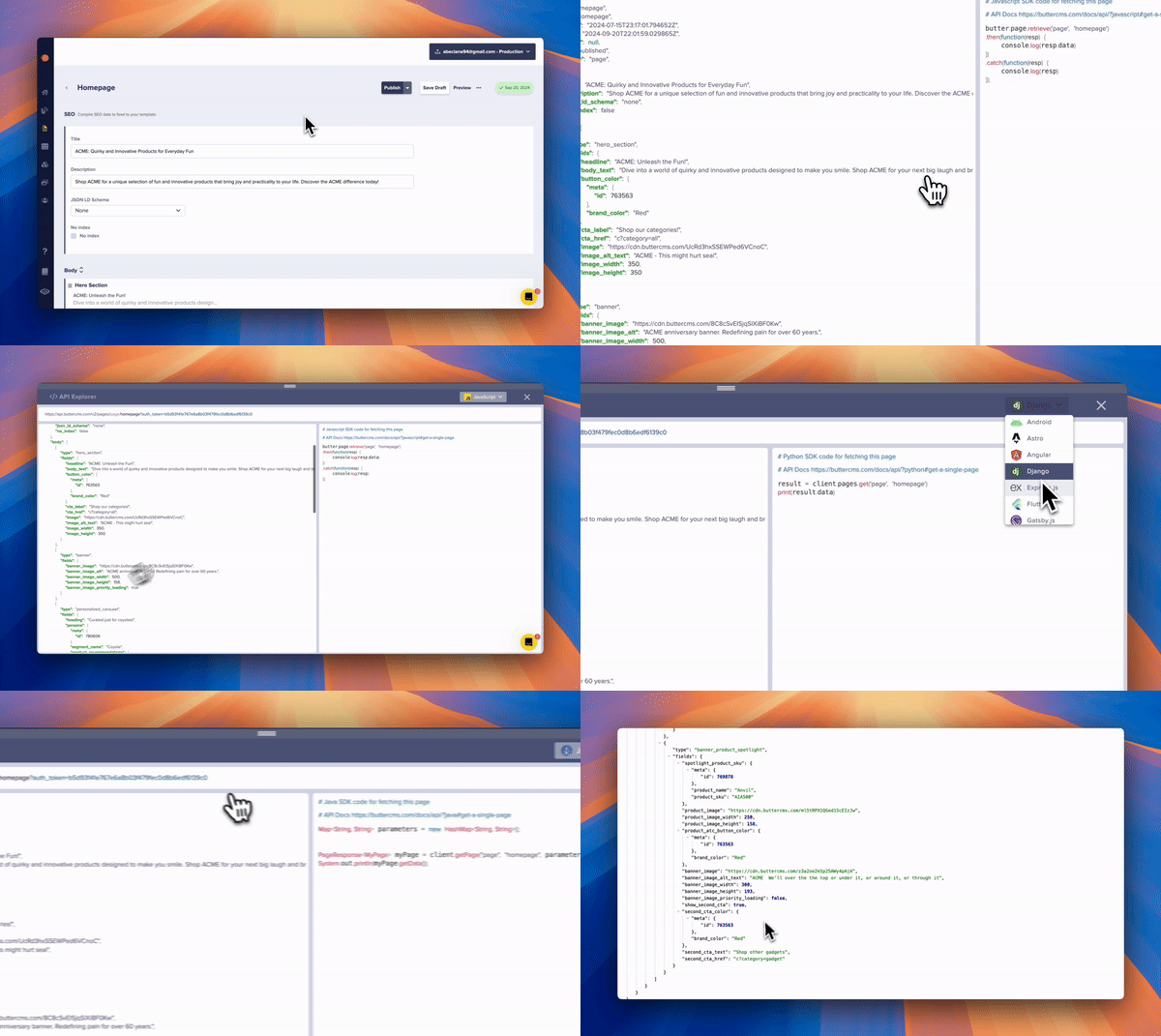
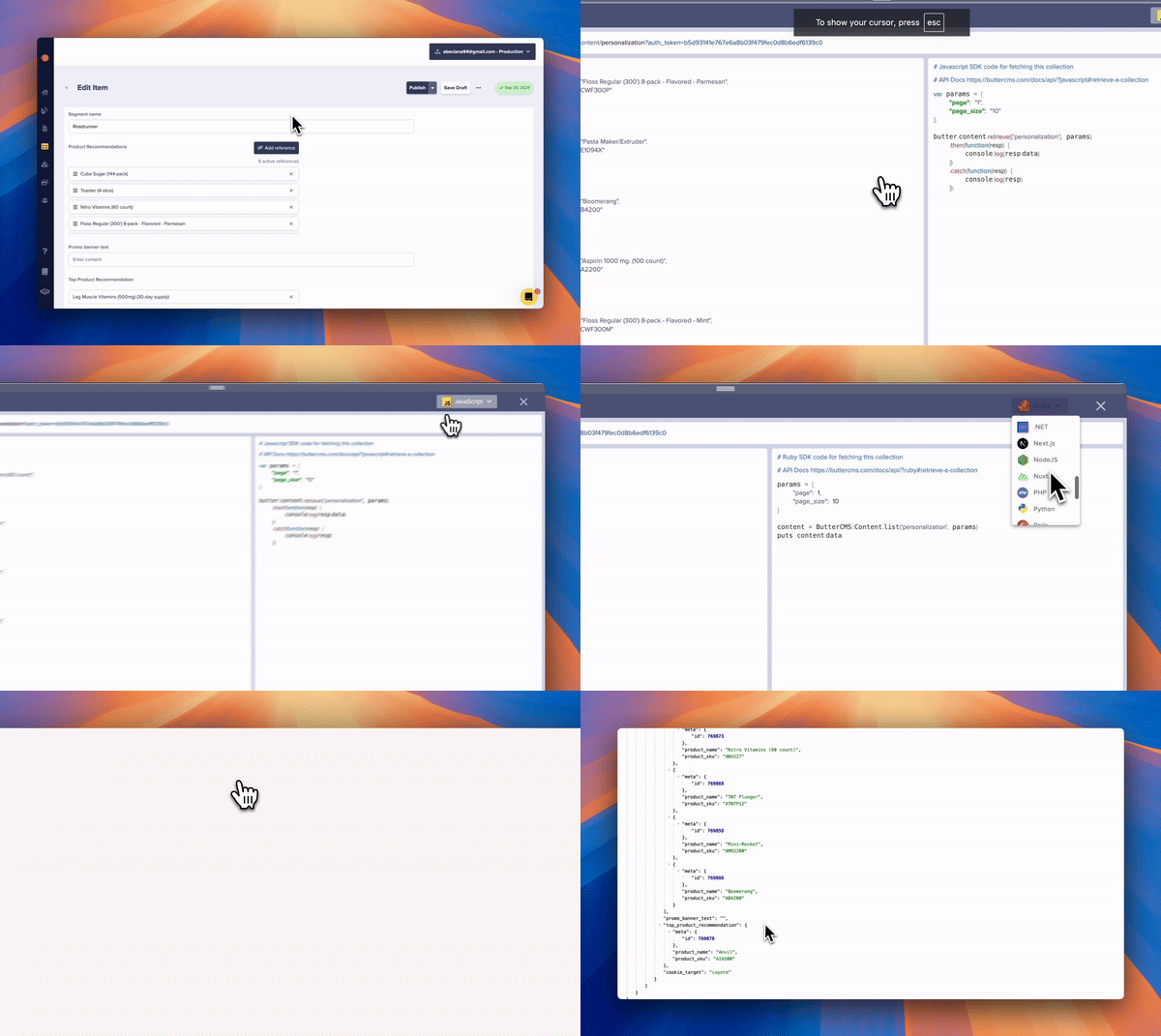
Using the API Explorer

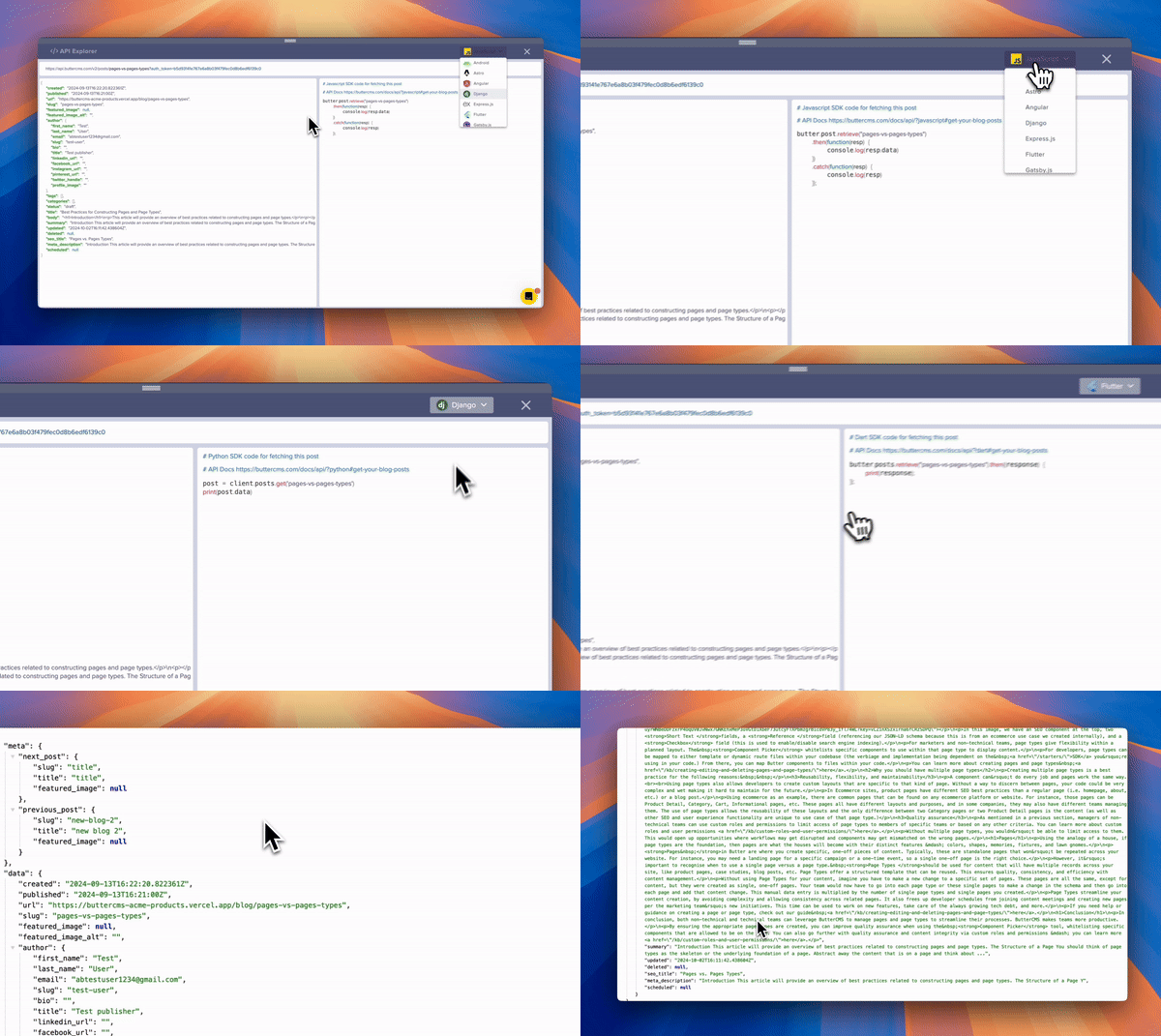
The API Explorer is your first line of defense when debugging. It allows you to:
  1. Learn how to call the API - See exact request formats
  2. See what the response looks like - Verify data structure before coding
  3. Access framework-specific guides - Direct links to implementation tutorials

Accessing the API Explorer

Navigate to any content in your dashboard and look for the API Explorer button: For Blog Posts: API Explorer for Blog Posts For Pages: API Explorer for Pages For Collections: API Explorer for Collections
Step-by-step debugging process

Step 1: verify your API token

Before diving into complex debugging, confirm your authentication is working:
# Test your Read API token
curl "https://api.buttercms.com/v2/posts?auth_token=YOUR_READ_TOKEN"
Expected response: JSON with your blog posts Error response: {"detail": "Authentication credentials were not provided"}
If you get an authentication error, double-check your token in Settings > API Tokens.

Step 2: check the network tab

Open your browser’s Developer Tools (F12) and navigate to the Network tab:
  1. Filter by “XHR” or “Fetch” requests
  2. Look for requests to api.buttercms.com
  3. Check the Status column for error codes
  4. Click on failed requests to see:
    • Headers: Verify Authorization header is present
    • Response: Read the error message
    • Payload: Confirm request body is correct (for write operations)

Step 3: add debug logging

Add strategic console logs to trace data flow:
// JavaScript/Node.js example
async function fetchPage(slug) {
  console.log('Fetching page with slug:', slug);

  try {
    const response = await butter.page.retrieve('*', slug);
    console.log('API Response:', JSON.stringify(response.data, null, 2));
    return response.data;
  } catch (error) {
    console.error('API Error:', {
      message: error.message,
      status: error.response?.status,
      data: error.response?.data
    });
    throw error;
  }
}
// Basic debug logging pattern
console.log("== Request sent ===");
console.log(requestData);

// Handle errors
if (err) {
  console.log("There was an error: ", err);
  return res.json({ error: err });
}

Step 4: validate API response structure

Compare your expected data structure with the actual API response:
// Validate response has expected fields
function validatePageResponse(response) {
  const required = ['data', 'data.fields', 'data.slug'];

  for (const path of required) {
    const value = path.split('.').reduce((obj, key) => obj?.[key], response);
    if (value === undefined) {
      console.warn(`Missing expected field: ${path}`);
      console.log('Received:', JSON.stringify(response, null, 2));
    }
  }
}

Common debugging scenarios

Scenario 1: content returns empty

Symptoms: API call succeeds (200 OK) but data array is empty. Debug Checklist:
Go to your ButterCMS dashboard and verify the content status is “Published”, not “Draft”.
// Wrong
butter.page.list('LandingPage')  // Capital letters, no spaces

// Correct
butter.page.list('landing_page')  // Lowercase with underscores
Find the correct key in Content Types settings.
If using localization, ensure the locale parameter matches:
butter.page.list('landing_page', { locale: 'en' })
Some tokens may have restricted access. Try with a new token from Settings.

Scenario 2: unexpected data structure

Symptoms: Code breaks because expected fields are missing or structured differently. Debug Steps:
  1. Use the API Explorer to see the actual structure
  2. Log the full response before accessing nested properties
  3. Check for optional fields that might not always be present
// Defensive data access
const title = response?.data?.fields?.title ?? 'Default Title';
const images = response?.data?.fields?.images ?? [];

Scenario 3: cached content issues

Symptoms: Updates made in dashboard don’t appear in your application. Debug Steps:
  1. Clear browser cache: Hard refresh with Ctrl+Shift+R
  2. Check CDN cache: CDN cache is automatically invalidated when you publish. If changes don’t appear immediately, wait up to 60 seconds for global propagation
  3. Verify local caching: If using application-level caching, clear it
  4. Use cache-busting: Add timestamp to API calls for testing
// Cache-busting for debugging (remove in production)
const url = `https://api.buttercms.com/v2/pages/*/${slug}?auth_token=${token}&_=${Date.now()}`;

Scenario 4: webhook not triggering code

Symptoms: Webhook is configured but your endpoint isn’t receiving calls. Debug Steps:
  1. Test endpoint accessibility:
    curl -X POST https://your-domain.com/webhooks/butter \
      -H "Content-Type: application/json" \
      -d '{"test": true}'
    
  2. Use a webhook testing service:
    • Go to a url testing site, like webhook.site
    • Copy the unique URL
    • Temporarily set it as your webhook URL in ButterCMS
    • Publish content and verify the request arrives
    • After verifying webhooks are received (typically 1-2 test publishes), restore your production webhook URL
  3. Check webhook logs in your server:
    // Express.js webhook endpoint with logging
    app.post('/webhooks/butter', (req, res) => {
      console.log('Webhook received:', {
        headers: req.headers,
        body: req.body
      });
      res.status(200).send('OK');
    });
    

Framework-specific debugging

React/Next.js

// Use React Developer Tools browser extension
// Add error boundaries for better error tracking

import { useEffect, useState } from 'react';

function useButterContent(pageType, slug) {
  const [data, setData] = useState(null);
  const [error, setError] = useState(null);
  const [loading, setLoading] = useState(true);

  useEffect(() => {
    async function fetchData() {
      try {
        console.log(`Fetching: ${pageType}/${slug}`);
        const response = await butter.page.retrieve(pageType, slug);
        console.log('Response:', response);
        setData(response.data);
      } catch (err) {
        console.error('Fetch error:', err);
        setError(err);
      } finally {
        setLoading(false);
      }
    }
    fetchData();
  }, [pageType, slug]);

  return { data, error, loading };
}

Python/Django

# Enable verbose logging
import logging
logging.basicConfig(level=logging.DEBUG)

from butter_cms import ButterCMS

client = ButterCMS('your-api-token')

try:
    response = client.pages.get('*', 'homepage')
    print(f"Response: {response}")
except Exception as e:
    print(f"Error type: {type(e).__name__}")
    print(f"Error message: {e}")

Debugging tools checklist

Use this checklist when debugging any ButterCMS integration issue.
ToolPurposeHow to Access
API ExplorerVerify API responsesDashboard > Any Content > API Explorer button
Browser DevToolsNetwork requests, console logsF12 or Right-click > Inspect
Postman/InsomniaTest API calls in isolationDownload from website
webhook.siteTest webhook deliverywebhook.site
Console loggingTrace code executionAdd to your application code

When to contact support

If you’ve tried the above steps and still can’t resolve the issue, contact support with:
  1. Your account email
  2. The specific endpoint/content causing issues
  3. Error messages (full text, not screenshots)
  4. Steps to reproduce the issue
  5. What you’ve already tried

Contact Support

Reach our support team

API Error Codes

Reference all error codes