
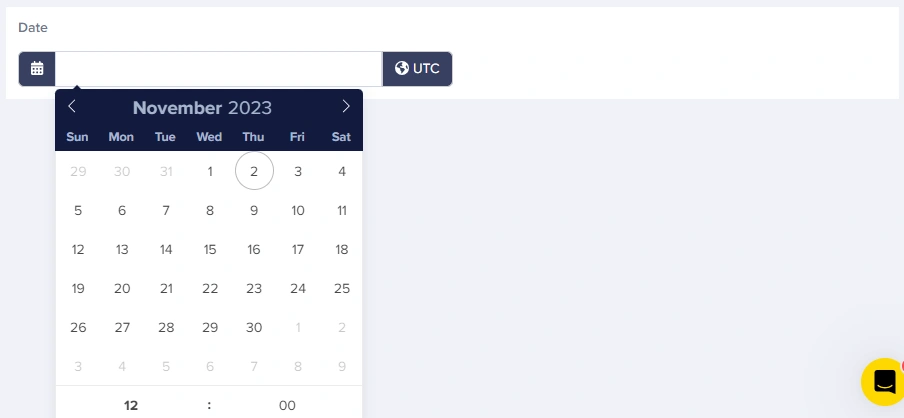
The Date field provides you with a calendar selector that enables content editors to easily pick dates and times, which will be returned by the API in ISO 8601 formatted strings. Calendar picker interface
You can update your timezone in settings, but this doesn’t add timezone support to datetime fields. Instead, it changes the updated and published fields on your Content Type objects from the default of UTC to whatever timezone you choose.

Field at a glance

Input and output

Input type

Calendar picker with optional time input

API output

string (ISO 8601, no timezone)

API response example

Date only

If a time isn’t selected when the field is saved, the API will return the time as 00:00.
  "publish_date": "2024-03-15T00:00:00"

Date with time

  "event_start": "2024-03-15T14:30:00"

Field configuration options

Option NameTypeFunction
Required?booleanMake field required to save page
Help textstringAdd help text to describe usage to your team
Default valuestringSet a default value for the field

Common use cases

Publishing and scheduling

  • Article publish dates
  • Content expiration dates
  • Scheduled release dates
  • Review dates

Events

  • Event start/end times
  • Registration deadlines
  • Session schedules
  • Webinar times

Products and services

  • Sale start/end dates
  • Product launch dates
  • Warranty expiration
  • Subscription renewal dates

Content organization

  • Historical dates (founding dates, milestones)
  • Document effective dates
  • Last updated timestamps

Best practices

  1. Use clear help text: Specify if editors should think in UTC or local time
  2. Handle timezone display: Convert to the user’s local timezone for display
  3. Validate future/past dates: Use your application logic to enforce date ranges
  4. Consider date libraries: Use libraries like date-fns or moment.js for complex formatting
  5. Store event timezones separately: For events with specific timezones, add a dropdown field for timezone selection

Working with dates in your application

Dates in ButterCMS Date fields are stored and returned without time zones. You’ll need to handle time zone conversion in your application for proper display.
const butter = require('buttercms')('your-api-key');

const response = await butter.page.retrieve('*', 'event-page');
const event = response.data.data.fields;

// Parse the ISO date string
const eventDate = new Date(event.event_date);

// Format for display
const formattedDate = eventDate.toLocaleDateString('en-US', {
  weekday: 'long',
  year: 'numeric',
  month: 'long',
  day: 'numeric'
});
// "Friday, March 15, 2024"

const formattedTime = eventDate.toLocaleTimeString('en-US', {
  hour: '2-digit',
  minute: '2-digit'
});
// "2:30 PM"

// Using date-fns library
import { format, parseISO } from 'date-fns';
const formatted = format(parseISO(event.event_date), 'MMMM d, yyyy h:mm a');
// "March 15, 2024 2:30 PM"

Date display patterns

Use caseFormat exampleCode (JavaScript)
Blog post”March 15, 2024”toLocaleDateString('en-US', { year: 'numeric', month: 'long', day: 'numeric' })
Event”Fri, Mar 15 at 2:30 PM”toLocaleDateString('en-US', { weekday: 'short', month: 'short', day: 'numeric' }) + time
Calendar”03/15/2024”toLocaleDateString('en-US')
Relative”in 3 days”Use date-fns formatDistanceToNow()
ISO”2024-03-15”toISOString().split('T')[0]