
Automatic image compression
ButterCMS has automatic image compression enabled across all images. When you upload an image, it’s automatically optimized to reduce file size while maintaining visual quality.Viewing compression results
When viewing an image in your Media Library, you’ll see both file sizes:- Optimized File Size - The compressed version being served
- Original File Size - Your original upload size
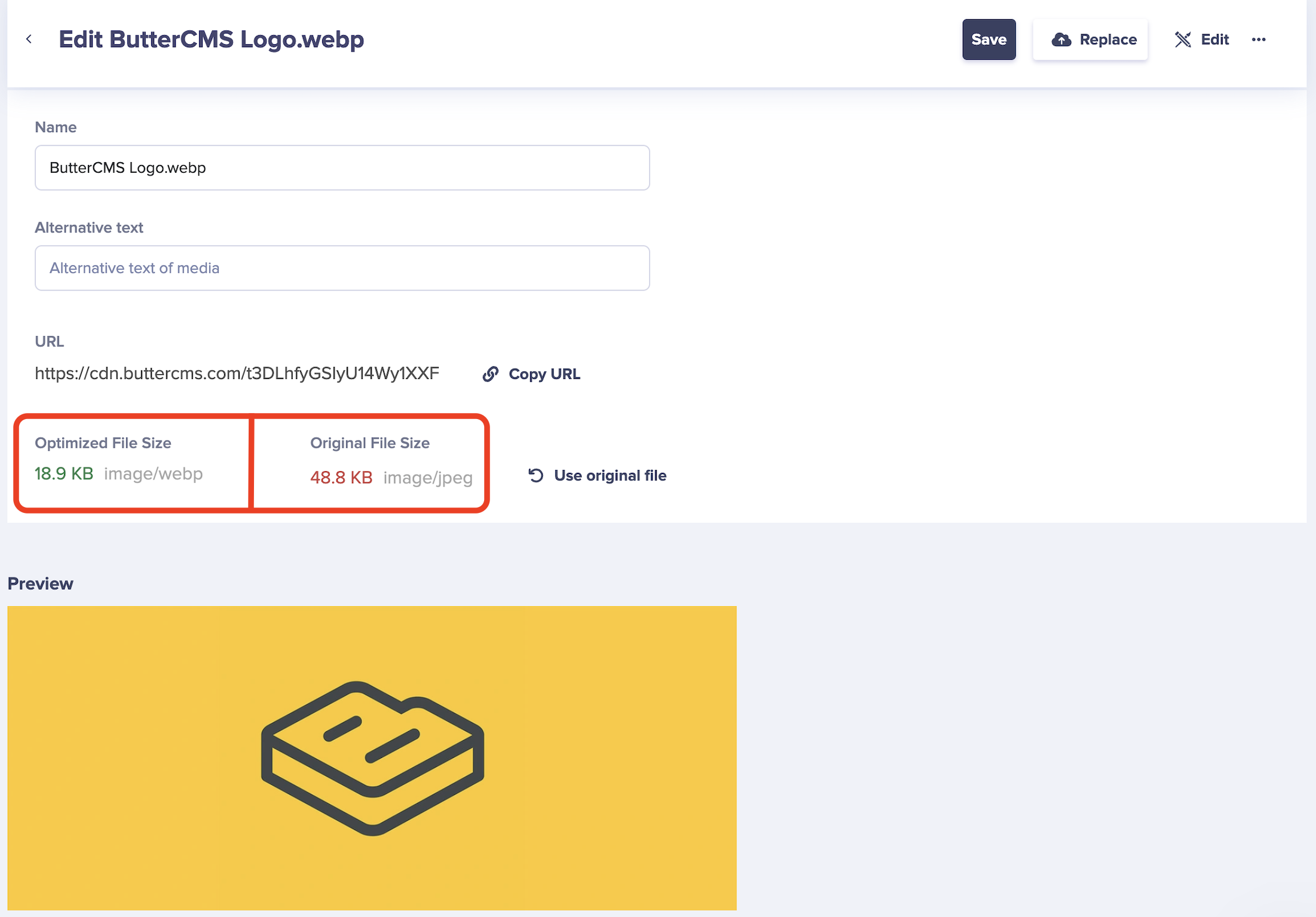
Reverting to original
If you prefer to use the original file without compression, you can revert by clicking the Use original file button: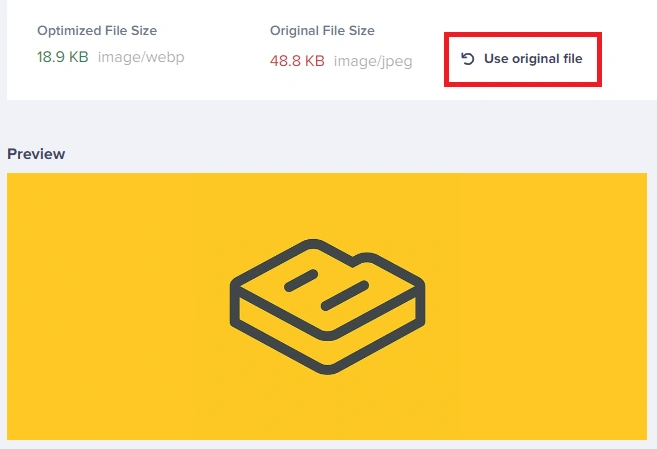
Automatic WebP conversion
To help with the optimization of your images, ButterCMS automatically converts them to WebP format. WebP is a modern image format that provides superior compression compared to JPEG and PNG.Benefits of WebP
Smaller file sizes
WebP images are 25-34% smaller than JPEG at equivalent quality
Faster loading
Smaller files mean faster page loads on all devices
Better SEO
Google favors fast-loading pages in search rankings
Transparent support
WebP supports transparency like PNG, but with better compression
Optimal file size guidelines
For optimal page speed and appearance, follow these guidelines:Best practices
1
Resize before upload
Resize images to 1200 pixels width or less before uploading
2
Compress large files
Use free tools like TinyPNG or TinyJPG to compress images before uploading
3
Choose the right format
JPEG for photos, PNG for graphics with transparency, SVG for icons
4
Let Butter optimize
After upload, ButterCMS automatically applies additional optimization
How it works behind the scenes
Automatic processing pipeline
When you upload an image to ButterCMS:- Original Stored - Your original file is safely stored as backup
- Analysis - The image is analyzed for optimal compression settings
- Compression - Lossless or near-lossless compression is applied
- WebP Conversion - A WebP version is created for modern browsers
- CDN Distribution - The optimized image is distributed globally
Browser compatibility
ButterCMS handles browser compatibility automatically:ButterCMS uses content negotiation to serve the best format for each visitor’s browser automatically.
Compression tips
Before uploading
- Remove metadata - Strip EXIF data from photos to reduce file size
- Choose appropriate quality - 80% JPEG quality is usually sufficient
- Crop unnecessary areas - Remove parts of the image you don’t need
After uploading
- Check the size comparison - Review optimized vs. original sizes in Media Library
- Monitor page speed - Use tools like Google PageSpeed to verify improvements
- Consider further optimization - Use URL transformations for responsive images