
Image editor overview
When you access the Media Library and select any image, you’ll see the Launch Image Editor button. This gives you a powerful editing experience right within your Butter dashboard.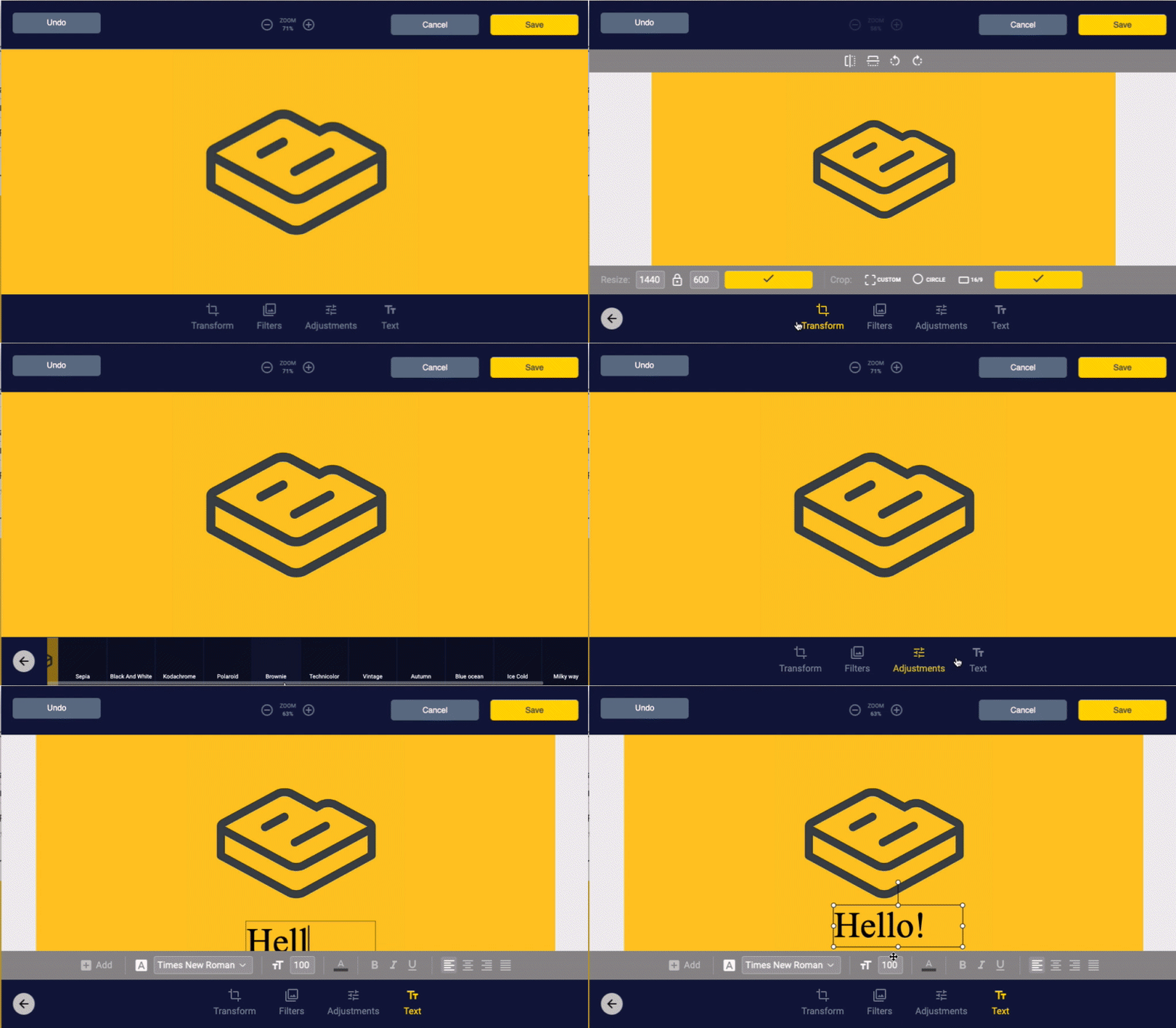
The Image Editor is available on all paid plans (Basic, Advanced, Professional, and Enterprise).
Editing capabilities
The image editor offers extensive manipulation and editing features:Transform
- Flip - Mirror images horizontally or vertically
- Rotate - Rotate images to any angle
- Resize - Change image dimensions
- Crop - Trim images to specific areas or aspect ratios
Filters
Apply artistic filters to your images:- Sepia
- Black & White
- Polaroid
- And more!
Adjustments
Fine-tune your images with:- Blur - Add blur effects
- Brightness - Adjust light levels
- Contrast - Enhance or reduce contrast
- Gamma - Adjust gamma correction
- Hue - Shift color tones
- Noise - Add or reduce noise
- Pixelate - Create pixel effects
- Saturation - Adjust color intensity
Text overlay
Add text to your images with customizable:- Font selection
- Font size
- Bold, Italic, Underline styles
- Text alignment
Image resizing in WYSIWYG
Images can be resized directly from the WYSIWYG field when editing content: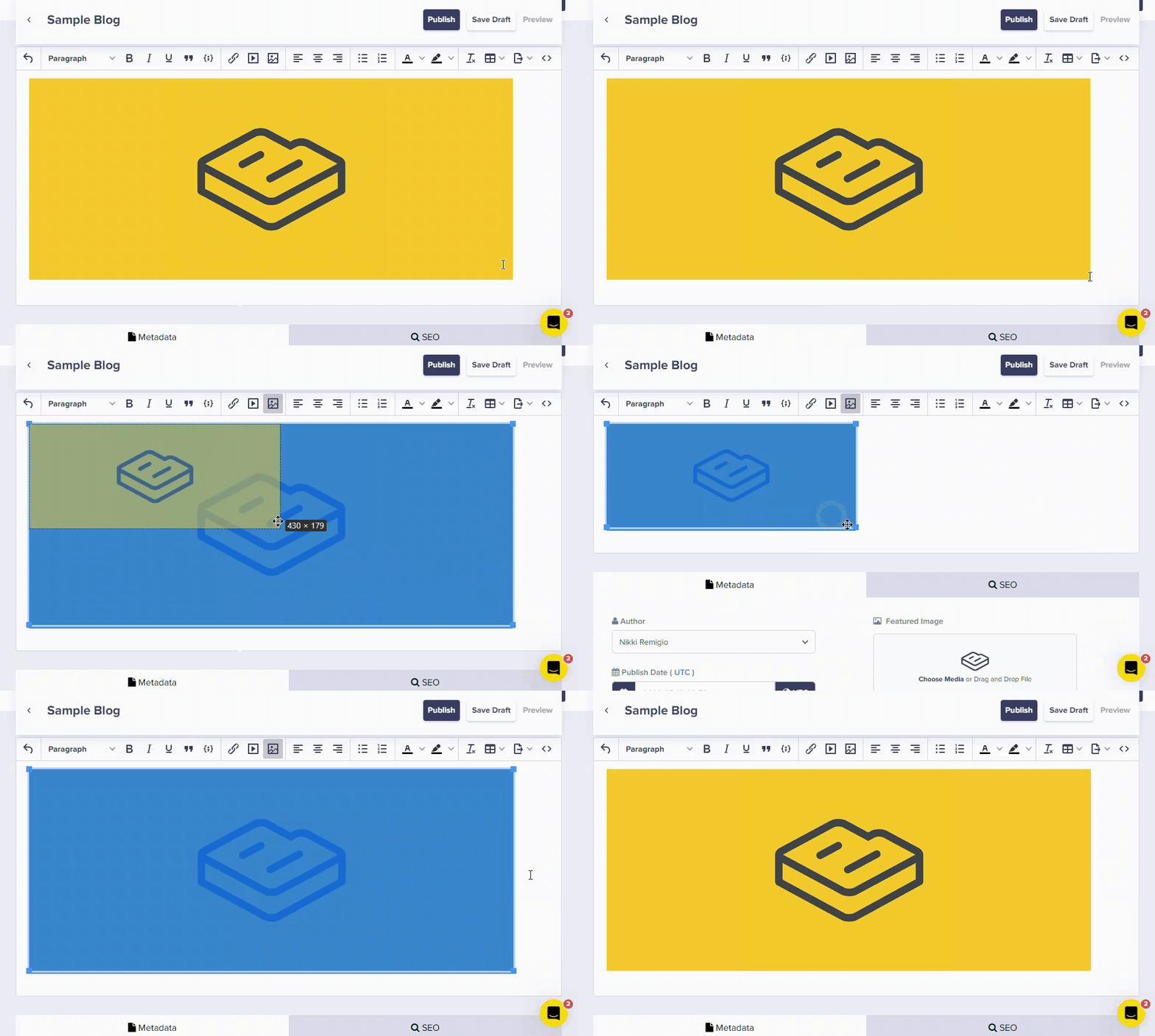
Image alignment in WYSIWYG
Once you’ve added media to a WYSIWYG field, you can align it within the text:- Click on any image in your post
- Use the alignment controls (left, center, right) on the toolbar to adjust according to your preference
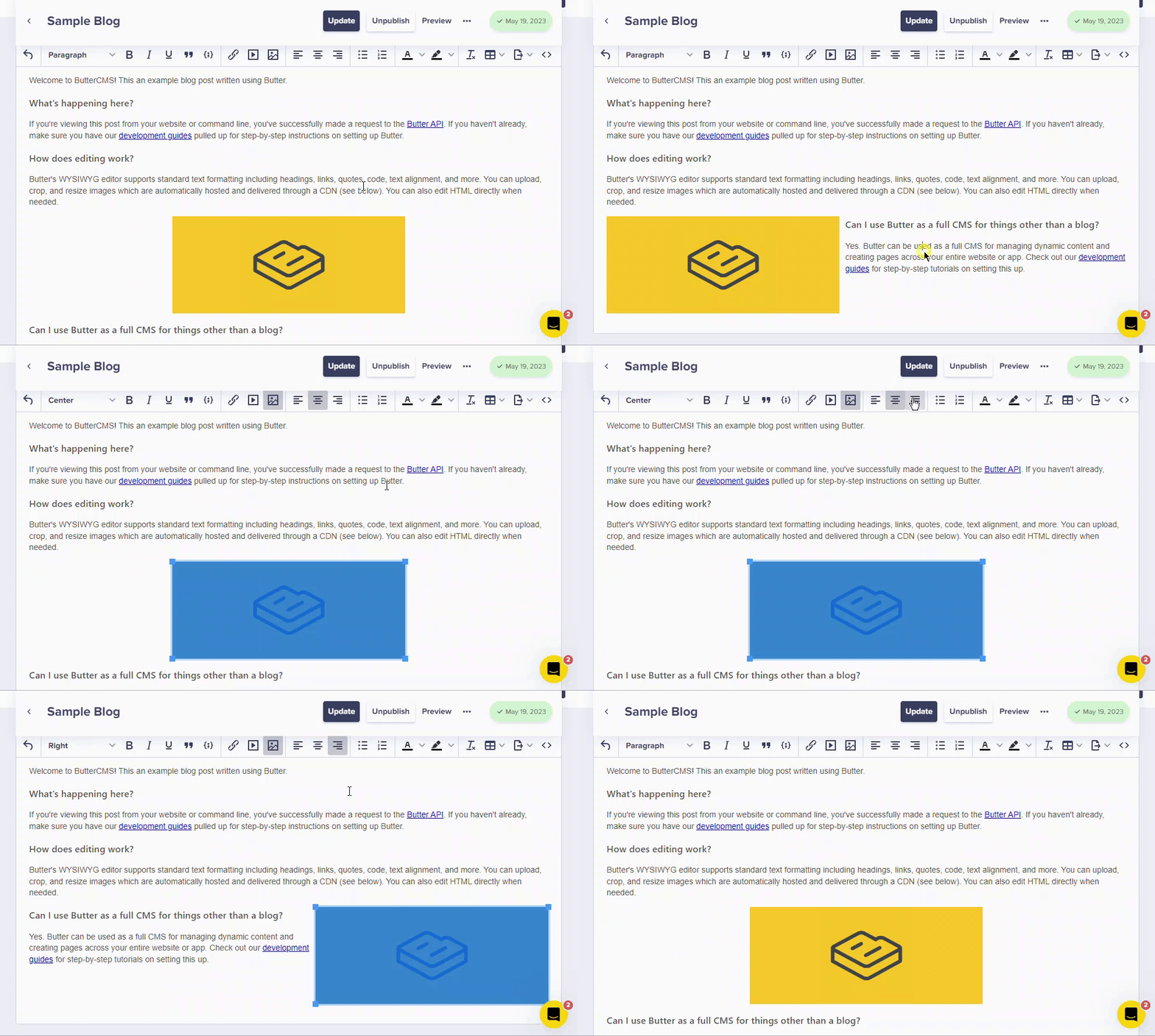
Your developer may need to define CSS styling for image alignment (e.g.,
float: left or float: right) in your site styles.Adding captions and alt text
To add a caption or alt text to an image in your content:- Click on the image in the editor.
- Use the image properties dialog that appears to add Image Description (alt text).
- Enable Caption to show a caption below the image.
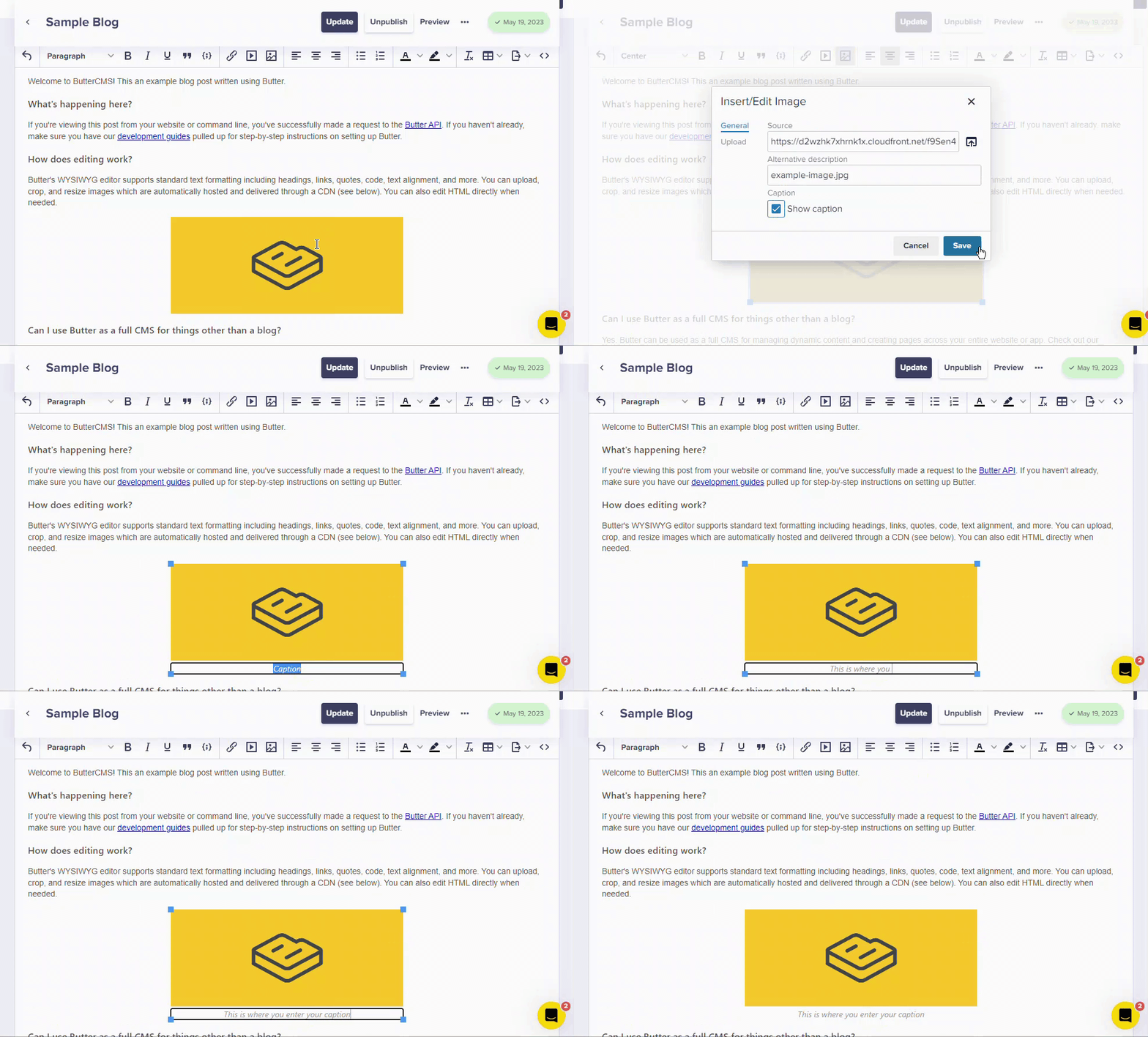
Image API transformations
ButterCMS integrates with Filestack’s Image API for advanced image optimization and transformation capabilities through URL modification.How it works
All stored files are available over the ButterCMS CDN. Each file’s URL can be modified with processing “tasks” that transform the requested resource. Tasks can be chained together by separating them with forward slashes. All tasks follow the structure:TASK=option:value, where option:value pairs are comma-separated.
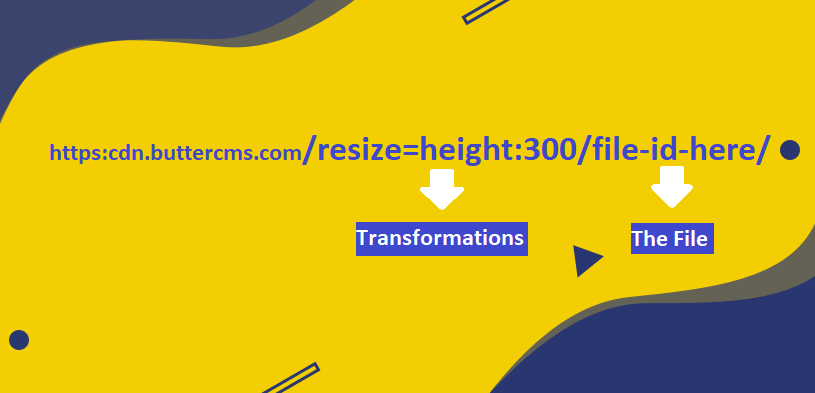
Quick example
Original file URL: To resize it, add the resize task to the URL:
Responsive images
You can dynamically create image assets sized for specific screen sizes:
Editing workflow
1
Access Media Library
Navigate to the Media Library in your ButterCMS dashboard
2
Select image
Click on the image you want to edit
3
Launch editor
Click the Launch Image Editor button
4
Make edits
Use the tools to transform, filter, adjust, or add text
5
Save changes
Click Save to apply your changes
Image transformations (Image API)
ButterCMS integrates with Filestack image API that enables optimization and transformation capability for your images by modifying the URL. Processing tasks can be chained together in the same URL by separating them with forward slashes. All tasks follow the structure ofTASK=option:value, where option:value pairs are comma-separated.
Resize example
Original URL: