
Upload methods
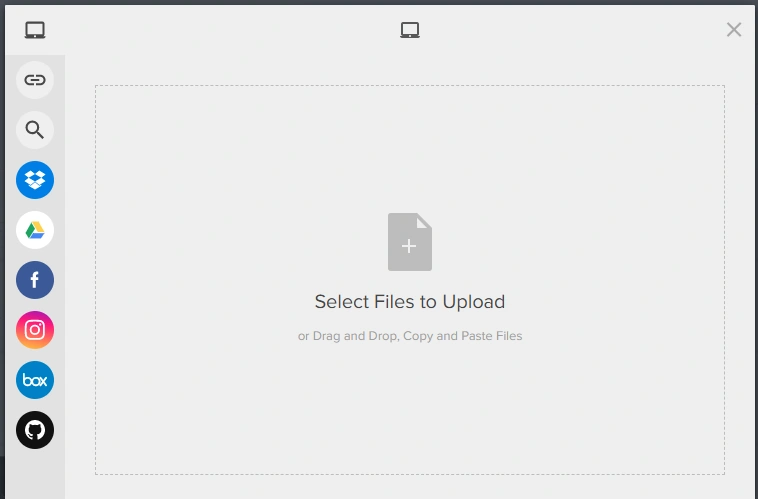
Method 1: Upload Media button
- Click on the Upload Media button in your Media Library.

- You can add one or multiple files at once from various sources:
- My Device
- URL
- Image Search
- Dropbox
- Google Drive
- Box
- GitHub
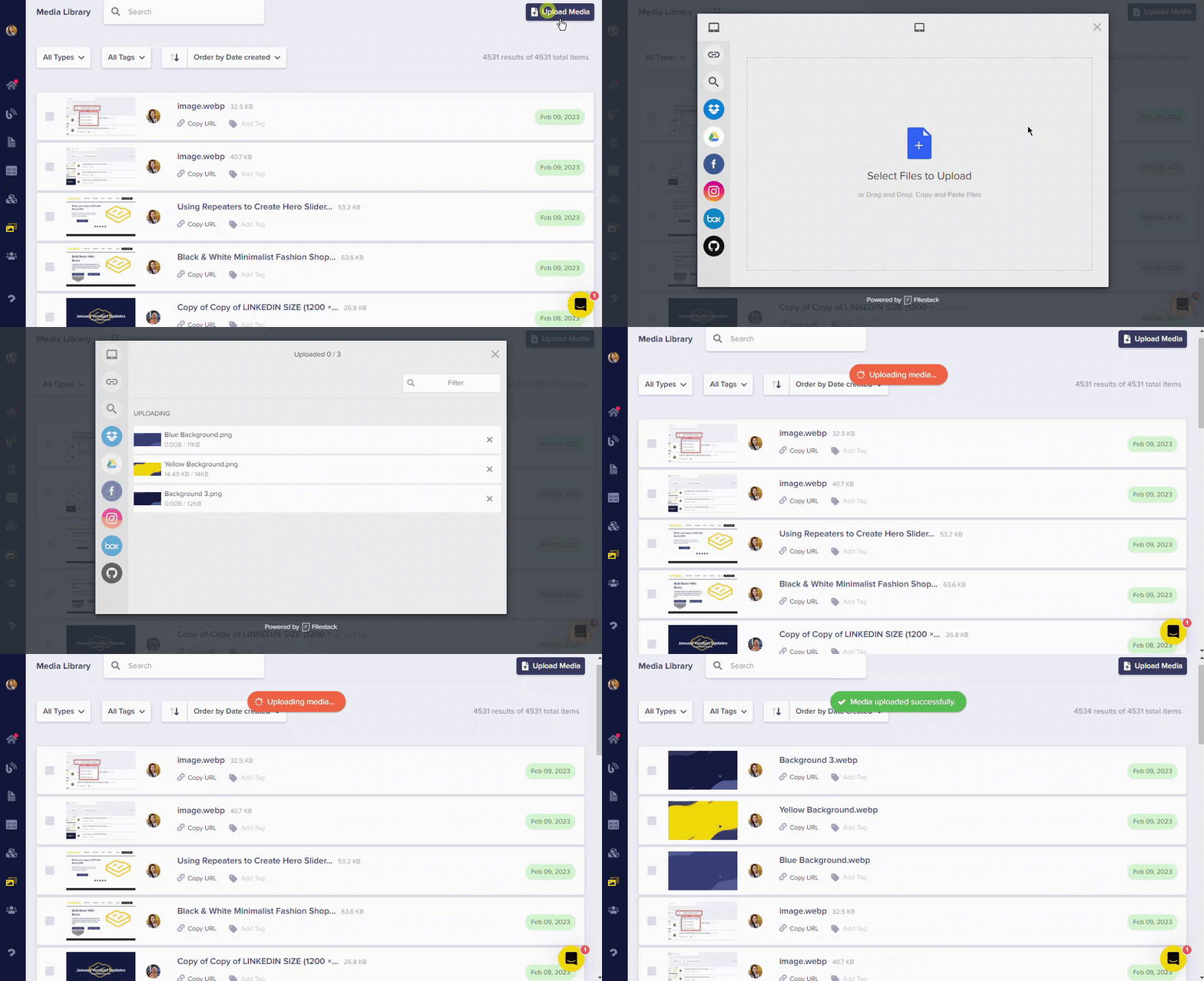
Method 2: Drag and drop
Simply drag and drop your files directly into media fields for quick uploads: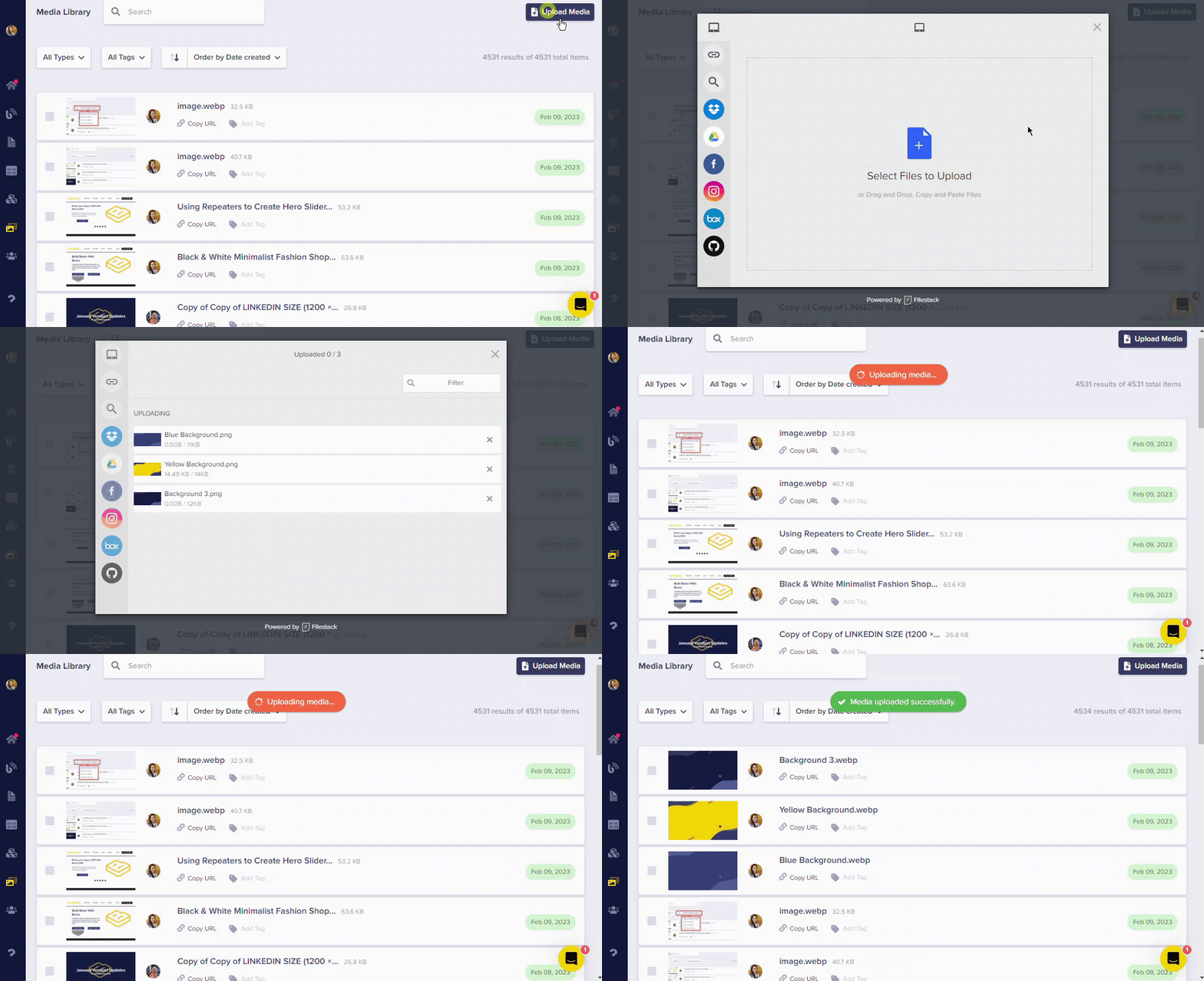 You can also drag and drop files directly into media fields within your content:
Editing images during upload
Edit your images in the ButterCMS Media Library before saving them: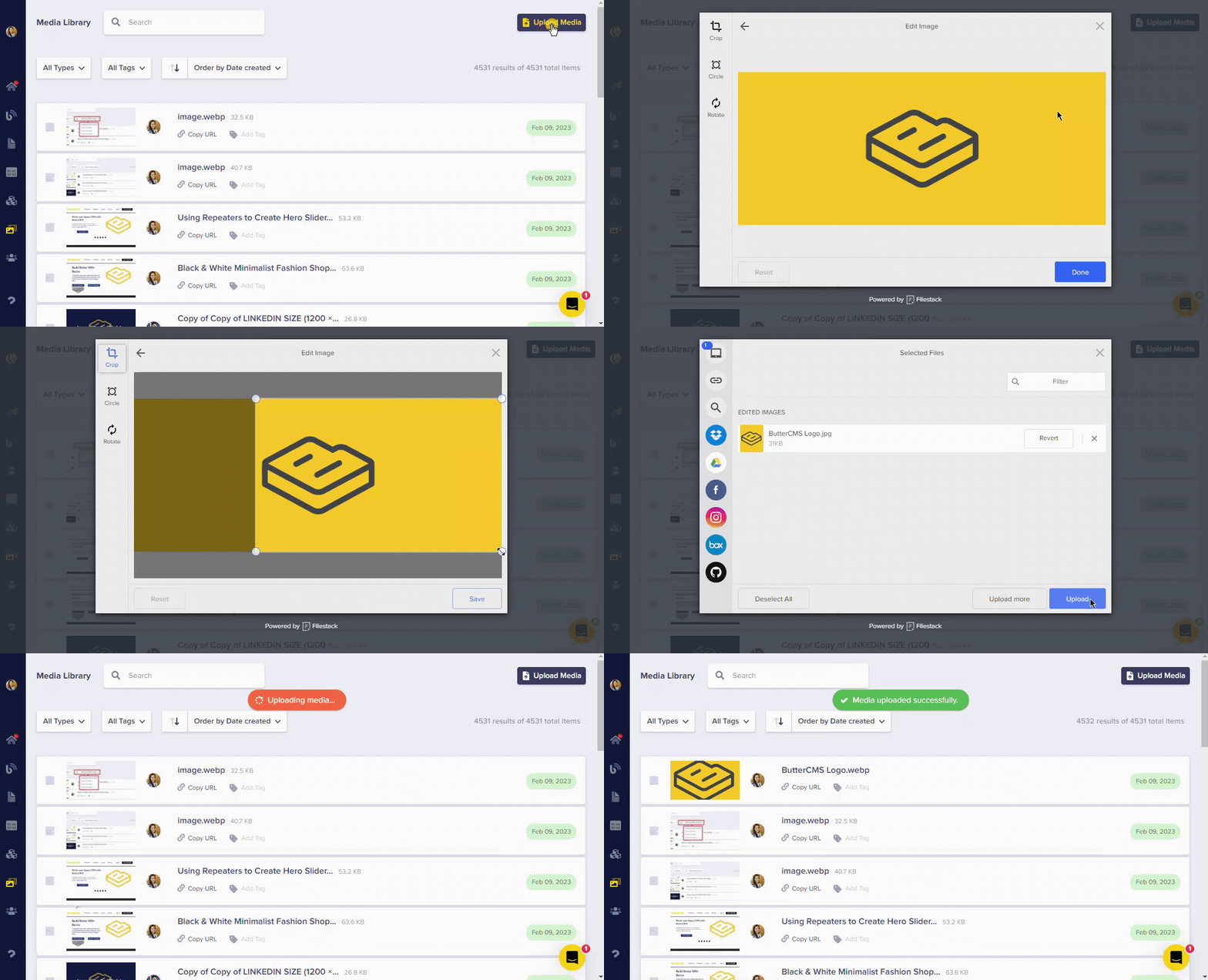
Optimal file sizes
For optimal page speed and appearance, follow these guidelines:ButterCMS automatically converts images to WebP format for better performance.
Best practices
- Compress images before uploading using tools like TinyPNG or TinyJPG
- Resize large images to 1200 pixels or less
- Use appropriate formats — JPEG for photos, PNG for graphics with transparency
- Let ButterCMS optimize — we automatically convert to WebP for better performance