What you’ll build

A team member directory that includes:
  • Staff profiles with photos, roles, and contact info
  • Department organization
  • Filtering by department or role
  • Individual profile pages
  • Integration with other content types

Step 1: create a departments collection

First, create a Collection to store department information:
  1. Go to Content TypesCollections
  2. Create a new Collection called “Departments”
  3. Add fields:
    • Name (Short Text) - Department name
    • Slug (Short Text) - URL-friendly identifier
    • Description (Long Text) - Department description
Example departments:
  • Engineering
  • Marketing
  • Sales
  • Customer Support
  • Human Resources

Step 2: create the team members collection

Create a Collection for team members with these fields:
  • Name (Short Text) - Full name
  • Headshot (Media) - Profile photo
  • Role (Short Text) - Job title
  • Department (Reference) - Link to Departments collection
  • Email (Short Text) - Contact email
  • Bio (Long Text) - Short biography
  • LinkedIn (Short Text) - Social profile URL
When storing personal data like email addresses and social profiles, ensure compliance with privacy regulations (GDPR, CCPA, etc.). Consider making social profile fields optional and informing team members about public visibility.
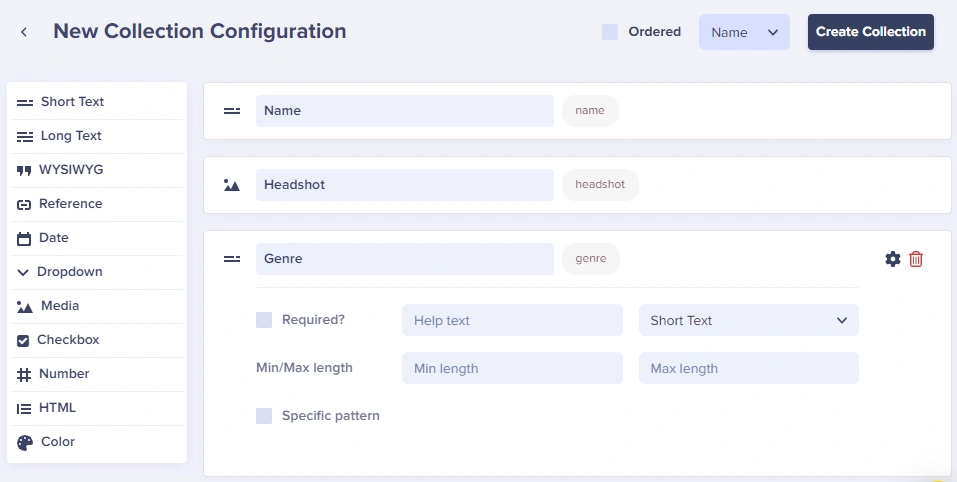
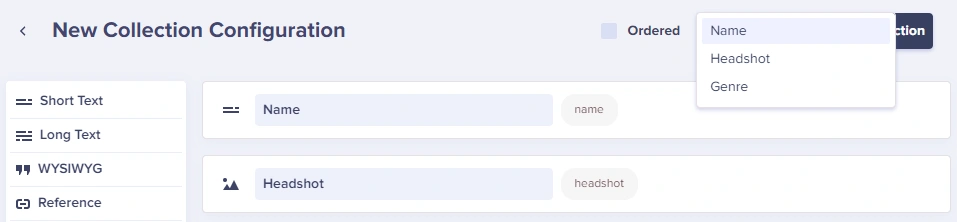
Collection configuration Set the Collection Label to display team member names: Collection Label dropdown
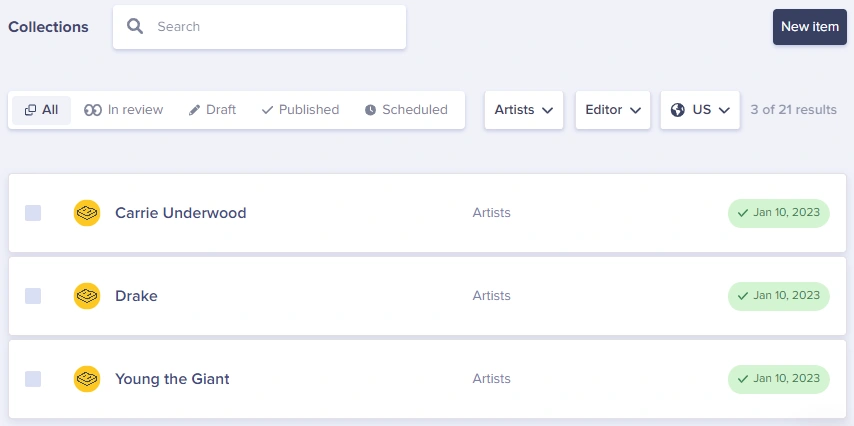
Step 3: add team members

Add team members to your Collection: Adding team members
Step 4: fetch team members

Write less code by leveraging API parameters

Our collections API supports ordering during fetch with the order parameter, which can be utilized with dot notation to order by specific fields: order=fields.department.You can also use the page, page_size, limit, and offset parameters for instant pagination.

Speed things up with an SDK

These code examples use native libraries like fetch and requests to pull data from the API.For your actual implementation, we recommend using one of our many SDKs instead, which come with prebuilt support for the various content type API endpoints, as well as features like timeout, error handling, query parameters, and more.
Query the team members Collection directly to fetch all team members:
// JS example
const response = await fetch(
  `https://api.buttercms.com/v2/content/team_members/?auth_token=${API_TOKEN}`
);
const data = await response.json();
const teamMembers = data.data;
# Python example
import requests

response = requests.get(
    'https://api.buttercms.com/v2/content/team_members/',
    params={
        'auth_token': API_TOKEN
    }
)
team_members = response.json()['data']

API response structure

{
  "meta": {
    // metadata here
  },
  "data": {
    "team_members": [
      {
        "name": "Jane Smith",
        "headshot": "https://cdn.buttercms.com/...",
        "role": "Senior Developer",
        "department": {
          "name": "Engineering",
          "slug": "engineering",
          "description": "Building great products"
        },
        "email": "jane@company.com",
        "bio": "Jane has 10 years of experience...",
        "linkedin": "https://linkedin.com/in/janesmith"
      },
      {
        "name": "John Doe",
        "headshot": "https://cdn.buttercms.com/...",
        "role": "Marketing Manager",
        "department": {
          "name": "Marketing",
          "slug": "marketing",
          "description": "Spreading the word"
        },
        "email": "john@company.com",
        "bio": "John leads our marketing initiatives...",
        "linkedin": "https://linkedin.com/in/johndoe"
      }
    ]
  }
}

Step 5: display the team directory

Create a team directory component:
// React example
function TeamMemberCard({ member }) {
  return (
    <div className="team-card">
      <img
        src={member.headshot}
        alt={member.name}
        className="headshot"
      />
      <h3>{member.name}</h3>
      <p className="role">{member.role}</p>
      <p className="department">{member.department.name}</p>
      <p className="bio">{member.bio}</p>
      <div className="contact">
        <a href={`mailto:${member.email}`}>Email</a>
        <a href={member.linkedin} target="_blank">LinkedIn</a>
      </div>
    </div>
  );
}

function TeamDirectory({ members }) {
  return (
    <div className="team-directory">
      <h1>Our Team</h1>
      <div className="team-grid">
        {members.map((member, index) => (
          <TeamMemberCard key={index} member={member} />
        ))}
      </div>
    </div>
  );
}

Add filtering by department

This example shows one way of adding filtering by department, but you can also filter queries directly from the API using the fields parameter: fields.department=some_string
function TeamDirectoryWithFilter({ members, departments }) {
  const [selectedDept, setSelectedDept] = useState('all');

  const filteredMembers = selectedDept === 'all'
    ? members
    : members.filter(m => m.department.slug === selectedDept);

  return (
    <div className="team-directory">
      <h1>Our Team</h1>

      <div className="filters">
        <button
          className={selectedDept === 'all' ? 'active' : ''}
          onClick={() => setSelectedDept('all')}
        >
          All Departments
        </button>
        {departments.map((dept) => (
          <button
            key={dept.slug}
            className={selectedDept === dept.slug ? 'active' : ''}
            onClick={() => setSelectedDept(dept.slug)}
          >
            {dept.name}
          </button>
        ))}
      </div>

      <div className="team-grid">
        {filteredMembers.map((member, index) => (
          <TeamMemberCard key={index} member={member} />
        ))}
      </div>
    </div>
  );
}

Step 6: reference team members in pages

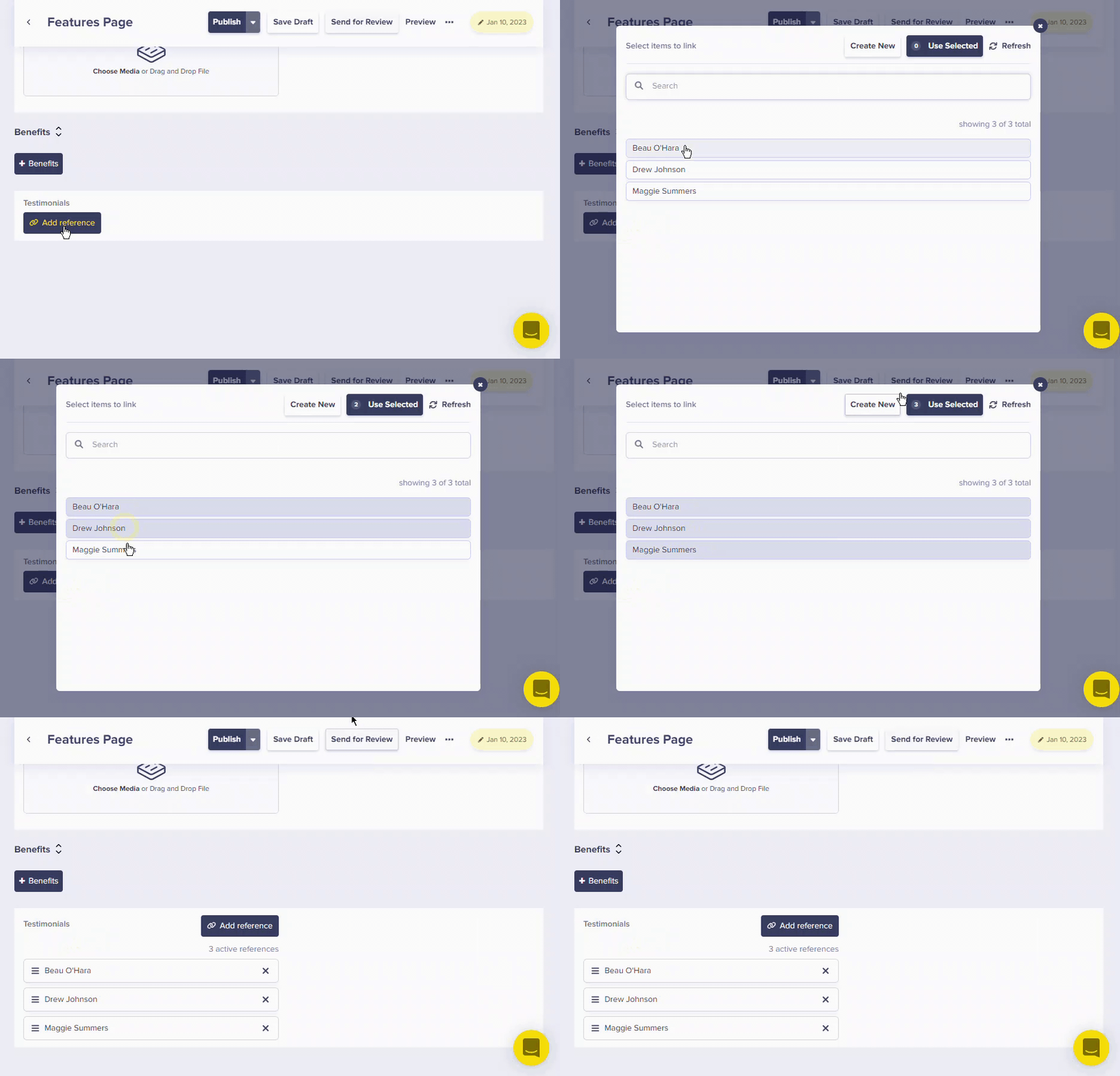
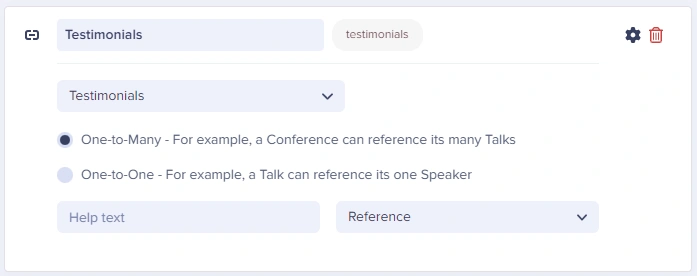
You can reference team members from other pages. For example, on a blog post, you can reference the author: Reference field to Collection Select team members to display: Selecting team members
Advanced: hierarchical organization

For organizations with more than 20-30 team members, consider adding a hierarchical structure:

1. Add manager Reference

Add a “Reports To” reference field in your Team Members collection that references itself:
{
  "name": "Jane Smith",
  "role": "Engineering Manager",
  "reports_to": null,
  "direct_reports": ["john-doe", "alice-johnson"]
}

2. Build org chart

function OrgChart({ members }) {
  // Find CEO/top-level (no reports_to)
  const topLevel = members.filter(m => !m.reports_to);

  const getDirectReports = (manager) => {
    return members.filter(m =>
      m.reports_to && m.reports_to.name === manager.name
    );
  };

  const renderMember = (member) => (
    <div className="org-node">
      <TeamMemberCard member={member} compact />
      <div className="reports">
        {getDirectReports(member).map((report) => renderMember(report))}
      </div>
    </div>
  );

  return (
    <div className="org-chart">
      {topLevel.map((member) => renderMember(member))}
    </div>
  );
}

Use cases

FeatureImplementation
Staff DirectorySimple list of all team members
About PageReference key team members on marketing pages
Blog AuthorsLink posts to team member profiles
Support TeamShow available support staff
Org ChartHierarchical team structure