Dynamic page layouts in ButterCMS are built using three key concepts:
ConceptDescription
ComponentsReusable content blocks with their own schema (Hero, Services, Testimonials, etc.)
Component PickerA special field that lets editors add, remove, and reorder Components on a page
Page TypesTemplates that define which Components are available for a particular type of page
This architecture allows:
  • Developers and Designers to ensure consistency through predefined component styles and templates
  • Marketers to build unique pages without developer intervention

What you’ll build

A dynamic landing page system that includes:
  • Reusable Components (Hero, Features, Testimonials, CTA, etc.)
  • Drag-and-drop page building
  • Component Library management
  • Dynamic frontend rendering

Setting up a landing page with Components in the ButterCMS dashboard

Let’s create a landing page with these six sections:
  • Navigation
  • Hero
  • Services
  • Main Service
  • Testimonials
  • Footer
You can set up your landing page as a Single Page, if you only want to make one Page of this type, or a Page Type, if you want to be able to reuse your Page schema multiple times.
1

Step 1: Add a Component Picker to your page

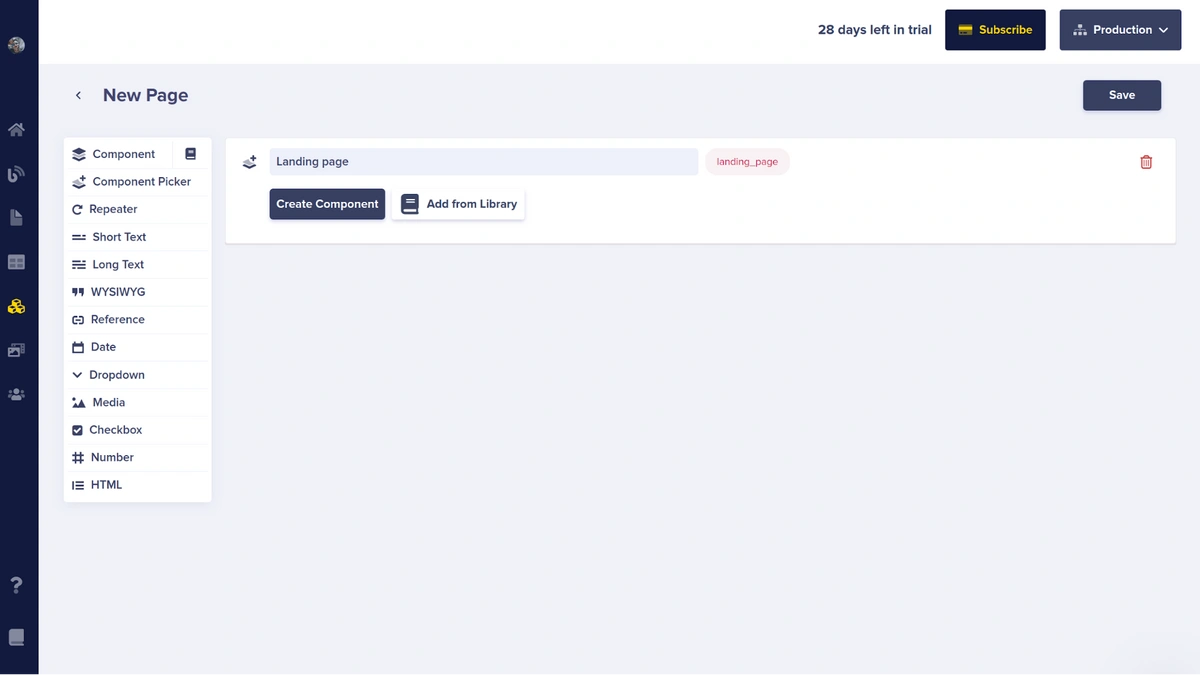
Click on Component Picker in the left menu when configuring your Page and give it a name.Add Component Picker to page type
2

Step 2: Create your Components

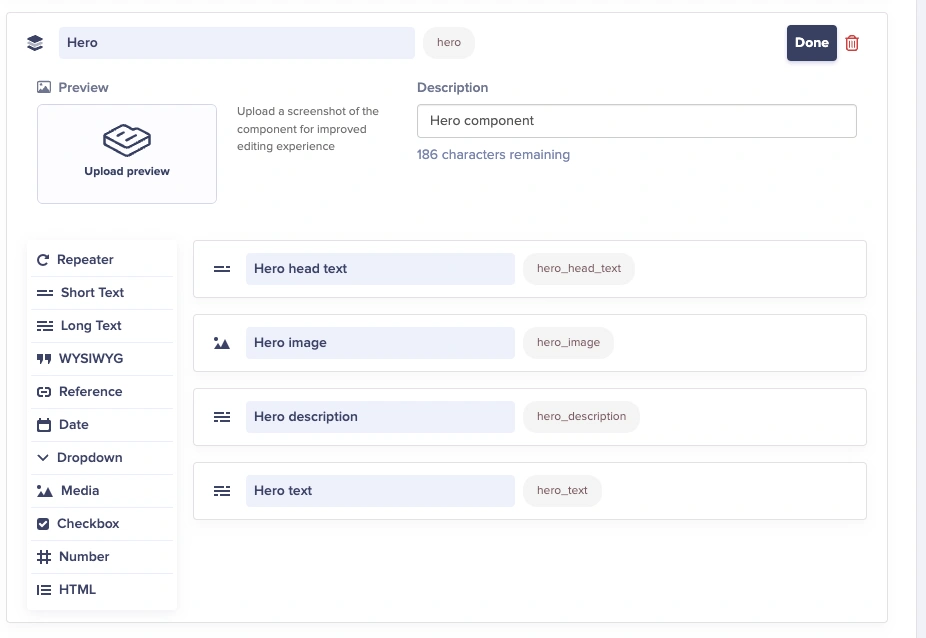
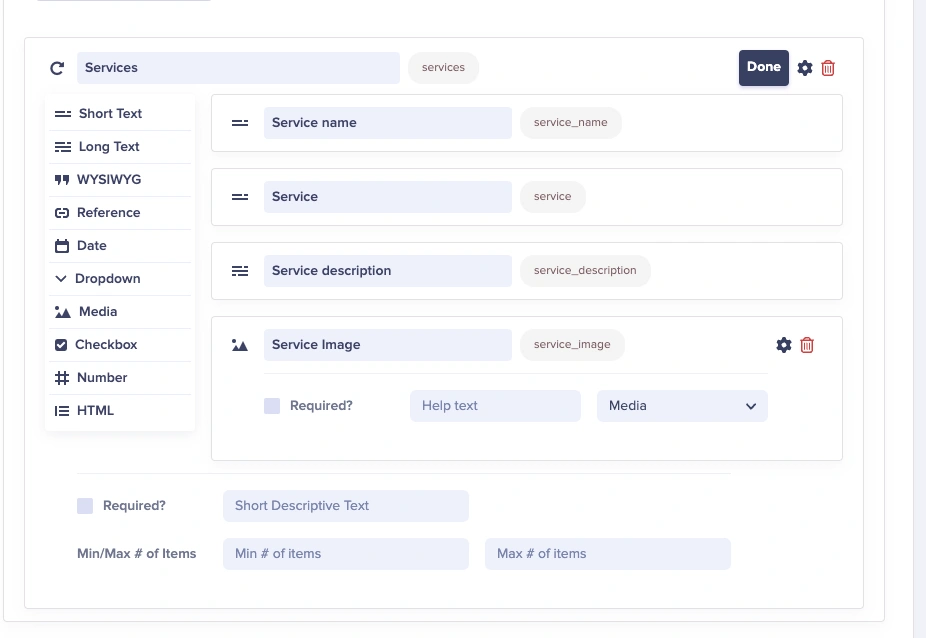
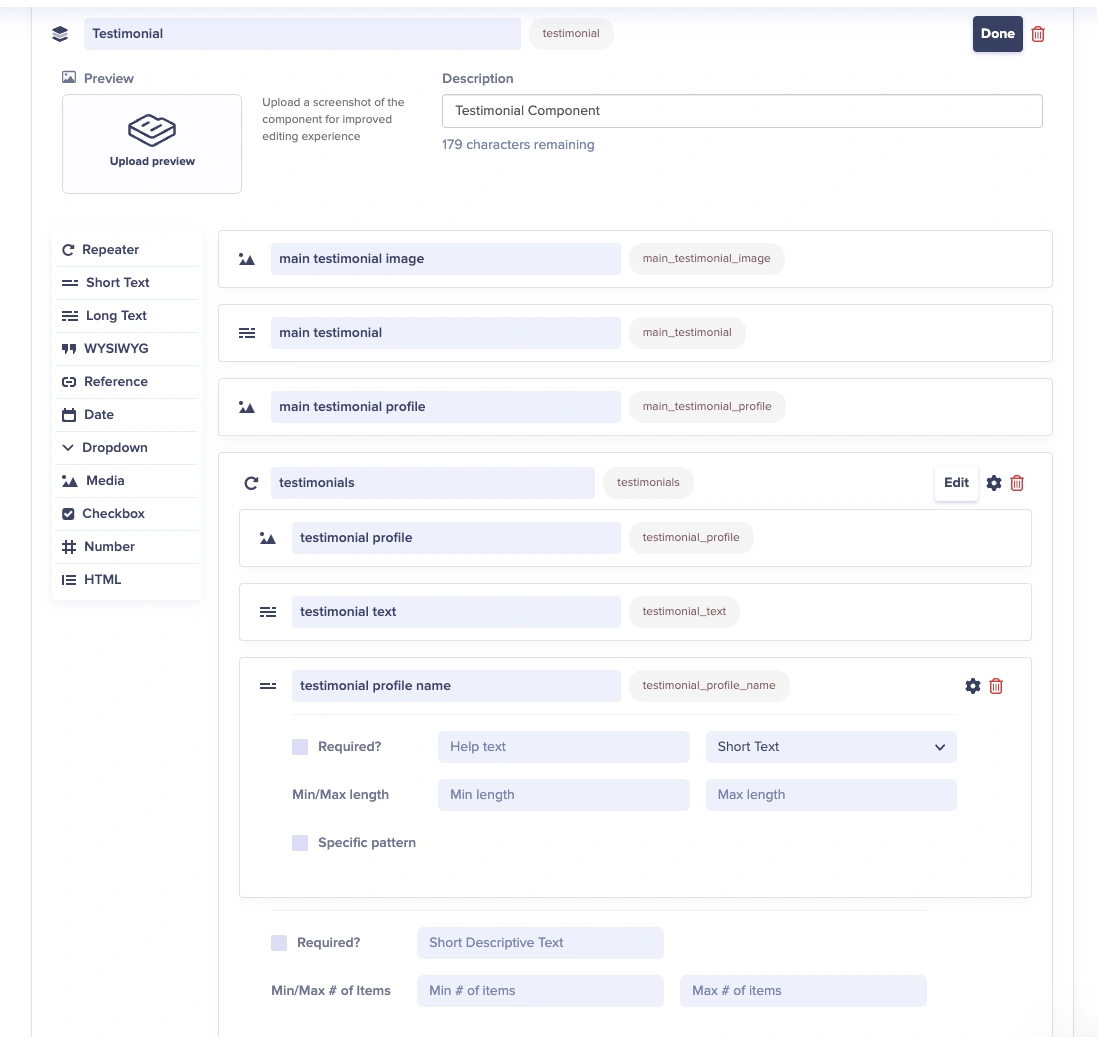
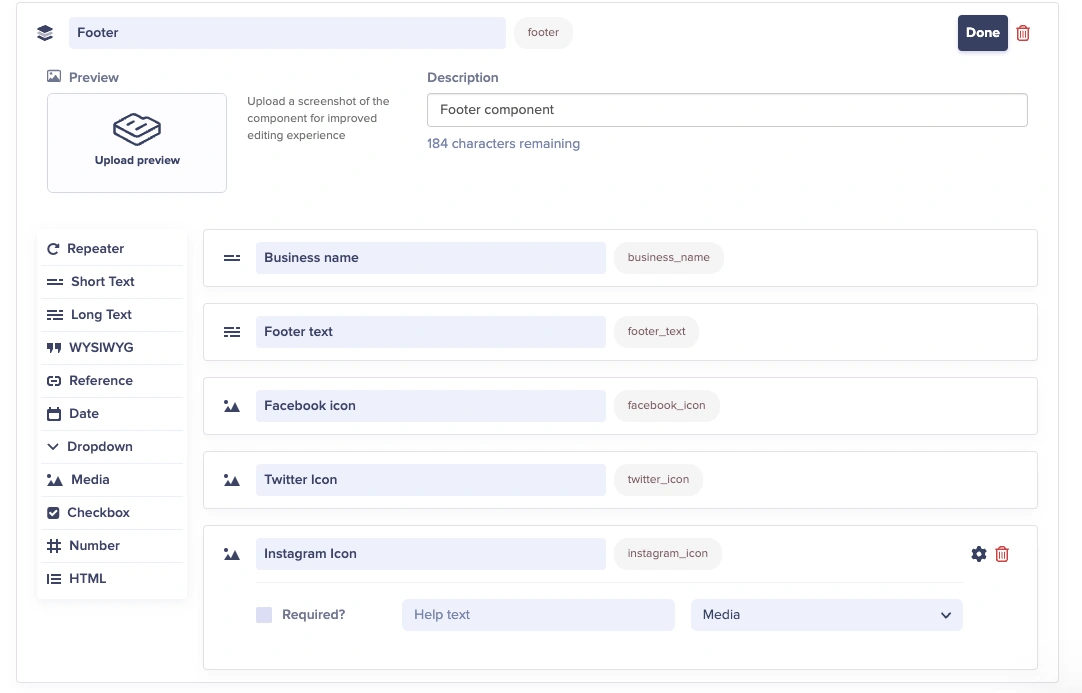
For each of the following components below, click the Create Component button, give the new Component its own name, and then add the vraious field types you need in the Component.When you are finished adding fields to the Component, click Done.When you’ve added all of the fields to your Page, click Save.
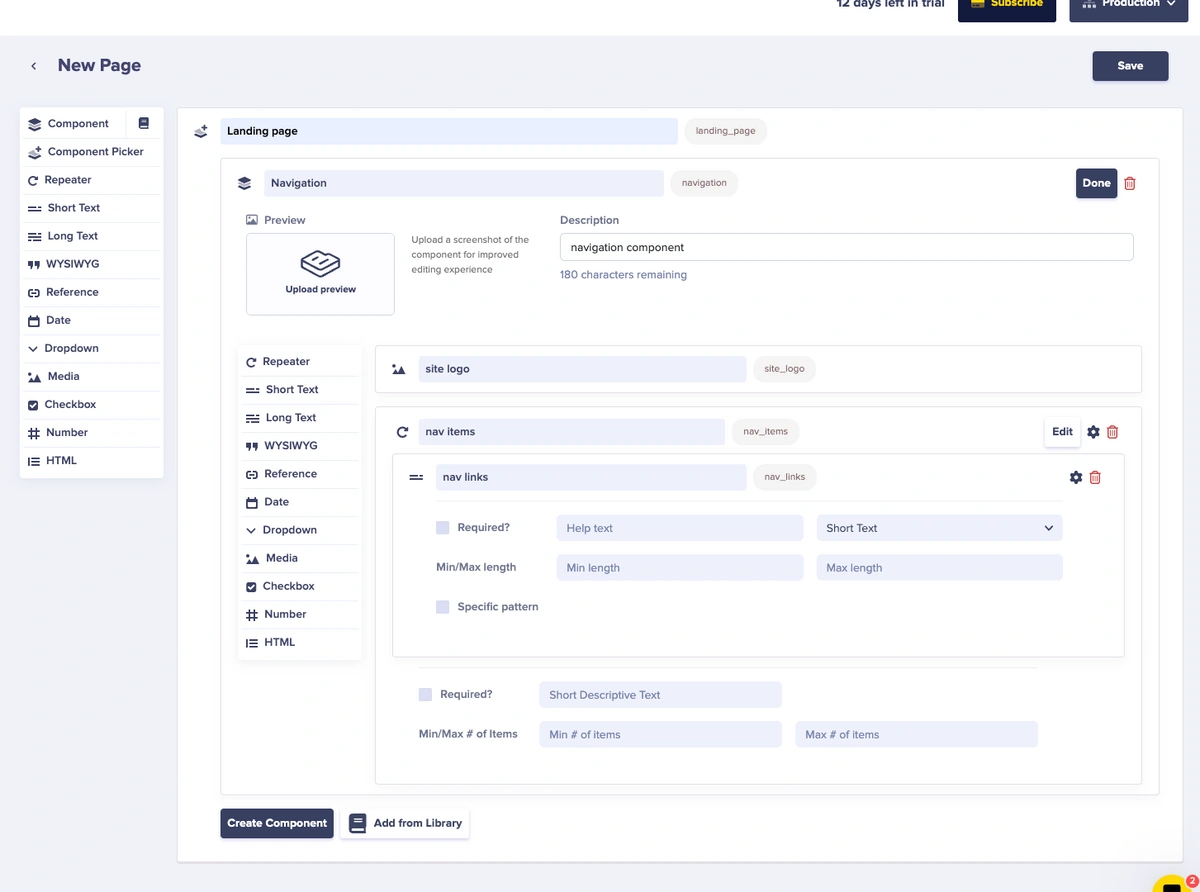
Components created this way (inside of a Page schema), are called Local Components: they only exist on this Page schema.If you want to reuse this Component in other Pages, roll over the newly created Component (after clicking the Done button), and you’ll see the Add to Library button.You can select any Component that’s been added to your Library any time you’re creating/updating a Page schema.

Components to add

3

Step 3: Create your page and add data

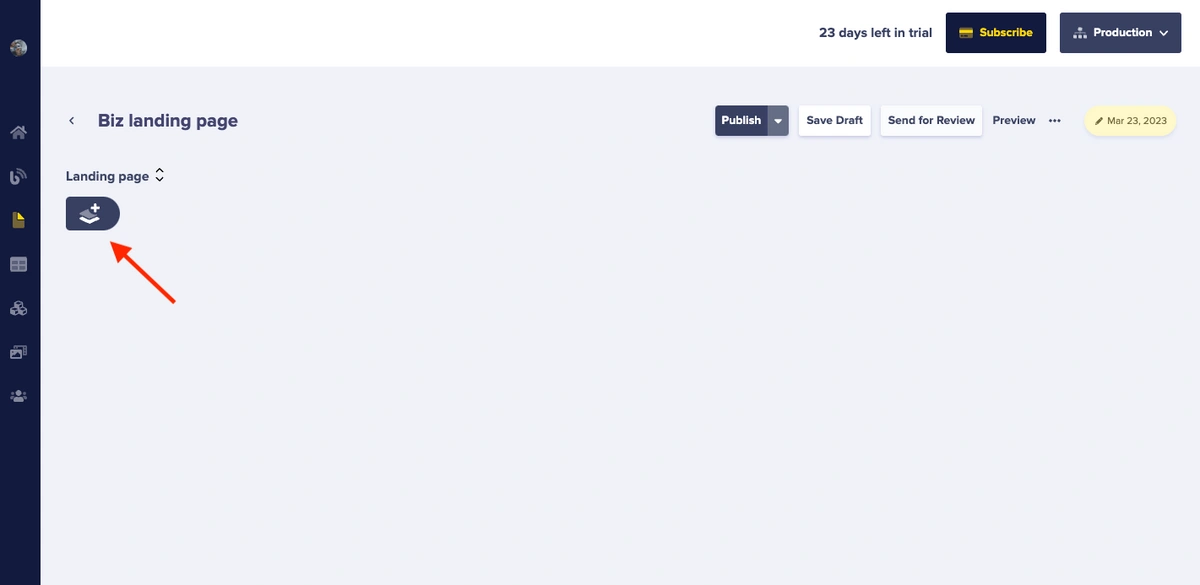
After saving your schema, create a new instance of your Page (if it’s a Page Type) or just edit your Page (for a Single Page).Now, click the Component Picker button under to the Landing Page component.Add components from librarySelect the components you want to add and fill in the content for each component.
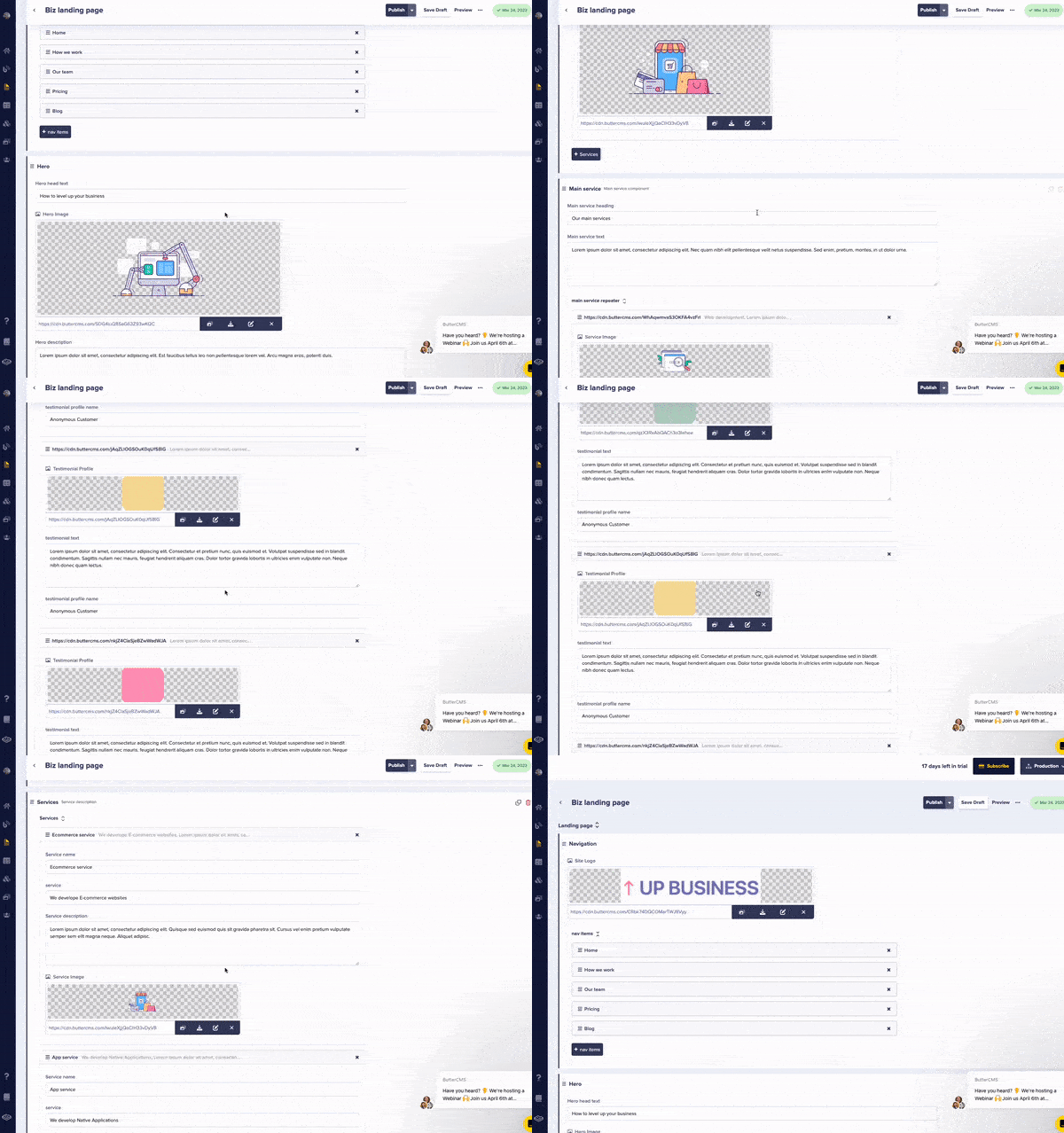
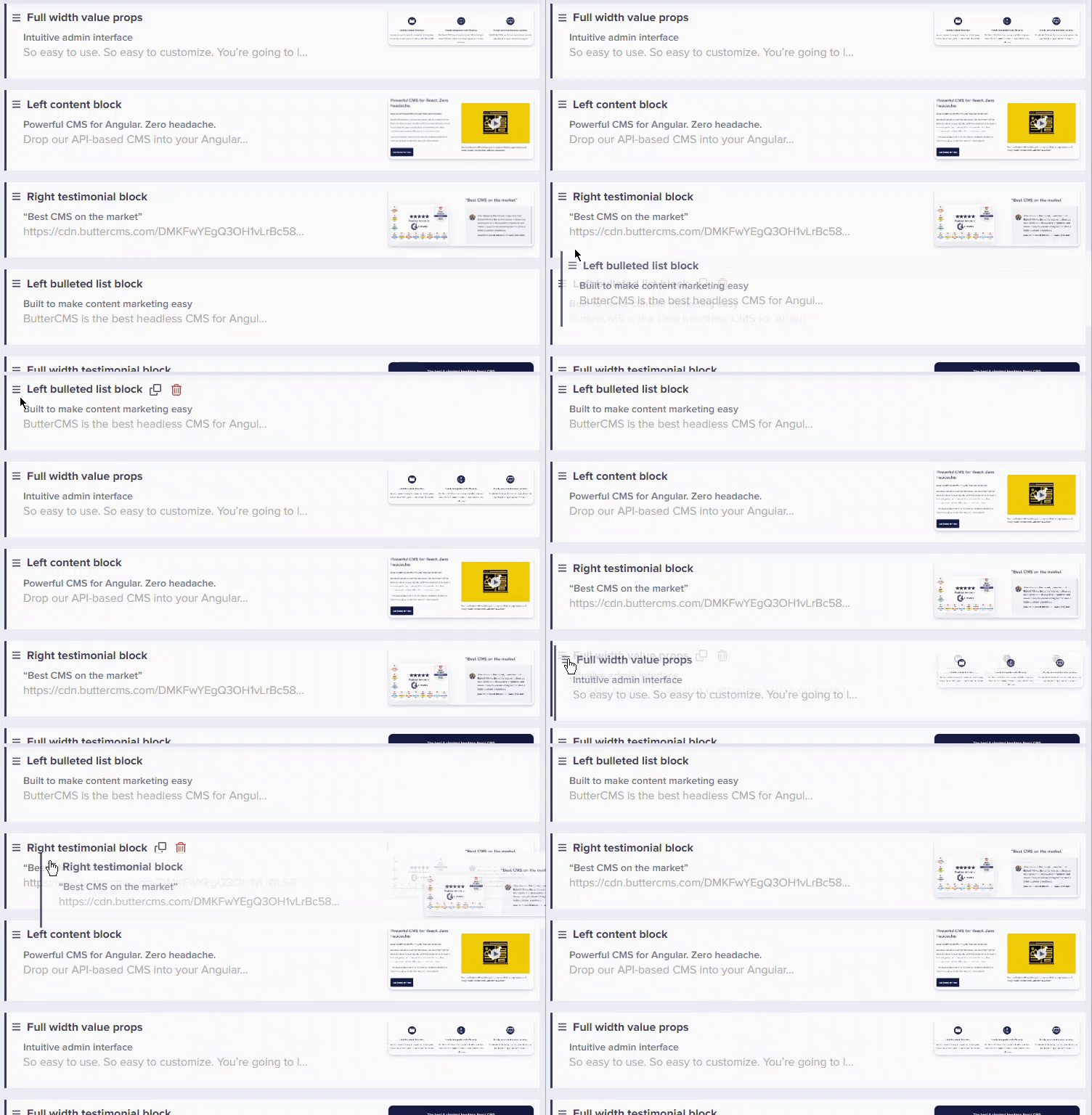
You can add Component instances to a Picker in any order you choose. You can also add multiple instances of each Component type.
Fill in component content

Working with the Component Picker

In order to better see your content, you can expand or collapse the entire picker by clicking on the Collapse/Expand toggle, which looks like , or you can expand or collapse a single component by clicking on the Component name.To re-order Components, simply drag & drop.Drag and drop reordering

Component Picker API response structure

The API returns Components in the order they appear on the page. Note the type key, which indicates the kind of Component in the Picker.
{
  "data": {
    "slug": "product-launch",
    "fields": {
      "landing_page_sections": [
        {
          "type": "navigation",
          "fields": {
            "logo": "https://cdn.buttercms.com/...",
            "nav_items": [
              { "label": "Features", "url": "#features" },
              { "label": "Pricing", "url": "#pricing" },
              { "label": "Contact", "url": "#contact" }
            ]
          }
        },
        {
          "type": "hero",
          "fields": {
            "headline": "Build Better Products",
            "subheadline": "Our platform helps teams ship faster",
            "background_image": "https://cdn.buttercms.com/...",
            "cta_button_text": "Get Started",
            "cta_button_url": "/signup"
          }
        },
        {
          "type": "services",
          "fields": {
            "services": [
              {
                "title": "Fast Development",
                "description": "Ship features 10x faster",
                "icon": "https://cdn.buttercms.com/..."
              },
              {
                "title": "Easy Integration",
                "description": "Works with your stack",
                "icon": "https://cdn.buttercms.com/..."
              }
            ]
          }
        },
        {
          "type": "testimonials",
          "fields": {
            "testimonials": [
              {
                "quote": "This tool changed everything for us",
                "name": "Jane Smith",
                "title": "CTO at TechCorp",
                "profile_image": "https://cdn.buttercms.com/..."
              }
            ]
          }
        }
      ]
    }
  }
}

Render your page (React/Next.js example)

First, create a component renderer that maps ButterCMS components to React components:
// components/ComponentRenderer.jsx
import Hero from './Hero';
import Services from './Services';
import Testimonials from './Testimonials';
import Footer from './Footer';
import Navigation from './Navigation';

const componentMap = {
  'navigation': Navigation,
  'hero': Hero,
  'services': Services,
  'testimonials': Testimonials,
  'footer': Footer,
};

const ComponentRenderer = ({ components }) => {
  return (
    <>
      {components.map((component, index) => {
        const Component = componentMap[component.type];

        if (!Component) {
          console.warn(`Unknown component type: ${component.type}`);
          return null;
        }

        return (
          <Component
            key={`${component.type}-${index}`}
            {...component.fields}
          />
        );
      })}
    </>
  );
};

export default ComponentRenderer;
In production, wrap ComponentRenderer with an error boundary and add loading states for better user experience.
Render your main landing page with its own React component:
// pages/[slug].jsx
import Butter from 'buttercms';
import ComponentRenderer from '../components/ComponentRenderer';

const butter = Butter('your-api-token');

const DynamicPage = ({ page }) => {
  return (
    <main>
      <ComponentRenderer components={page.fields.landing_page} />
    </main>
  );
};

export async function getStaticProps({ params }) {
  const response = await butter.page.retrieve('landing_page', params.slug);

  return {
    props: {
      page: response.data.data
    },
    revalidate: 60 // Revalidate cached page every 60 seconds
  };
}

export async function getStaticPaths() {
  const response = await butter.page.list('landing_page', { page_size: 100 });
  const pages = response.data.data;

  return {
    paths: pages.map(page => ({ params: { slug: page.slug } })),
    fallback: 'blocking'
  };
}

export default DynamicPage;
Render each of the individual components. Map the React template to the ButterCMS API data as described with the mapping function, above.
// Hero Component
function HeroComponent({ headline, subheadline, background_image, cta_button_text, cta_button_url }) {
  return (
    <section
      className="hero"
      style={{ backgroundImage: `url(${background_image})` }}
    >
      <div className="hero-content">
        <h1>{headline}</h1>
        <p>{subheadline}</p>
        <a href={cta_button_url} className="cta-button">
          {cta_button_text}
        </a>
      </div>
    </section>
  );
}

// Services Component
function ServicesComponent({ services }) {
  return (
    <section className="services">
      <div className="services-grid">
        {services.map((service, index) => (
          <div key={index} className="service-card">
            {service.icon && <img src={service.icon} alt="" />}
            <h3>{service.title}</h3>
            <p>{service.description}</p>
            {service.link && (
              <a href={service.link}>Learn More →</a>
            )}
          </div>
        ))}
      </div>
    </section>
  );
}

// Testimonials Component
function TestimonialsComponent({ testimonials }) {
  return (
    <section className="testimonials">
      <h2>What Our Customers Say</h2>
      <div className="testimonials-grid">
        {testimonials.map((testimonial, index) => (
          <blockquote key={index} className="testimonial">
            <p>"{testimonial.quote}"</p>
            <footer>
              {testimonial.profile_image && (
                <img src={testimonial.profile_image} alt={testimonial.name} />
              )}
              <cite>
                <strong>{testimonial.name}</strong>
                <span>{testimonial.title}</span>
              </cite>
            </footer>
          </blockquote>
        ))}
      </div>
    </section>
  );
}

Final result

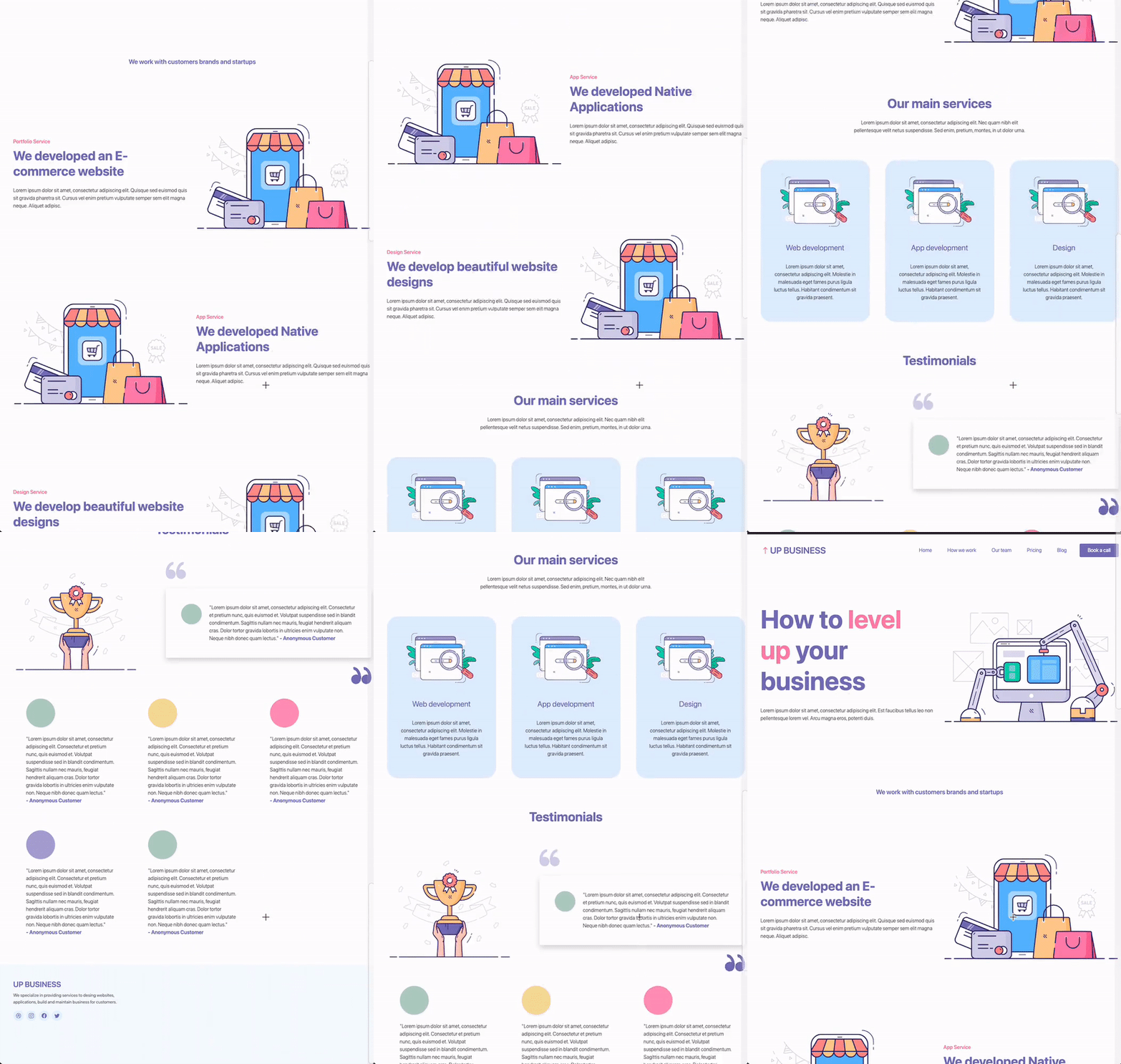
You now have a beautiful, fully dynamic, rendered landing page: Rendered landing page
Best practices

Adding default values to fields

Set predefined default values for fields to maintain consistency: Default values configuration Benefits of default values:
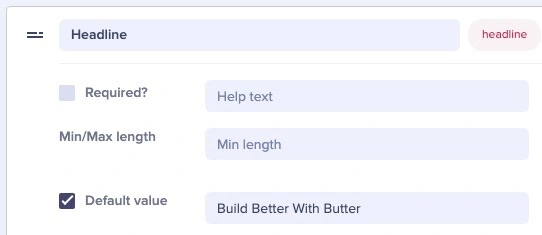
  • Streamline Content Creation: Fields are pre-populated with commonly used values
  • Consistency: Ensure uniformity across your landing pages
  • Efficiency: Save time by reducing manual data entry
  • Error Reduction: Minimize typos and mistakes
You can also use help-text and pattern matching with individual fields to better guide your marketing team.

Content design principles

  • Keep components focused: Avoid Components that try to do multiple unrelated things; each Component should do one thing well.
  • Use sensible defaults: Pre-fill common values to speed up content creation
  • Limit required fields: Only require what’s absolutely necessary
  • Document field purposes: Add descriptions for content editors via help text
  • Document your components: Create a style guide for editors
  • Limit choices: Too many Components can be overwhelming
  • Use clear naming: Component names should be self-explanatory

Developer tips

  • Handle missing Components: Always check if Component type exists
  • Add error boundaries: Prevent one bad Component from breaking the page
  • Test on all devices: Ensure responsive design works

Performance tips

  • Lazy load components: Load below-the-fold components on scroll
  • Optimize images: Use ButterCMS CDN transformations
  • Cache API responses: Reduce API calls with caching