
Overview
Creating a table of contents in ButterCMS involves three main steps:- Create a list of sections at the top of your post
- Add anchor IDs to headings using the Source Code view
- Link your list items to those anchor IDs
Step-by-step guide
Step 1: Create your table of contents list
First, create a list of all the sections of your blog post that you would like to include as your table of contents.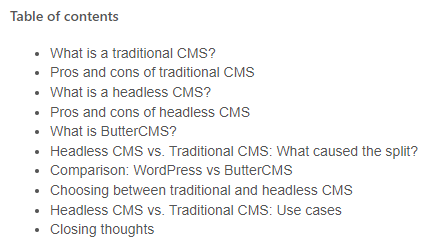
Step 2: Open source code view
Open the Source Code view for your blog post to access the HTML. Click the Source Code button (
< >) in the WYSIWYG toolbar to switch to the HTML view.
Step 3: Add IDs to your headings
Look for the headlines of your post that correspond to each section of your table of contents. You can do this with a simple Ctrl+F (Find), and then add anid attribute to each heading.
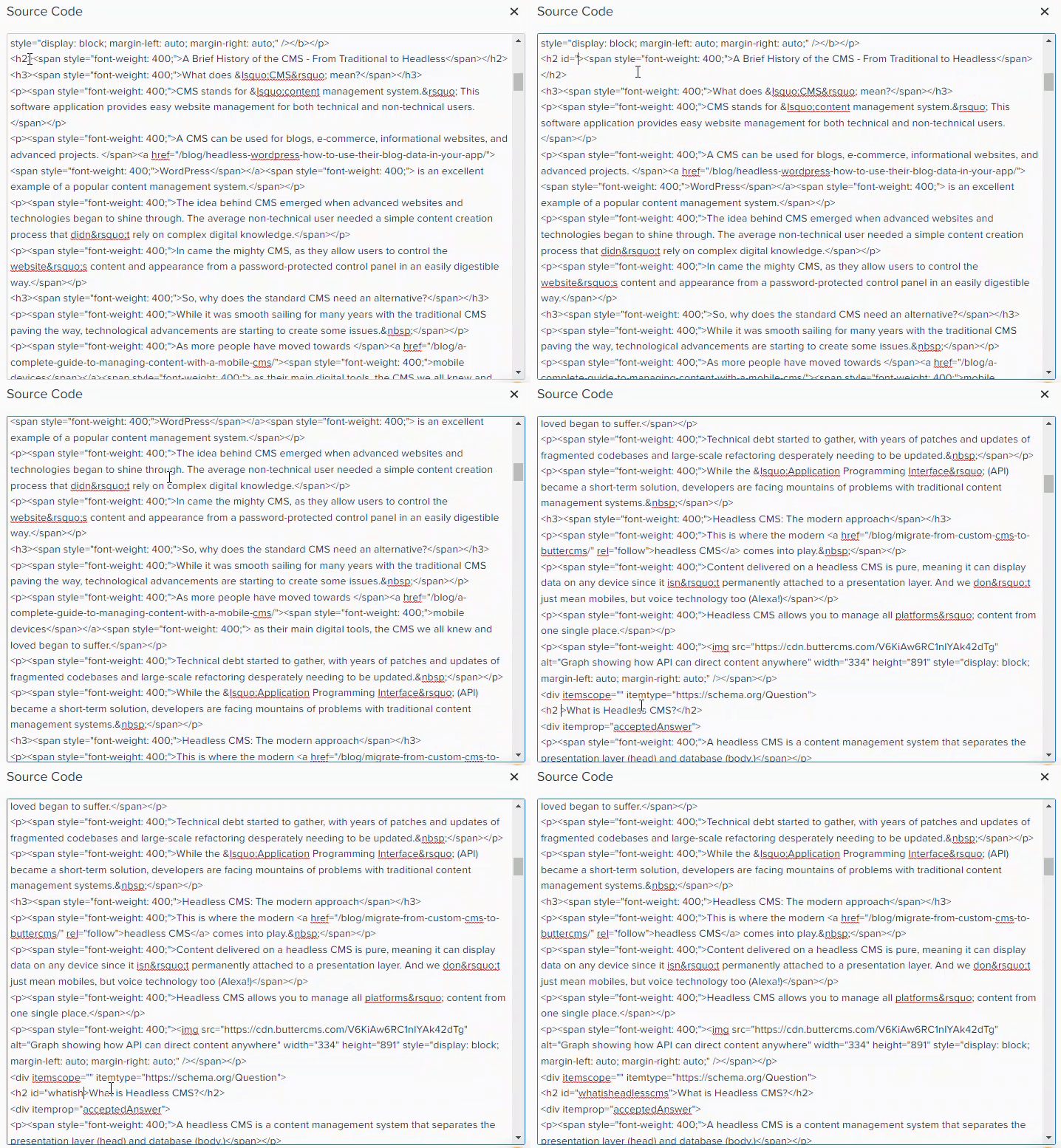 For example, change:
ID naming tips:
- Use lowercase letters
- Replace spaces with hyphens
- Keep IDs short but descriptive
- Each ID must be unique within the page
Step 4: Link table of contents to IDs
Now link the items on your table of contents to the IDs you just created by adding anchor links.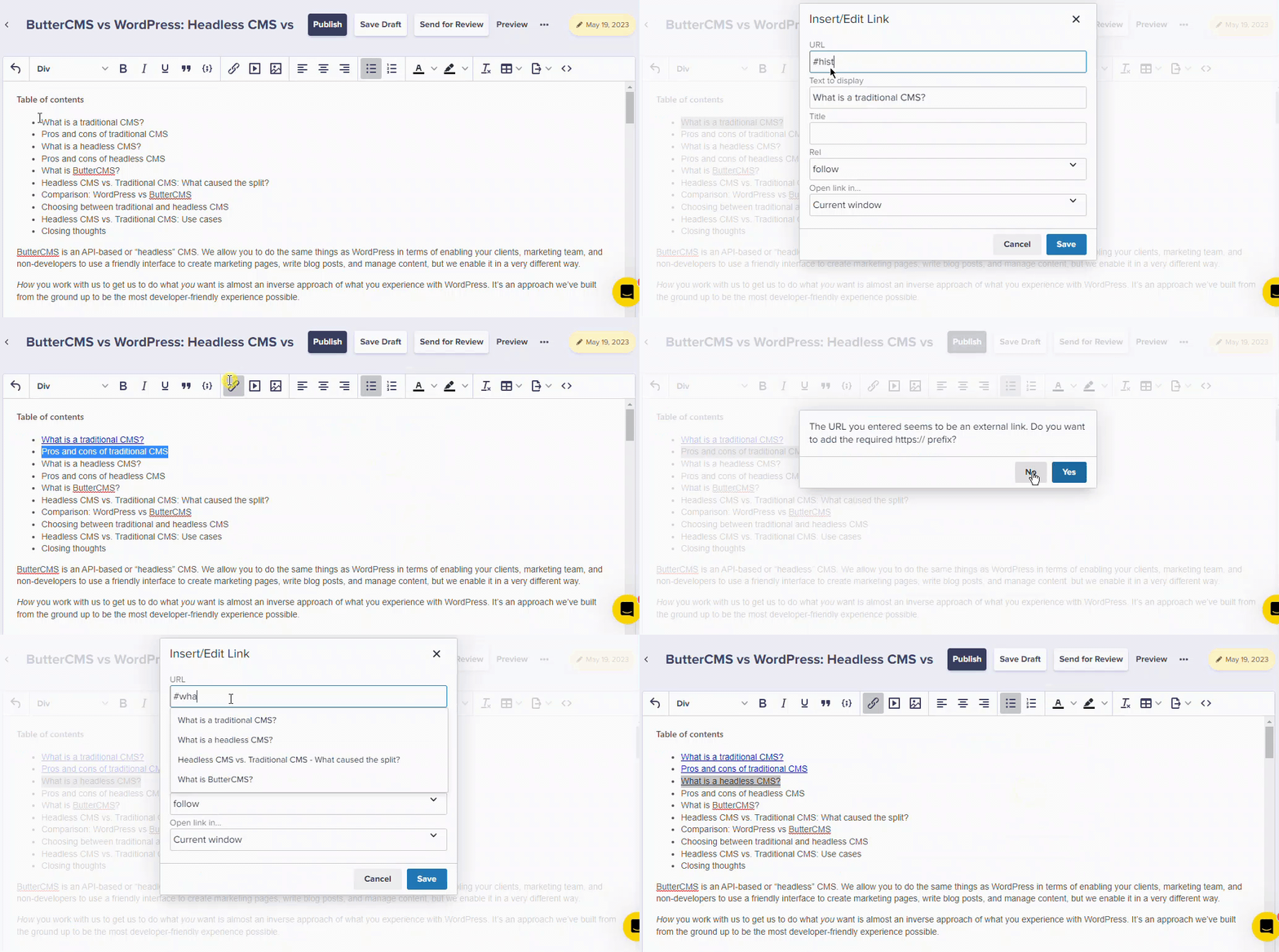 Change your list items from:
# symbol followed by the ID creates an anchor link that jumps to that section.
Step 5: Verify and save
Go back to the Source Code view to check and make sure everything is linked correctly. Then save your post or publish it.Complete example
Here’s a complete example of a blog post with a table of contents:Best practices
When to use a table of contents
Good for TOC
- Long-form articles (1500+ words)
- Tutorials with multiple steps
- How-to guides
- Documentation
- Comparison posts
May not need TOC
- Short blog posts
- News updates
- Announcements
- Single-topic posts
Naming your anchors
Structuring your content
For the best table of contents experience:- Use clear headings - Readers should understand the section from the heading alone
- Keep consistent depth - Don’t mix H2 and H4 without H3 in between
- Limit to major sections - 5-10 items is usually ideal
- Update when editing - If you change a heading, update the TOC link too
Troubleshooting
Links aren't working
Links aren't working
- Check that the
idattribute exactly matches thehrefvalue (minus the#) - Ensure there are no spaces or special characters in the ID
- Verify the ID is unique - duplicate IDs will cause issues
Link jumps to wrong section
Link jumps to wrong section
- Make sure each heading has a unique ID
- Check for duplicate IDs in your Source Code
- Verify the href points to the correct ID
Table of contents looks unstyled
Table of contents looks unstyled
- The visual styling depends on your website’s CSS
- Contact your developer to add styling for TOC lists
- Consider using a specific class for TOC lists
Alternative: Using the link tool
If you prefer not to use the Source Code view, you can create anchor links using the Link tool:- Add IDs via Source Code (one-time setup for each heading)
- Select your TOC text in the normal editor view
- Click the Link button in the toolbar
- Enter the anchor link as
#your-heading-id - Save the link
id attributes to headings, but the linking step can be done in the visual editor.